
Overview. Quickvee's Print Label feature lets you print barcode shelf labels and product labels directly from the web backend. To print to a Brother QL-800 label printer, three pieces of software must be installed on the Windows computer running the browser: the printer driver, the Brother b-PAC client software, and the Brother b-PAC browser extension. This guide walks through the complete one-time setup, then shows how to print labels once setup is done.
Windows only. The Brother b-PAC extension that Quickvee uses to communicate with the QL-800 runs on Windows only. Label printing to the QL-800 is not supported on Mac or from mobile devices. (DYMO label printer support is on the roadmap as a future option.)
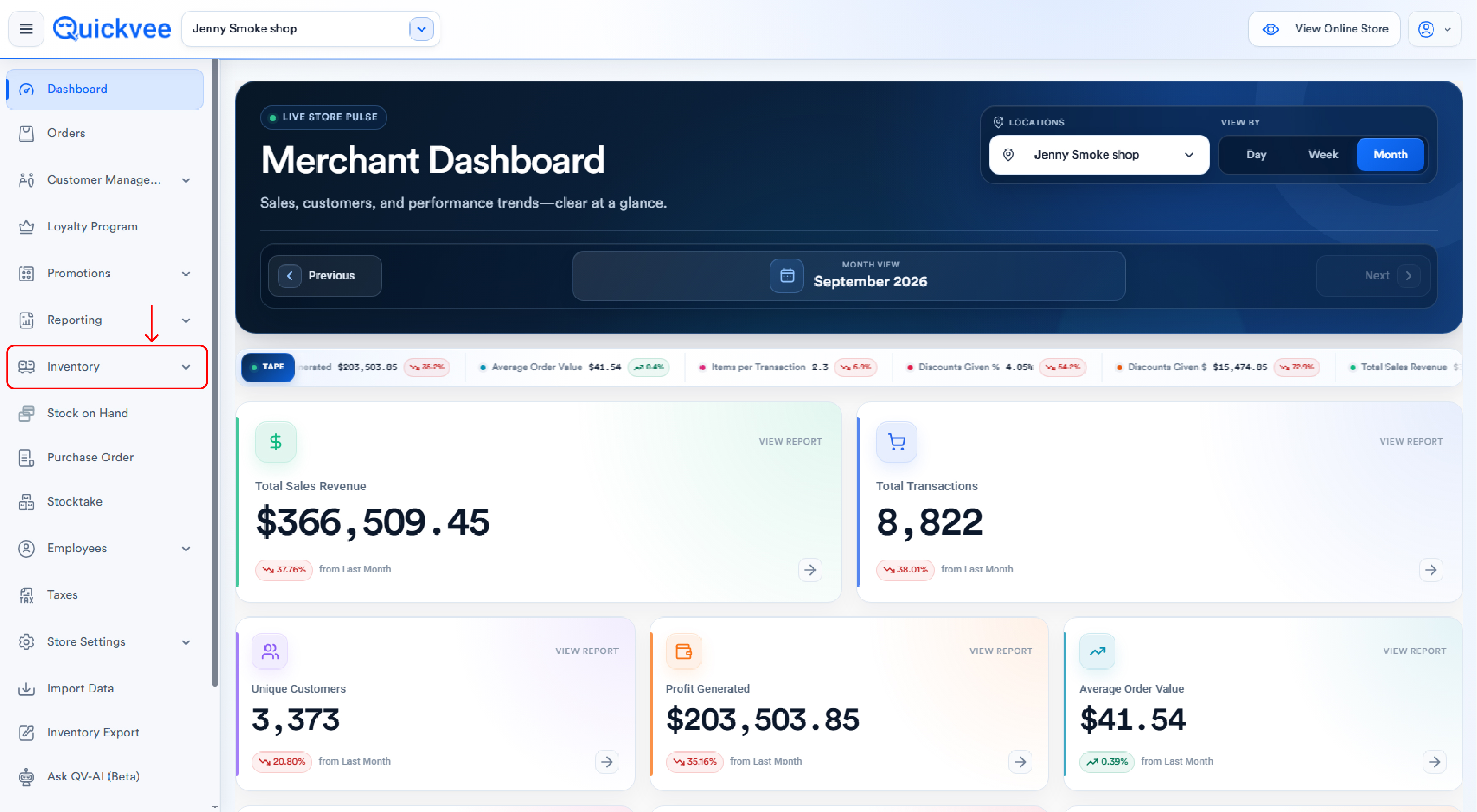
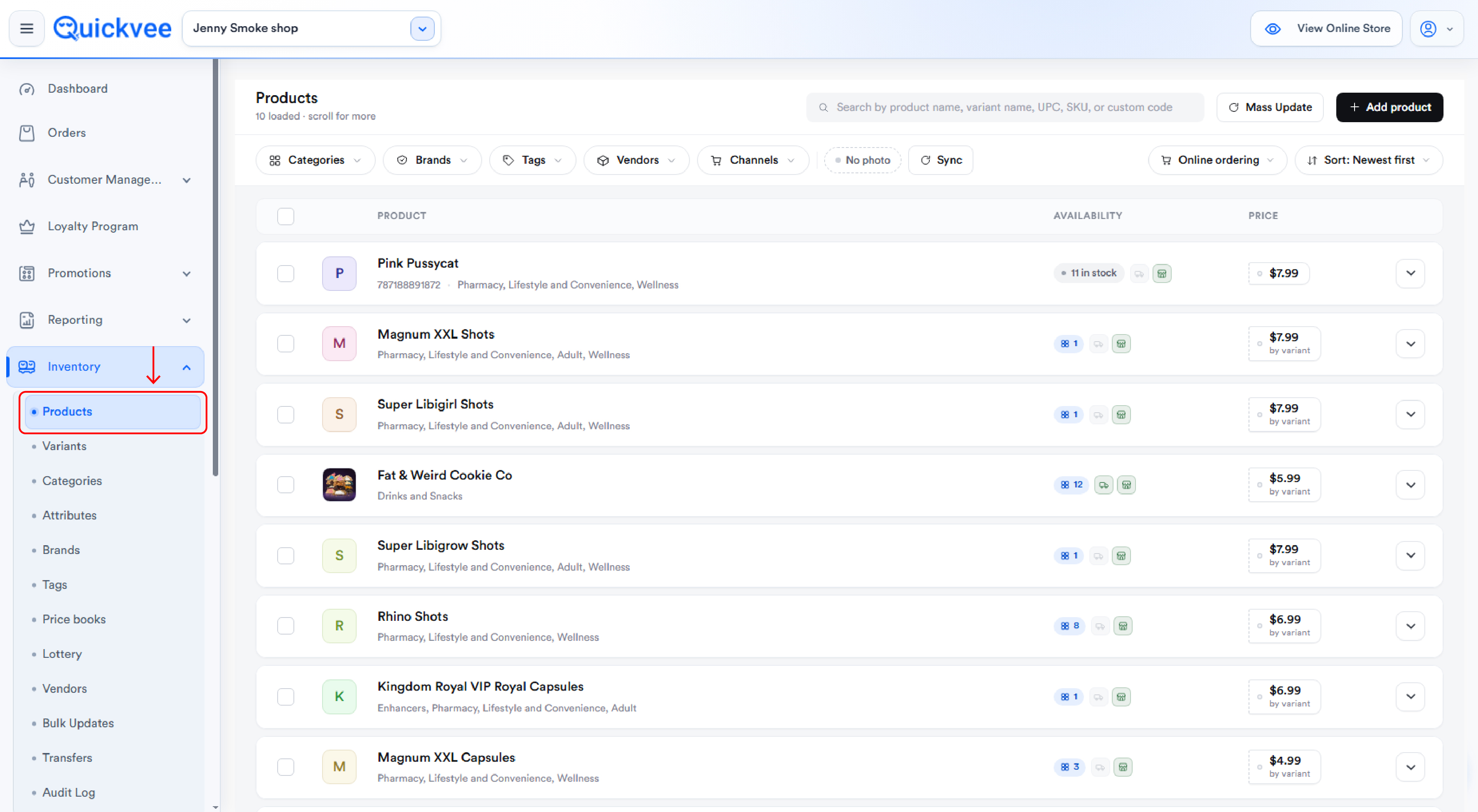
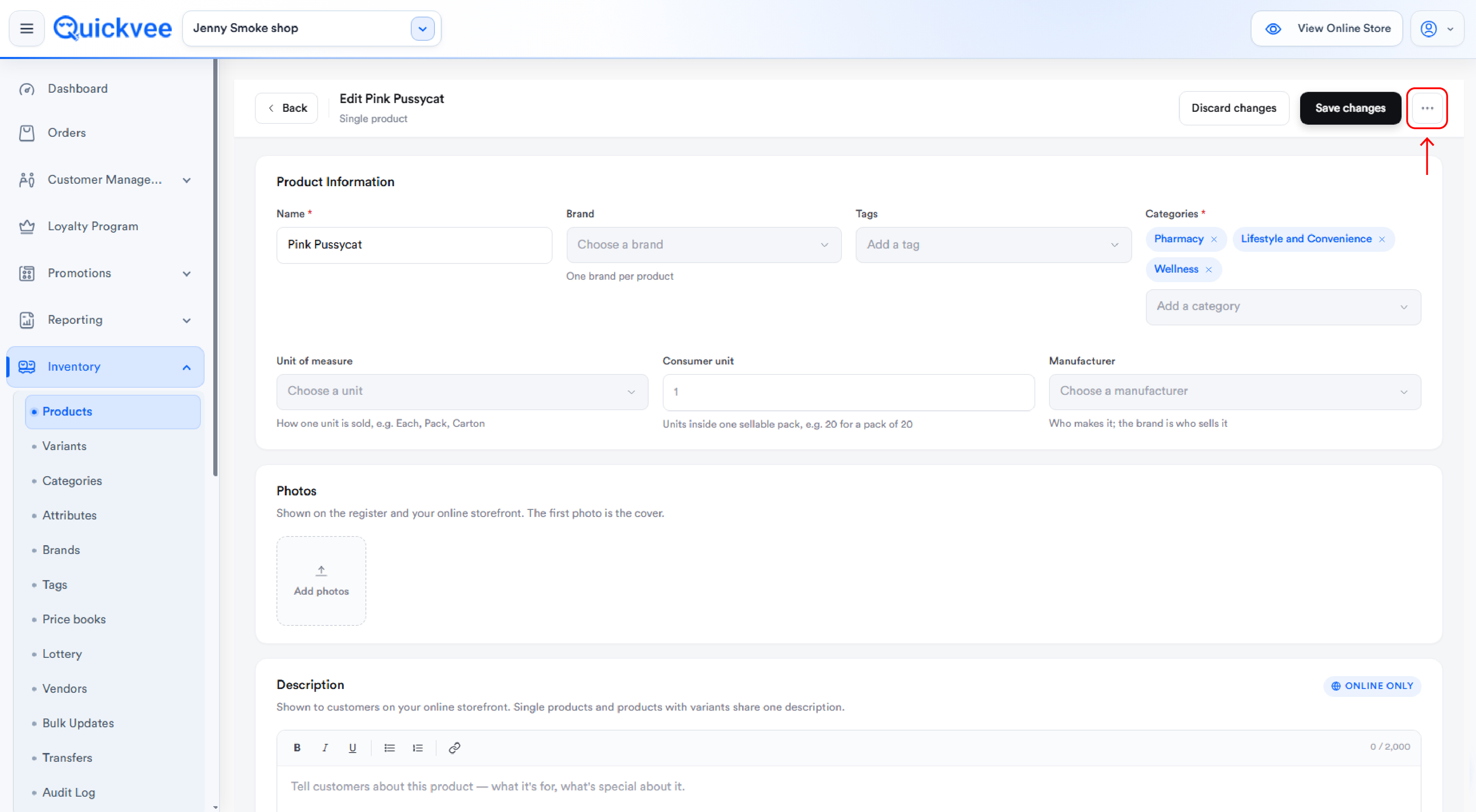
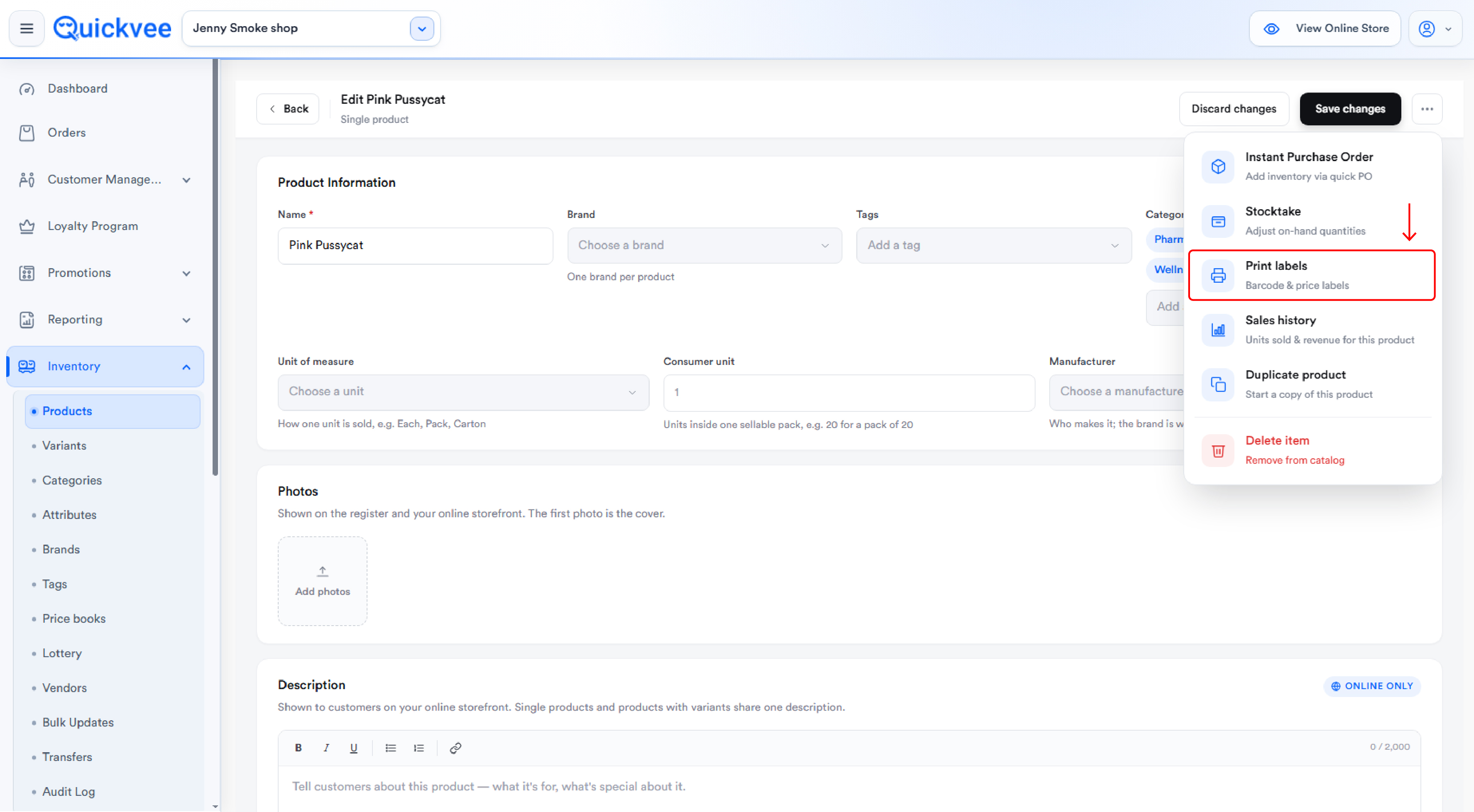
Access path for the feature: Quickvee Web (merchant backend) → Inventory → Products → open a product → on a variant, tap Print Label → Printer Setup tab
What you'll need
|
Requirement |
Detail |
|---|---|
|
Brother QL-800 label printer |
Powered off and disconnected during driver install |
|
Windows PC |
The b-PAC extension is Windows-only |
|
Google Chrome (or Microsoft Edge / Firefox) |
The browser you run Quickvee in; this guide uses Chrome |
|
USB cable |
To connect the QL-800 to the PC |
|
Compatible label rolls |
3"×1.5", 1"×1", or 2"×1.5" depending on your label size |
Where the setup instructions live
Quickvee includes the setup checklist inside the app itself. Open any product variant in Inventory → Products, tap Print Label, then switch to the Printer Setup tab. The four numbered steps there mirror this guide. Keep that tab open as a reference while you install.
Part 1 — Install the printer driver
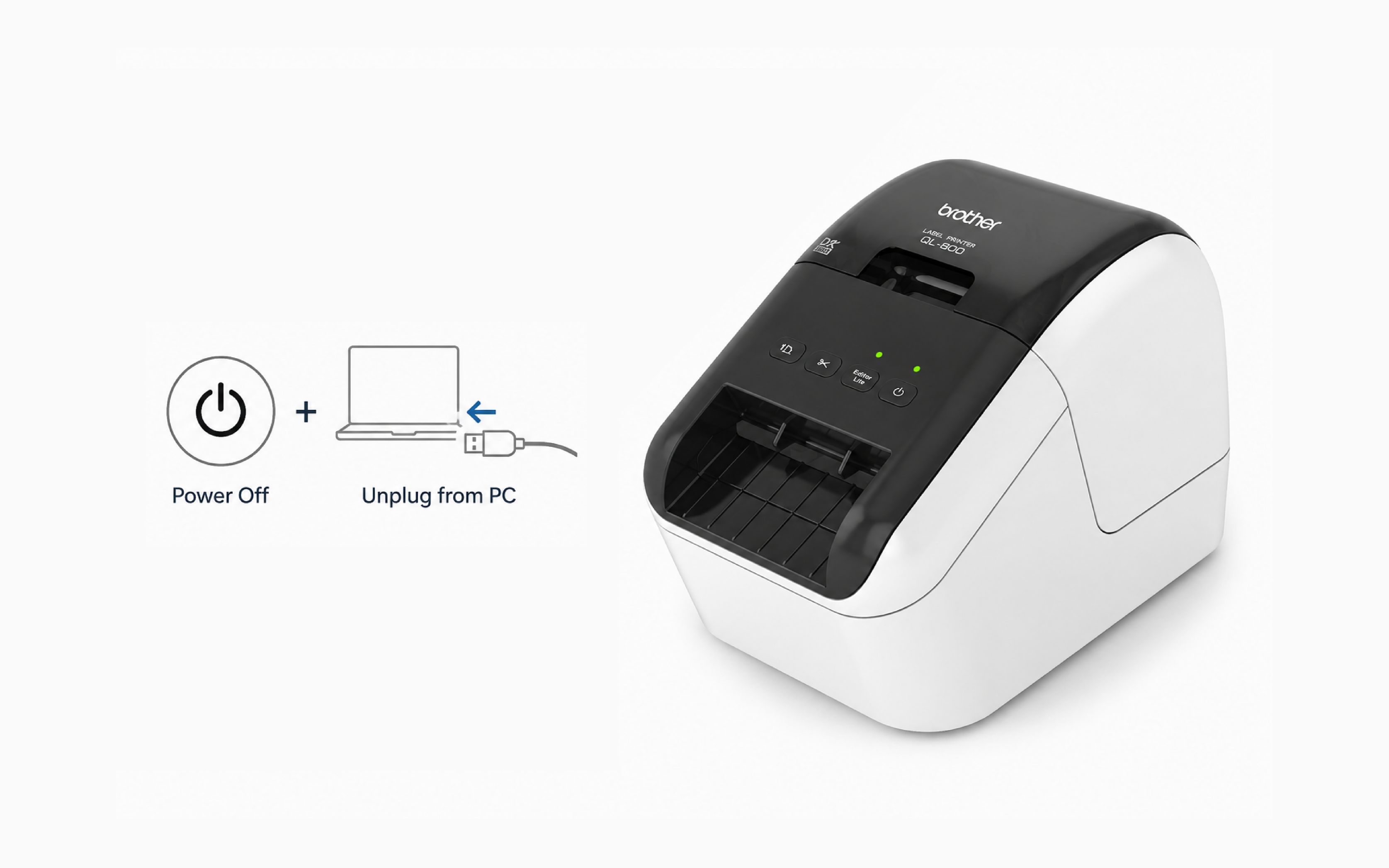
Step 1 — Turn off and disconnect the printer
Before installing, make sure the QL-800 is powered off and unplugged from the PC. Brother's installer expects the printer disconnected during driver setup and prompts you to connect it at the right moment.
Step 2 — Find the QL-800 on Brother's support site
-
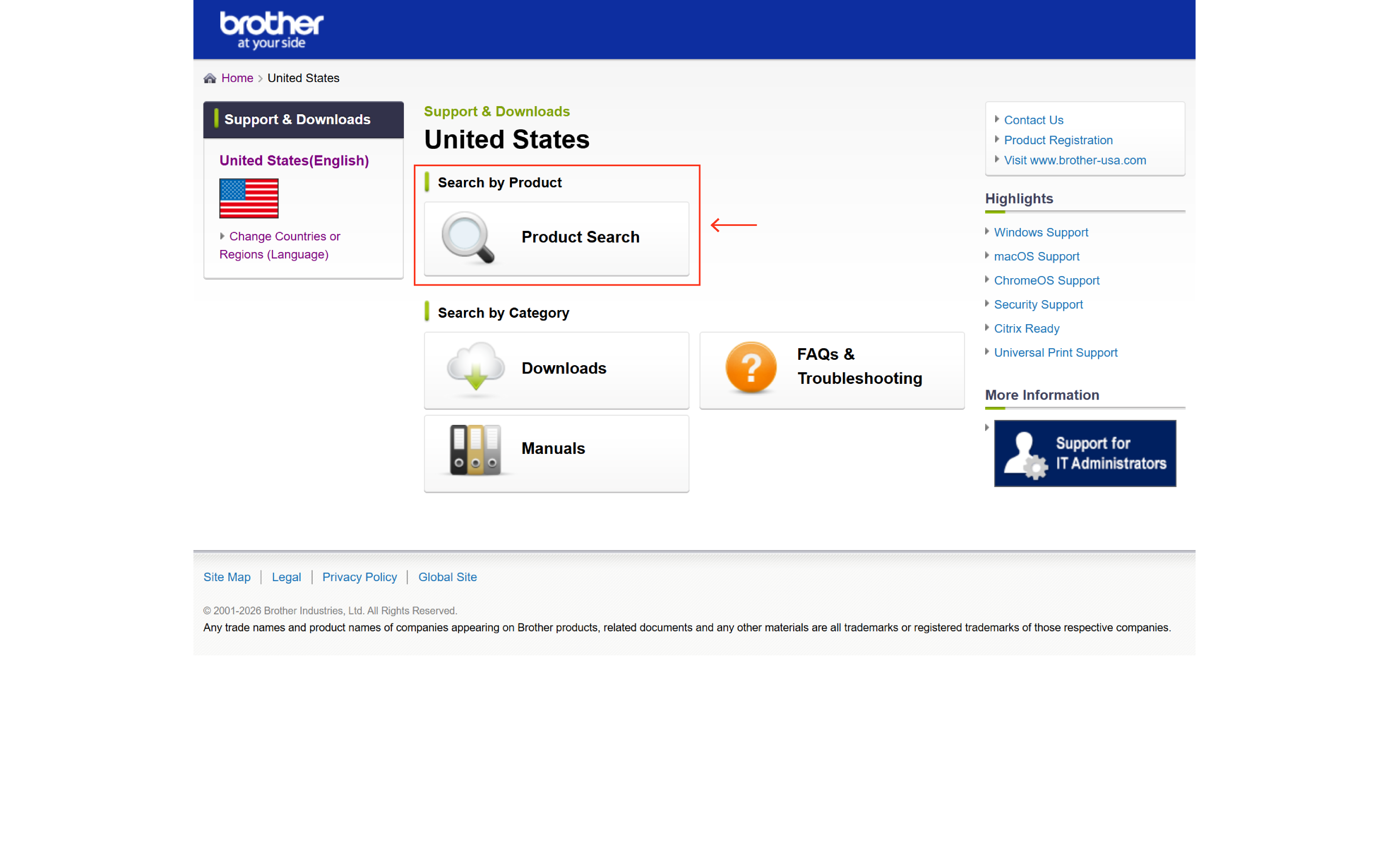
Go to Brother's Support & Downloads site.
-
In Search by Model Name, type
QL-800and search — or pick it from the product category list under Label Printer (QL/TD). -
Open the QL-800 product page.
Step 3 — Open Downloads and select your OS
-
On the QL-800 page, click Downloads.
-
Step 1: Select OS Family — choose Windows.
-
Step 2: Select OS Version — choose your version (e.g. Windows 11, or Windows 10 64-bit).
-20260701-071705.png?cb=a9357455e2465f048bb99fa357fcaaa9)
-
Click OK.
Step 4 — Download and install
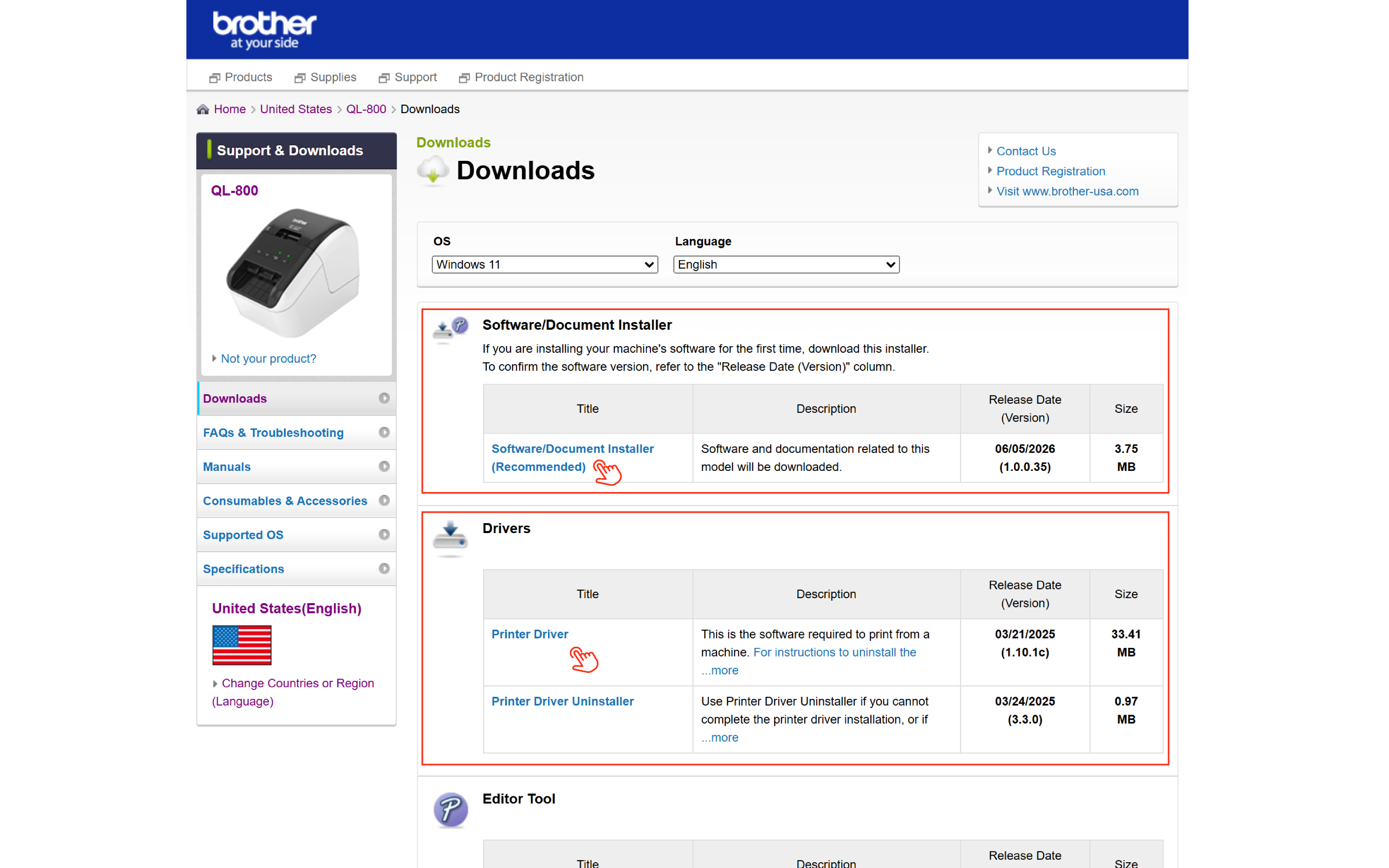
On the Downloads list, you'll see two relevant options:
|
Download |
Use |
|---|---|
|
Software/Document Installer (Recommended) |
The all-in-one package — installs the driver plus utilities. Recommended for most setups |
|
Printer Driver |
The driver only, if you prefer a minimal install |
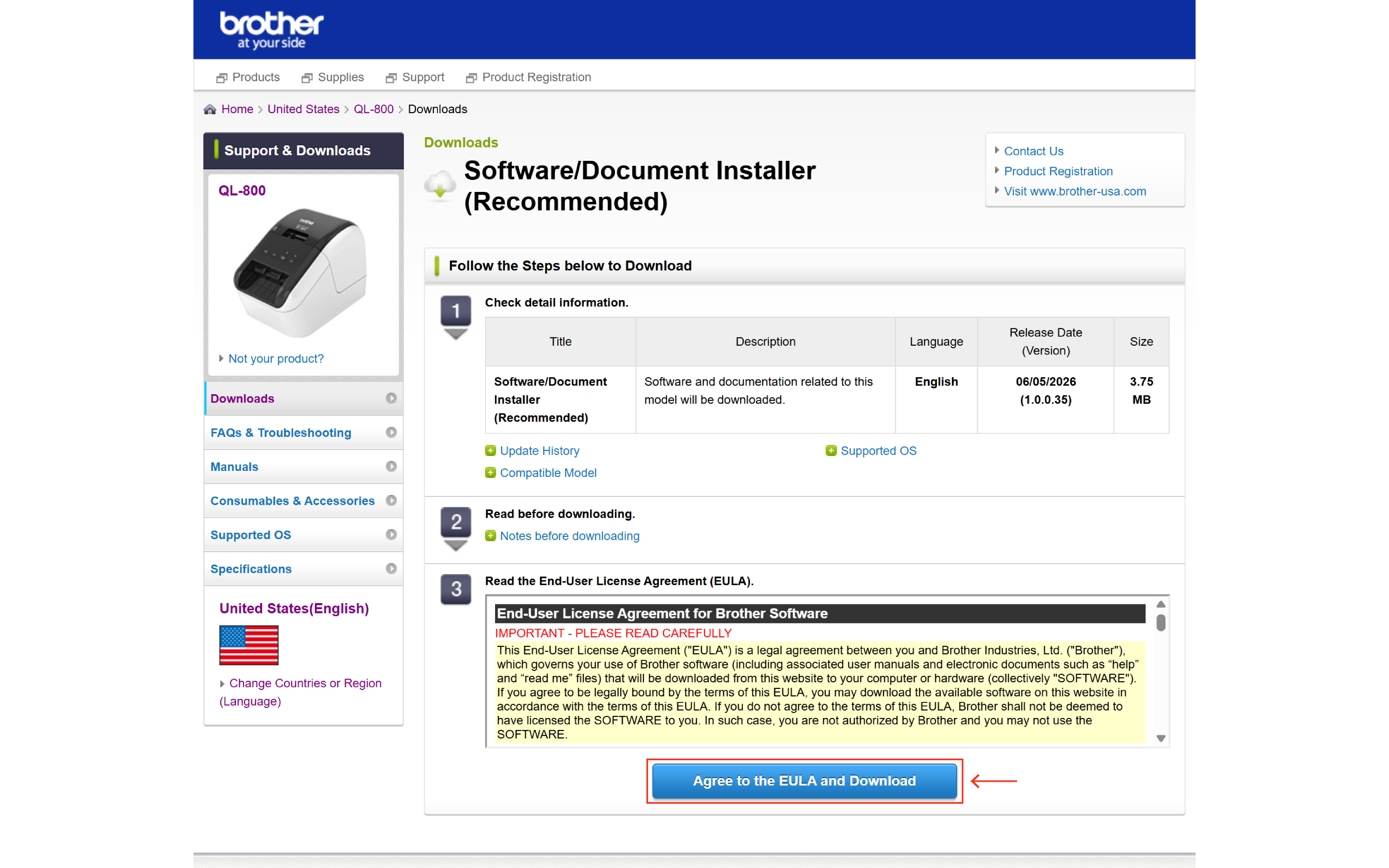
For the recommended path, click Software/Document Installer (Recommended), follow the on-screen steps, Agree to the EULA and Download, then run the downloaded installer. When the installer prompts you to connect the printer, plug the QL-800 into the PC via USB and power it on.
Part 2 — Install the b-PAC client software
b-PAC is the Brother component that lets a web browser send print jobs to the QL-800. Without it, Quickvee cannot reach the printer.
Step 1 — Open the b-PAC download page
From the QL-800 support page (or the Information for Developers section of Brother's site), open the b-PAC Download page.
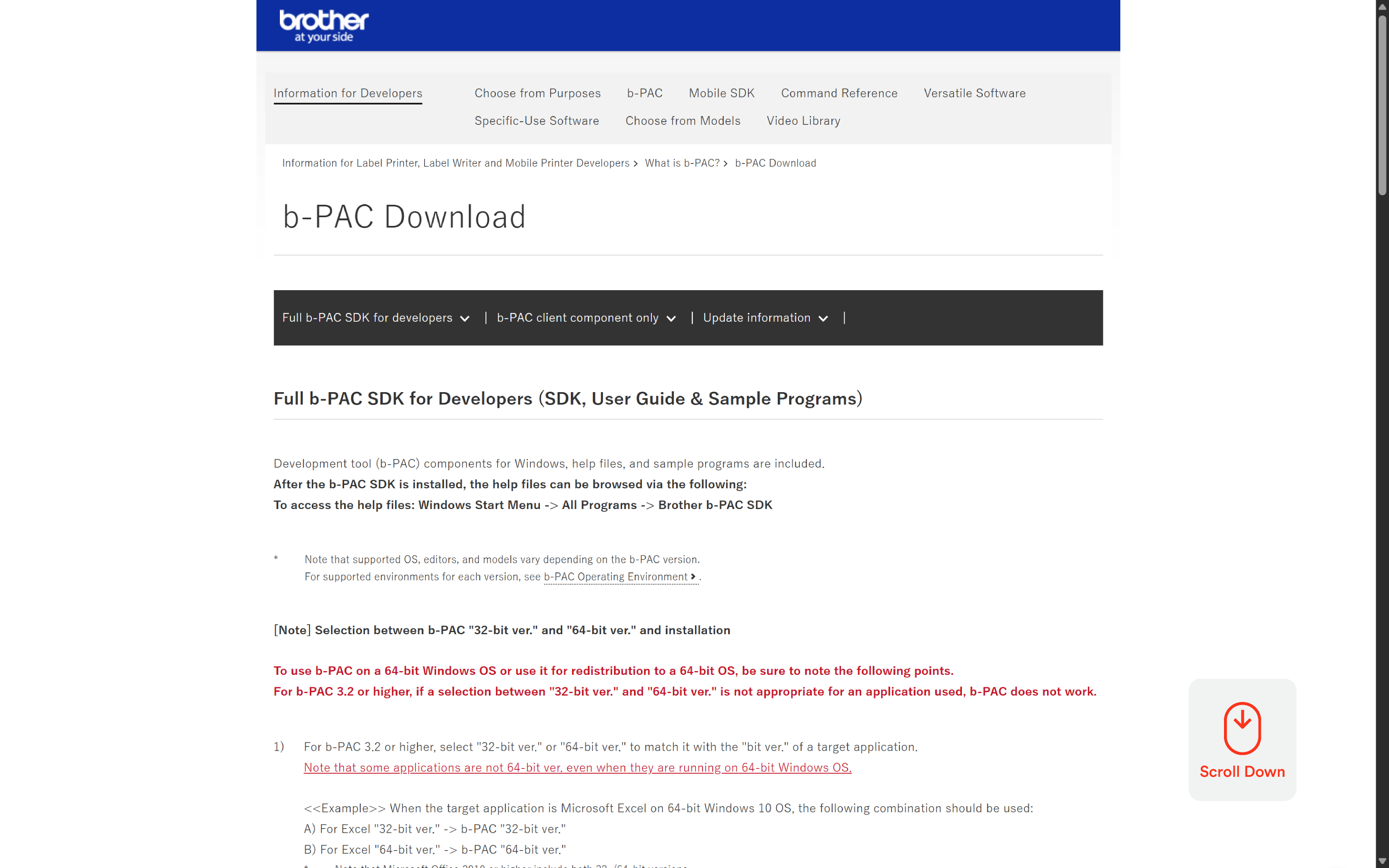
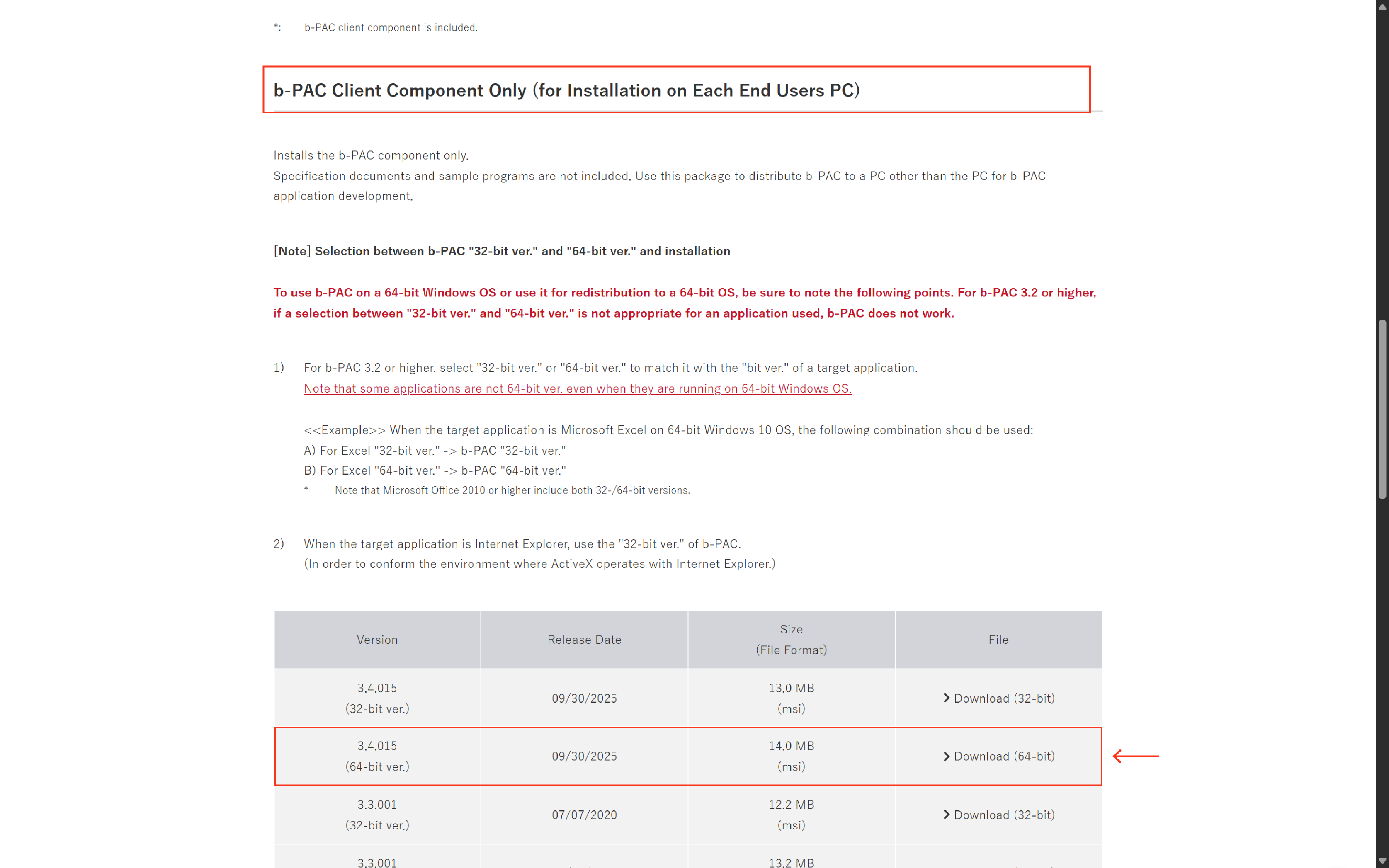
Step 2 — Download the b-PAC client component
-
Open the b-PAC client component only section (you don't need the full SDK).
-
From the version table, choose the latest version (e.g. 3.4.015).
-
Download the 64-bit version (
.msi) unless your PC is 32-bit.
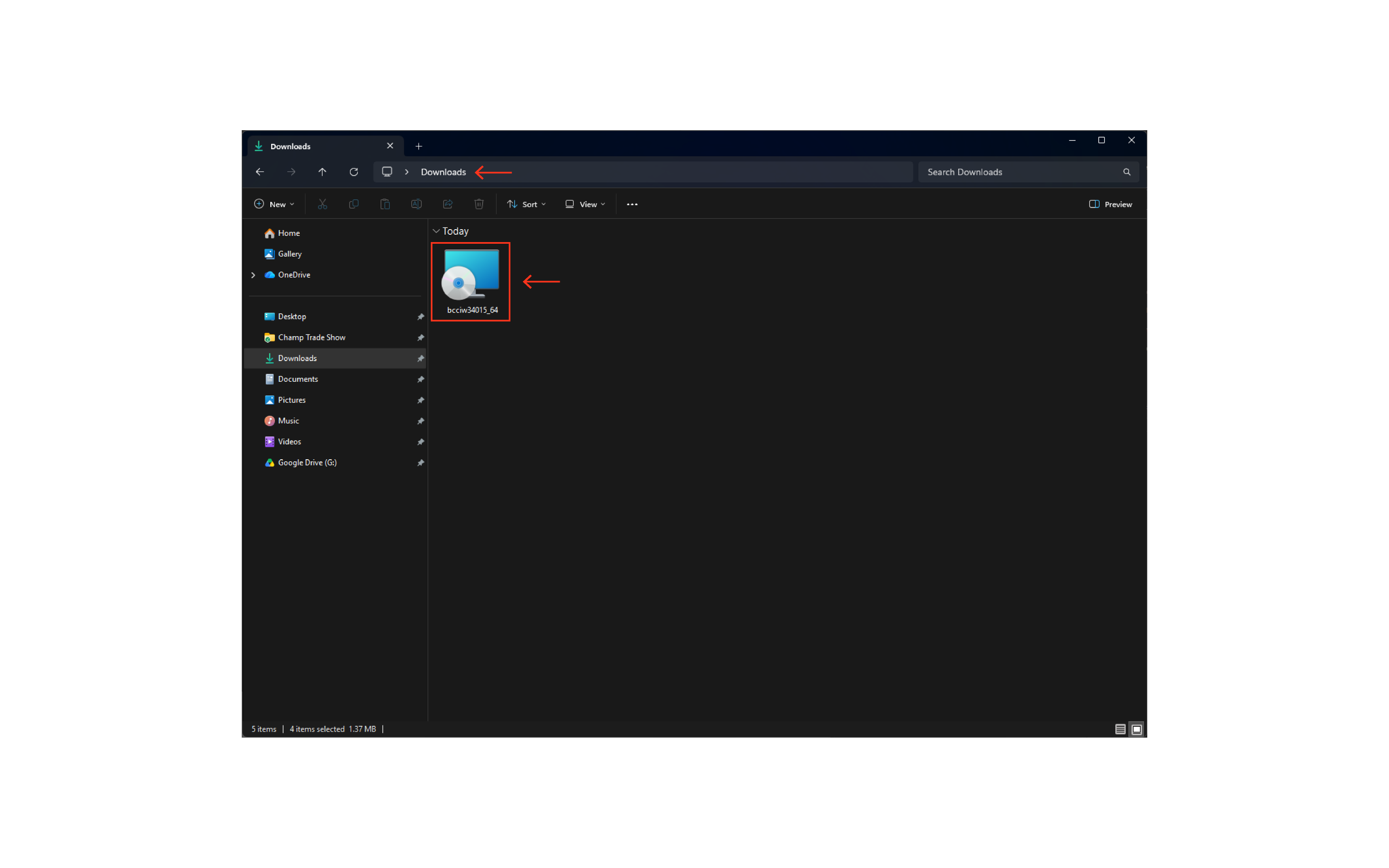
Step 3 — Install
Run the downloaded .msi installer and follow the prompts to completion. A restart of the browser afterward is good practice.
Always choose the latest 64-bit version unless you have a specific reason to use 32-bit. Most modern Windows PCs are 64-bit.
Part 3 — Install the browser extension
The final piece is the Brother b-PAC Extension for your browser, which bridges Quickvee in the browser to the b-PAC client you just installed.
Step 1 — Open the extension in the Chrome Web Store
Search the Chrome Web Store for Brother b-PAC Extension, or open it from the link in Quickvee's Printer Setup tab.
Step 2 — Add to Chrome
Click Add to Chrome and confirm. (For Firefox, use the corresponding Firefox add-on; the Printer Setup tab links to it.)
-20260701-072353.png?cb=455ea89f0c474aab14dda762bf01d6c4)
Step 3 — Confirm it's enabled
-
Open
chrome://extensionsin the address bar. -
Find Brother b-PAC Extension in the list.
-
Make sure its toggle is on (enabled).
-20260701-072312.png?cb=3d27ba8deaa7ce922fd61f5eab88e995)
The extension's own description confirms it: it allows control of Brother label and mobile printers from Chrome using b-PAC, Windows only.
Part 4 — Print a test label
With all three components installed, you're ready to print.
-
In Quickvee, go to Inventory → Products and open any product.
-
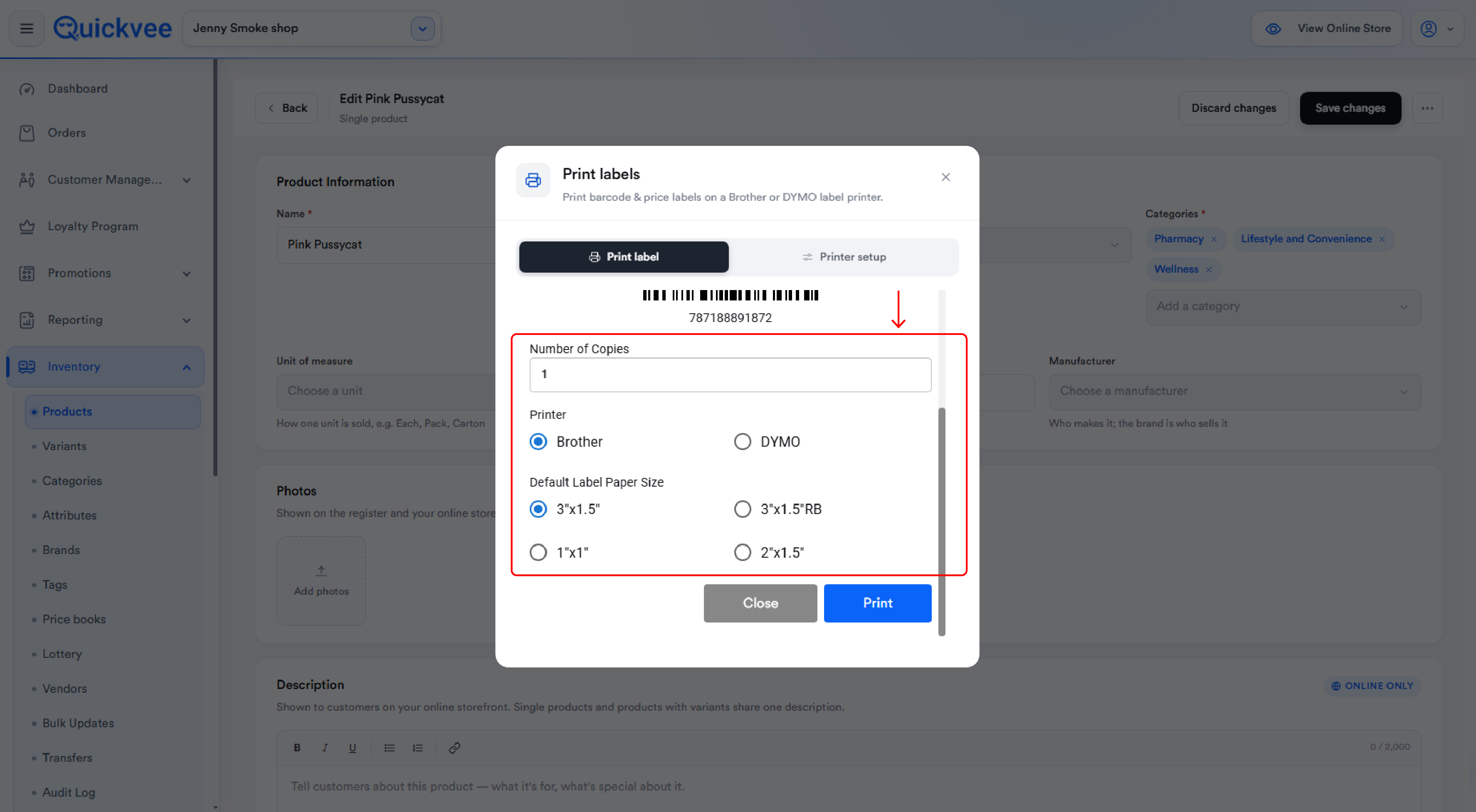
On a variant, tap Print Label.
-
The Print Label tab shows a barcode preview of that variant's code.
-
Set Number of Copies.
-
Choose a Default Label Paper Size:
|
Size |
Typical use |
|---|---|
|
3"×1.5" |
Standard shelf-edge label |
|
3"×1.5"RB |
3"×1.5" rotated/right-bottom layout variant |
|
1"×1" |
Small square product label |
|
2"×1.5" |
Compact shelf label |
6. Tap Print. The job routes through the b-PAC extension to the QL-800, and the label prints.
If the label prints and the barcode scans cleanly at the register, setup is complete.
Using Print Label day to day
Once setup is done, printing is a two-tap operation from any product variant:
-
Open the product in Inventory → Products.
-
Tap Print Label on the variant.
-
Confirm copies and size, tap Print.
The barcode printed matches the variant's UPC or custom code, so labels scan directly into the register and on the receiving/stocktake workflows.
Troubleshooting
"Something went wrong" when printing. Usually means the b-PAC extension or client isn't reachable. Confirm the extension is enabled at chrome://extensions, confirm the b-PAC client is installed, and restart the browser. Re-plug the printer's USB and confirm Windows sees it.
Nothing prints and no error. Check that the QL-800 is powered on, connected via USB, and loaded with label roll. Confirm Windows can print a test page to it from the Windows printer settings — if Windows can't print to it, Quickvee can't either.
Barcode prints but won't scan. Make sure the selected label paper size matches the physical roll loaded. A small size (1"×1") squeezing a long barcode can render it unscannable — switch to a larger size such as 3"×1.5".
Multiple labels print when you only wanted one. Tap Print once and wait. Repeated clicking while the job spools can queue extra copies.
Works in Chrome but not Edge/Firefox. Confirm the matching b-PAC extension is installed and enabled for that specific browser. Each browser needs its own copy of the extension.
Custom code shows as a placeholder on the label. Confirm the variant has a UPC or custom code set in the catalog. A label for a variant with no code will not produce a usable barcode.
Mac or mobile. Brother QL-800 label printing through b-PAC is not supported on Mac or mobile — the extension is Windows-only. Use a Windows PC for label printing.
Important notes
This is a one-time setup per computer. Once the driver, b-PAC client, and extension are installed on a given Windows PC, you don't repeat it. A second PC that needs to print labels requires its own full setup.
Keep the b-PAC extension enabled. If labels stop printing after working fine, the first thing to check is whether the extension got disabled at chrome://extensions.
The driver and b-PAC are separate installs. Installing only the printer driver lets Windows print to the QL-800 generally, but Quickvee specifically needs b-PAC to send labels from the browser. Both are required.
Label size must match the loaded roll. The Default Label Paper Size selection tells the printer how to lay out the label; it does not change the physical roll. Match them.
Downloads come from Brother directly. The printer driver, b-PAC client, and browser extension are all downloaded from Brother's official support site and the official Chrome Web Store. Quickvee links to these but does not host them.
Sources: QV-4430, QV-345, QV-382, QV-3121, QV-1769, QV-4552, QV-4553, QV-4578, QV-4581, QV-4556, QV-3941, QV-1044, QV-767, QV-5062; DYMO roadmap QV-5849. Documented in MM-531.