
The Products tab is where every parent product in your store lives. A product can stand alone with one price and one UPC, or it can act as a parent to multiple variants (different flavors, sizes, strengths) that each have their own price and UPC. This is where you add, search, filter, edit, disable, or delete products at the catalog level.
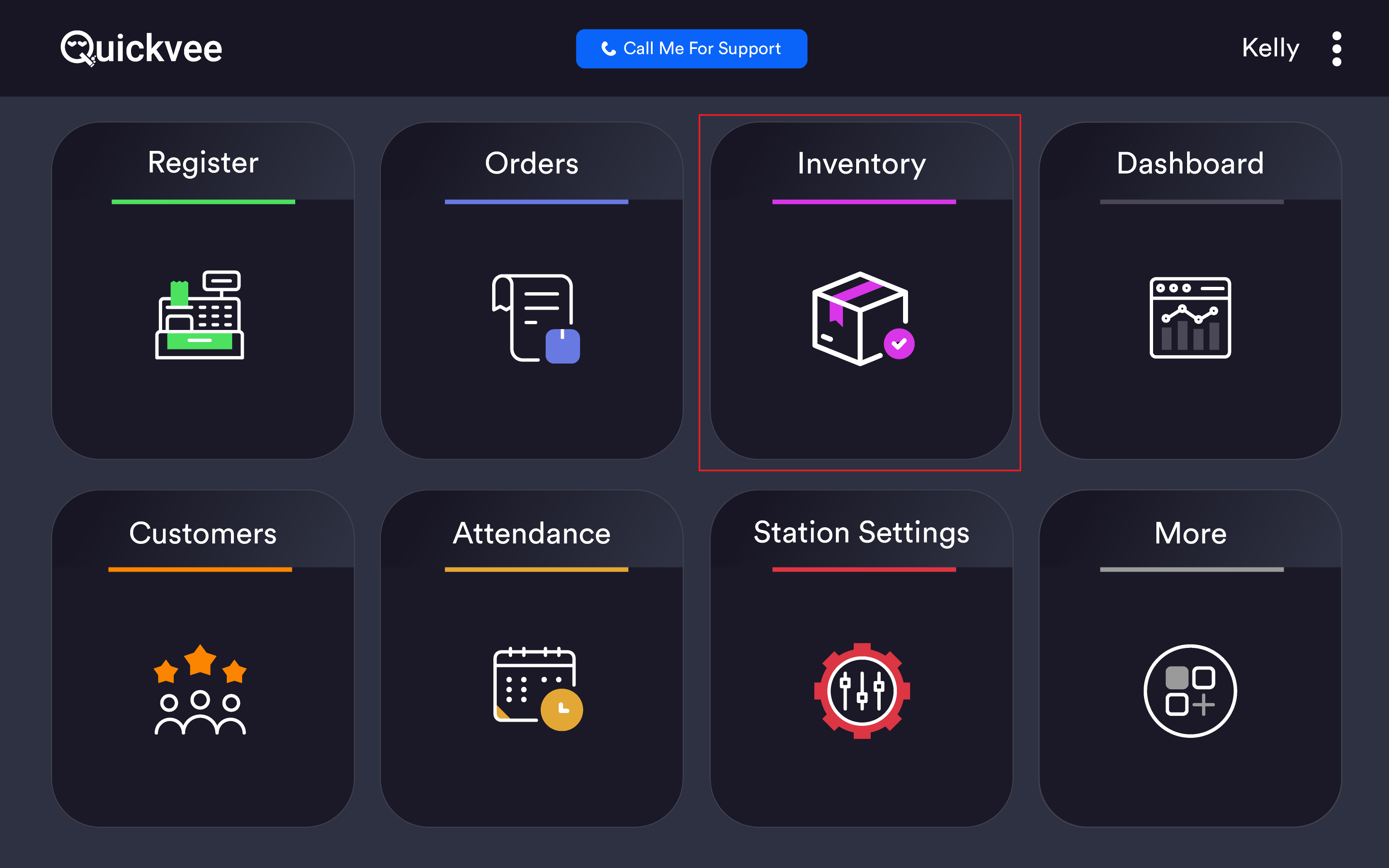
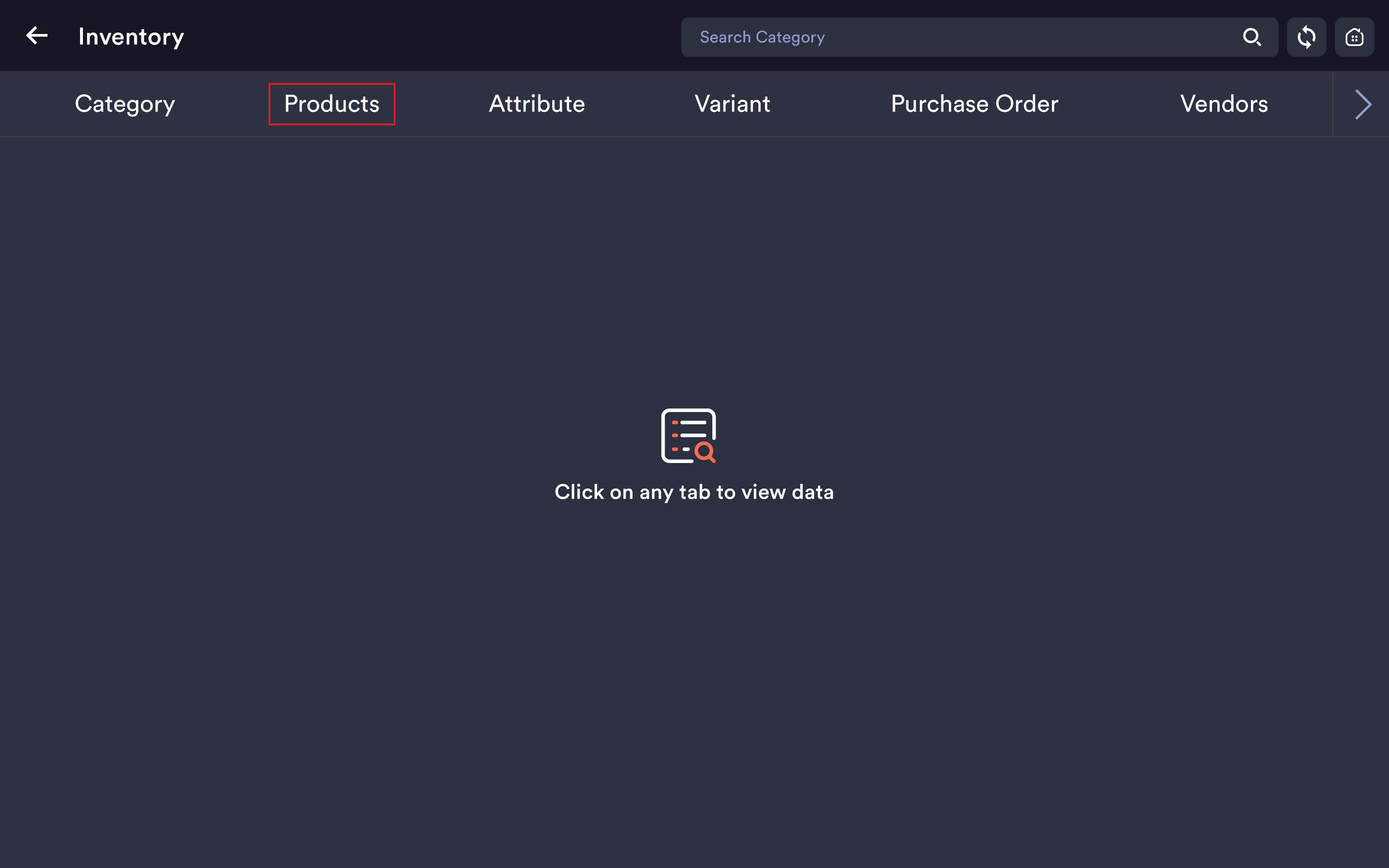
Access path: POS Home → Inventory → Products tab
The Products list
Every product appears as a card showing the product name, current stock, retail price, and a Delivery / Pickup channel toggle. Cards scroll vertically and wrap into multiple columns depending on tablet orientation. The green + button at the bottom-right opens the Add Product form.
Three lookup tools sit at the top of the screen:
|
Tool |
What it does |
|---|---|
|
Search By Product Name |
Type any part of the product name — the grid filters live as you type. |
|
Search by UPC |
Type a UPC manually, or tap into the field and scan the barcode — pulls the exact product. |
|
Scanner icon (top-right) |
Activates the barcode scanner for hands-free UPC lookup. Works with any USB or Bluetooth scanner already paired. |
Filtering by category
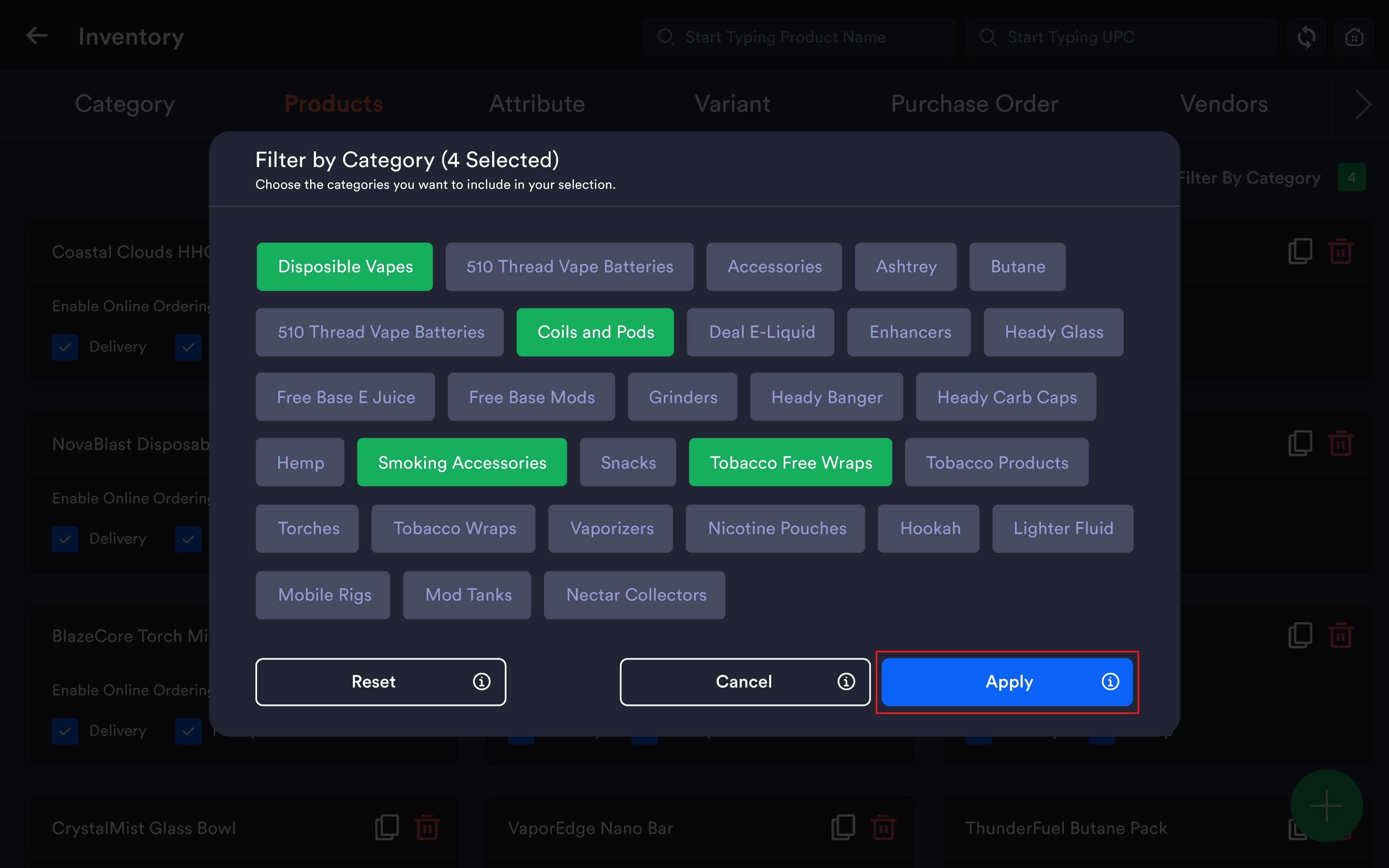
When your catalog runs into the thousands, the Filter by Category modal is the fastest way to narrow the list. Tap the filter icon above the product grid. The modal opens with the title Filter by Category and a tappable chip for every category in your store — Disposables, Pouches, Salt Nic, Shisha Hookah Tobacco, Delta Cannabis, CBD, Kratom, Accessories, Cigarettes, Cigars, Glass, Grinders, and so on. Tap any chip to include that category; tap again to remove it.
|
Button |
What it does |
|---|---|
|
Apply (blue, bottom-right) |
Closes the modal and re-filters the product list to show only products in the selected categories. |
|
Cancel |
Closes without applying any changes. |
|
Reset (bottom-left) |
Clears every chip selection in one tap. |
|
× (top-right) |
Same as Cancel — closes without applying. |
Tip: The filter is multi-select. Pick Disposables + Salt Nic + Pouches together if you're auditing your nicotine wall. There's no limit on how many you can stack.
Filter + search work together. Once a filter is applied, the search bars still work — typing Marlboro with the Cigarettes filter active narrows the result to Marlboros in Cigarettes only. The filter stays on until you Reset or change tabs.
Lottery products are excluded from the Products tab regardless of how you filter — they live on their own dedicated Lottery tab and follow their own rules.
Custom codes — multiple codes per product
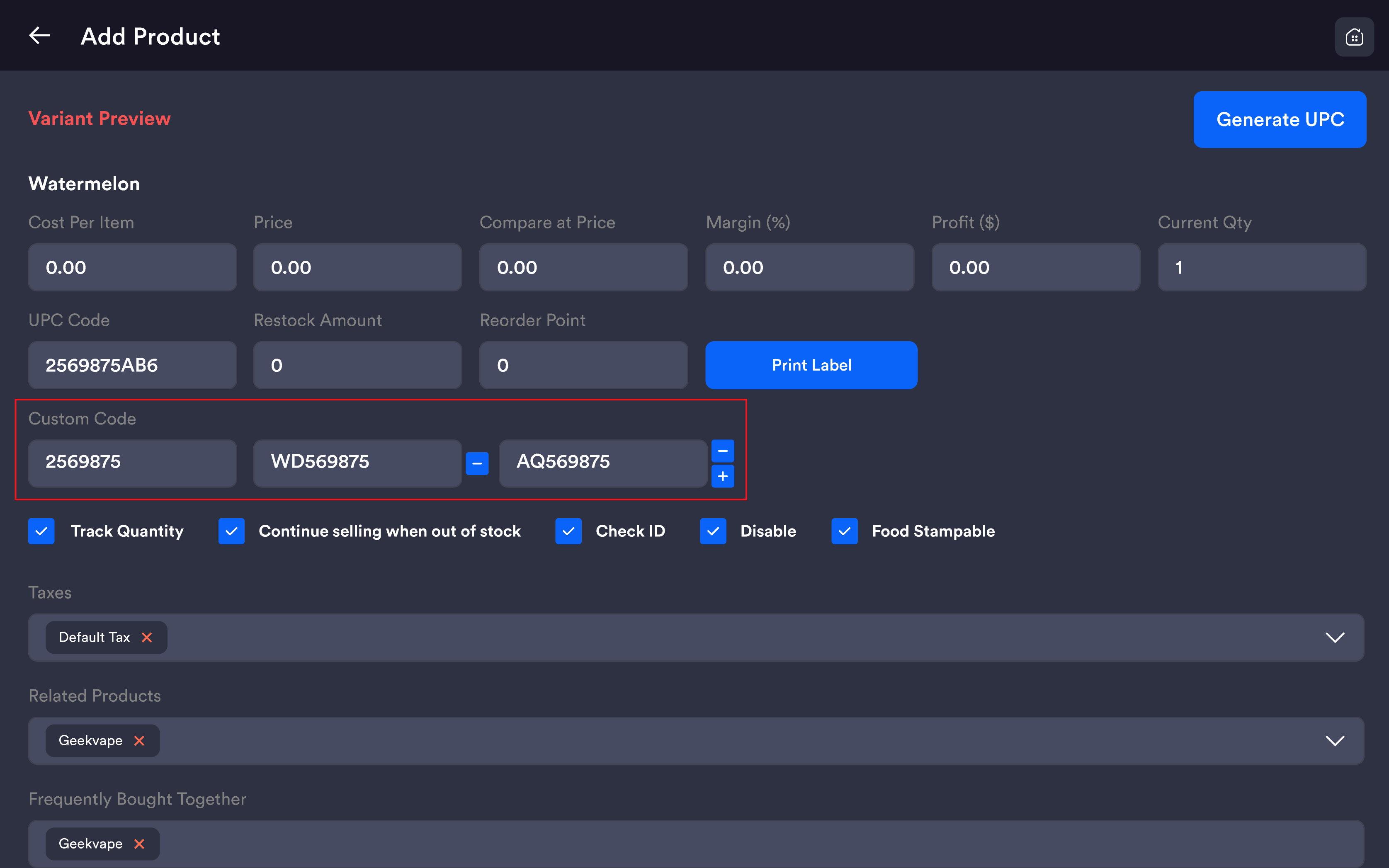
The Add Product and Edit Product forms include a Custom Code field for any identifier other than the scanned UPC — your internal SKU, a supplier's reference, a shelf-tag code, or a distributor's stock-keeping ID. A single product can carry multiple custom codes at the same time.
The first Custom Code field is always visible. To add a second, third, or further code, use the buttons next to the field:
|
Button |
What it does |
|---|---|
|
+ (blue) |
Adds another empty Custom Code field below. Tap as many times as you need codes. |
|
− (blue) |
Removes that specific Custom Code field. The first Custom Code field doesn't have a remove button — it's always present. |
Every custom code on the product is searchable at the register — cashiers can scan or type any of the codes to pull the product up.
Tip: Use multi-code when the same product is delivered by two different vendors with two different stock numbers. Enter both — your team can scan either label without re-mapping the shelf.
Custom Code is not the same as UPC. UPC is the primary scanned barcode used at checkout. Custom Codes sit alongside it as alternate identifiers. The system blocks UPC duplicates across your catalog, but Custom Codes can be reused if your workflow needs it.
What you can do here
-20260629-114756.png?cb=ba93ec789eee926e36ee4e00af48502b)
|
Action |
How |
|---|---|
|
Add a new product |
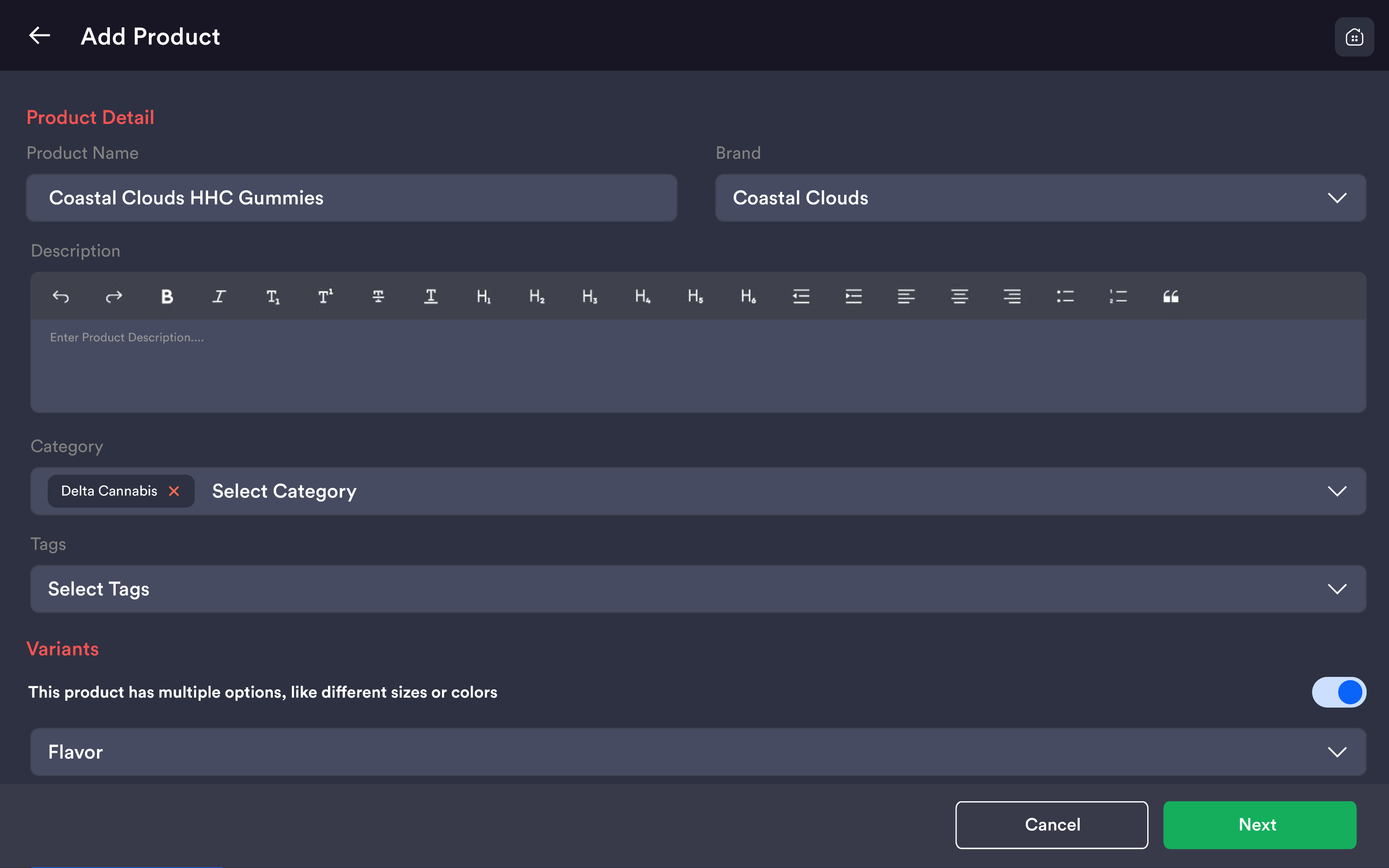
Tap the green + at the bottom-right. Fill in Title, Category, Price, Cost, UPC, Stock, Custom Codes, and any compliance flags (Age-restricted, Food Stampable). |
|
Edit an existing product |
Tap the product card. The Edit Product screen opens — change any field and Save. |
|
Add or manage variants |
Inside Edit Product, scroll to the Variants section. Pick an attribute, then Enter Variant to add specific values. |
|
Add an additional custom code |
Inside Add or Edit Product, tap the blue + next to the Custom Code field. Type the additional code and Save. |
|
Remove a custom code |
Tap the blue − next to the code you want to remove and Save. The first Custom Code field cannot be removed. |
|
Print labels |
Inside Edit Product, tap Print Label — choose your paper size and printer. |
|
Disable a product |
Inside Edit Product, tick Disable and Save. The product no longer appears at the register or storefront, but its history and stock data stay intact. |
|
Delete a product |
Tap the trash icon on the product card. The product is removed from the catalog — variant data goes with it. |
|
Toggle Delivery / Pickup |
Tick the channel boxes on the product card. |
Don't delete a product that has order history you may need to look up later. Use Disable instead — the product disappears from sale but the records remain searchable.
UPC must be unique across your entire catalog. The system blocks duplicate UPCs across products, variants, and lottery items.