
The Lottery module lets merchants create dedicated lottery products — scratch-offs, draw tickets (Powerball, Mega Millions), and other state lottery products — that are sold and tracked separately from regular merchandise. Lottery products are scoped to a special Lottery Category and have unique rules: they're excluded from BOGO deals, Mix & Match deals, online ordering, EBT/SNAP eligibility, loyalty point earning, custom taxes, and the regular product listing.
Access paths:
-
Category creation: POS Home → Inventory → Category tab → + Add Category (with Lottery checkbox enabled)
-
Lottery product creation: POS Home → Inventory → Lottery tab → + Add Lottery
Step 1 — Creating a Lottery Category
Lottery products must be assigned to a category flagged as a Lottery Category.
-
From the POS home screen, tap Inventory
-20260528-092853.png?cb=7c124d9fac56f57109e172cf5a6bdd25)
-
Tap the Category tab (first tab)
-20260528-092930.png?cb=6df885903b845273dfaa085f0e8227ab)
-
Tap the green + button at the bottom-right
-20260528-092959.png?cb=6df885903b845273dfaa085f0e8227ab)
Add Category dialog
|
Field |
Required |
Purpose |
|---|---|---|
|
Title |
Yes |
Category name (e.g. |
|
Description |
Optional |
Free-text description shown internally only |
|
Enable/Disable → Lottery (checkbox) |
— |
The defining checkbox that flags this category as a Lottery Category. |
Tap Add (blue) to save, Cancel (white outline) to discard, or × to close.
-20260528-093034.png?cb=8d85c94a273d02ff2faaee852f133100)
The Lottery checkbox is the key step. Without it, the category is treated as a regular category — and you will not be able to assign lottery products to it.
What changes when you enable Lottery
|
Behavior |
Effect |
|---|---|
|
Banner image becomes optional |
Regular categories require a banner image; lottery categories do not |
|
Online checkbox is hidden/disabled |
Lottery products cannot be sold on the online storefront |
|
Earn Points checkbox is hidden/disabled |
Loyalty points are not earned on lottery products |
|
EBT/SNAP eligibility is hidden |
Lottery items are not federally eligible for EBT/SNAP payments |
|
Excluded from custom Tax application |
Won't appear in Tax → Select a Category to Apply Tax |
|
Excluded from BOGO deals |
Blocked from appearing in BOGO product pickers |
|
Excluded from Mix & Match deals |
Blocked from appearing in Mix & Match product pickers |
|
Excluded from regular Product listing |
Lottery products only appear in the dedicated Lottery tab |
Once a category is saved with Lottery enabled, that flag becomes locked — to switch a category between lottery and non-lottery, create a new category and reassign products.
The QuickAdd category is system-managed — you cannot edit it or enable the Lottery flag on it.
Step 2 — Creating a Lottery Product
Once a Lottery Category exists, create lottery products through the Lottery tab.
-
From the POS home, tap Inventory
-20260528-063906.png?cb=594b22902414fb4ab50198e499f58c2c)
-
Scroll the tab bar to find the Lottery tab (last tab)
-20260528-093611.png?cb=5e398185510b13a1ed23c9b06531caf0)
-
The Lottery list screen displays existing lottery products
Lottery list screen
|
Column |
Description |
|---|---|
|
Lottery Name |
Name of the lottery product |
|
Quantity |
Current stock quantity |
|
UPC |
Barcode |
|
Price |
Sale price per ticket |
|
🗑 (red trash icon) |
Tap to delete this lottery product |
Search controls: Search By Lottery Name (top-center), Search by UPC (top-right), Scanner icon, and a + green button (bottom-right) that opens Add Lottery.
Add Lottery dialog
Tap the green + button to open the Lottery Details screen.
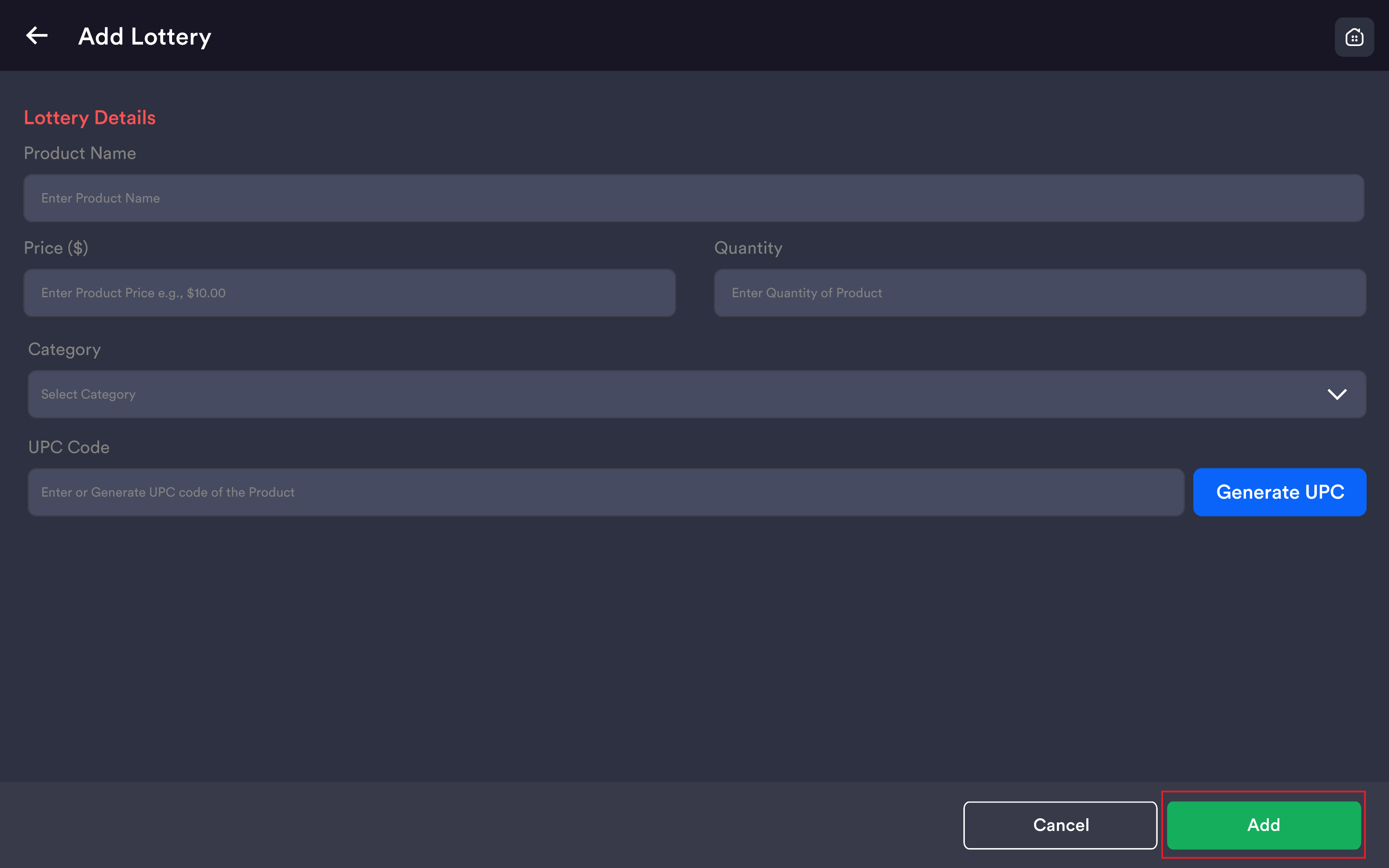
|
Field |
Required |
Format / Behavior |
|---|---|---|
|
Lottery Name |
Yes |
Free text. First letter auto-capitalized. |
|
Price ($) |
Yes |
Sale price per ticket |
|
Quantity |
Yes |
Initial stock quantity |
|
Category |
Yes |
Dropdown — only categories flagged as Lottery appear |
|
Track Quantity (checkbox) |
Optional |
When ticked (default), the system tracks Lottery inventory |
|
UPC Code |
Yes |
12-digit barcode. Type manually or use Generate UPC. |
|
Generate UPC (button, blue) |
— |
Auto-generates a unique 12-digit UPC |
Tap Add (green) to save, or Cancel (black outline) to discard.
UPC must be unique across the whole product catalog. A UPC used by a regular product cannot be reused on a lottery product, and vice versa.
Generated UPCs are 12 digits.
Pressing Enter advances to the next field for fast keyboard entry.
The Category dropdown shows only Lottery-flagged categories. If empty here, create a Lottery Category first.
Editing a lottery product
Tap a lottery row (not the trash icon) to open the Edit Lottery dialog. Same fields as Add Lottery, pre-populated. Tap Update (green) to save or Cancel to discard.
-20260528-093811.png?cb=cb1163a7a74e0f72c400b072c110da4f)
Deleting a lottery product
Tap the red trash icon at the right end of any lottery row. A confirmation popup appears.
Deletion is permanent. Once deleted, the lottery product is removed from the system. The deleted name can be reused immediately.
Historical sales of a deleted lottery product remain intact in reports — only the active product record is removed.
How lottery products behave at the register
|
Channel |
Behavior |
|---|---|
|
POS Register |
Lottery products are added to the cart like any other item. Visible under their assigned Lottery Category or scannable by UPC. |
|
Online Storefront |
Lottery products are never visible online, regardless of other settings. |
|
Receipt |
Lottery line items appear with the lottery product name and price |
|
Lottery Payout |
Customers redeem winning tickets through the Lottery Payout flow at the register |
|
Loyalty Points |
Customers do not earn loyalty points on lottery purchases |
|
Stocktake |
Lottery products are included in Stocktake and Purchase Order |
|
Sales Reports |
Lottery sales appear in Sales Summary alongside regular sales |
Important notes
The Lottery checkbox is what makes a category a Lottery Category. Without it, products won't appear in the Lottery tab.
Lottery products live in a dedicated tab — deliberately excluded from the regular Products tab to keep inventory clean.
Lottery products are excluded from promotions. BOGO and Mix & Match will not show lottery products in the variant picker.
EBT/SNAP is never available for lottery items due to federal regulations.
Custom taxes do not apply to Lottery.
Quantity tracking is recommended. Leave Track Quantity enabled so stock counts decrement properly after each sale.
UPC duplication is blocked across the catalog.
Banner image is not required for Lottery Categories (differs from regular categories).
The QuickAdd category is system-protected and cannot be flagged as Lottery.