
The Inventory Export feature in the Quickvee backend lets merchants download a full export of their product inventory for a selected store. Useful for auditing stock, migrating data, bulk editing products offline, or keeping an external backup of inventory records.
When Inventory Export Is Not Available
NOTE: Inventory Export can be restricted for a store by Quickvee. When a store is restricted, the export option is unavailable for every login at that store — the owner login as well as employee logins. If you expect to export your inventory and the option is missing or disabled, contact Quickvee support to confirm your store's export status.
The restriction is set per store, so in a multi-location account one store can be restricted while the others export normally.
Access path: Quickvee Backend → Inventory Export
How to export inventory
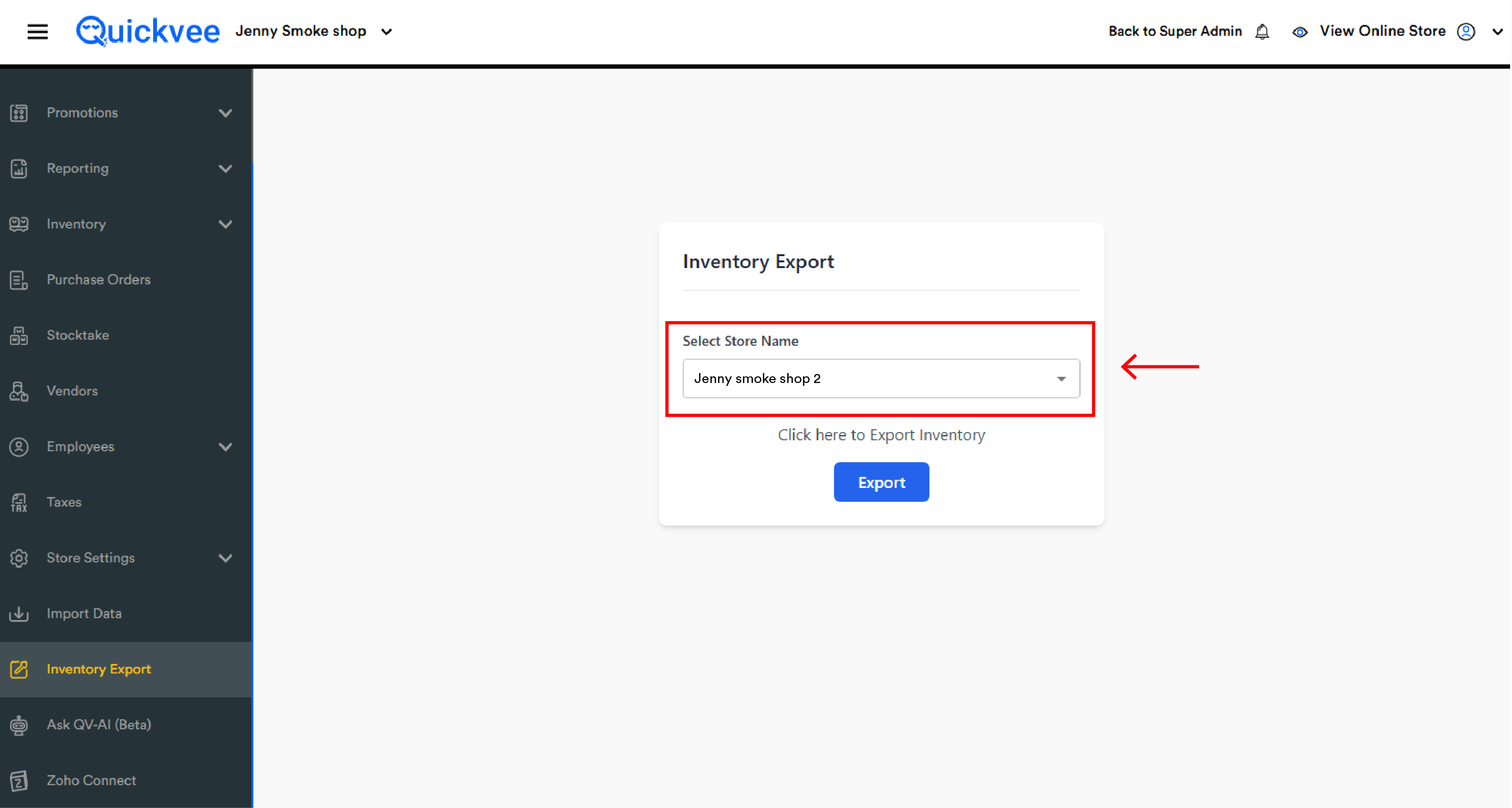
Step 1 — Select a store
Tap the Select Store Name dropdown to choose which store's inventory you want to export. All stores linked to the merchant account are listed. For multi-location merchants, each store appears as a separate option.
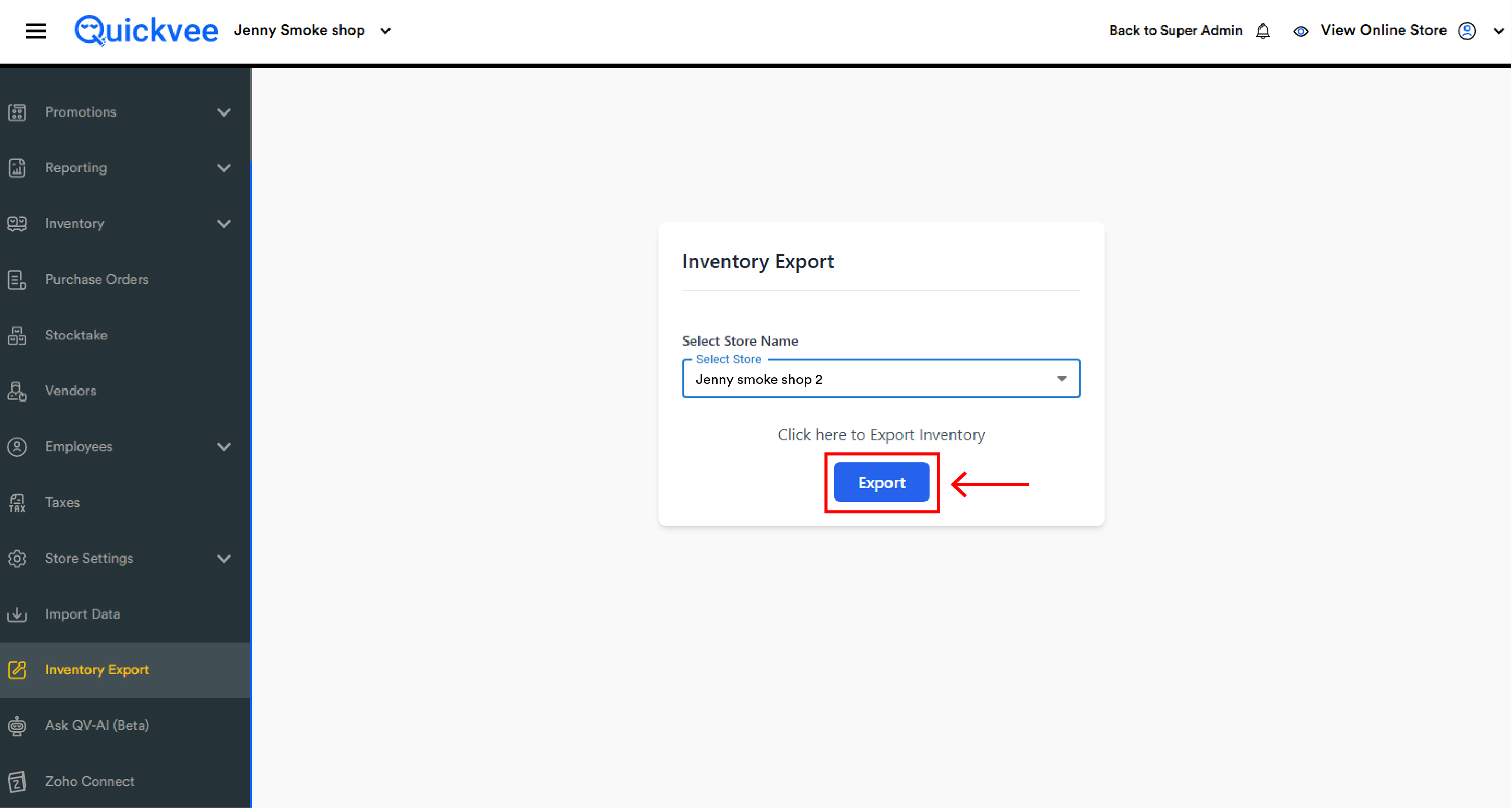
Step 2 — Export
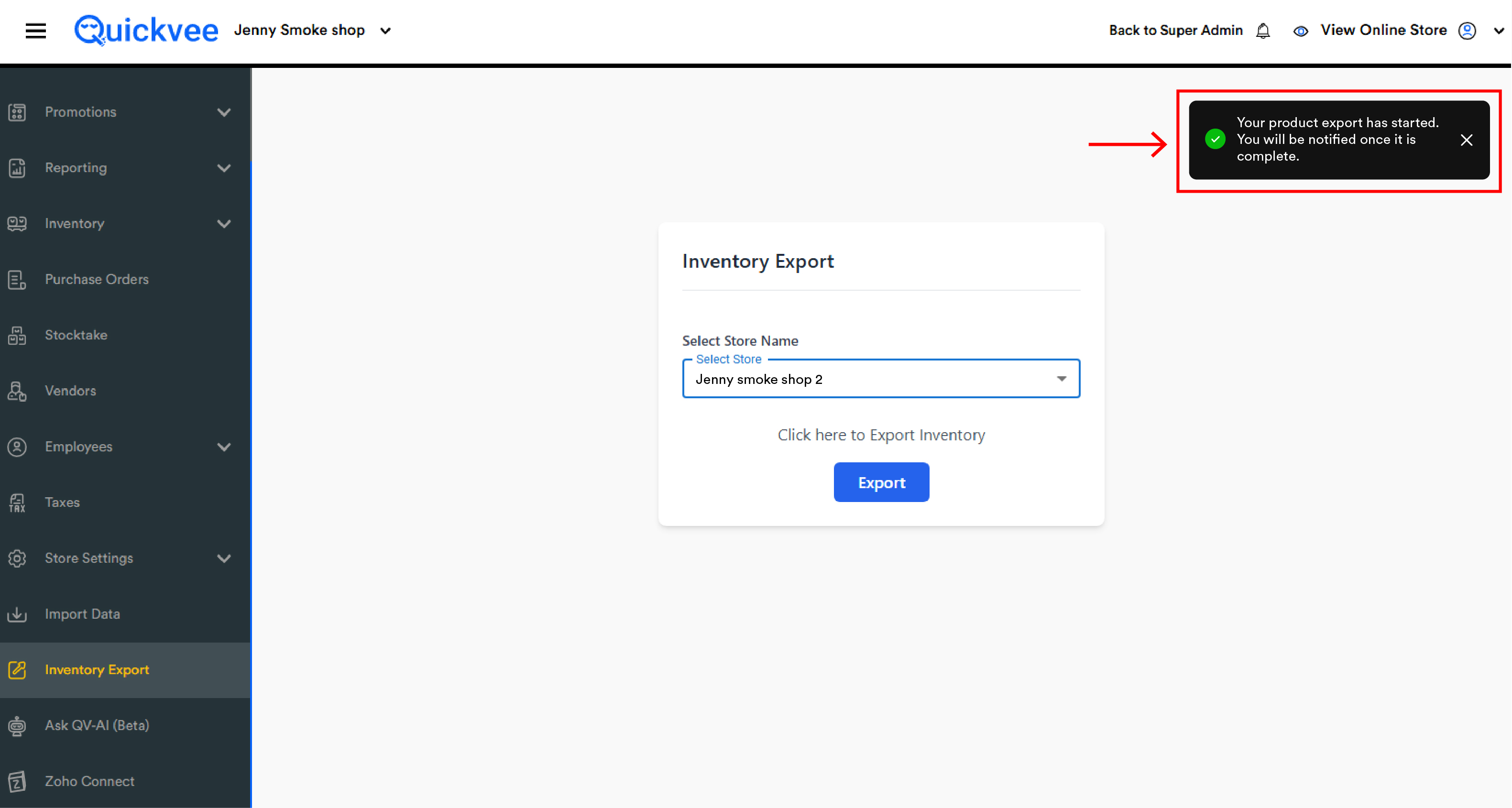
Tap the Export button. A confirmation notification appears at the top-right of the screen:
"Your product export has started. You will be notified once it is complete."
The export runs in the background. Once complete, a notification is sent and the file becomes available for download.
Frequently Asked Questions (add to the existing FAQ)
The Inventory Export option is missing or disabled. Why? Export has been restricted for your store. Contact Quickvee support to confirm the status and, if it was set in error, to have it changed.
Can an employee export inventory when the owner can't? No. A restriction applies to every login at the store.
Important notes
The export is per store. Each store's inventory must be exported separately. For multiple locations, run the export once for each store.
The export runs in the background. You do not need to stay on the Inventory Export page after tapping Export.
The exported file contains the full product inventory for the selected store including product names, variants, prices, quantities, UPCs, and other inventory fields.