
The Purchase Orders module has been redesigned. It's your workspace for planning restocks, placing orders with vendors, tracking what you've ordered against what's arrived, and closing the loop when a delivery hits your dock. The redesign focuses on three things: an instant financial and operational read at the top of the page, faster PO creation with a catalog-driven product picker, and an error-proof receiving flow with a per-line quantity check that always tells you what the PO will become before you commit.
This article walks through every part of the new PO experience, the list page, creating a new order, the detail view, receiving units, and the actions available at each status.
Where to find it
Sign in to your merchant backend, open the side menu, and select Purchase Order.
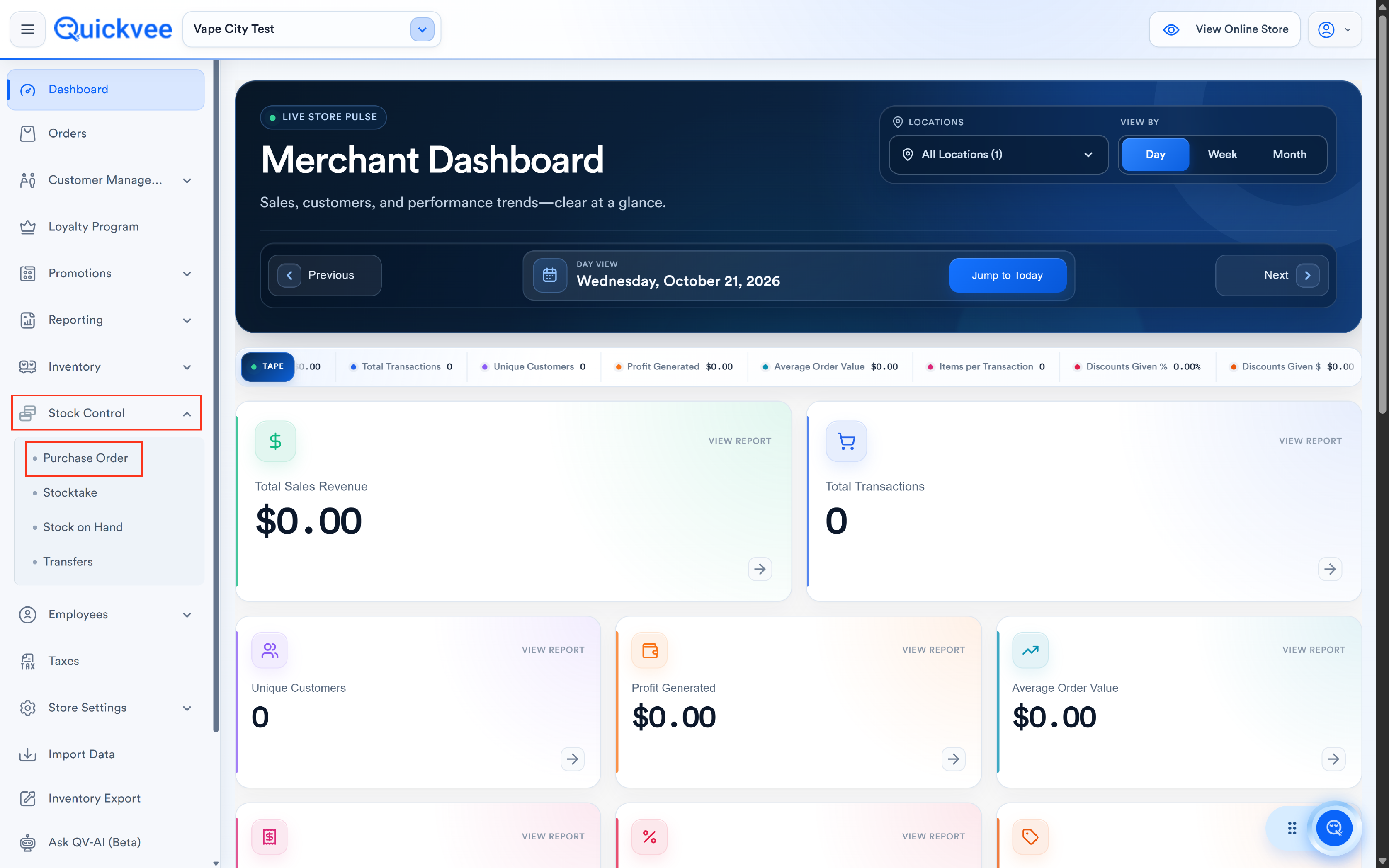
The legacy version is still accessible under Old Purchase Order for reference. All new activity should go through the new module.
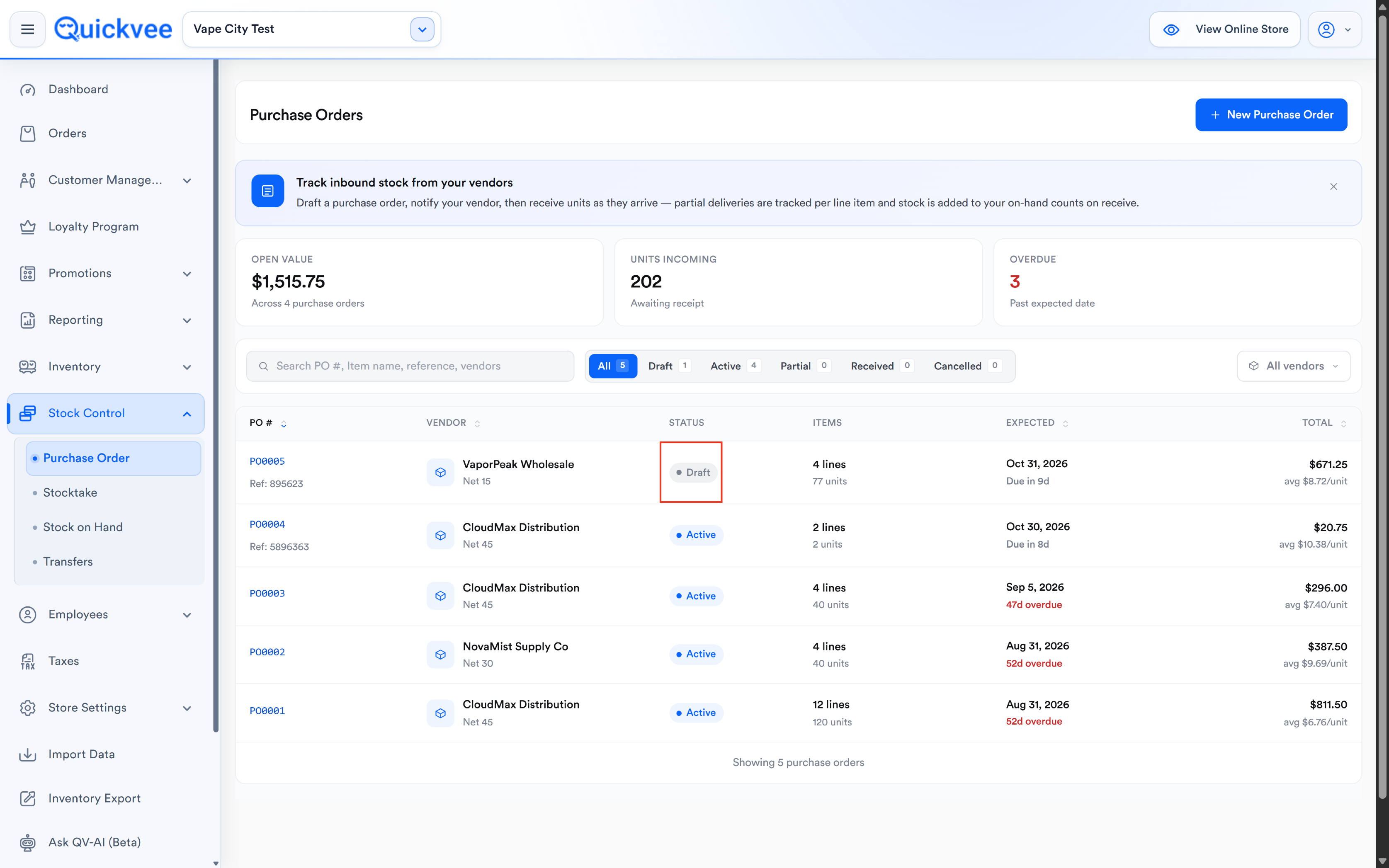
The Purchase Orders list page
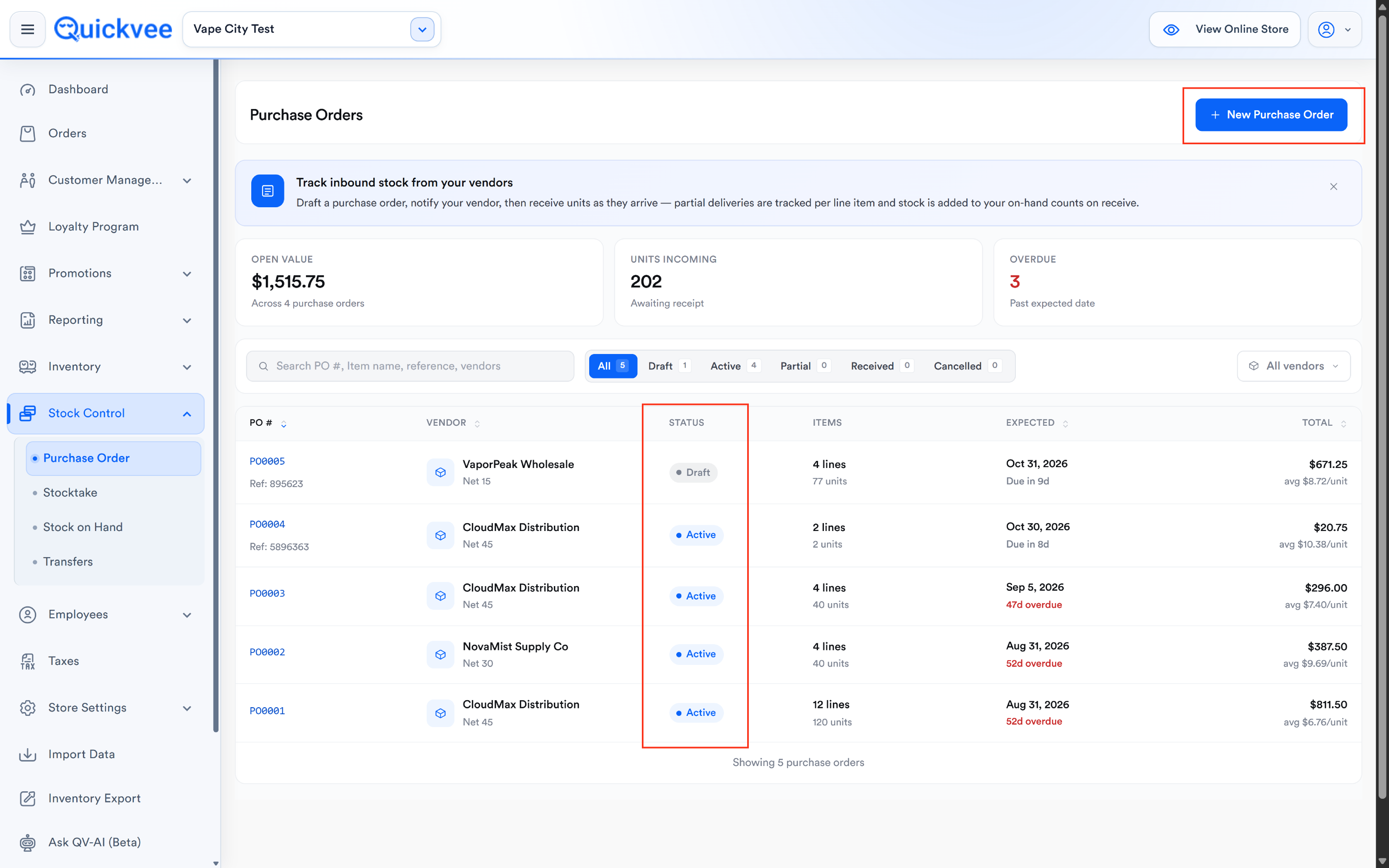
The page opens with three summary tiles at the top, a search-and-filter row in the middle, and the list of purchase orders below.
Store selector
At the top-right of the page sits the store selector (e.g. Spare 20), a dropdown to switch between your locations. Every location has its own PO ledger, so switching the selector reloads the whole page with that store's data.
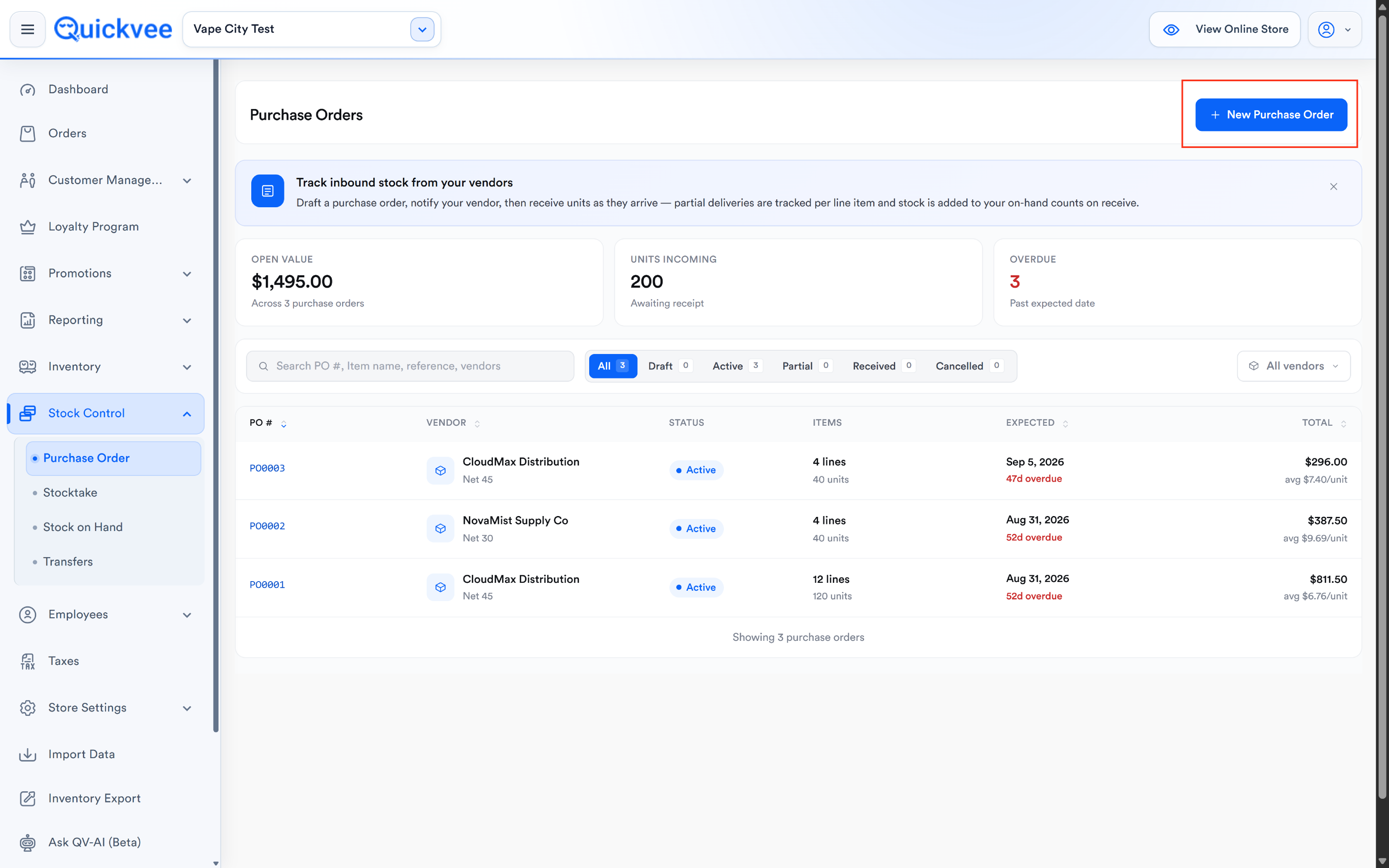
The + New Purchase Order button
Next to the store selector, a dark + New Purchase Order button opens the PO creation form for the store currently selected.
Summary tiles
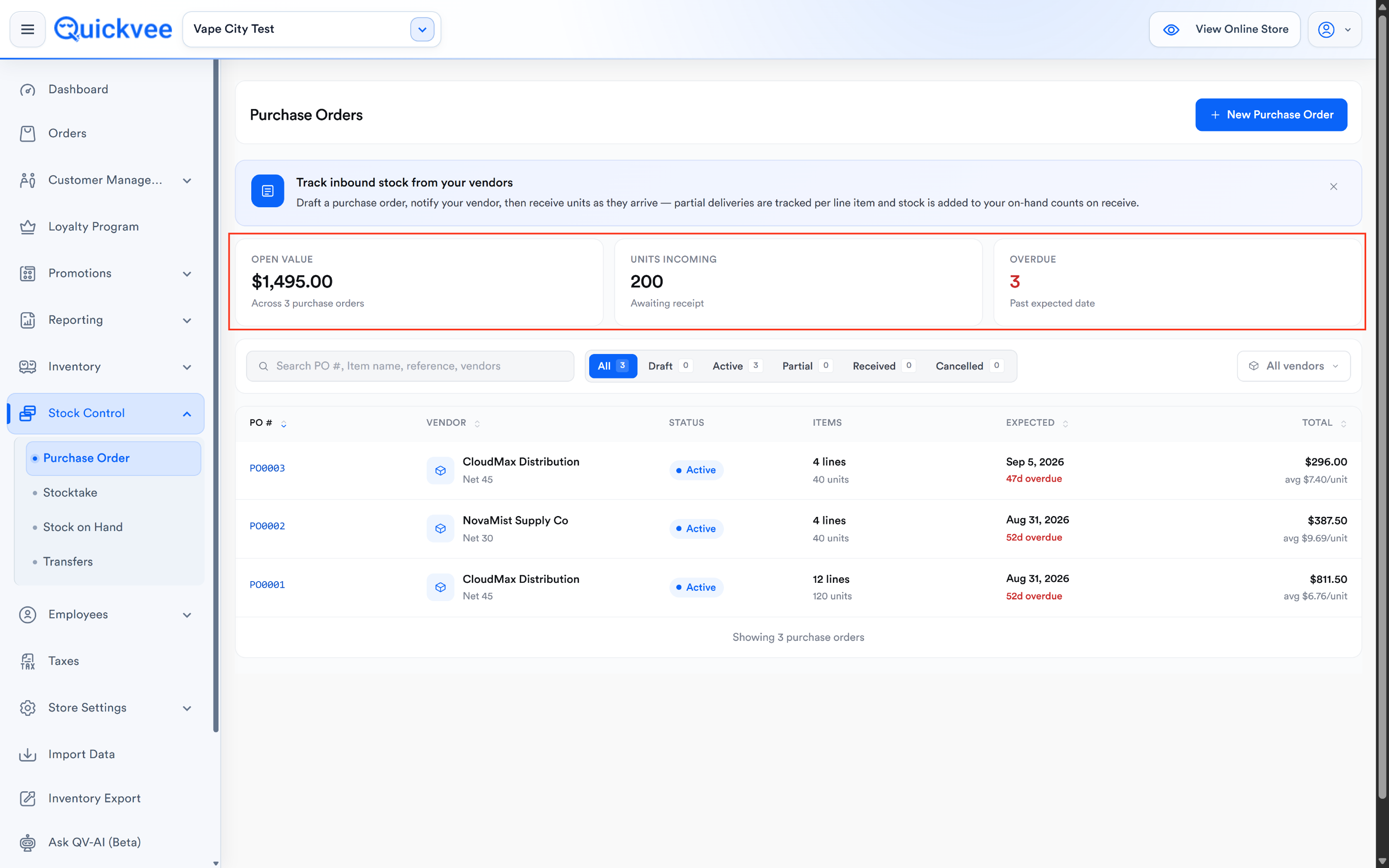
Three colored tiles at the top of the page give an at-a-glance read on your PO pipeline:
|
Tile |
What it shows |
|---|---|
|
OPEN VALUE |
The total dollar value of every PO that is not yet fully received, plus a count line: Across X purchase orders. This is the money you've committed to vendors but haven't yet taken possession of stock for. |
|
UNITS INCOMING |
The count of units across every open PO, subtitle Awaiting receipt. This is how much stock is currently promised to your shelves. |
|
OVERDUE |
The count of POs whose Expected date has passed and are not yet fully received, subtitle On schedule when zero, or a count with details when there are overdue orders. |
💡 Tip. The Overdue tile is your daily follow-up list. If it shows a number greater than zero, those are the vendors to phone this morning. If it reads 0 · On schedule, your pipeline is running clean.
Search bar
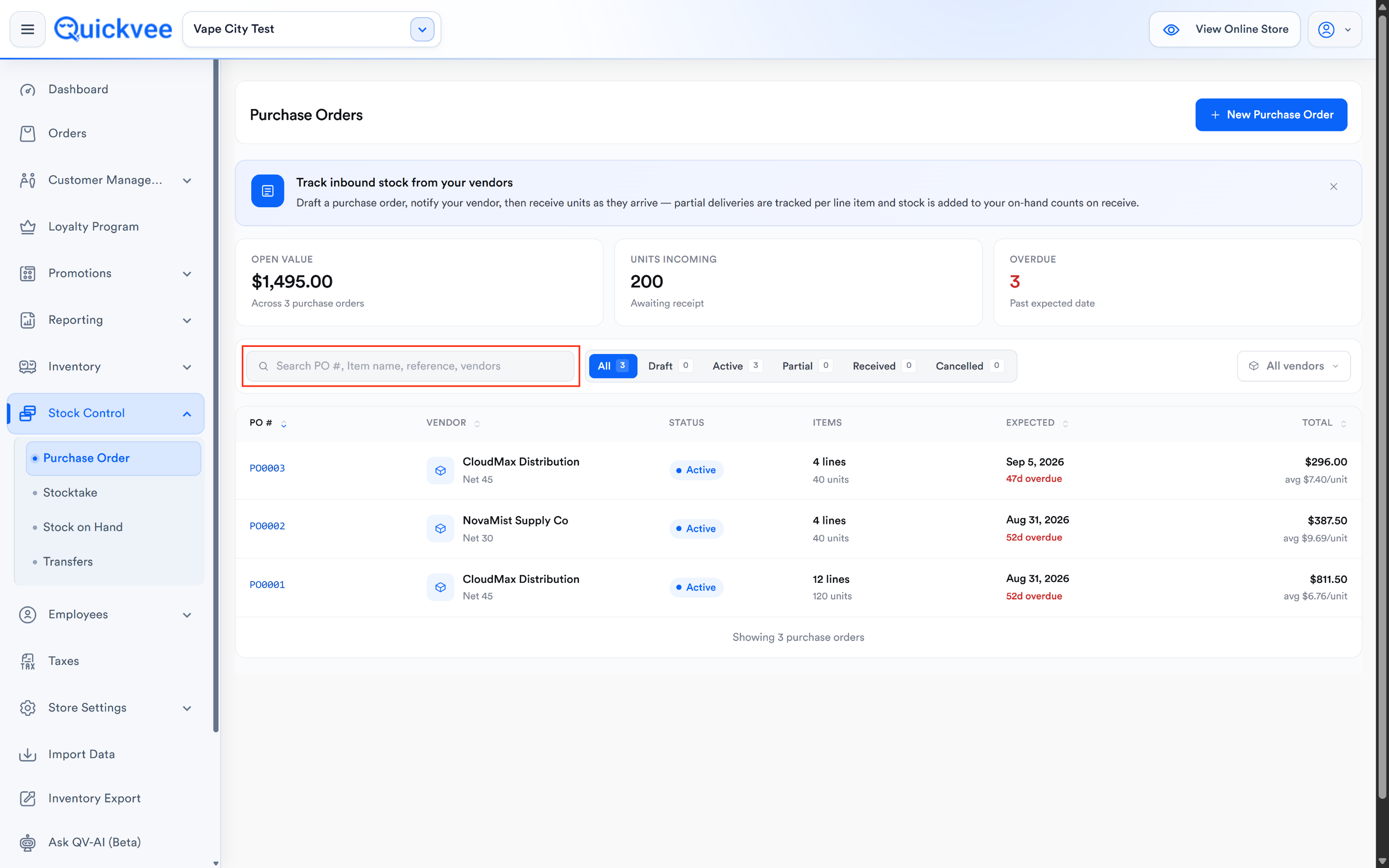
A search bar sits below the summary tiles with the placeholder Search PO #, reference, vendors. Type any of:
-
A full or partial PO number (e.g. P04572 or just 4572).
-
A vendor reference number you've stored on the PO.
-
A vendor name.
Matching POs surface live as you type.
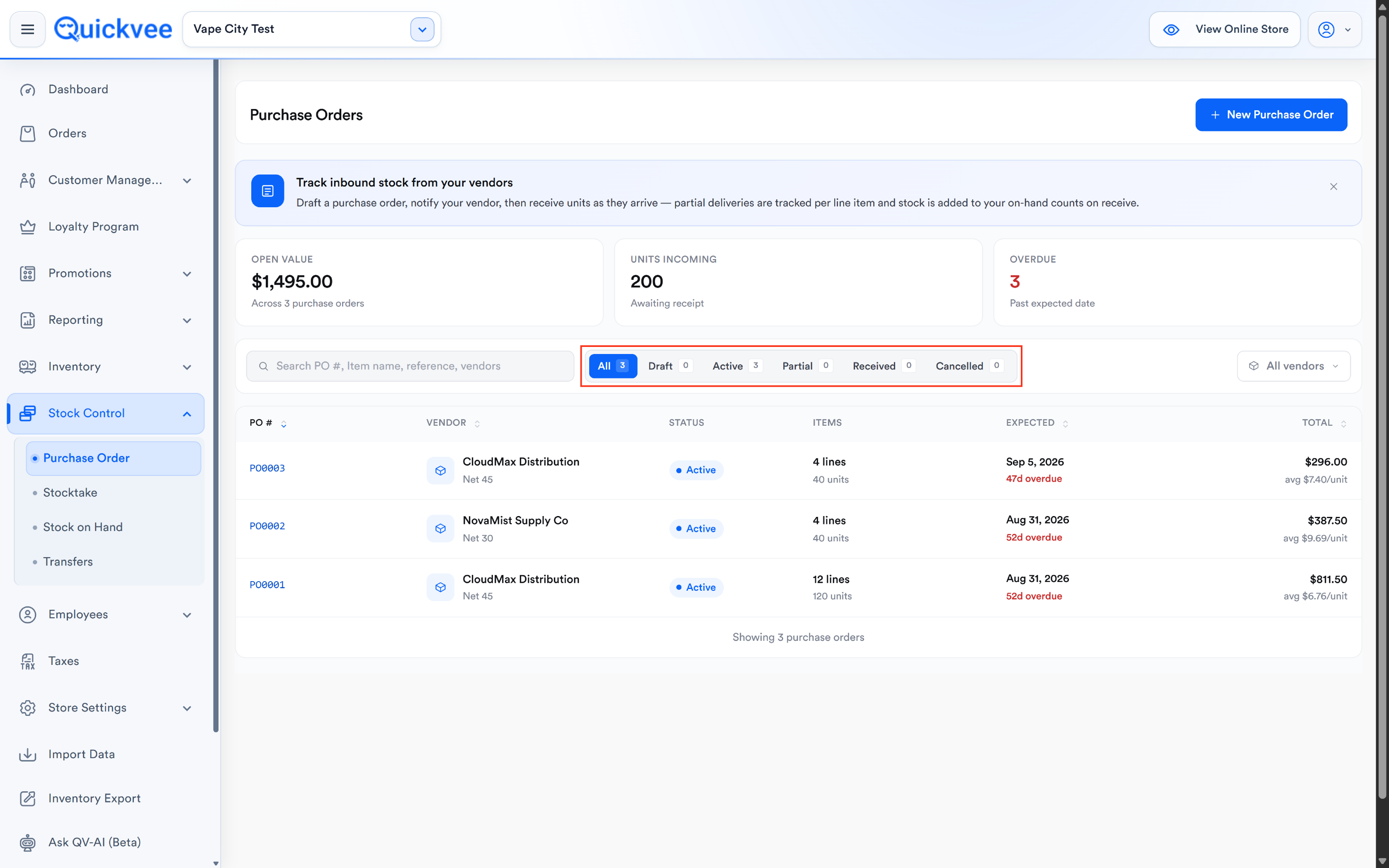
Status filter tabs
To the right of the search bar sits a set of tabs, each with a count badge. Tap one to filter the list:
|
Tab |
What it shows |
|---|---|
|
All |
Every PO regardless of status. Default view. |
|
Draft |
POs saved as drafts but not yet finalized. Draft POs don't affect inventory expectations. |
|
Active |
Finalized POs awaiting receipt of any units. |
|
Partial |
POs where some units have been received but not all. |
|
Received |
POs where every ordered unit has been received. |
|
Cancelled |
POs that were cancelled after being finalized. |
The active tab has a dark background. Each tab's badge shows the current count within the filter.
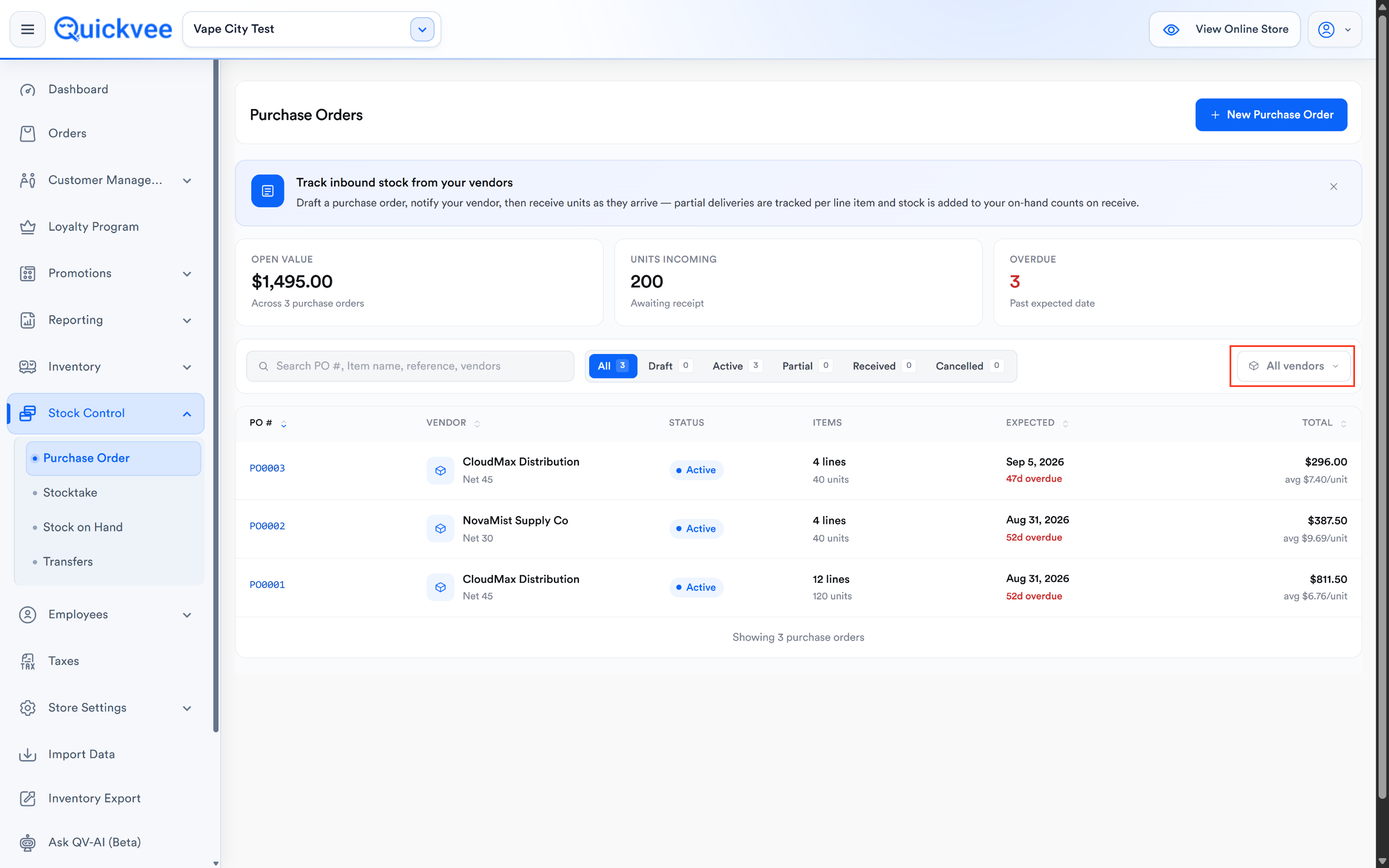
Vendor filter
To the far right, an All vendors dropdown filters the list to POs for a specific vendor. The dropdown includes a Search vendors field at the top for quickly finding a name. Options include All vendors (default, checked), No Vendor (POs with no vendor assigned), and every vendor on your account.
The PO table
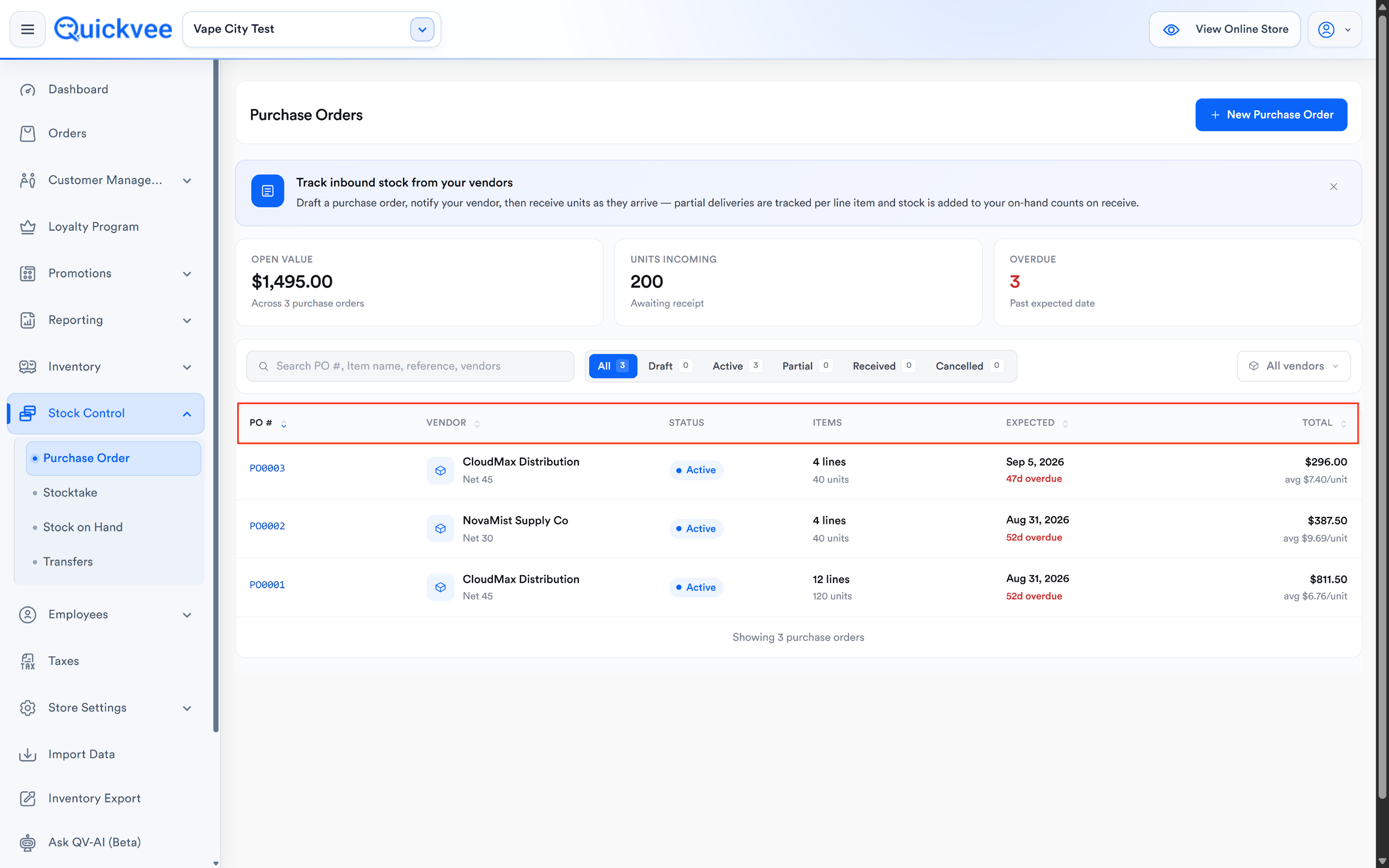
The main table has sortable columns for every operational field:
|
Column |
What it shows |
|---|---|
|
PO # (sortable) |
The PO number, a clickable link to open the PO detail view. Below the number, a Location: line shows which store the PO belongs to. |
|
Vendor (sortable) |
The vendor's name with a vendor icon. Shows Unknown vendor when no vendor is on file, or New for a vendor that hasn't been fully set up. A second line below the vendor name is reserved for the vendor reference. |
|
Status |
A colored badge, Active (blue dot), Draft (grey dot), Partial (orange dot), Received (green dot), Cancelled (red dot). |
|
Items |
Two lines, the top shows X lines (unique products), the bottom X units (total quantity across all lines). |
|
Expected (sortable) |
The expected delivery date. A dash (—) indicates no expected date is set. |
|
Total (sortable) |
The dollar total of the PO, right-aligned. Below the total, an avg $X.XX/unit line shows the average cost per unit across the whole PO. |
Click any sortable column header to reorder the list ascending or descending.
Creating a new Purchase Order
Click + New Purchase Order to open the creation form. The page loads with the title New Purchase Order and three actions at the top-right:
|
Action |
What it does |
|---|---|
|
Cancel |
Discards the form and returns to the list. |
|
Save as draft |
Saves the current state as a draft PO. Drafts don't lock inventory expectations and can be freely edited or discarded later. |
|
Create PO (blue) |
Finalizes the PO into Active status. Disabled until at least one product is added. |
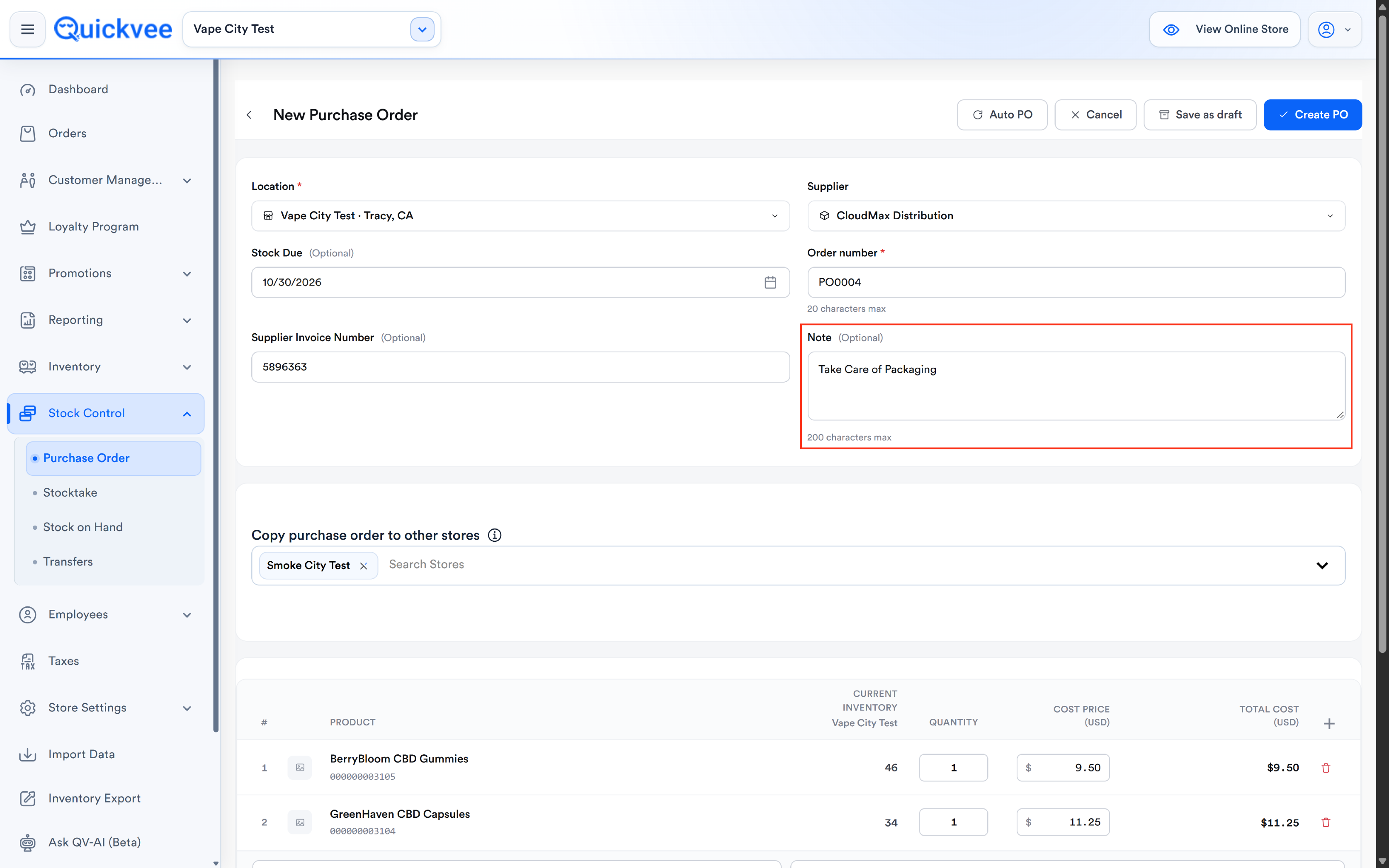
Notes field
At the top of the form, a Notes field lets you record internal context for the PO, supplier promises, delivery instructions, whatever your team needs to remember. Character limit: 200 characters max.
The line items table
Below the notes, the line items table has these columns:
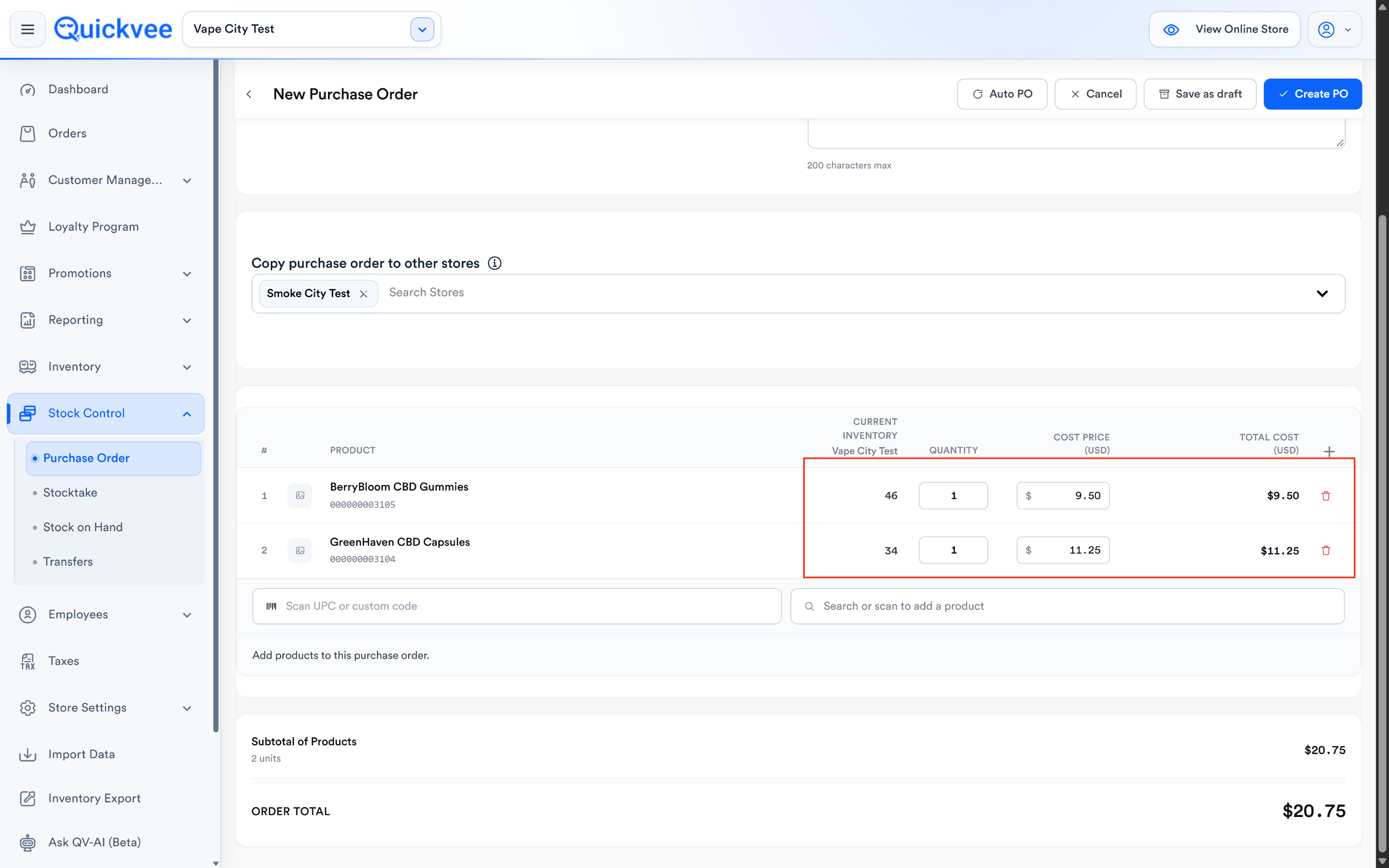
|
Column |
What it shows |
|---|---|
|
Product |
Product thumbnail, name, and UPC / barcode below the name. |
|
Current Inventory (per selected store) |
The current on-hand quantity for that product at the PO's store. The subheader reads Spare 20 (or your selected store), so you always know which location's number you're looking at. |
|
Quantity |
An editable number input, how many units you're ordering. |
|
Cost Price (USD) |
An editable dollar input, the per-unit cost from this vendor. |
|
Total Cost (USD) |
Auto-calculated, Quantity × Cost Price, updated live as you edit either field. |
|
Delete (trash icon) |
Removes the line from the PO. |
When there are no products yet, the table shows an empty state: No products yet. Use the search below or pick from your catalog.
Adding products, two ways
-
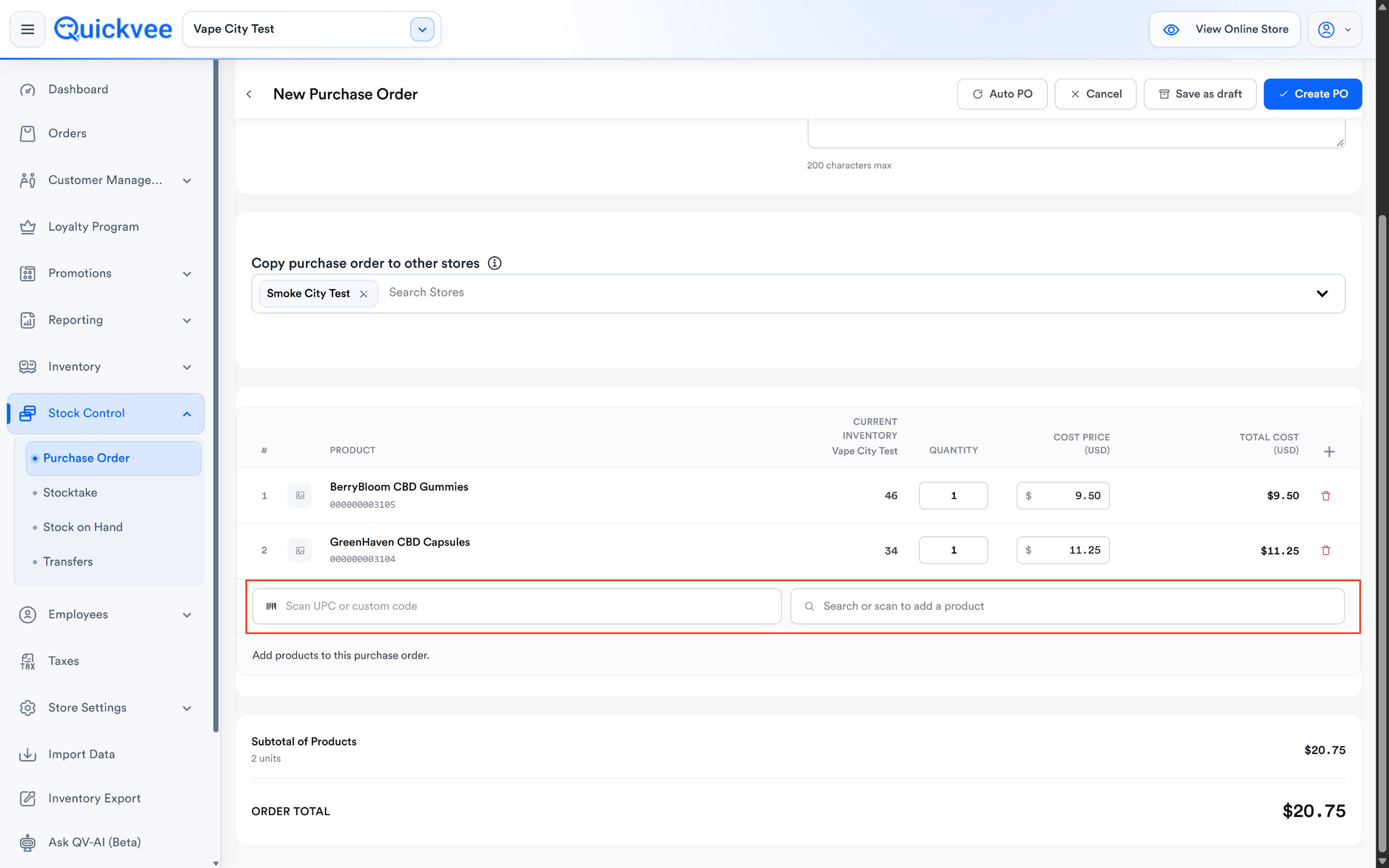
Search or scan. A single search bar sits below the table with the placeholder Search or scan to add a product. Type a product name, variant name, UPC, or custom code, or physically scan a barcode with your scanner, and the matching product is added to the PO as a new line. Great for quick, single-product additions.
-
Add items modal. For bulk additions, use the catalog picker modal (typically accessible via the Add products button or a pick from your catalog link in the empty state). The modal is titled Add items to PO with the subtitle Pick the products and variants you want on this purchase order.
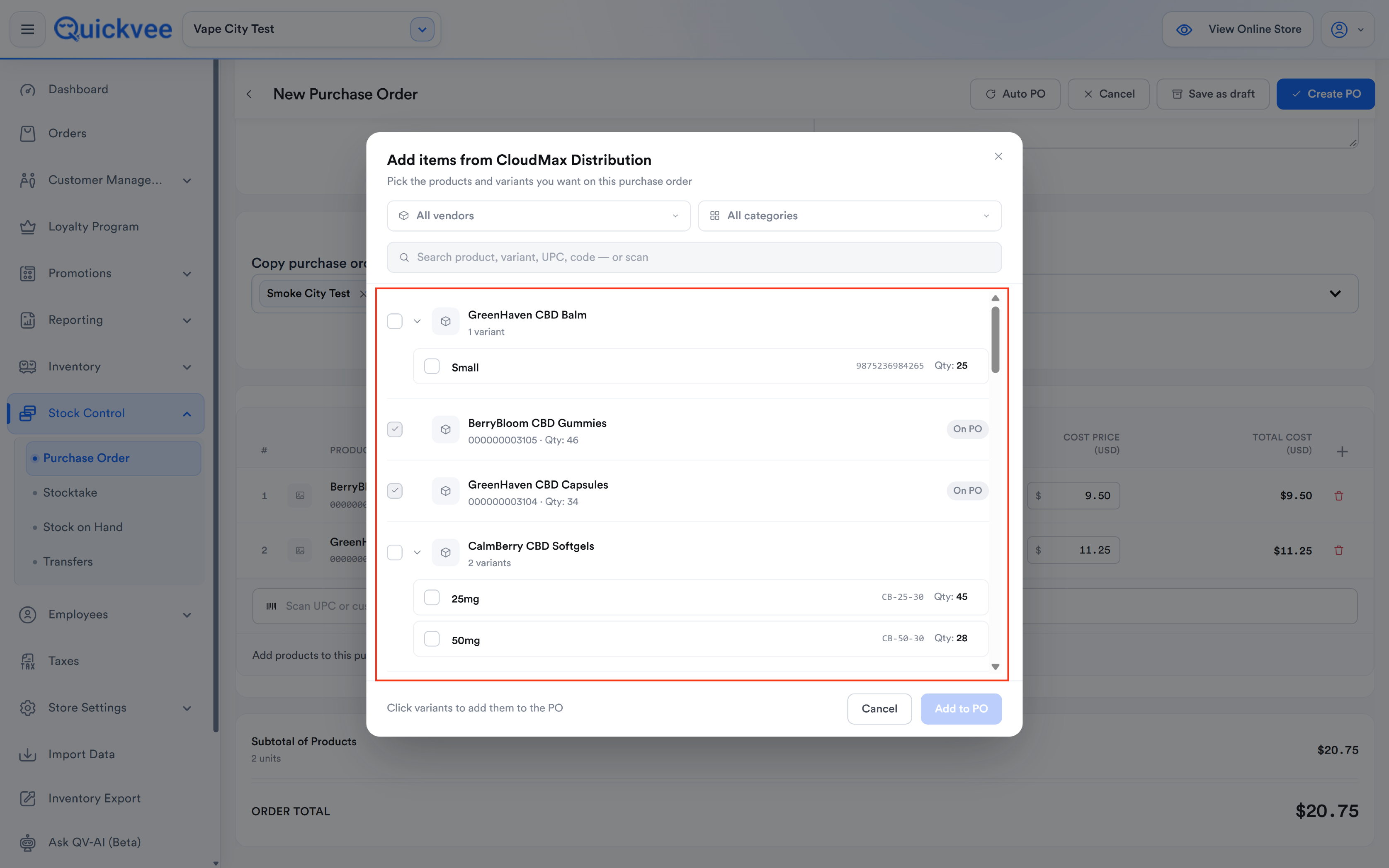
Inside the modal:
|
Element |
What it does |
|---|---|
|
All vendors (dropdown) |
Narrows the product list to those associated with a specific vendor. Includes a Search vendors field, an All vendors default option, and a New option for vendors that haven't been set up. |
|
All categories (dropdown) |
Narrows to a specific category. Includes a Search categories field, an All categories default option, and every category in your catalog. |
|
Search product, variant, UPC, code, or scan |
Free-form search across everything in the catalog. |
|
Product rows |
Each row shows a checkbox, product icon, product/variant name, code, and current Qty. Click the row or its checkbox to select. |
|
Bottom counter |
Live count, X rows selected · X units. |
|
Add X to PO (blue button) |
Adds every selected product as a new line on the PO with quantity 1 and the cost price already on file. |
|
Cancel |
Closes the modal without adding anything. |
💡 Tip. The catalog picker is the right choice for a full restock run. Filter by vendor, tick every product you need to reorder, and add them all at once. You can adjust quantities and costs in the PO table afterwards.
Subtotal and Order Total
Below the line items table:
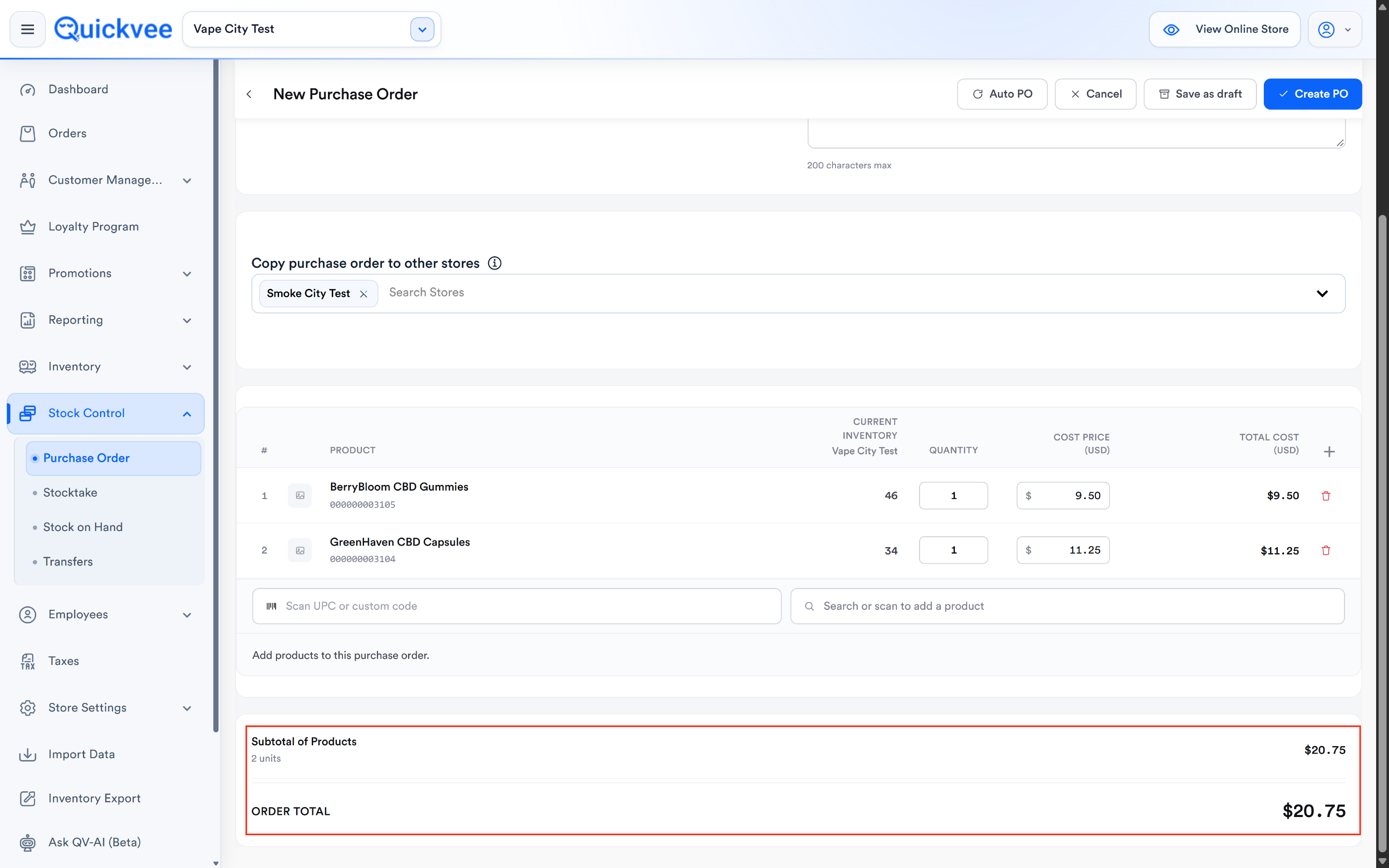
|
Element |
What it shows |
|---|---|
|
Subtotal of Products |
Sum of all line subtotals, with a X units count line below it. |
|
ORDER TOTAL |
The final PO total (currently equal to the Subtotal, future enhancements may layer taxes, shipping, or discounts). |
Save as draft vs Create PO
-
Save as draft. Saves the current state and closes the form. The draft appears on the list under the Draft tab with a grey status badge. Drafts can be reopened, edited, or discarded at any time.
-
Create PO. Finalizes the PO. Status moves to Active, the PO gets a permanent number (e.g. P04573), and a green toast confirms Purchase order created successfully. Once created, the PO's line items can still be edited (via the Edit action on the detail view), but the PO now counts toward Open Value and Units Incoming on the summary tiles.
Changing the Store Location on a PO You're Building
If you start a purchase order on the wrong store, you no longer lose your work. Change the location from the store dropdown and a prompt asks what to do with the products you've already added:
|
Choice |
What happens |
|---|---|
|
Keep products |
The location changes and every added product that exists in the new store's inventory stays on the PO with its quantities |
|
Change location |
The location changes and the product list is cleared |
NOTE: Products are matched to the new store by UPC and custom code. A product that doesn't exist at the new store can't be kept — add it there first, or receive it through a transfer.
TIP: Check the store name in the header before you start adding products. Keep products rescues the order, but a quick glance saves the prompt altogether.
-20261026-094503.png?cb=8eb7080e7ed9463cdb86c4f916d36b7c)
-20261026-094600.png?cb=5235d69d02ad4a8c761f34cf13f3b995)
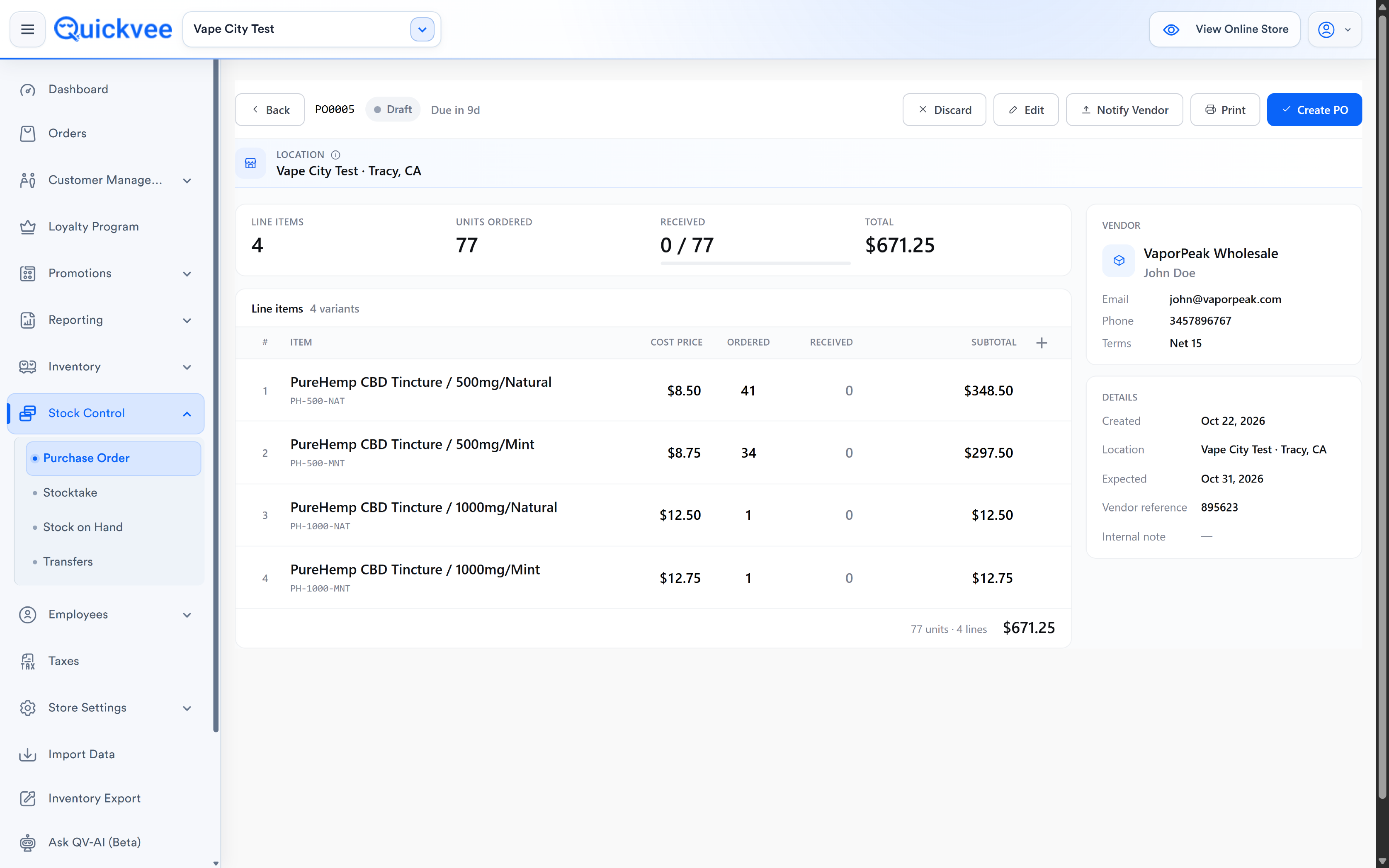
The Purchase Order detail view
Click any PO on the list to open its detail page. The header row shows:
|
Element |
What it shows |
|---|---|
|
Back (arrow, left) |
Returns to the list. |
|
PO # |
The PO number (e.g. P04573). |
|
Status badge |
Colored dot pill, Active, Draft, Partial, Received, or Cancelled. |
|
Due indicator |
A subtle text line next to the status, Due today, Due in 3 days, or Overdue by 2 days, computed from the Expected date. |
|
Action buttons (top-right) |
Vary by status, see below. |
Action buttons by status
The action buttons at the top-right of the detail view depend on the PO's current status:
|
Status |
Available actions |
|---|---|
|
Draft |
Discard (opens the Discard draft modal), Edit, Print, Create PO (finalize the draft into Active). |
|
Active |
Cancel PO, Edit, Print, Receive units (blue, primary). |
|
Partial |
Cancel PO, Edit, Print, Receive units. |
|
Received |
Print (and typically no more receive/edit actions since the order is complete). |
|
Cancelled |
Print (read-only). |
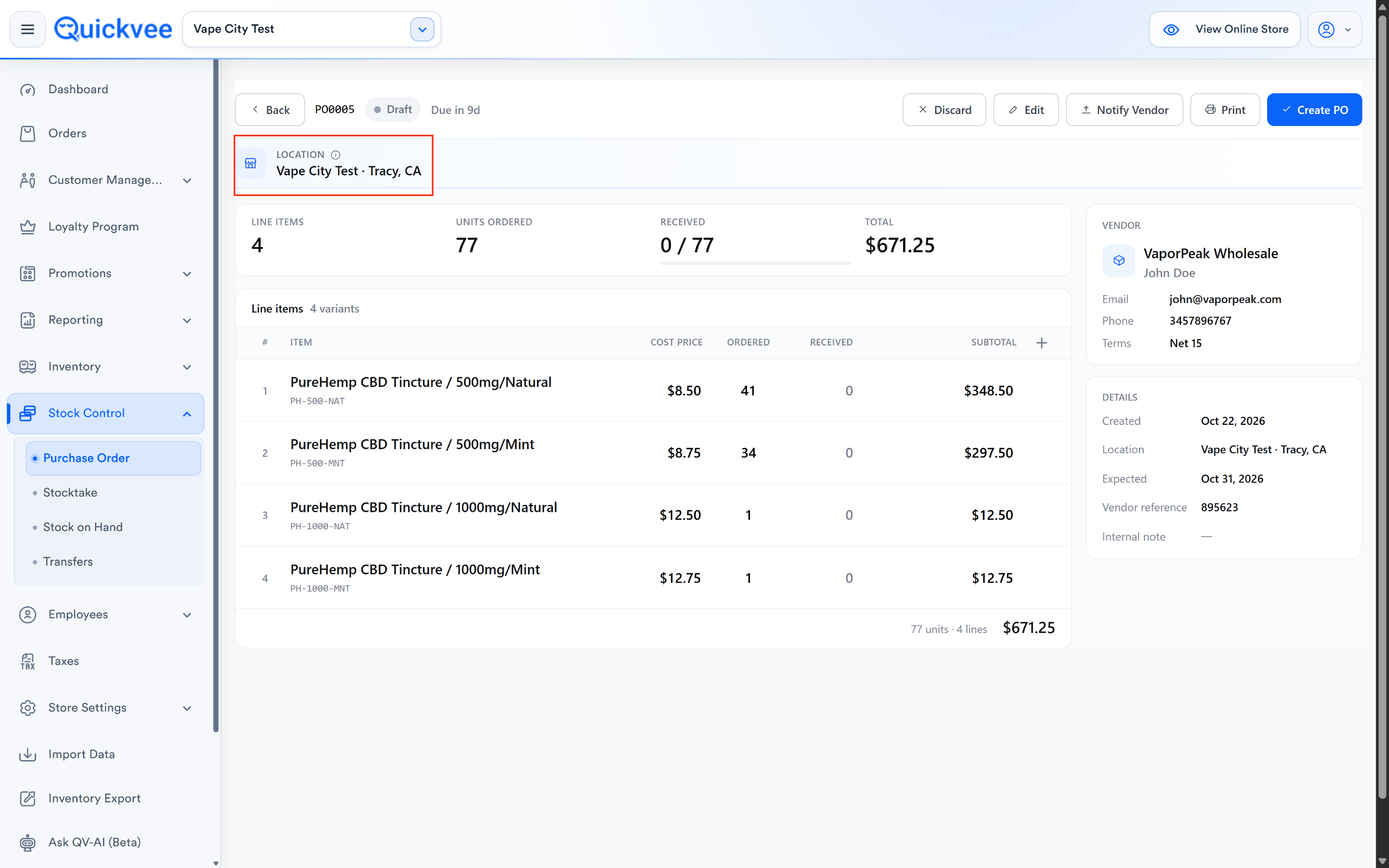
Location card
Below the header, a LOCATION section shows the store the PO belongs to, a store icon followed by Store Name · City, State (e.g. Spare 20 · Test, TX).
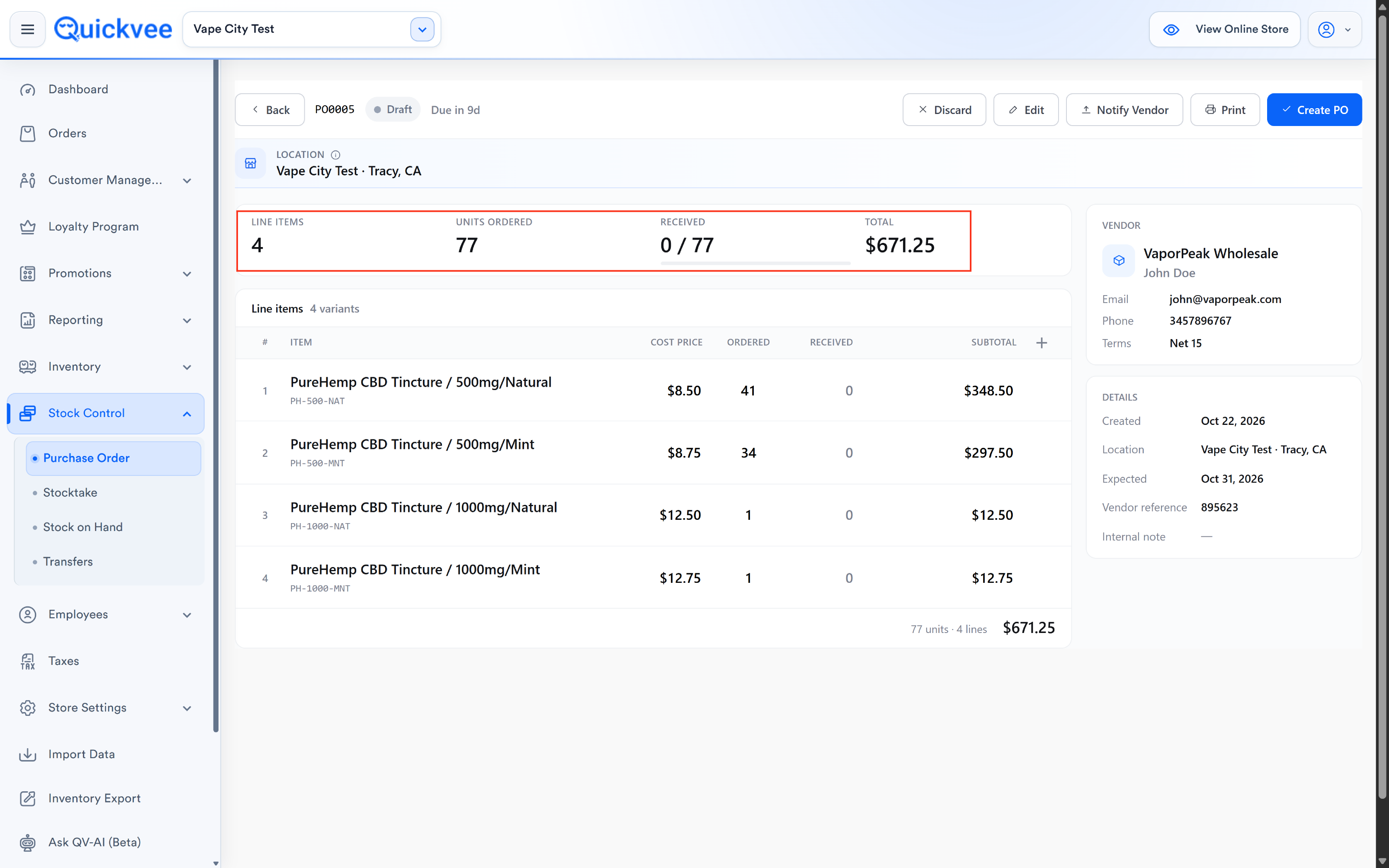
Summary tiles
Four tiles show the operational state of the PO:
|
Tile |
What it shows |
|---|---|
|
LINE ITEMS |
Count of unique products on the PO. |
|
UNITS ORDERED |
Total quantity across all lines. |
|
RECEIVED |
X / Y with a X remaining subtitle. On new POs this shows 0 / Y · Y remaining in orange. A thin progress bar underneath fills as units are received. |
|
TOTAL |
The dollar total. |
Details sidebar
To the right of the summary tiles sits a persistent sidebar with two cards.
VENDOR card. Shows the vendor name and any contact info on file. Displays Vendor not set when no vendor is assigned.
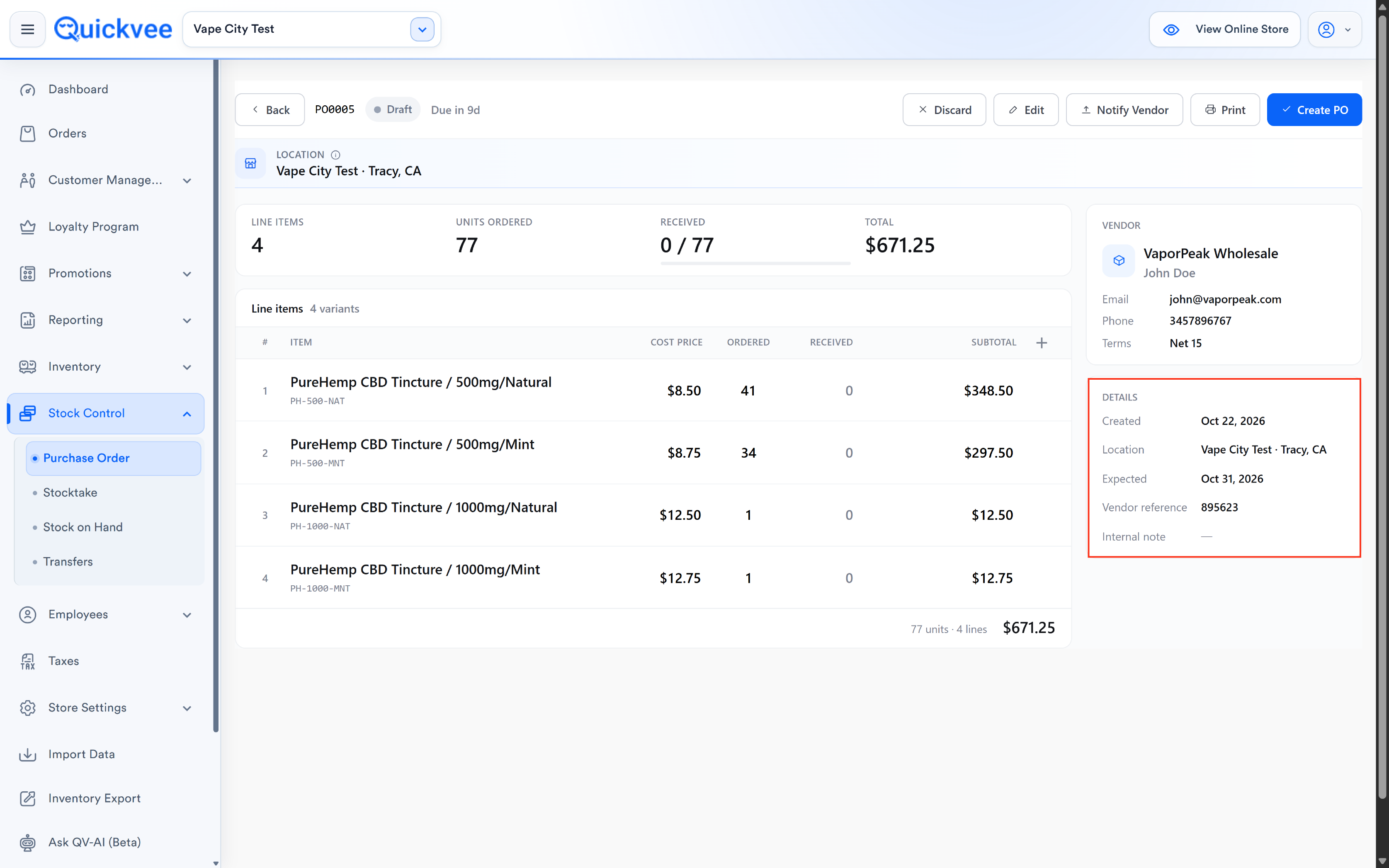
DETAILS card:
|
Field |
What it shows |
|---|---|
|
Created |
The date the PO was created. |
|
Location |
The store the PO is for. |
|
Active |
The date the PO transitioned from Draft to Active. Only shown on Active or later statuses. |
|
Expected |
The expected delivery date, or a dash (—) if unset. |
|
Vendor reference |
Any vendor-supplied reference number (invoice number, packing slip ID, tracking number). Dash if empty. |
|
Internal note |
The notes text captured during creation. Dash if empty. |
Line items table
The main content of the page is the line items table:
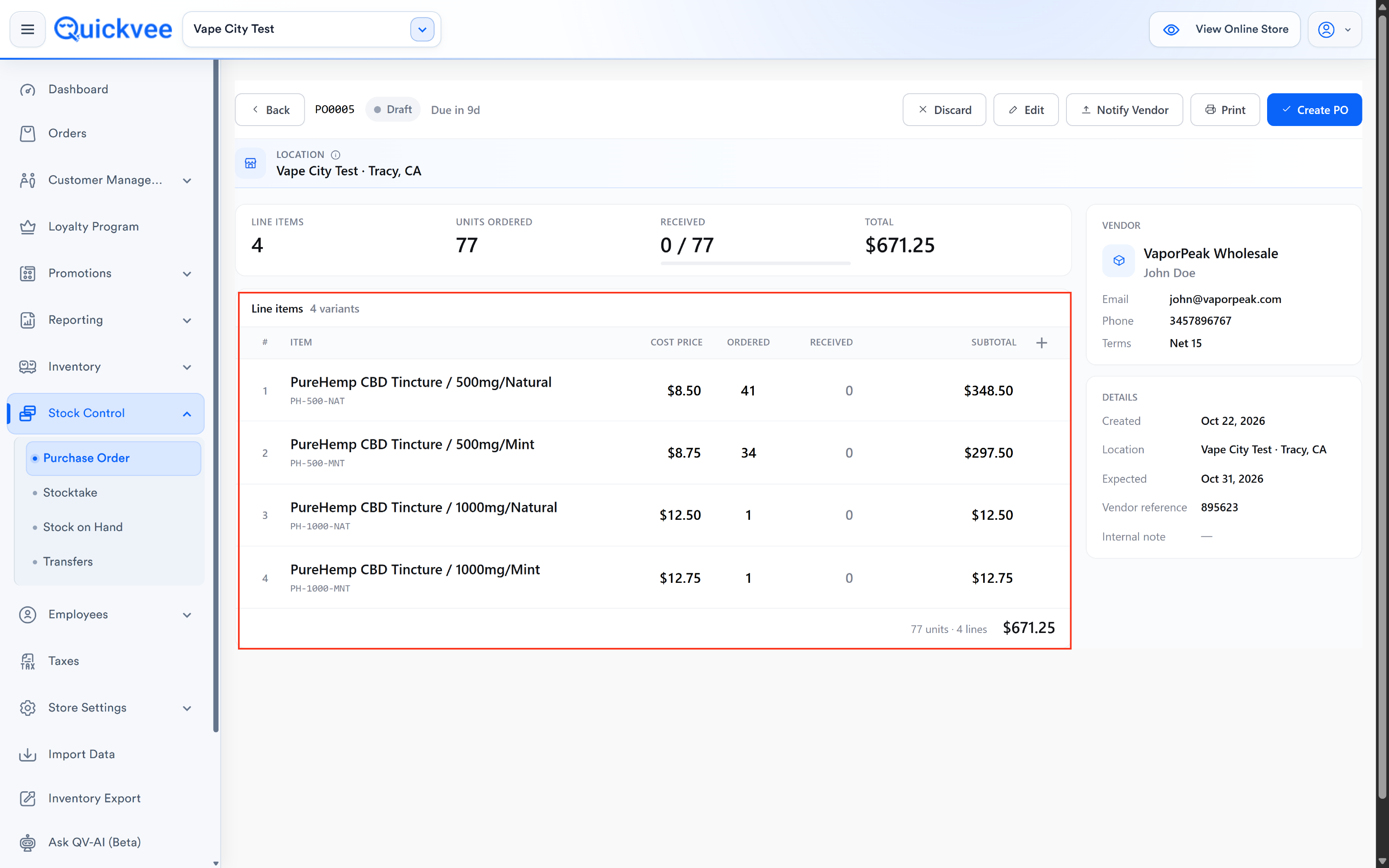
|
Column |
What it shows |
|---|---|
|
ITEM |
Product name and UPC/barcode. |
|
COST PRICE |
The per-unit cost stored on this PO. |
|
ORDERED |
Quantity ordered. |
|
RECEIVED |
Quantity received so far. Zero until receiving begins. |
|
SUBTOTAL |
Quantity × Cost Price. |
The header row of the line items section includes the count, Line items · X variants, and a blue Receive button at the top-right for POs that can still receive units. A footer row summarizes: X units · X lines · $X.XX.
Receiving units
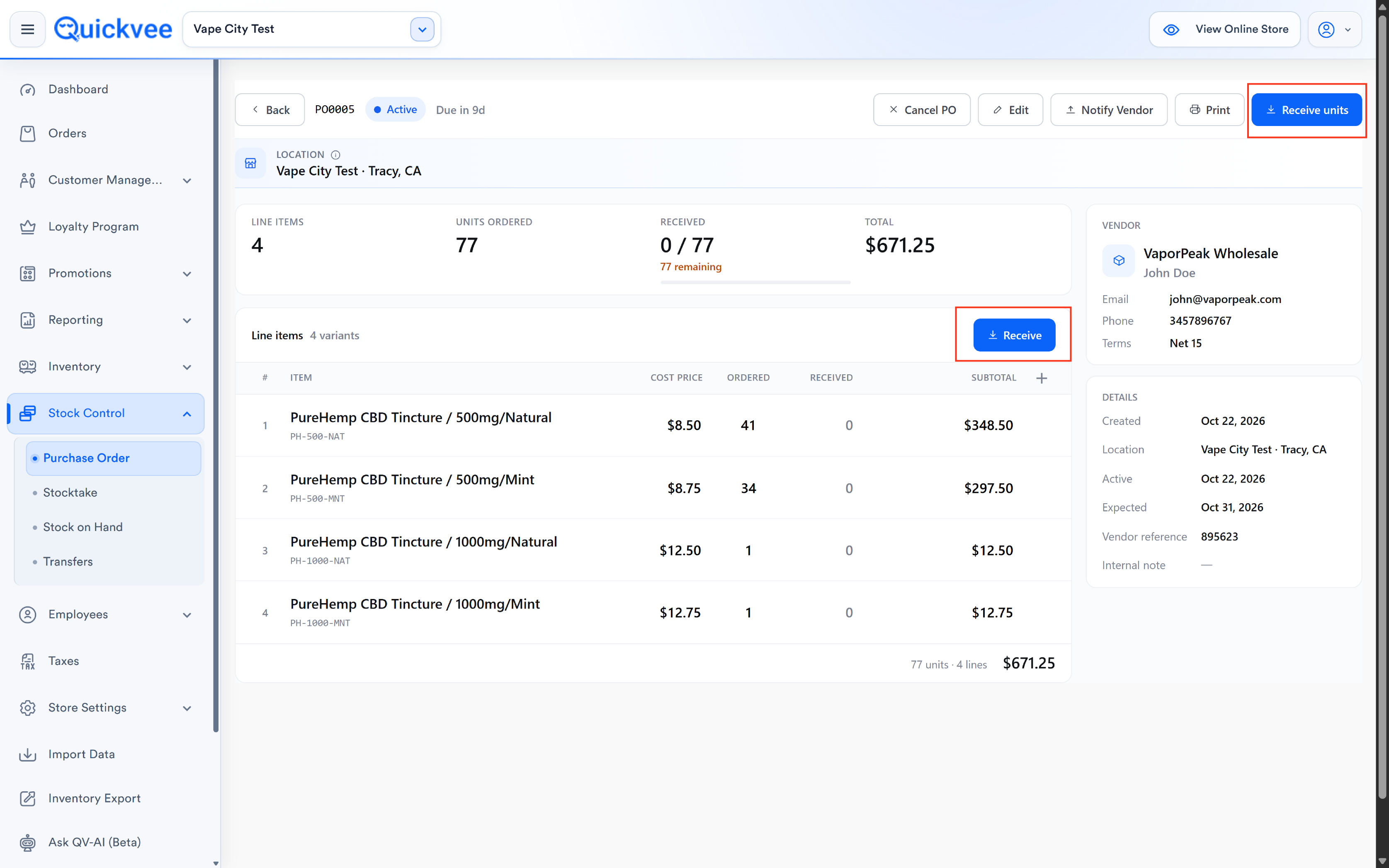
When stock arrives from your vendor, click Receive units (blue button at the top of the PO detail view, also available in the line items header). This opens the Receive units modal, the redesigned receiving experience.
The modal header
Title: Receive units with the subtitle Mark units as received from vendor for POXXXX.
Two quick actions at the top:
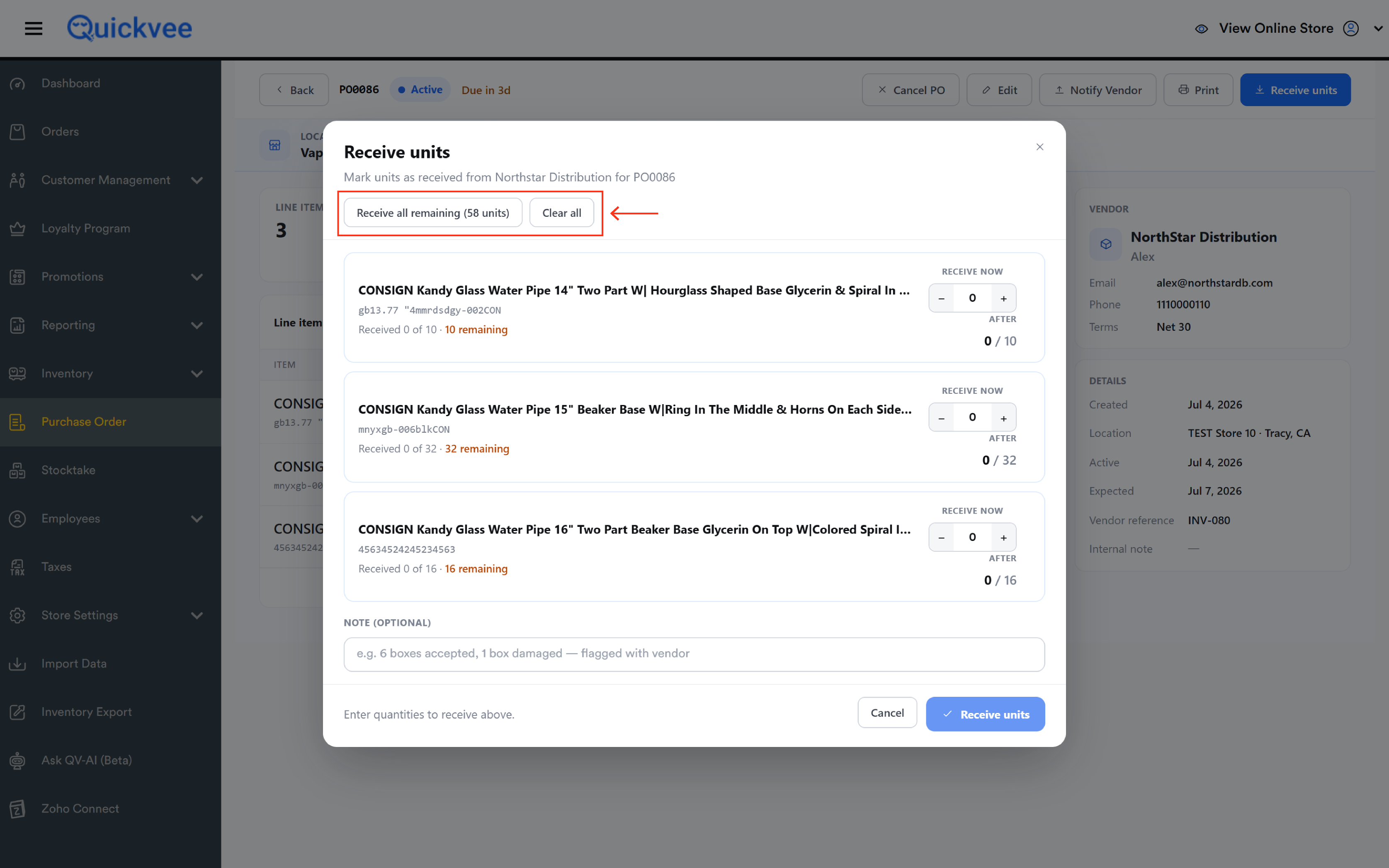
|
Button |
What it does |
|---|---|
|
Receive all remaining (X units) |
One-click convenience, sets every line's Receive now field to its remaining amount, so a full delivery can be committed in seconds. |
|
Clear all |
Zeros out every Receive now field. Useful when you accidentally hit Receive all but the delivery is partial. |
Per-line receiving
Every line on the PO appears as its own card in the modal:
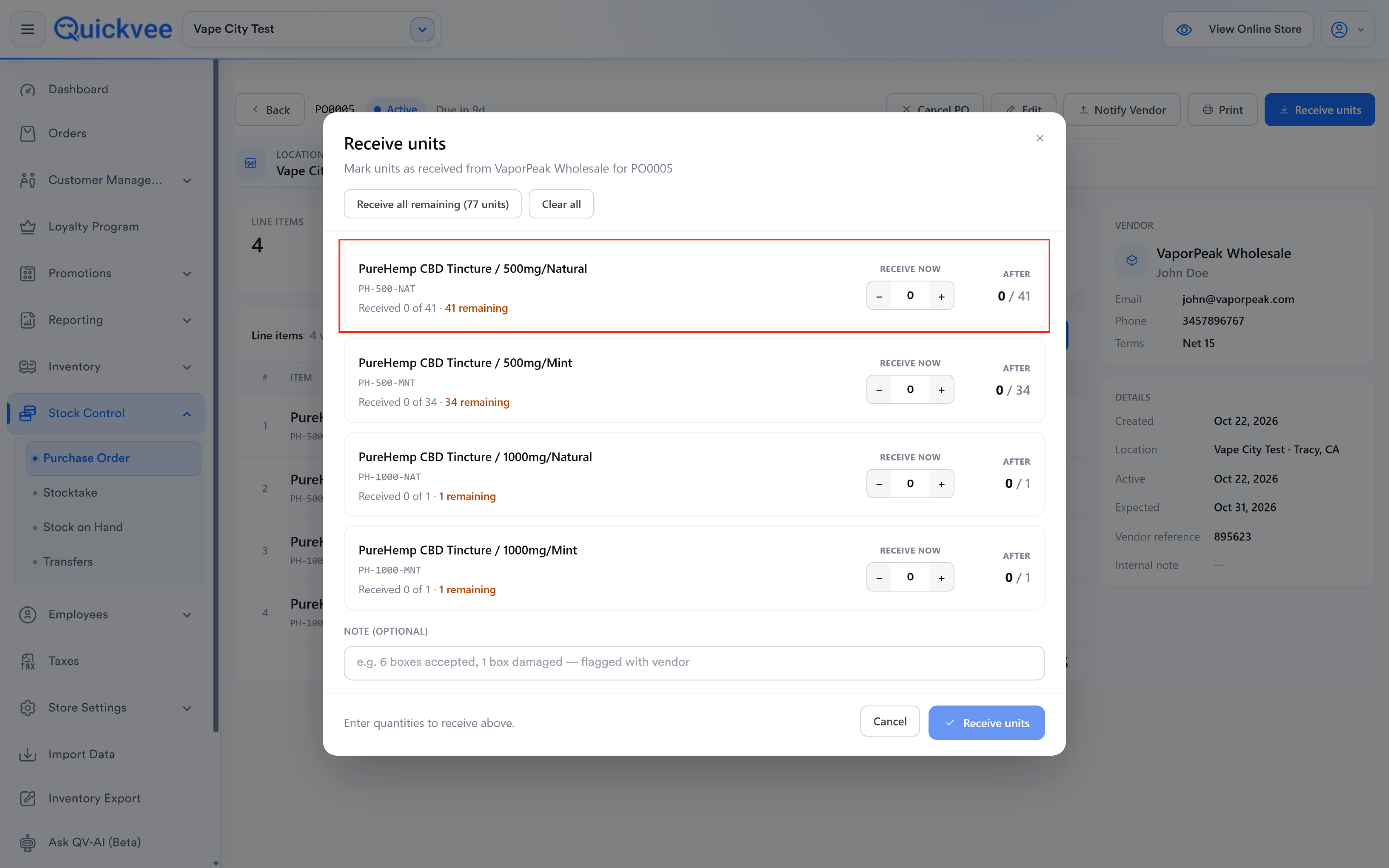
|
Element |
What it shows |
|---|---|
|
Product name |
Name of the product/variant. |
|
UPC / barcode |
Below the name. |
|
Progress line |
Received X of Y · X remaining, in orange when remaining, green when complete. |
|
RECEIVE NOW |
A minus/plus quantity input showing the units you're marking as received right now. |
|
AFTER |
Shows X / Y, the new received progress after the current entry is committed. Updates live as you adjust the RECEIVE NOW field. |
You can enter any number from 0 up to the remaining amount for each line. A line with 0 in RECEIVE NOW is untouched by this receive event.
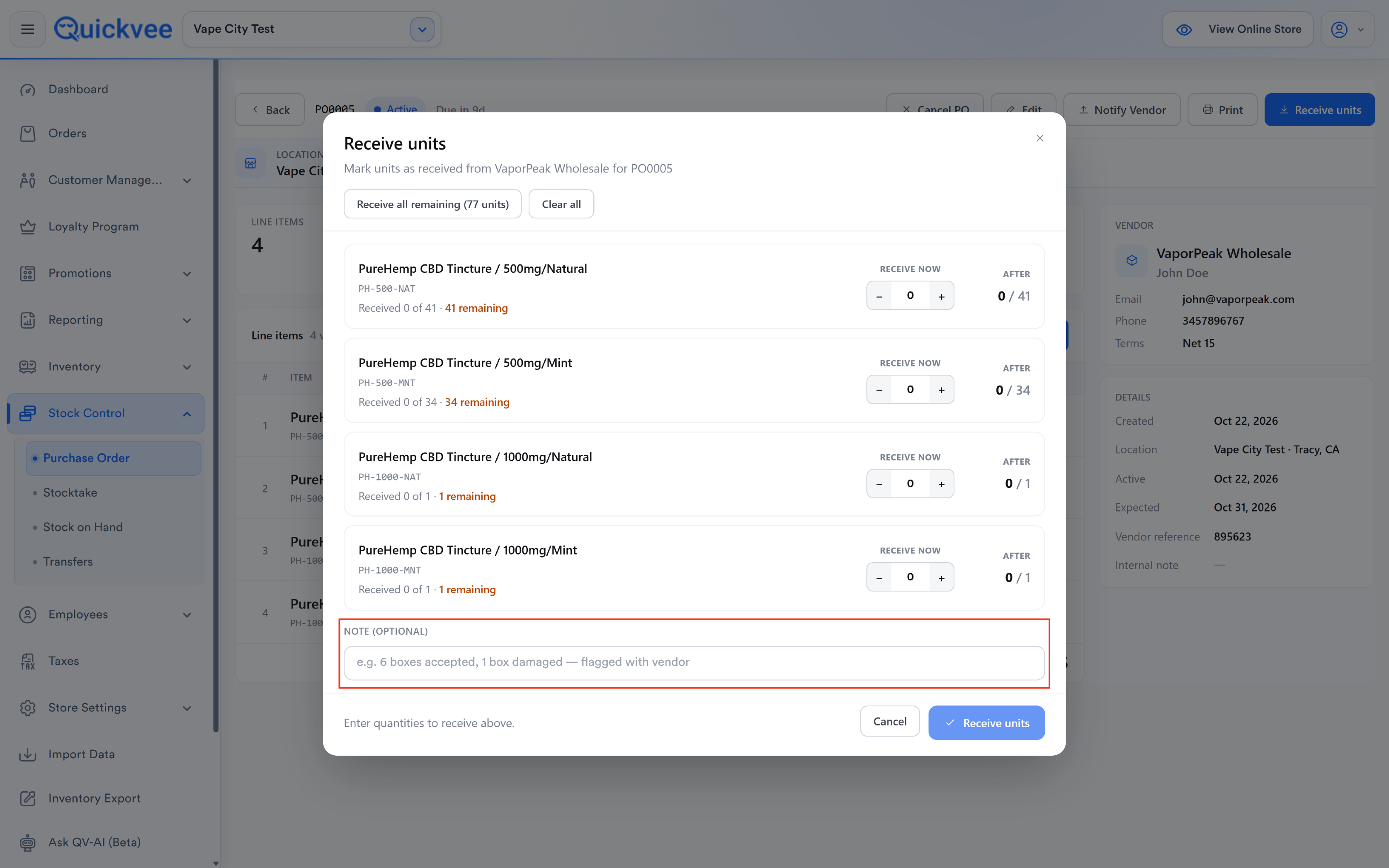
Note (optional)
Below the line items in the modal sits a NOTE (OPTIONAL) field with the placeholder e.g. 6 boxes accepted, 1 box damaged, flagged with vendor. Use it to record dock-side observations that don't fit anywhere else, damaged units, missing items, vendor delivery quality. The note is saved with the receive event.
Commit bar
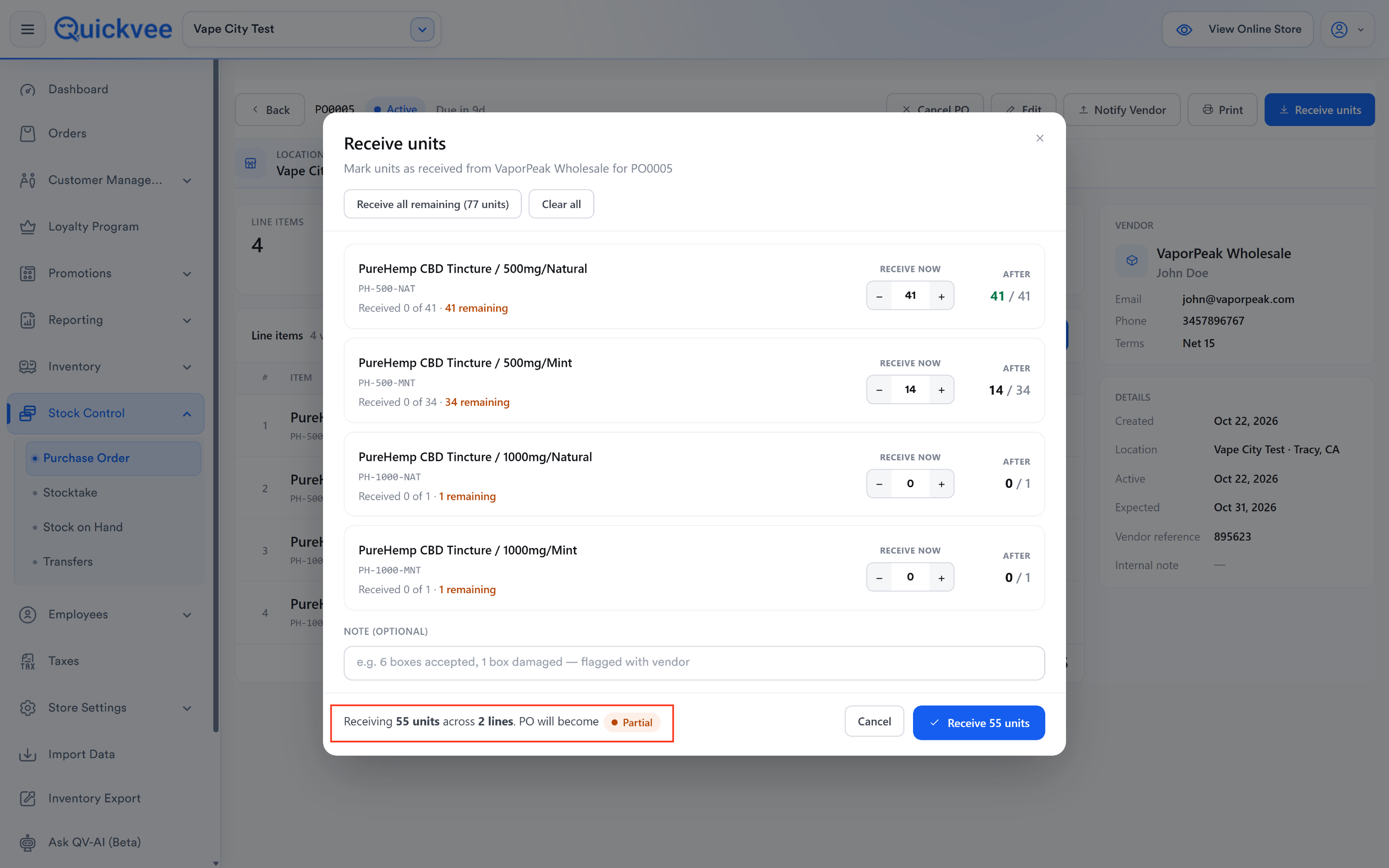
At the bottom of the modal:
|
Element |
What it shows |
|---|---|
|
Receiving X units across X lines |
Live count of what you're about to commit. |
|
PO will become [status badge] |
The status the PO will move to after this receive, either Partial (orange pill) if there are still remaining units, or Received (green pill) if every line will be complete. |
|
Cancel |
Discards the entry and closes the modal. |
|
Receive X units (blue button) |
Commits the receive event. Disabled if the total is zero. |
Once committed:
-
Each line's Received quantity increments by the amount you entered.
-
The PO's overall Received count and progress bar update.
-
The status badge updates to Partial or Received.
-
On-hand inventory for each product increases at the PO's store location.
-
The note (if any) is stored with the receive event.
💡 Tip. The PO will become Partial preview at the bottom of the modal is your commit safety check. If you expected a full delivery but the preview says Partial, you may have missed a line. Look for lines still showing X remaining in orange before hitting Receive.
Editing a Purchase Order After It Was Received
A received PO can be reopened for correction within 24 hours of its creation. Open the PO, roll its status back from Received to Active, make the change — quantities, costs, a missing line — and receive it again. Inventory and cost are recalculated from the corrected PO.
IMPORTANT: The 24-hour window runs from when the PO was created, not from when it was received. After 24 hours the PO is locked; correct stock with a stock adjustment and cost on the next order.
BEST PRACTICE: Receive, then check the PO against the delivery note straight away. The window is there for same-day corrections, not for reopening last week's orders.
-20261026-094830.png?cb=2d7ba73fe7602d52a4cae010a9119e7e)
-20261026-094838.png?cb=de7942ea7adebc828babce7e13b842bd)
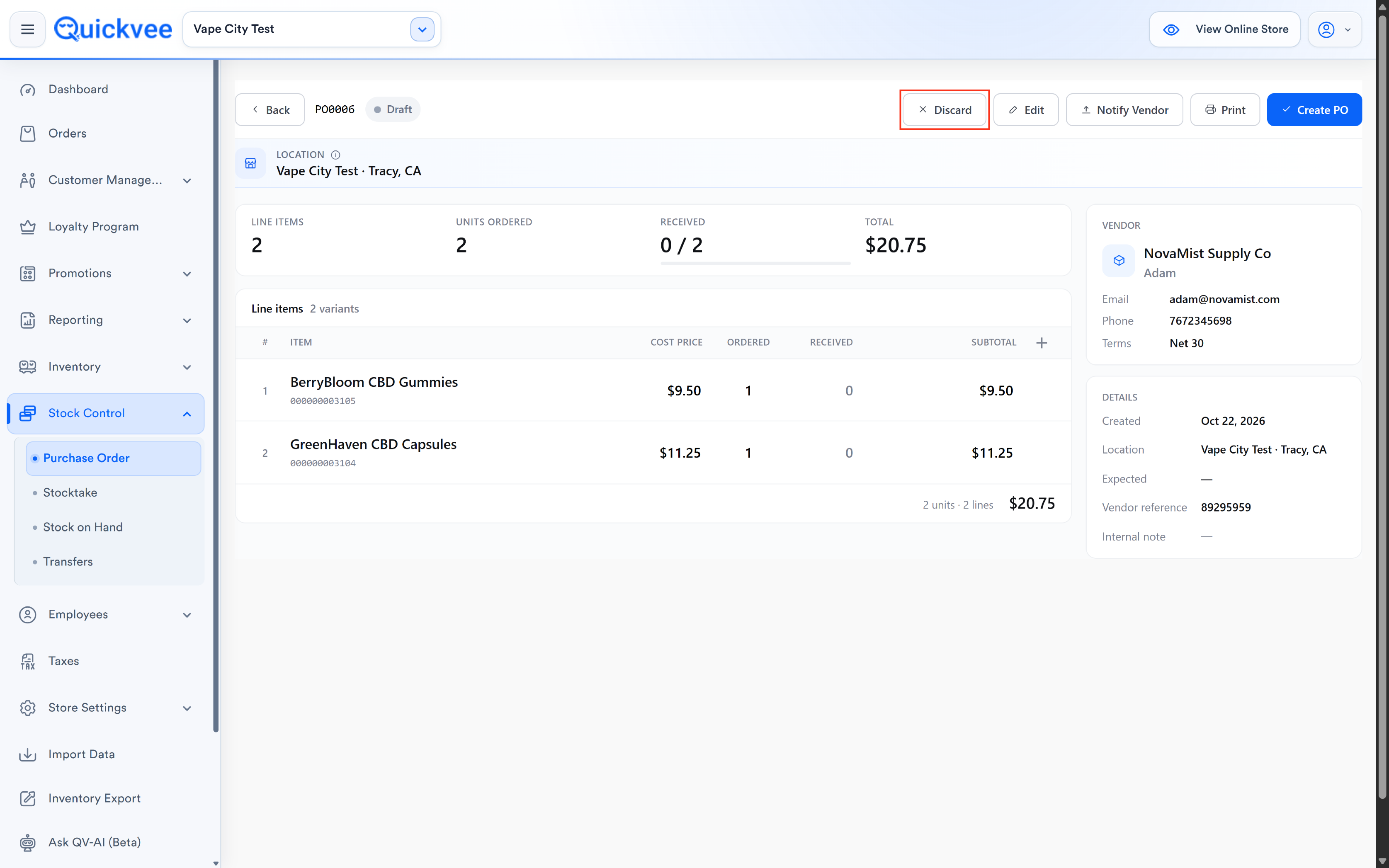
Discarding a draft
Draft POs can be permanently deleted. From the draft's detail view, click Discard at the top-right. A confirmation modal appears:
Discard draft?
This will permanently delete {PO name}.
Keep PO (outlined) / Discard draft (red, with trash icon)
Click Discard draft to permanently delete the draft PO. Click Keep PO or the × to cancel and return to the detail view.
⚠️ Discard is permanent, there is no restore. If you're not 100% sure, save the draft as-is and revisit it later. If you have a draft that needs to move forward instead, use Edit to update it and Create PO to finalize.
Cancelling an Active or Partial PO
For finalized POs, the top-right action includes Cancel PO (instead of Discard). Cancelling moves the PO to the Cancelled status. The PO remains in the system for audit and reporting but no further receives can happen, and:
-
Any units already received on a Partial PO remain in your on-hand inventory (they're already on your shelves).
-
Any remaining units are removed from Units Incoming.
-
Open Value decreases by the remaining unreceived amount.
A Cancelled PO shows the Cancelled red badge and only the Print action.
Printing
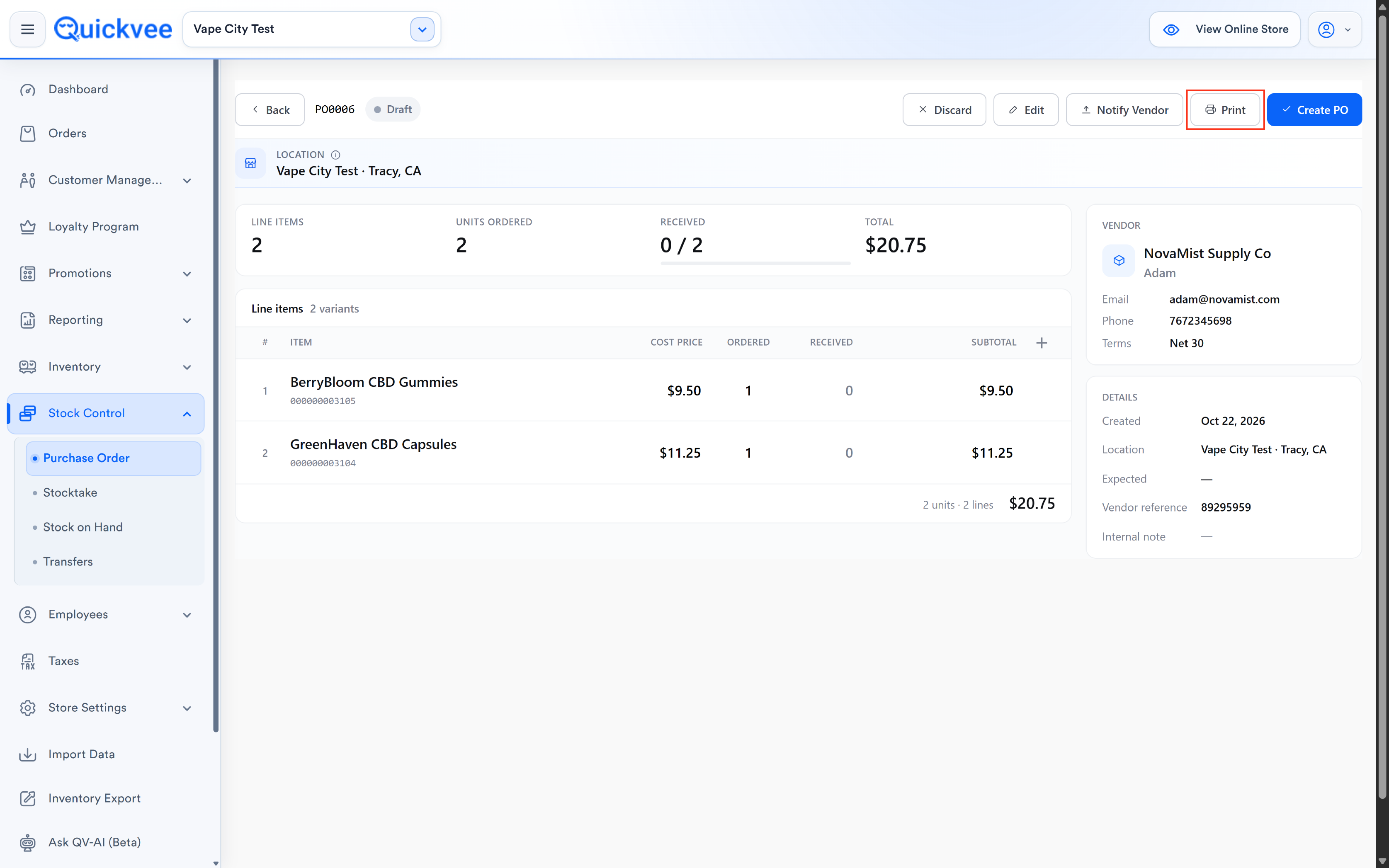
The Print button is available at every status. It opens a printable PO document with:
-
PO number and status.
-
Store and vendor information.
-
Line items with quantities, costs, and totals.
-
Received and remaining columns for received POs.
-
Any note captured on the receive event.
Print is your record-of-transaction, file it, hand a copy to a vendor rep for signature, or attach it to your accounting reconciliation.
Printing a PO Without Costs
The PO print hides the Cost column by default. Switch the cost toggle on for a particular purchase order if you want costs on that printout — for example, a copy for your accountant. The default stays off, so a print handed to a driver or left in the stockroom never shows what you pay.
-20261026-095647.png?cb=ec61144d08e275e0ae10a085d832f37d)
Statuses at a glance
|
Status |
What it means |
What you can do |
|---|---|---|
|
Draft |
Started but not committed. Doesn't count toward Open Value or Units Incoming. |
Edit, Save, Discard, or Create PO to finalize. |
|
Active |
Committed and awaiting delivery. Counts toward Open Value and Units Incoming. |
Edit, Print, Receive units, or Cancel PO. |
|
Partial |
Some units received, some still outstanding. |
Receive more units, Edit, Print, or Cancel PO. |
|
Received |
All units received. Removed from Open Value and Units Incoming. |
Print. |
|
Cancelled |
Cancelled before full receipt. Frozen in the system for audit. |
Print. |
What's different from the legacy Purchase Order module
If you're familiar with the old module (still accessible under Old Purchase Order), here's what's changed:
|
Element |
Legacy |
New |
|---|---|---|
|
Summary tiles at the top |
Not present |
Open Value, Units Incoming, Overdue |
|
Status filter tabs |
Basic status dropdown |
Tabbed row with live counts per status |
|
Search |
Basic PO # only |
PO #, reference, or vendor, universal |
|
Vendor filter |
Not always present |
Persistent filter dropdown at the top-right |
|
Current inventory shown when adding products |
Not shown |
Displayed inline in the Product row (per selected store) |
|
Add products |
One-at-a-time only |
Catalog picker for bulk add, plus single-product search/scan |
|
Draft as a first-class status |
Limited |
Full Draft workflow with Save as draft, Discard, and Create PO to finalize |
|
Detail view |
Basic table |
Structured layout with summary tiles, sidebar, and clear action buttons |
|
Receive units flow |
Row-level edits with limited preview |
Dedicated modal with per-line quantity, live After preview, and PO will become Partial/Received status check before commit |
|
Note on receive event |
Not captured |
Optional NOTE field on every receive event |
|
Print after full receive |
Missing on some POs |
Available at every status |
What to do with the module
|
Question |
How to answer it |
|---|---|
|
How much am I owed in incoming stock? |
Read the Open Value and Units Incoming tiles at the top of the page. |
|
Which vendors haven't delivered on time? |
Look at the Overdue tile. If greater than zero, tap into it to see the overdue POs. |
|
I need to reorder ZYN across the board. |
Click + New Purchase Order, use the catalog picker (Add items to PO), filter to All vendors or the vendor's dropdown, select every ZYN variant, click Add X to PO. Adjust quantities, click Create PO. |
|
A partial delivery just arrived. |
Open the PO, Receive units, enter the received quantity on each line, check the PO will become Partial preview, Receive. |
|
The vendor sent the wrong item. |
On the receive modal, put 0 in RECEIVE NOW for that line, add a note in NOTE field, commit, then contact the vendor. |
|
Need to see everything from a specific vendor. |
Use the All vendors dropdown at the top-right of the list to filter to that vendor. |
|
I want to see only outstanding orders. |
Click the Active or Partial tab. |
|
I saved a draft yesterday but changed my mind. |
Open the draft, Discard, confirm Discard draft. |
Things to know
📝 The Current Inventory column reflects the selected PO store, not your whole account. If you operate multiple stores, verify the store selector at the top before reading the Current Inventory numbers.
📝 Cost Price on the PO does not overwrite your catalog cost. Editing Cost Price on a PO line only affects that PO's calculations. Your product's default cost stays as set in the Products catalog until you edit it there directly.
📝 Received units flow into your on-hand inventory immediately. As soon as you commit a Receive units event, the products' on-hand quantities at that store go up by the amount received. Reports and the register reflect the new stock within seconds.
📝 A PO's Active date is recorded when you first click Create PO, not when you started the draft. Reporting on lead time uses the Active date as the start.
📝 Cancelling an Active PO with prior partial receives does not reverse the receives. The received units stay on your shelves. Only the unreceived portion is removed from Open Value and Units Incoming.
📝 Overdue counts only Active and Partial POs. A finalized-then-received PO with an Expected date in the past does not count as Overdue, it was delivered.
📝 Print is available at every status, so you can always produce a paper trail for a specific PO.
📝 The catalog picker modal defers to your Products module for product data. If a product is missing from the picker, check the Products module, it may be disabled, filtered out by vendor, or need to be created there first.