
Note: This article reflects the new Categories page (MM-768). UI screenshots will be added once the designer team finalizes the updated visuals.
Categories are the backbone of your store — the shelves your products live on, the tiles cashiers tap on the register, and the sections shoppers browse online. The Categories page in the POS app's Inventory section manages all of it in one place, with a capability that sets it apart: online and in-store category order are sorted independently, so the layout that's fastest for your cashiers doesn't have to match the layout that sells best online.
Where to Find It
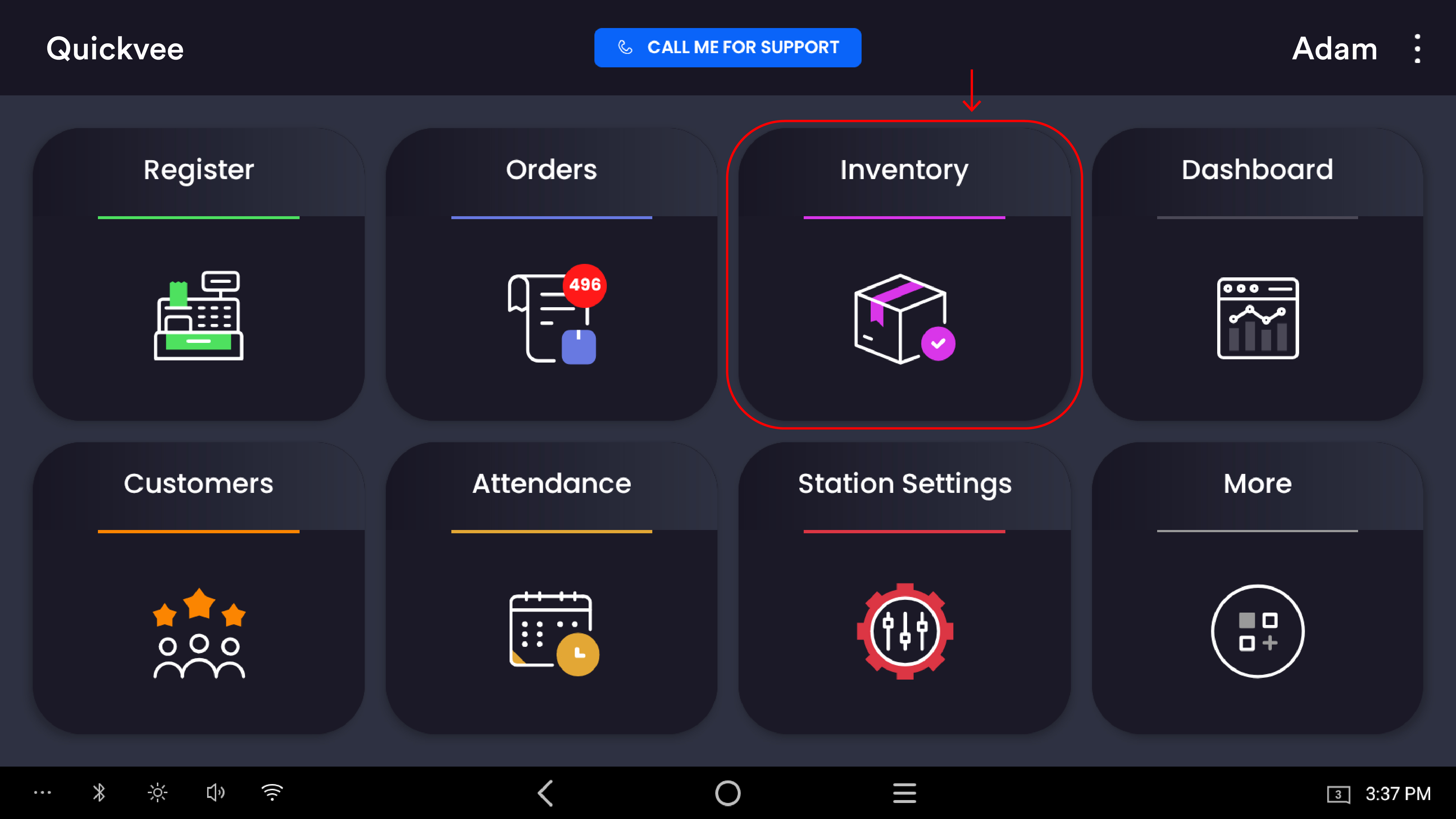
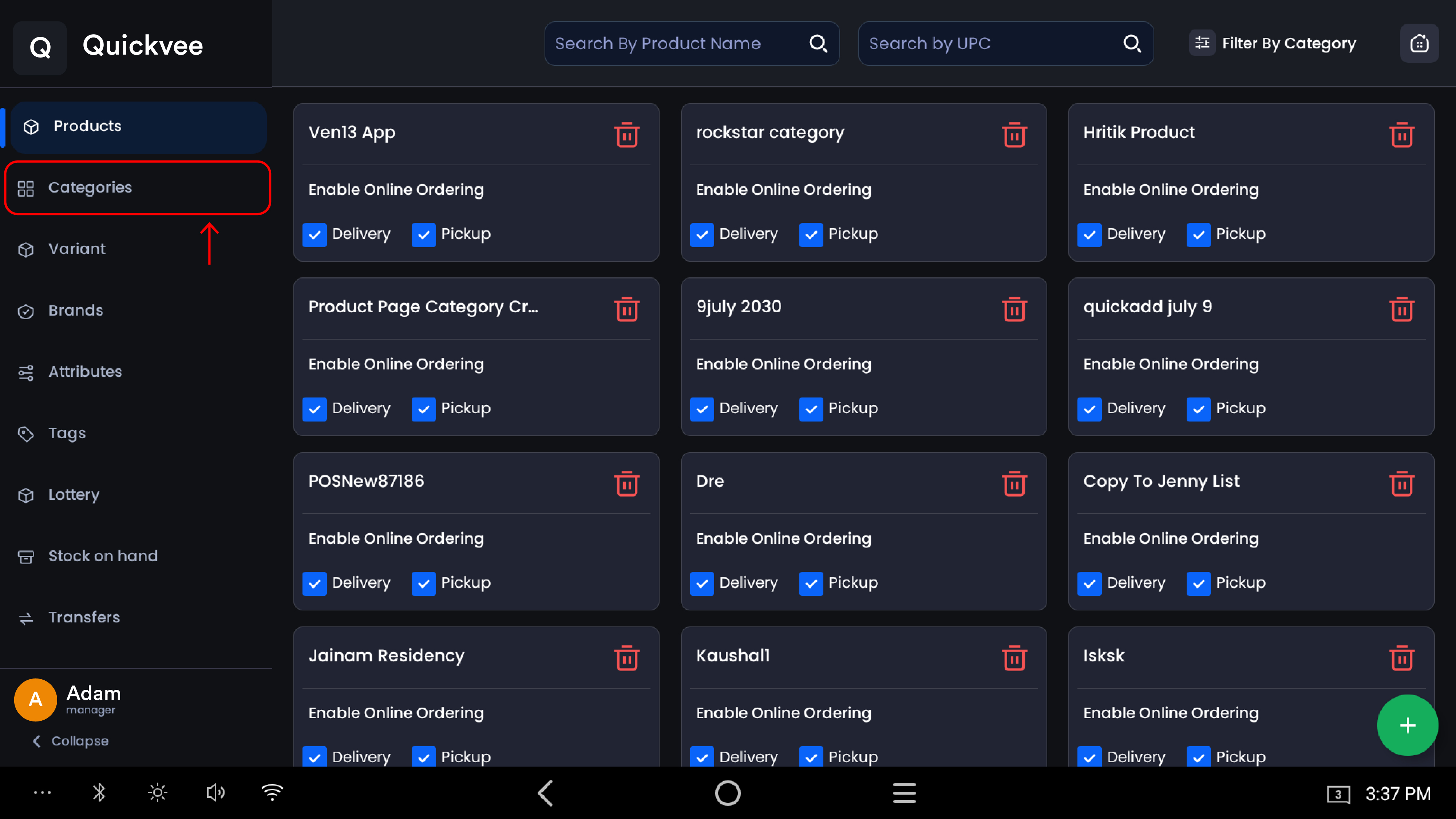
From the POS app, open the Inventory section and select Categories. The header shows your category count and a reminder of the page's core idea: sort independently for online and in-store.
The Three View Modes
|
Mode |
What it's for |
|---|---|
|
Alphabetical |
Your browsing and management view — find, edit, and bulk-manage categories. No dragging here; switch to a sort mode to reorder. |
|
Online store |
Drag categories to set the order shoppers see on your online ordering site.. |
|
POS register |
Drag tiles to set the grid order cashiers see on the register, with a live preview. |
Reordering for the Online Store
-
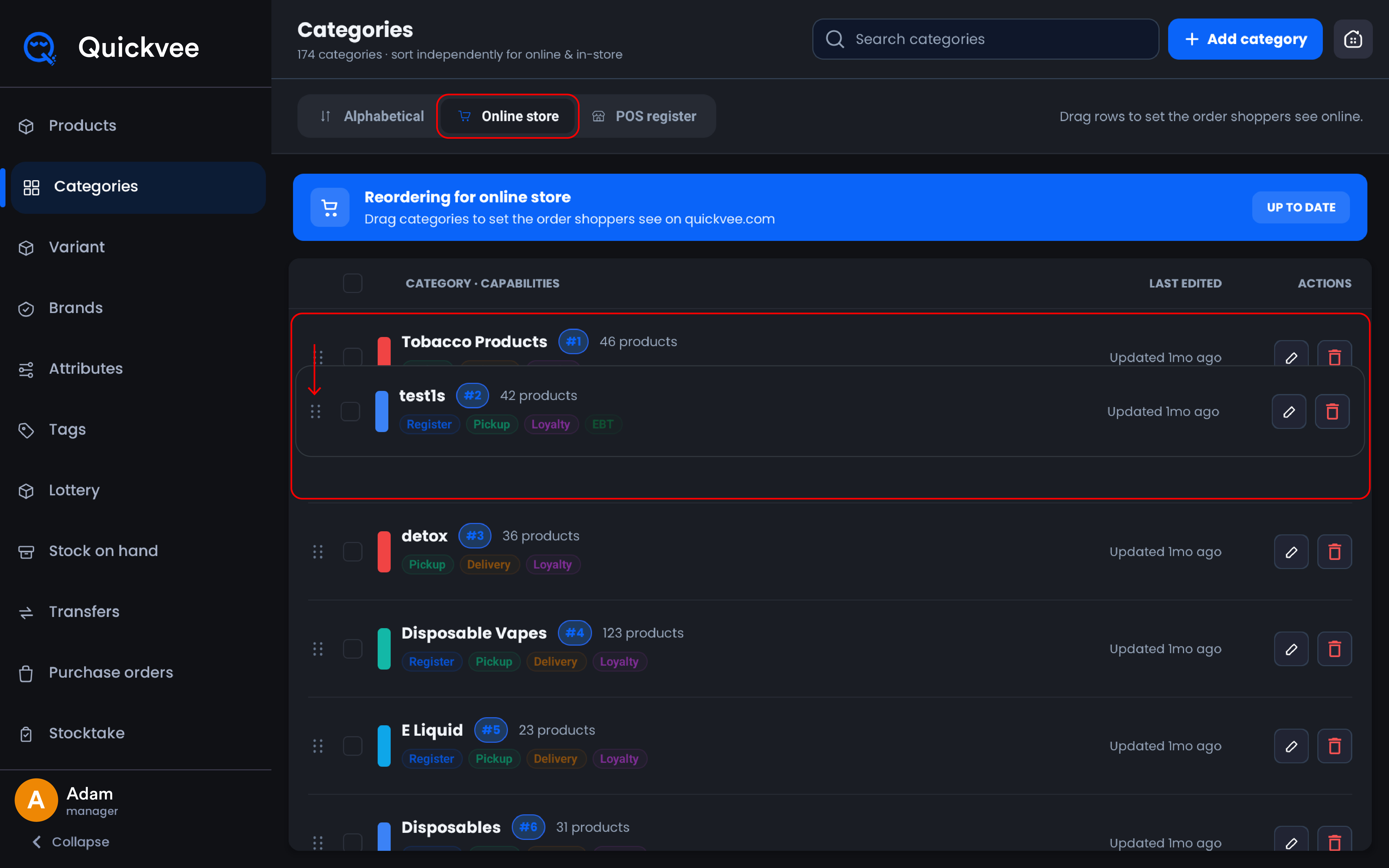
Switch to the Online store tab. A banner confirms you're reordering the shopper-facing sequence, and each category shows its current position badge (#1, #2, ...).
-
Drag rows into the order you want.
-
Tap Save order to publish, or Reset to discard your dragging. Once saved, the banner shows Up to date.
Reordering for the POS Register
-
Switch to the POS register tab.
-
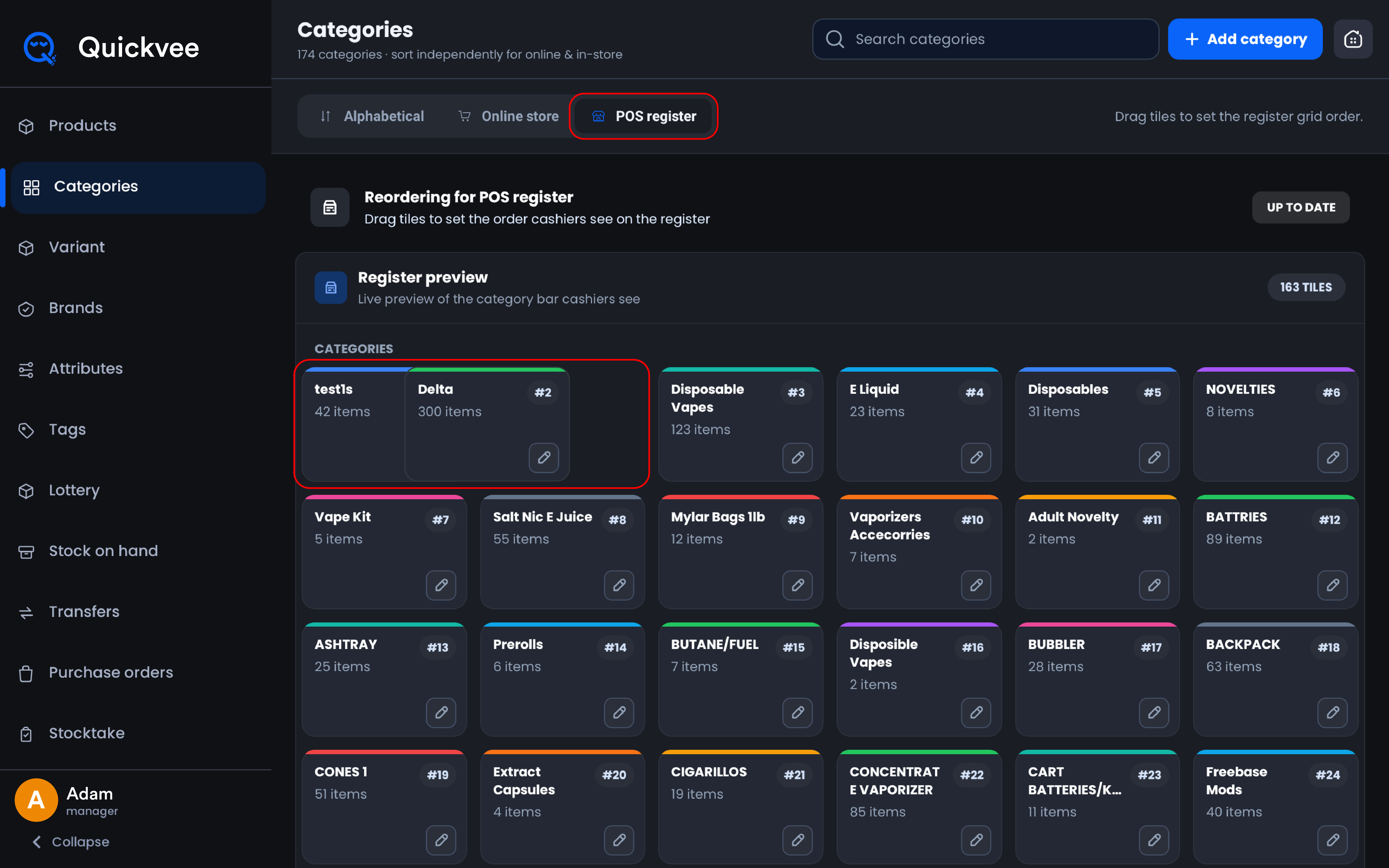
The Register preview shows a live rendering of the category bar exactly as cashiers see it — colored tile stripes, position numbers, and item counts, with the total tile count badged at the top.
-
Drag tiles into position. Put the categories cashiers reach for most in the first row — every second saved per transaction compounds across a shift.
-
Each tile carries a pencil icon for jumping straight into that category's settings.
Tip: These two orders are genuinely independent — set Kratom first on the register because it's your volume seller, while your online store leads with Water Pipes because that's what draws browsing shoppers. Saving one order never touches the other.
Reading the Category List
Each row in the list shows:
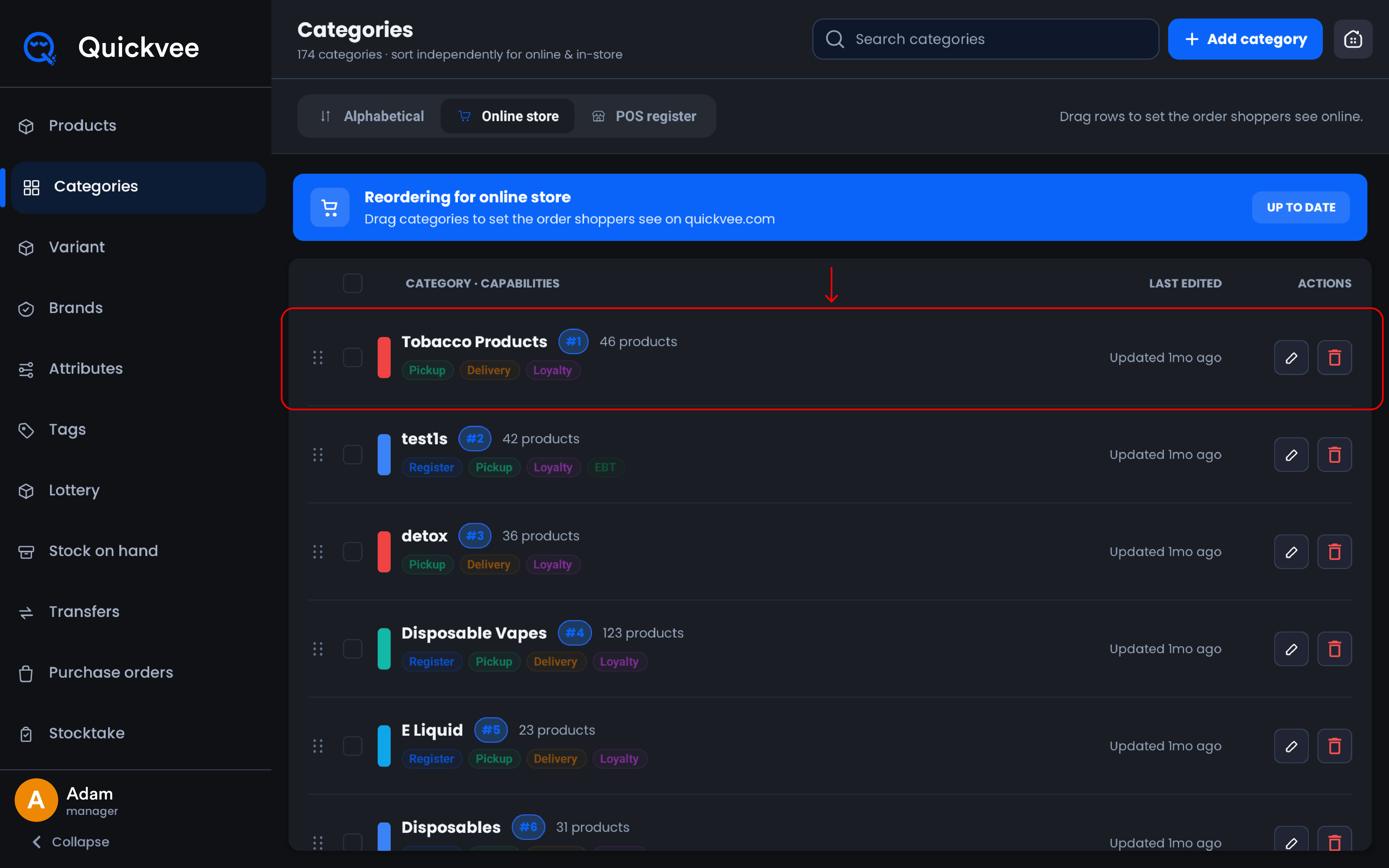
|
Element |
What it shows |
|---|---|
|
Color stripe |
The category's tile color — the same accent cashiers see on the register. |
|
Name + product count |
The category and how many products it holds. |
|
Position badge |
The category's rank in the active sort mode. |
|
Capability chips |
At-a-glance flags for what's enabled: Register, Pickup, Delivery, Loyalty. A missing chip means that capability is off. |
|
Last edited |
How recently the category was changed. |
|
Edit / Delete |
Pencil opens the full settings panel; trash removes the category. |
Search filters every view live — including the register preview, which collapses to just the matching tiles.
Multi-Select and Bulk Actions
Tick the checkboxes on multiple rows and a selection bar appears showing the count, with Delete to remove them all in one action and Clear to deselect. Use it for cleaning out test categories or retired product lines in one pass.
-20260928-141246.jpg?cb=134d984f52c33a22b369e560881a3aa3)
Creating a Category
Tap + Add category to open the settings panel. Here's the full field reference:
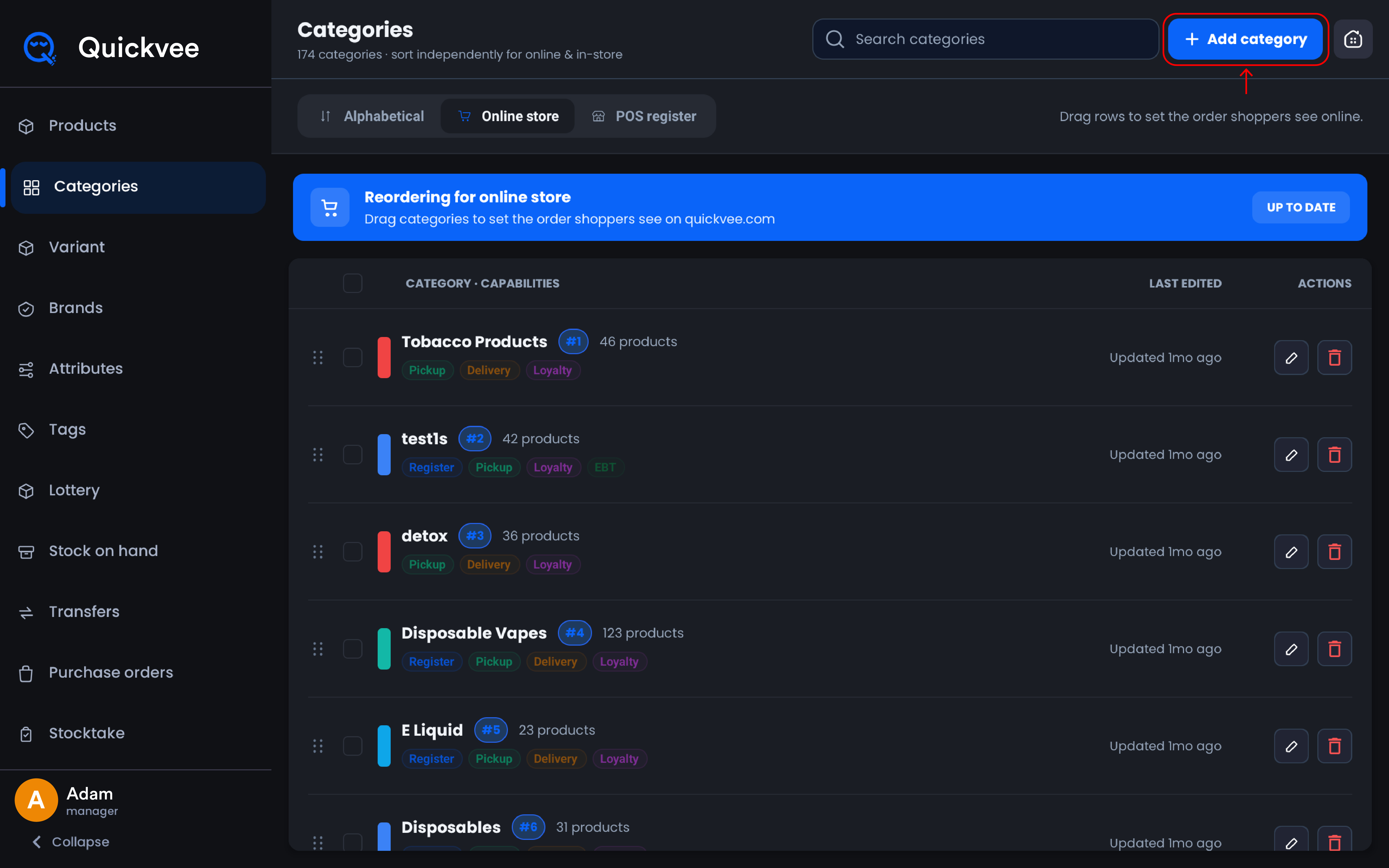
Identity
|
Field |
Notes |
|---|---|
|
Category name |
Required. What staff and shoppers both see. |
|
Description |
Optional. Shown on the category's landing page online. |
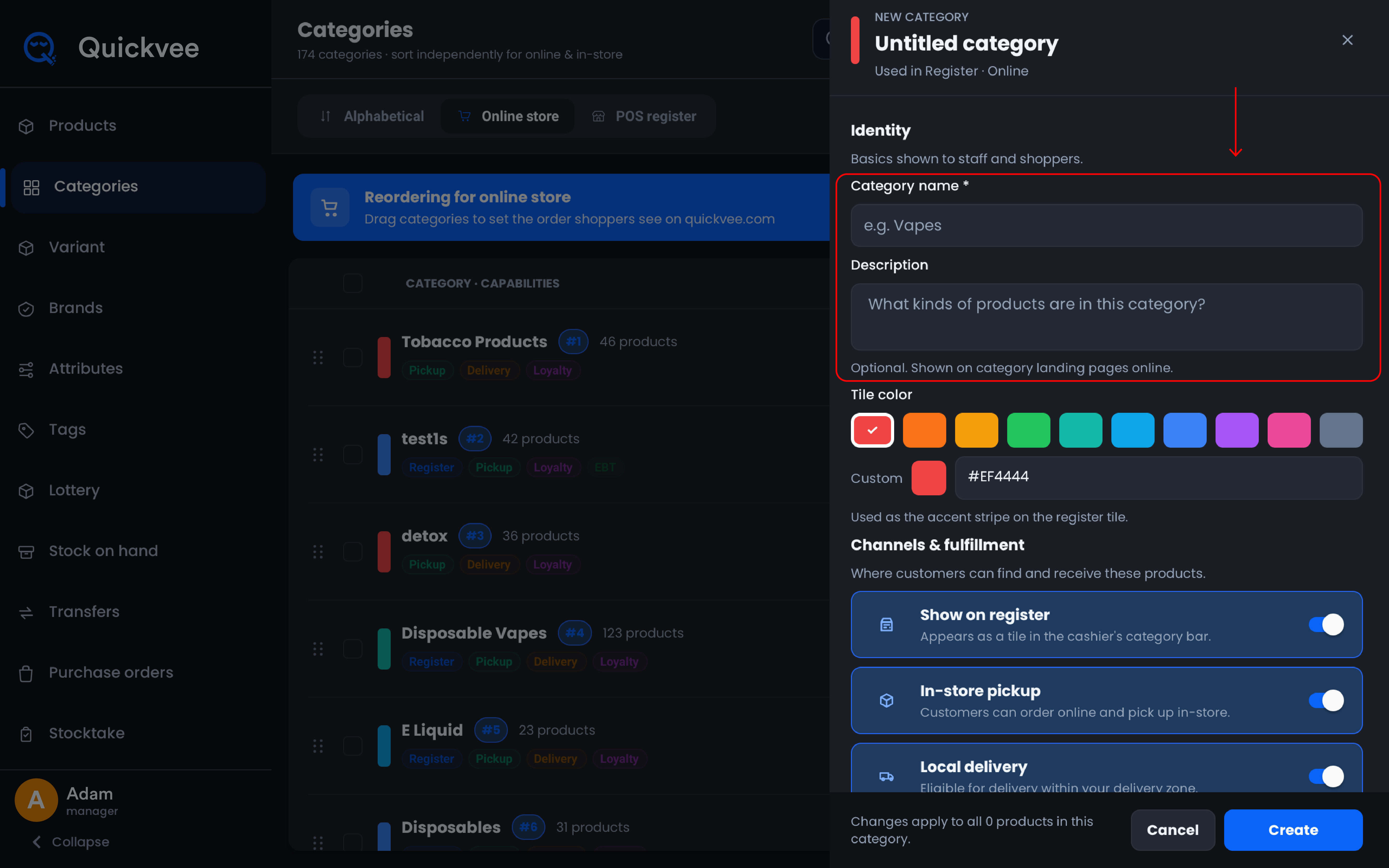
Tile Color
Pick from ten presets or enter a custom hex code. The color becomes the accent stripe on the register tile and the list row — a visual language your cashiers learn fast, so keep related categories in related colors.
Channels & Fulfillment
This is where you control where the category exists:
|
Toggle |
What it controls |
|---|---|
|
Show on register |
The category appears as a tile in the cashier's category bar. |
|
In-store pickup |
Customers can order these products online and pick up in-store. |
|
Local delivery |
Products are eligible for delivery within your delivery zone. |
These are per-channel switches — a category can be register-only (in-store exclusive lines), online-only, pickup-but-not-delivery, or any combination.
Loyalty Points
|
Toggle |
What it controls |
|---|---|
|
Earn points |
Customers earn loyalty points buying products in this category. |
|
Redeem points |
Customers can redeem points against products in this category. |
Scope your rewards program at the category level — for example, earn on everything but block redemption on already-thin-margin categories.
Compliance & Restrictions
Regulatory flags that change how items are sold:
|
Toggle |
What it controls |
|---|---|
|
Lottery items |
Sales in this category are treated as lottery tickets and settled separately at end of day. |
|
EBT / SNAP eligible |
Customers can pay for items in this category with EBT cards. |
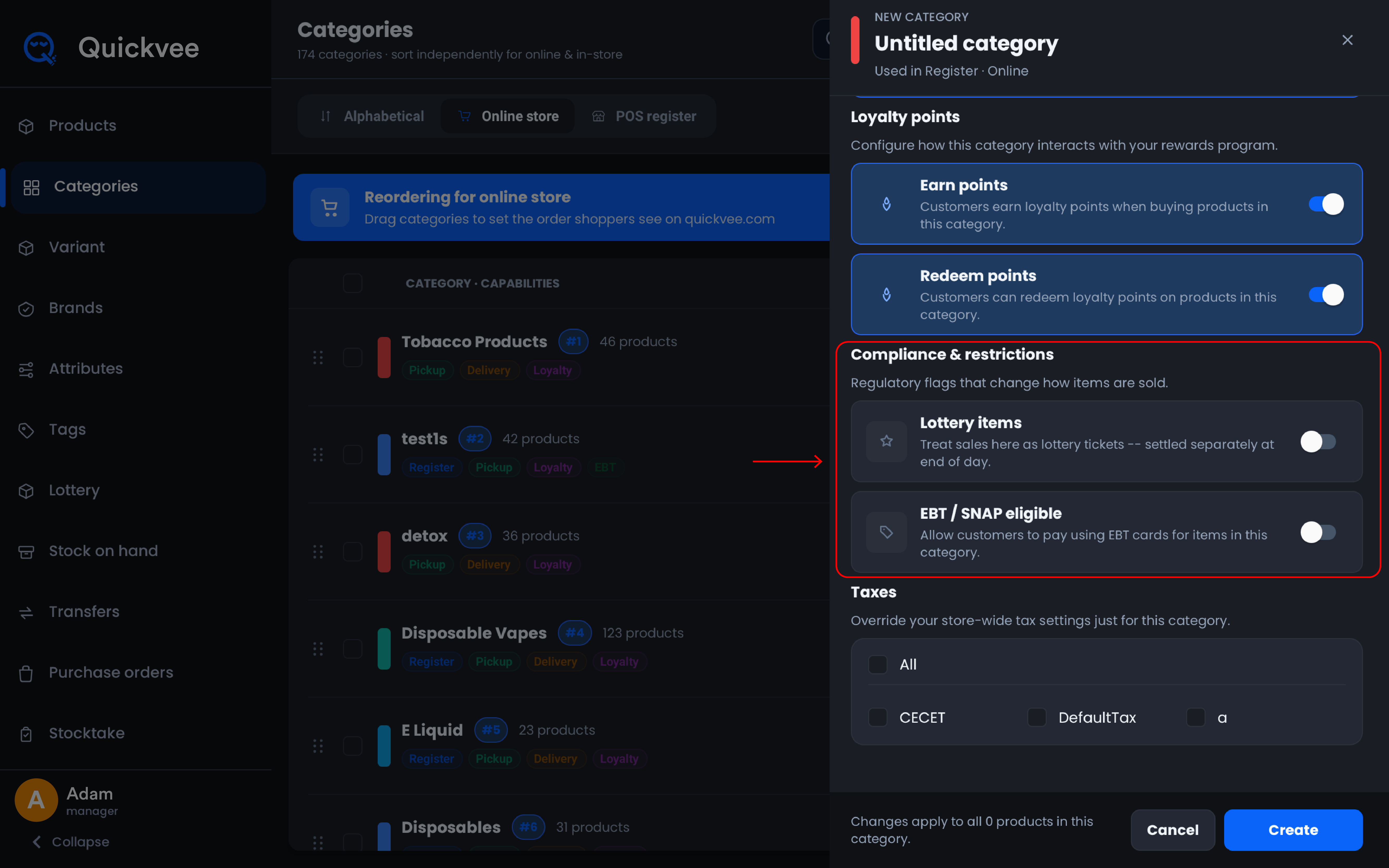
Note: Lottery and EBT are mutually exclusive — lottery categories don't offer EBT/SNAP eligibility, and the register enforces EBT rules at checkout, including correctly excluding non-eligible charges.
Taxes
Override your store-wide tax settings for just this category — choose All, or select specific taxes (Default Tax, Convenience Fee, Custom Tax) to apply. This is how tobacco-specific taxes stay on tobacco and off your beverage cooler.
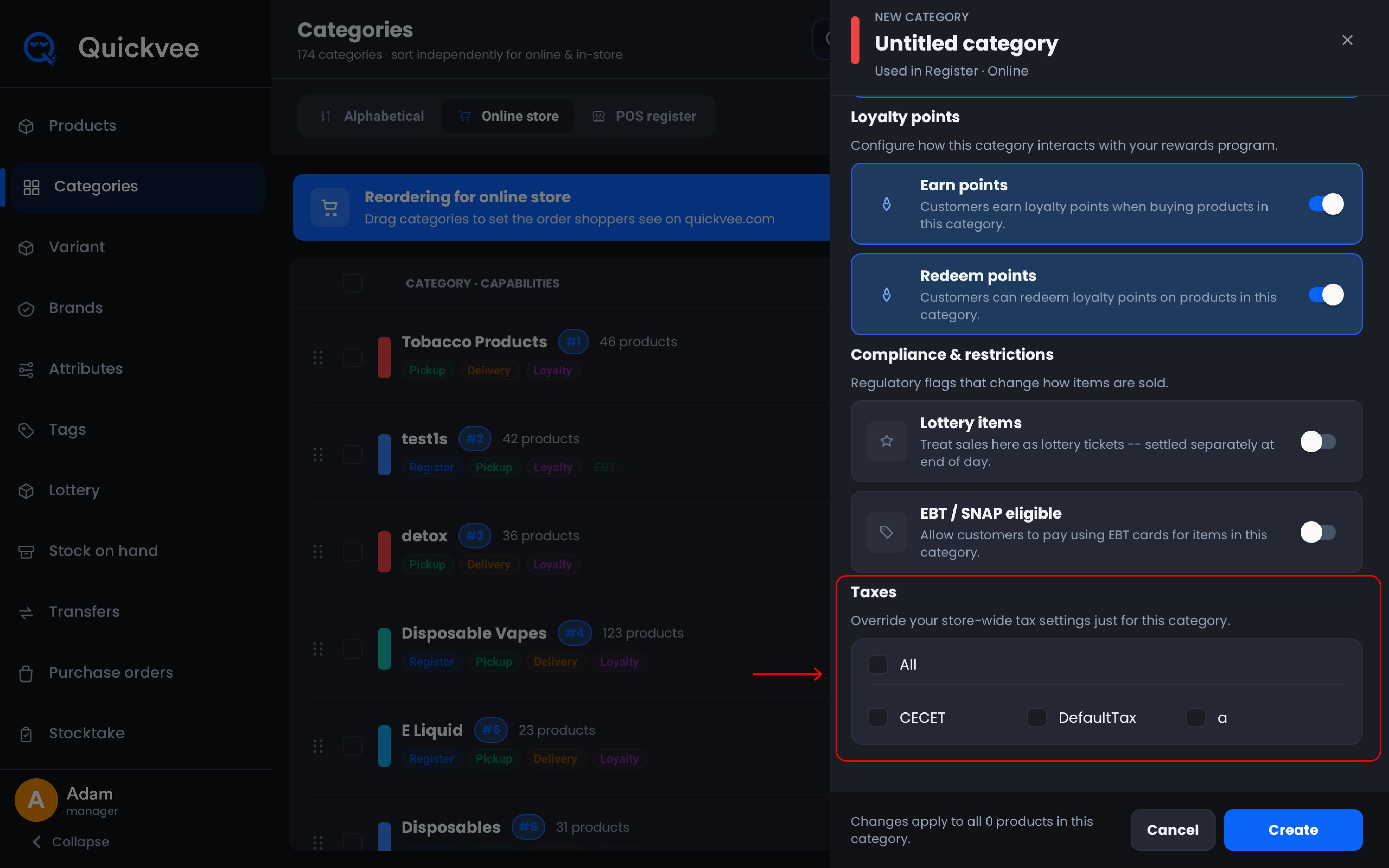
Saving
The footer states the blast radius before you commit: "Changes apply to all N products in this category." Tap Create (or Update when editing) to save, Cancel to discard.
Important: That footer line deserves a beat of attention on big categories. Toggling a compliance flag or tax override on a 67-product category changes how all 67 products sell, immediately.
Editing a Category
Tap the pencil on any row or register tile. The same panel opens pre-filled, with the header showing the product count and where the category is used (Register · Online). Adjust and tap Update.
Deleting a Category
Tap the trash icon (or use multi-select for several at once). Products from a deleted category aren't lost — they're moved to Quick Add so they remain sellable while you re-home them.
Common Questions
What do the chips on each row mean?
They mirror the toggles: Register, Pickup, Delivery, and Loyalty show which capabilities are on for that category. A category missing the Delivery chip won't offer its products in your delivery menu.
If I reorder the online store, does the register change?
No — the two sequences are fully independent, saved separately, each with its own drag-and-save flow.
What happens to products when I delete their category?
They move to Quick Add rather than disappearing, so nothing becomes unsellable. Reassign them to a proper category when convenient.
Why would I turn off "Show on register" for a category?
Online-only assortments, seasonal lines you're resting, or umbrella categories that exist for online browsing structure but would clutter the cashier's tile grid.
Can one category earn loyalty points but not allow redemption?
Yes — Earn and Redeem are independent toggles, which is exactly how you protect margin on discounted or compliance-sensitive categories.
Does the tax override replace my store-wide taxes?
For that category, yes — the selected taxes apply to its products instead of the store-wide default. Products elsewhere are unaffected.
Who can manage categories?
Category management is governed by employee permissions — staff without the relevant rights can't alter your category structure.
Source ticket: MM-768 — New Categories.