
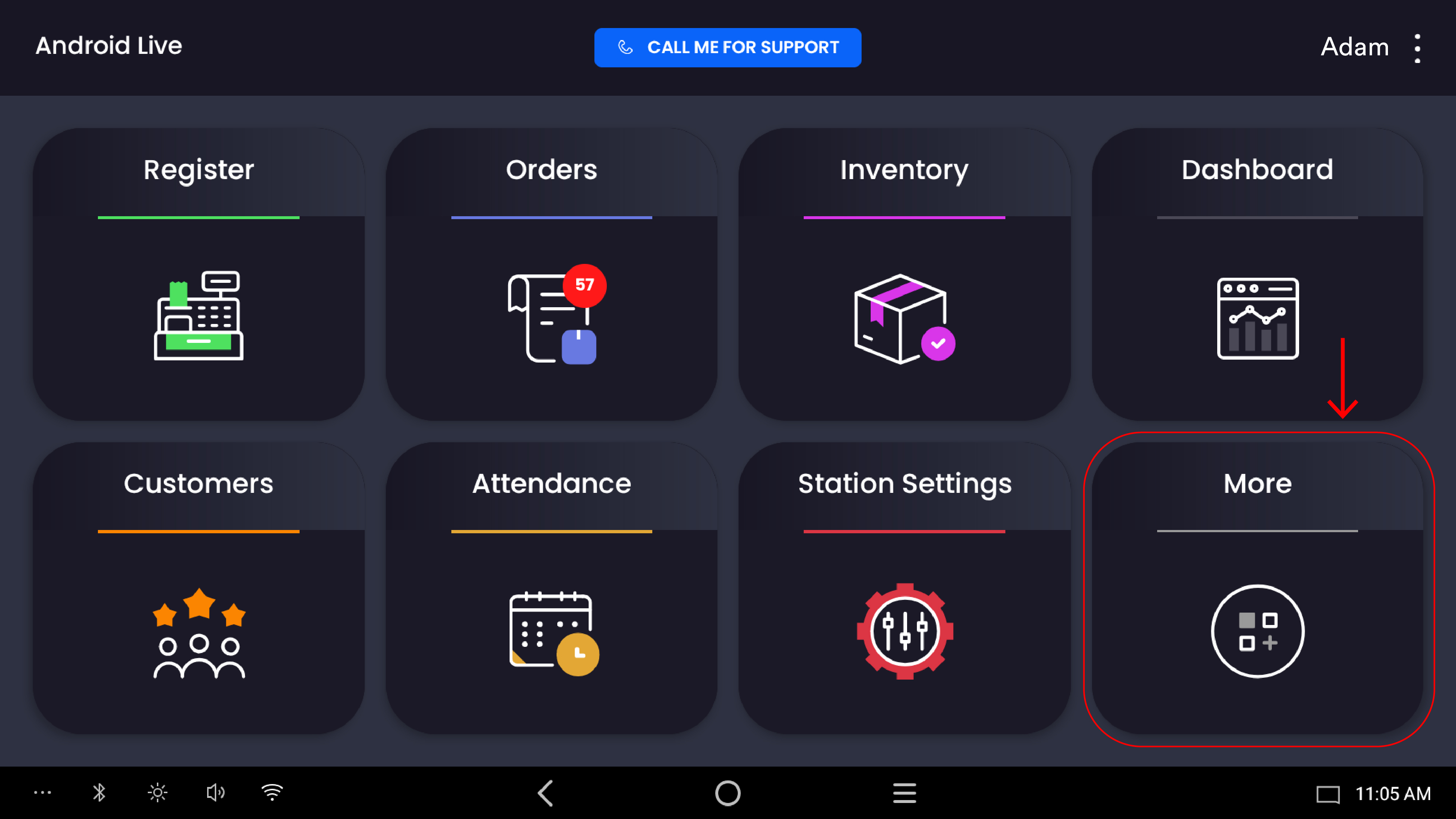
The Gift Card screen under the POS More menu lets a cashier or merchant look up every gift card on file, see each card's current balance, and drill into any card's full transaction history — including when it was issued, when and how much was redeemed against orders, and how much remains. This is the read-only lookup view; selling, loading, and redeeming gift cards happen on the Register screen.
Access path: Quickvee POS → More → Gift Card
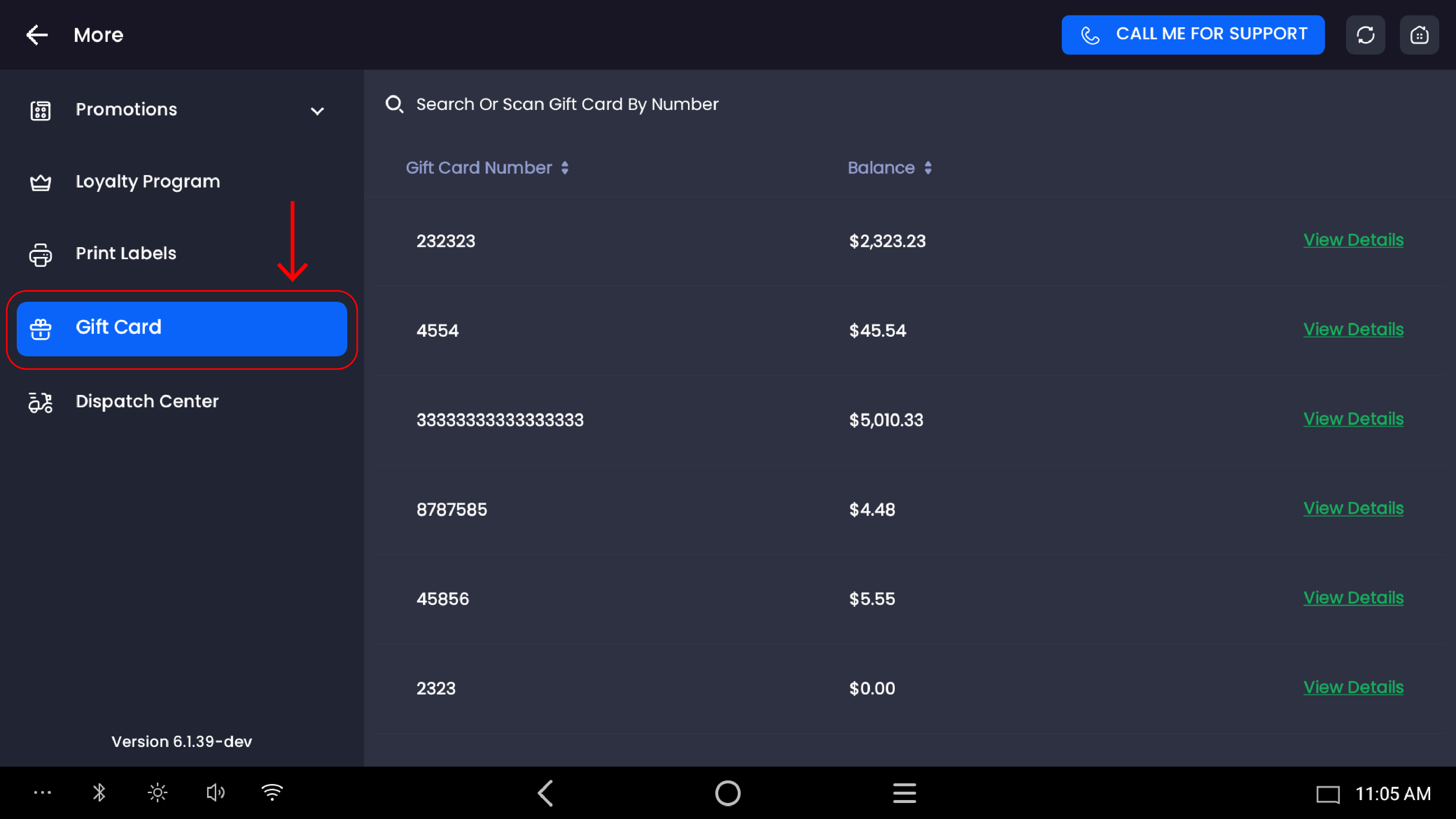
The Gift Card list
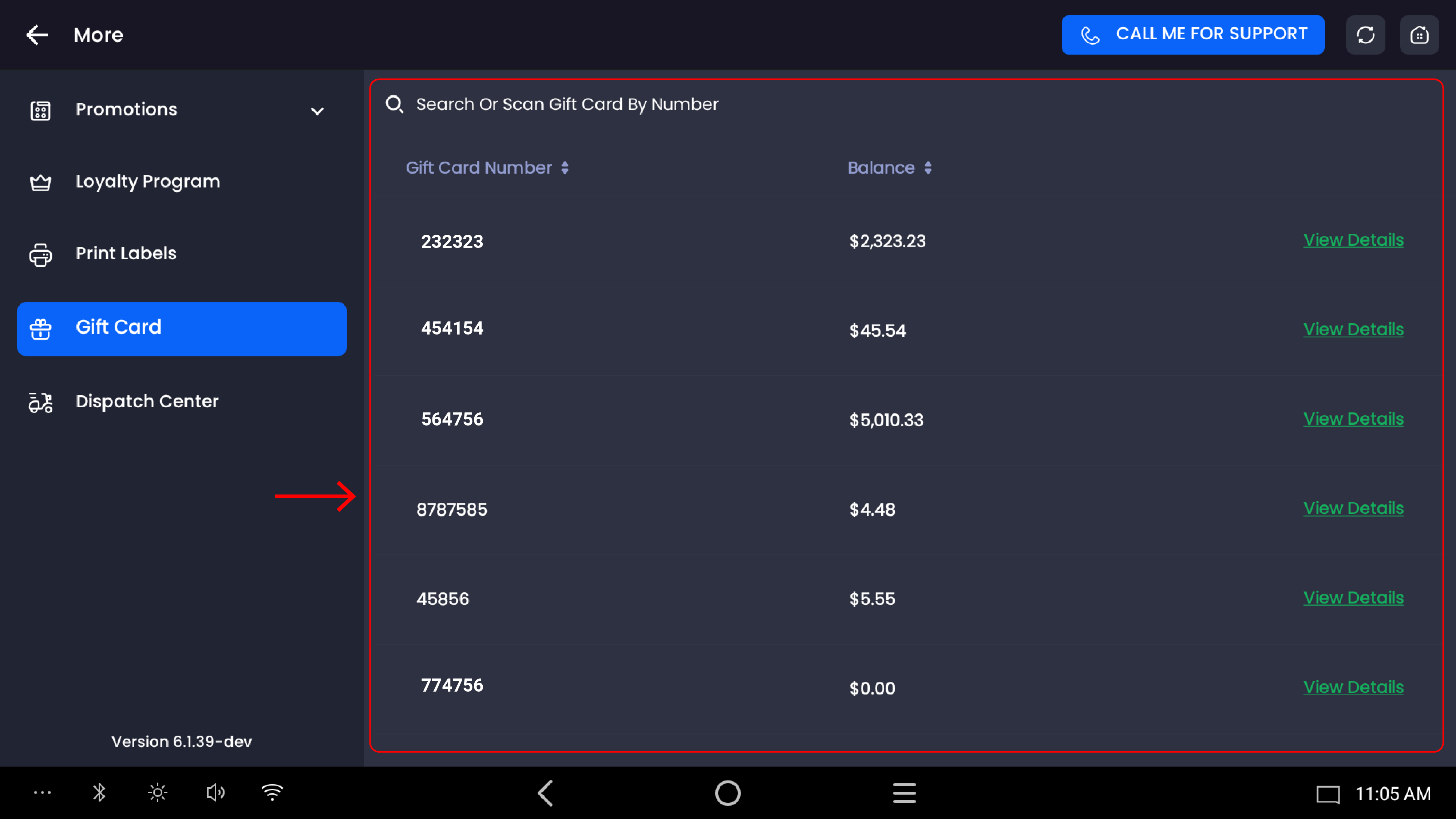
Tapping Gift Card in the More side panel opens the master list. Each row represents one gift card on file:
|
Column |
What it shows |
|---|---|
|
Gift Card Number |
The full code printed on the gift card (or the manually issued number) |
|
Balance |
The remaining redeemable amount on the card after all transactions to date |
|
View Details |
Opens the full transaction history for that card |
Both columns are sortable — tap the column header to sort ascending or descending by gift card number or balance. Sorting by balance is the fastest way to spot fully-used cards (zero balance) or high-balance cards.
Searching for a card
A Search Or Scan Gift Card By Number field sits at the top of the list. Two ways to use it:
-
Type any portion of the gift card number — the list filters in real time as you type
-
Scan the physical gift card barcode using the connected scanner — the list jumps directly to that card
The search field has a clear control to reset the filter and return to the full list.
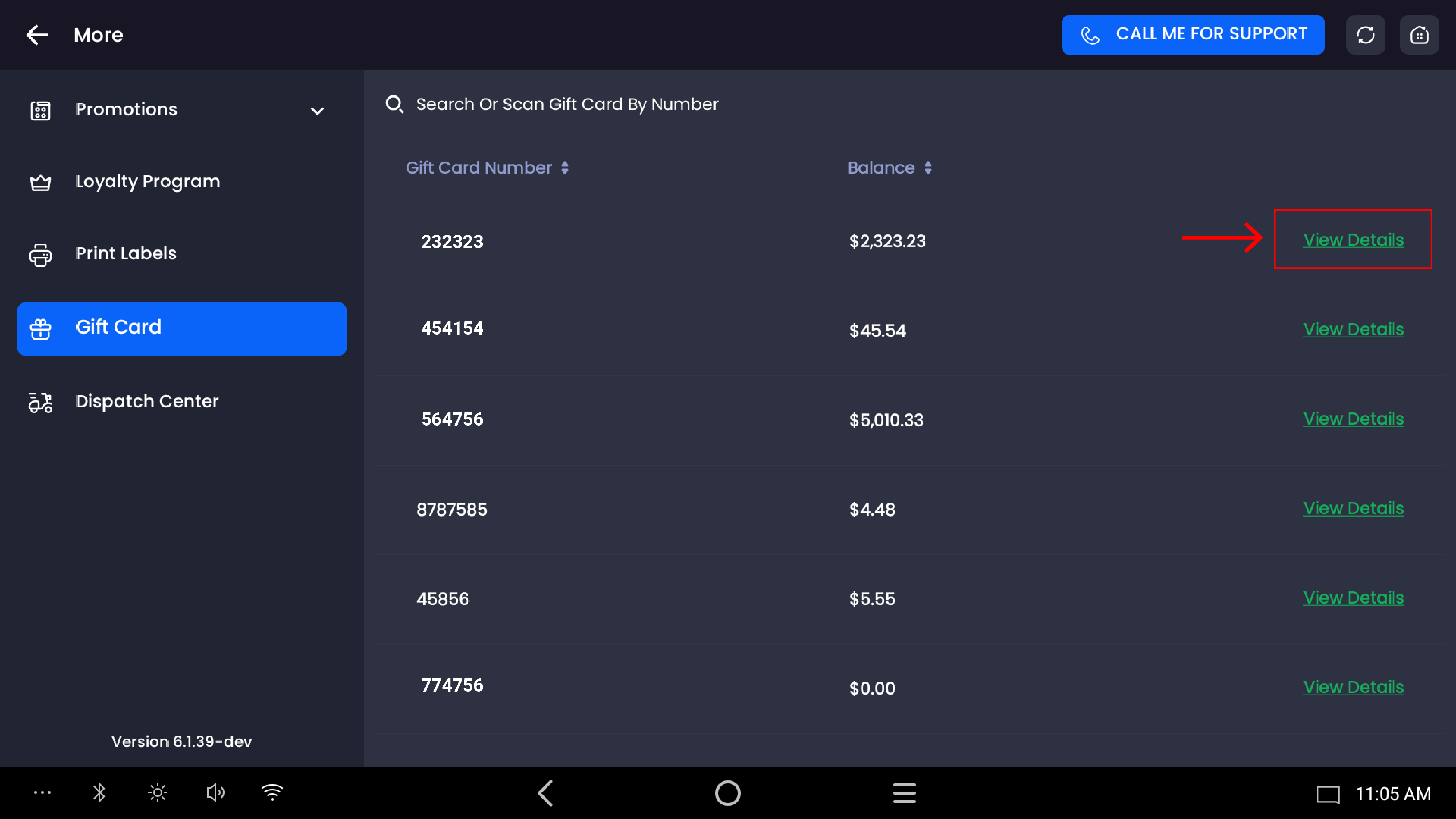
Viewing a card's history
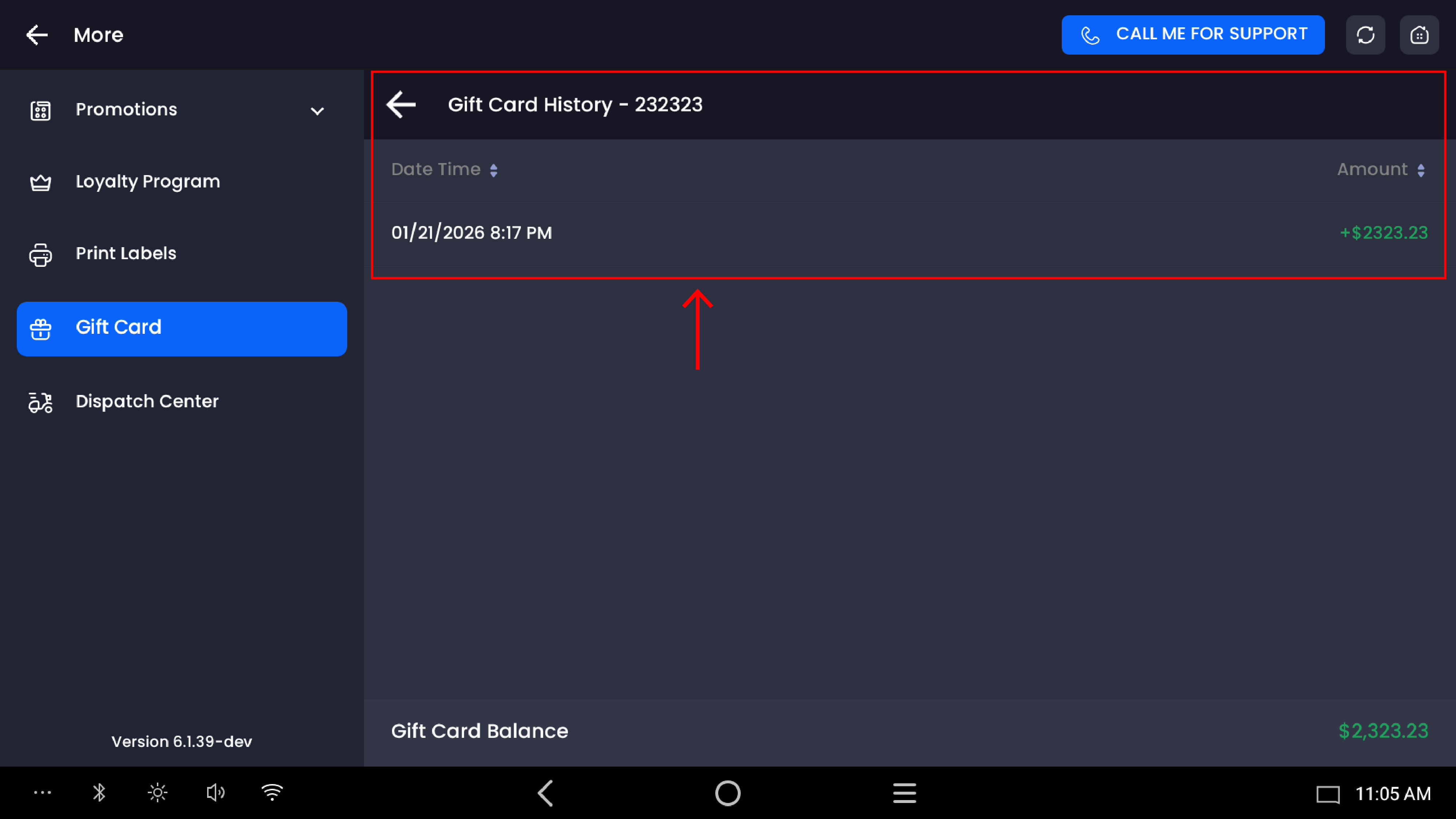
Tap View Details on any row to open the Gift Card History screen. The header shows the gift card number you're viewing (for example, Gift Card History — 121212), and the body lists every transaction recorded against this card:
|
Column |
What it shows |
|---|---|
|
Date Time |
The exact date and time the transaction was recorded (e.g. 05/07/2026 1:34 PM) |
|
Amount |
The amount with sign — green positive values are credits (issuance, refunds back to card); red negative values are debits (redemptions against orders) |
Both columns are sortable so you can review activity in chronological order or sort by amount to find the highest redemptions first.
Reading the numbers
|
Sign / Color |
Meaning |
Examples |
|---|---|---|
|
+ Green |
Money was added to the card |
Initial issuance, customer refund posted back to the card after a refunded sale |
|
− Red |
Money was deducted from the card |
Customer used the card to pay (full or partial) on a register sale |
At the bottom of the History screen, the Gift Card Balance is shown — this is the running total: the sum of all credits minus all debits, which is also the amount currently available for redemption.
Returning to the list
Tap the back arrow at the top of the History screen to return to the gift card list. The list reloads with the latest balances, so any redemption that happened on the register while you were viewing details is reflected.
Common workflows
"How much is left on this card?"
Easiest path — scan the card into the search field at the top of the list. The matching row shows the balance immediately. No need to open History unless the customer wants a breakdown.
"When was this card issued and how has it been used?"
Open the card from the list, scroll the History screen from top to bottom. The first credit (green) is typically the issuance; everything below is the usage trail with dates and amounts.
"Find all cards with no balance left"
Open the list, tap the Balance column header to sort ascending. All $0.00 cards group at the top.
"Reconcile a customer's claim against the system"
Have the customer point to the date and amount they're disputing. Open History for that card and match the transaction by Date Time and Amount. Each row is a single recorded event — there's no way for a redemption to exist outside this log.
Important notes
This screen is read-only. Issuing a new gift card and redeeming a card against a sale both happen on the Register screen. The More → Gift Card screen is for lookup, history, and balance verification only.
Balance always reflects current state. Any redemption that happens on the Register is reflected here as soon as the screen is reopened or refreshed. There's no caching delay.
Refunded sales restore balance. If a sale that was paid in part or full with a gift card is later refunded on the Refund screen, the refunded portion is added back to the original gift card and shows up as a green positive entry in the card's History.
History rows cannot be edited or deleted. Each transaction is a permanent ledger entry. Corrections must be made through a refund or a new issuance — not by altering history.
Gift card balance shown on the screen and on the printed receipt should always match. If they don't, scan the card again to refresh, or refer to the Gift Card report under Reporting for a multi-day reconciliation view.