
The Gift Card payment option on the Quickvee POS register lets a cashier redeem a customer's gift card against the current sale. The gift card can cover the full balance due or any partial amount — the customer chooses how much of the card to apply, and the remaining balance is then paid using any other payment method (Cash, Credit, Debit, EBT, or even a second gift card).
Access path: Quickvee POS → Register → add items to cart → Tap Pay → Balance screen → Gift Card
How partial redemption works
A gift card behaves like a tender, not a discount. When a customer applies $25 of a $100 gift card to a $50.89 order:
-
The system deducts $25 from the balance due for this order
-
The remaining $25.89 is owed and must be paid by another tender
-
$75 stays on the gift card for future use
-
The redeemed $25 is recorded as the gift card portion of the payment
Subtotal and tax are always calculated on the original cart amount — the gift card does not reduce the taxable subtotal. It only reduces what the customer needs to pay at the register.
Step-by-step
Step 1 — Reach the Balance screen
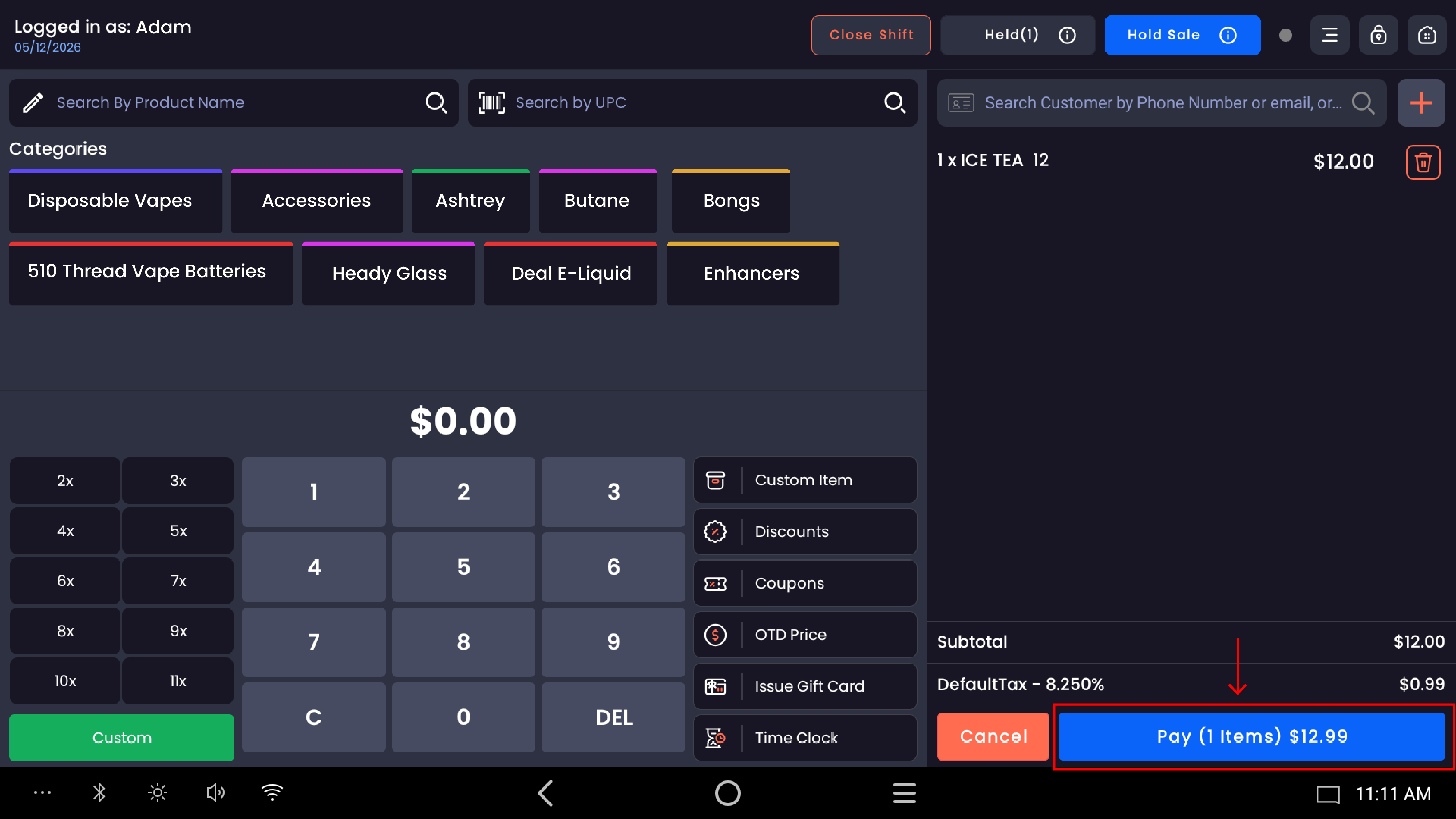
After adding items to the cart, tap Pay to open the Balance screen. The screen shows:
-
The total amount owed (top — e.g. $50.89)
-
A Tap to adjust and make a partial payment prompt under the amount
-
All available payment methods: Loyalty, Store Credit, Cash, Credit, Debit, EBT Cash, EBT Food, Gift Card
-
The Sale Summary panel on the right with line items, subtotal, tax, and To Pay
Step 2 — Tap Gift Card
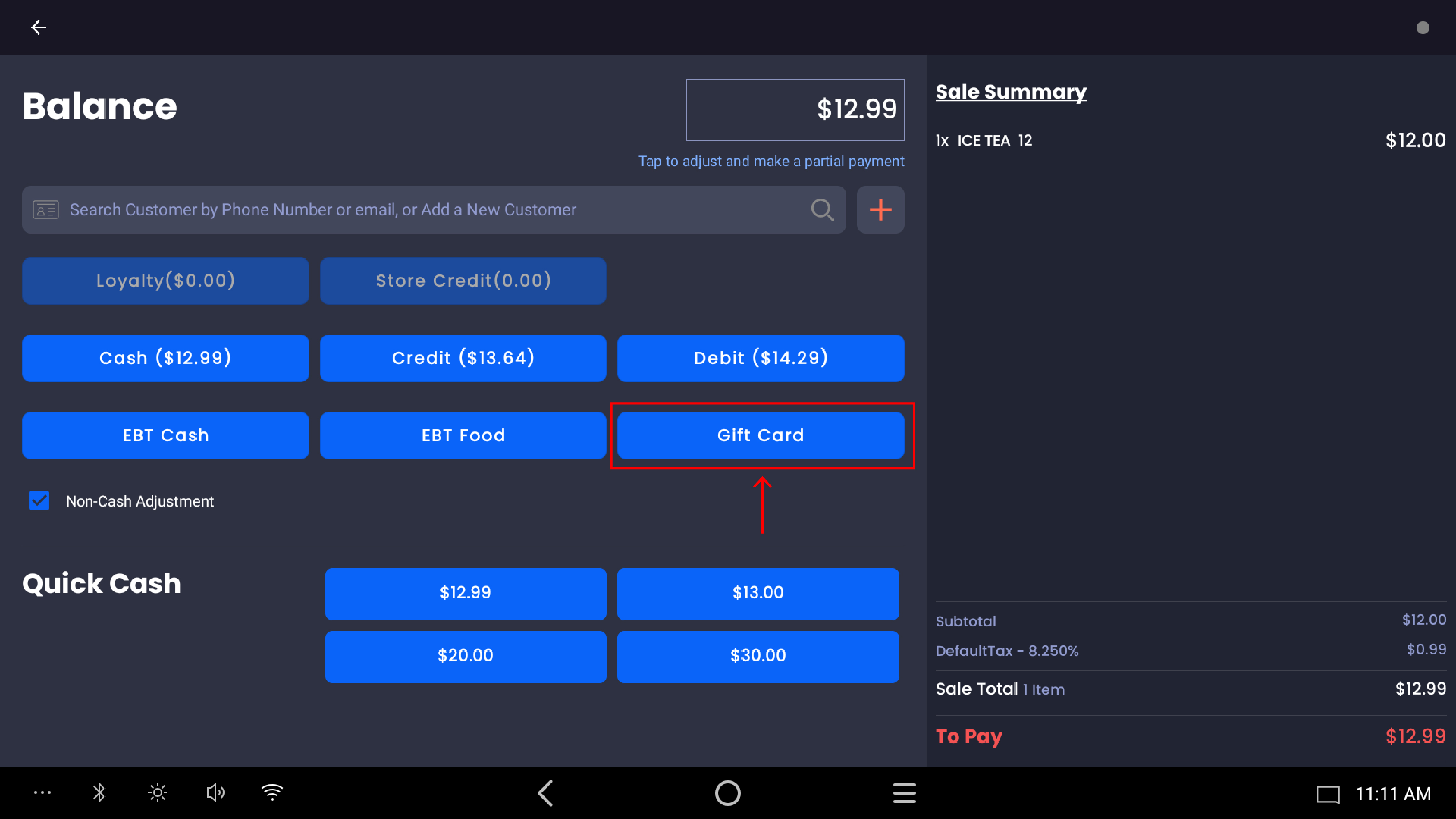
Tap the Gift Card button. The Scan Gift Card to Redeem modal opens.
Step 3 — Enter or scan the gift card code
Two options:
-
Scan the barcode on the physical gift card using the connected scanner
-
Manually type the gift card code into the input field (e.g.
616111165161)
Tap Redeem Gift Card to look up the card.
Step 4 — Confirm or adjust the amount
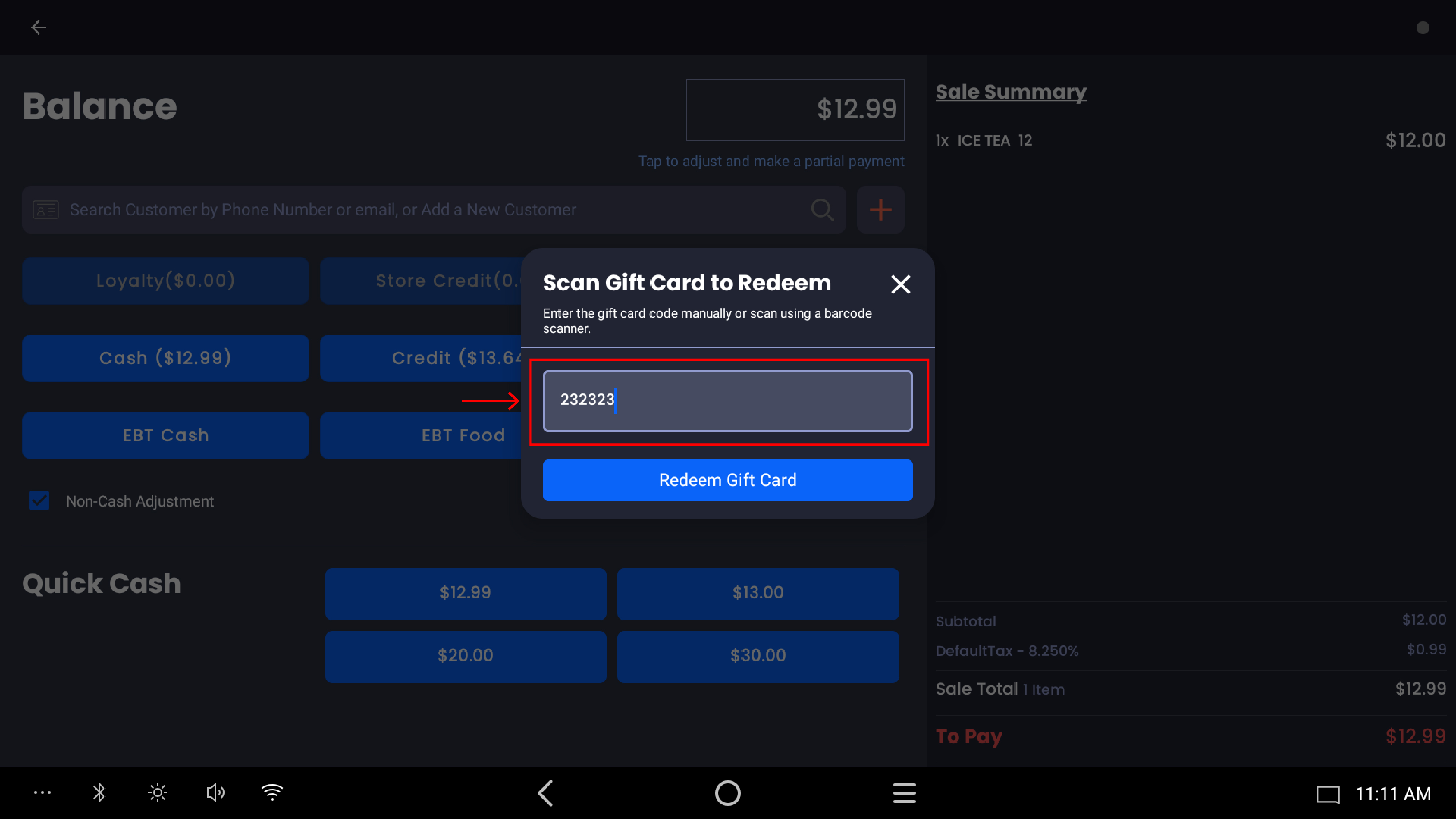
The Gift Card Balance modal opens, showing the gift card code and a Gift Card Amount field pre-filled with the maximum redeemable amount (the smaller of the card's available balance and the sale's balance due).
|
Action |
Outcome |
|---|---|
|
Leave the pre-filled amount as is |
Redeems the maximum the card can apply to this sale |
|
Edit the amount to a smaller value |
Partial redemption — only the entered amount is deducted |
|
Enter $0 or leave blank |
Not allowed; the system requires an amount greater than $0 |
|
Enter more than the card balance |
Not allowed; the system caps at the card's available balance |
|
Enter more than the order's balance due |
Not allowed; the system caps at the balance due |
Tap Confirm Redemption.
Step 5 — Review the updated balance
The Balance screen updates immediately:
-
The balance owed at the top of the screen drops by the redeemed amount (e.g. $50.89 → $25.89)
-
The Sale Summary panel adds a Gift Card line showing the negative amount applied (e.g. -$25.00), with a small remove icon next to it
-
The Cash / Credit / Debit / EBT buttons recalculate to show the new remaining amount the customer owes
-
The Quick Cash suggestion buttons refresh to round-up amounts based on the new balance due
Step 6 — Pay the remaining balance
Tap any other payment tender to settle the rest of the order:
-
Cash — opens the cash entry; the remaining balance becomes the suggested amount
-
Credit / Debit — sends the remaining amount to the connected pinpad
-
EBT Cash / EBT Food — for SNAP-eligible items
-
Gift Card (again) — to apply a second gift card to the same sale
Step 7 — Receipt prompt
Once the full balance is paid, the Change Due confirmation modal appears (showing $0.00 if the order was paid exactly).
|
Option |
Behavior |
|---|---|
|
No Receipt |
Closes the sale without printing or emailing |
|
Payment Receipt |
Prints to the connected receipt printer |
|
Email Receipt |
Prompts for an email address (or uses the customer's saved email) and sends the digital receipt |
The order is then marked complete and the register clears for the next sale.
Removing or replacing a gift card mid-sale
If the cashier needs to undo or change the gift card mid-sale, the Gift Card line in the Sale Summary on the right has a small remove icon (red X). Tapping it removes the gift card from the order and refunds the redeemed amount back to the card. The balance owed restores to the full amount, and the cashier can scan a different gift card or use a different tender.
What gets recorded
When the order completes, the following is recorded:
-
The gift card redemption is logged as a payment line on the order with the exact amount applied
-
The gift card balance is reduced by exactly the amount redeemed; the unused portion remains on the card
-
The order list flags the order as paid via gift card; if the order was paid only by gift card, a Gift Card label appears on the order summary
-
The printed and emailed receipt show the gift card line, the amount redeemed, and the gift card's remaining balance after this transaction
-
The Gift Card report under Reporting picks up the redemption against the card and contributes to the Total Redeemed figure for the day
Important notes
Gift card amount is excluded from subtotal and tax calculations. Tax is always computed on the actual cart subtotal, not on the post-gift-card balance. This is intentional — the gift card is a tender, not a discount.
A gift card cannot be applied twice in the same sale. Once a card is redeemed on the current order, the system blocks it from being scanned again on the same order. To apply more from the same card, remove the existing entry first and re-scan with the new combined amount.
The amount auto-caps at the lower of the card balance or the order's balance due. Entering $1000 on a $50 order will not over-redeem — the system enforces the cap automatically.
A gift card cannot be redeemed for $0. The amount field requires a value greater than zero before Confirm Redemption is enabled.
Refunding a sale paid with a gift card restores the redeemed amount back to the original gift card. The card's balance is increased by the refunded amount and is available for the customer's next visit.
Non-Cash Adjustment is independent of gift card redemption. If Non-Cash Adjustment is enabled, the surcharge applies to the credit/debit portion of the remaining balance only — the gift card portion is never surcharged.
A second gift card can be applied to the same sale. After the first gift card is redeemed, tap Gift Card again and scan a different card to cover more of the remaining balance.