
The Order Refund Report is your line-by-line refund ledger. Every refund issued at the register or from the web backend appears here as a row, with the customer-facing Order ID, the date and time, the cashier who processed it, the reason given, and a per-channel breakdown of where the refunded money was returned to — debit, credit, cash, loyalty points, store credit, NCA surcharge, and tip.
Use it for end-of-period refund reconciliation, for identifying patterns in refund reasons that might signal an inventory or staffing issue, for verifying a specific refund actually went through to the expected payment method, and for the auditor's view of total refunds across the date range.
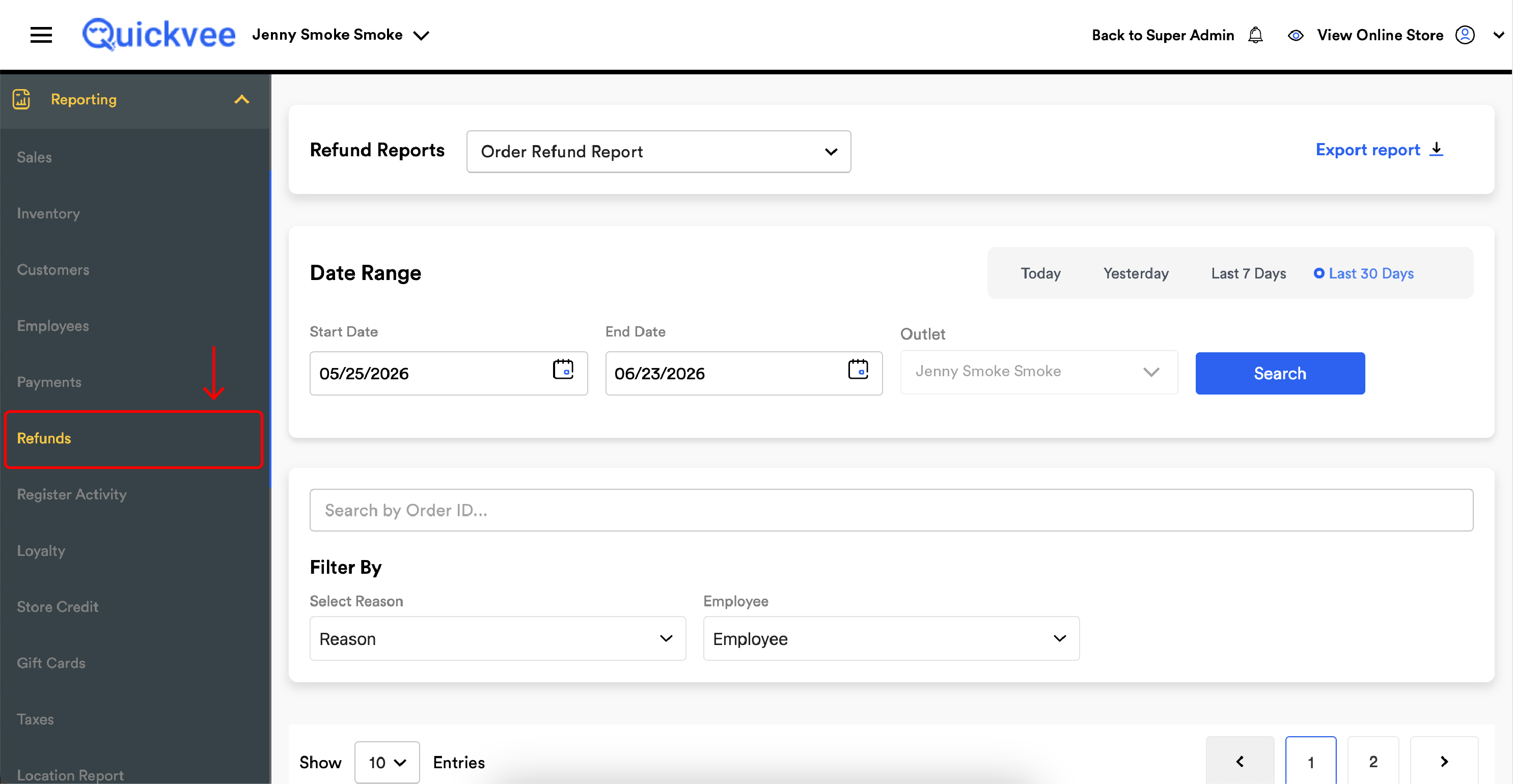
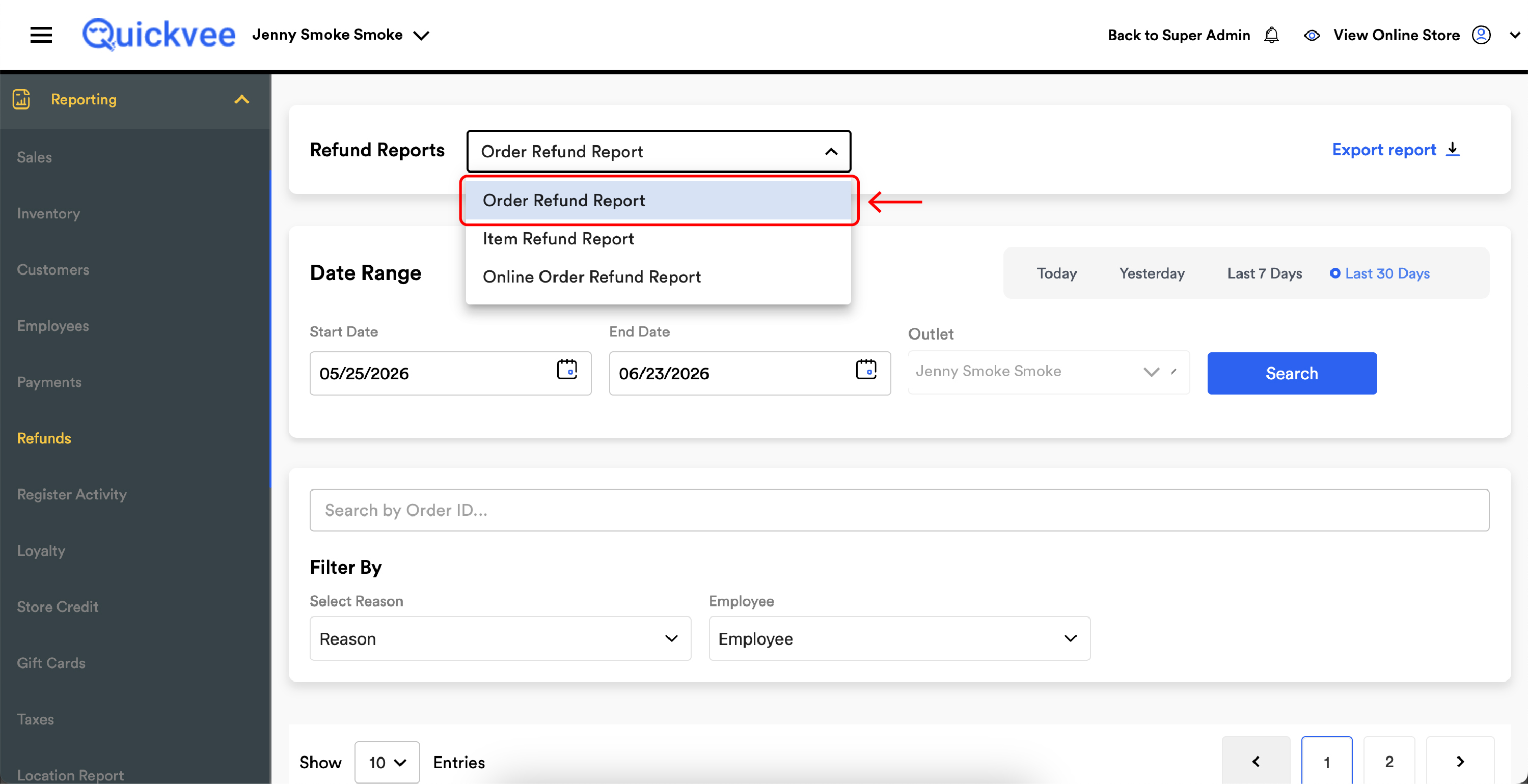
Access path: Sign in to your merchant backend → side menu → Reporting → Refunds → and from the Refund Reports dropdown at the top of the page select Order Refund Report.
Running the report
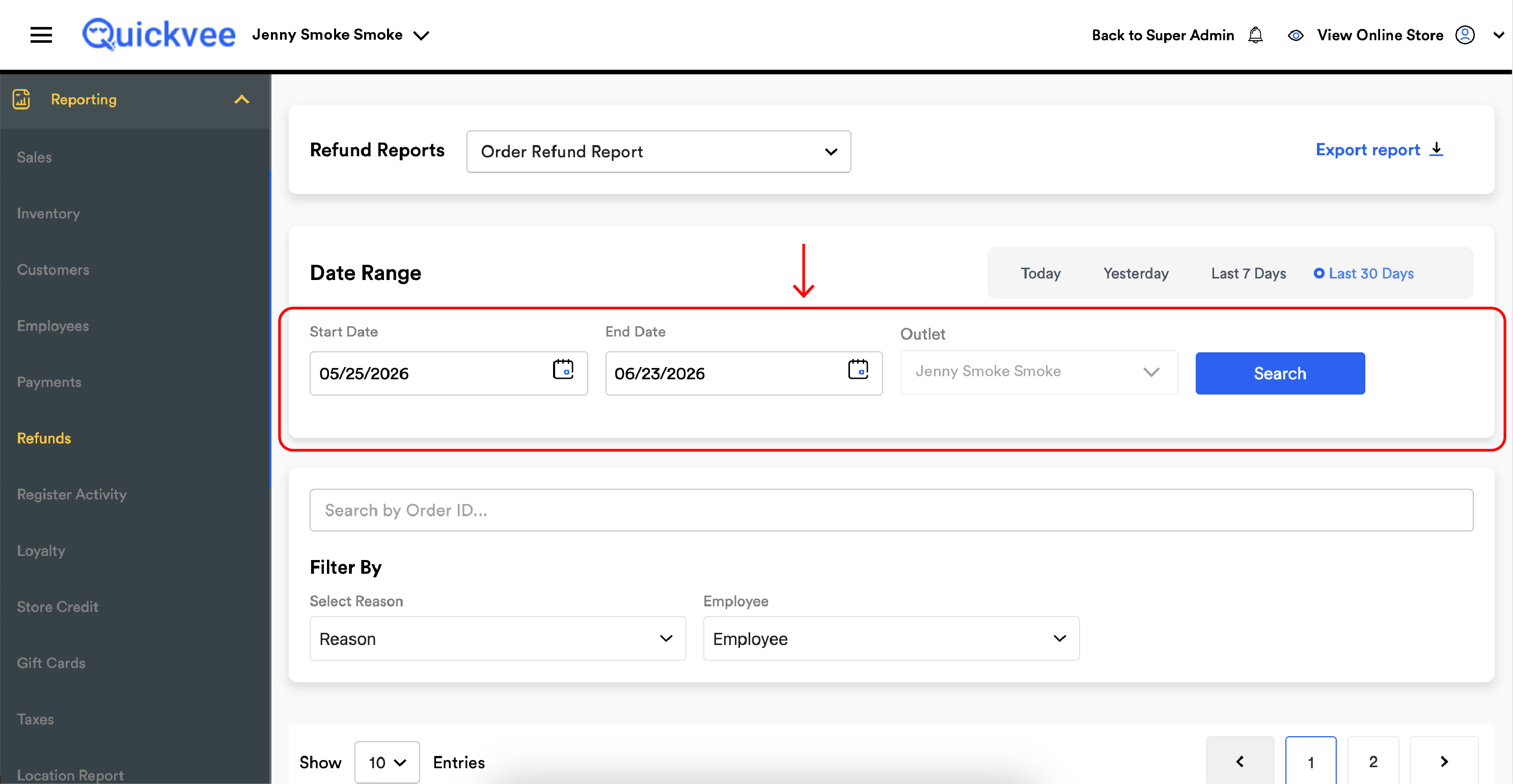
Date Range
|
Control |
What it does |
|---|---|
|
Start Date |
The first day of the date range. |
|
End Date |
The last day of the date range. |
|
Outlet |
When your account has more than one store location, the outlet dropdown picks which store the report runs against. |
|
Search (blue) |
Runs the report. |
Quick range buttons
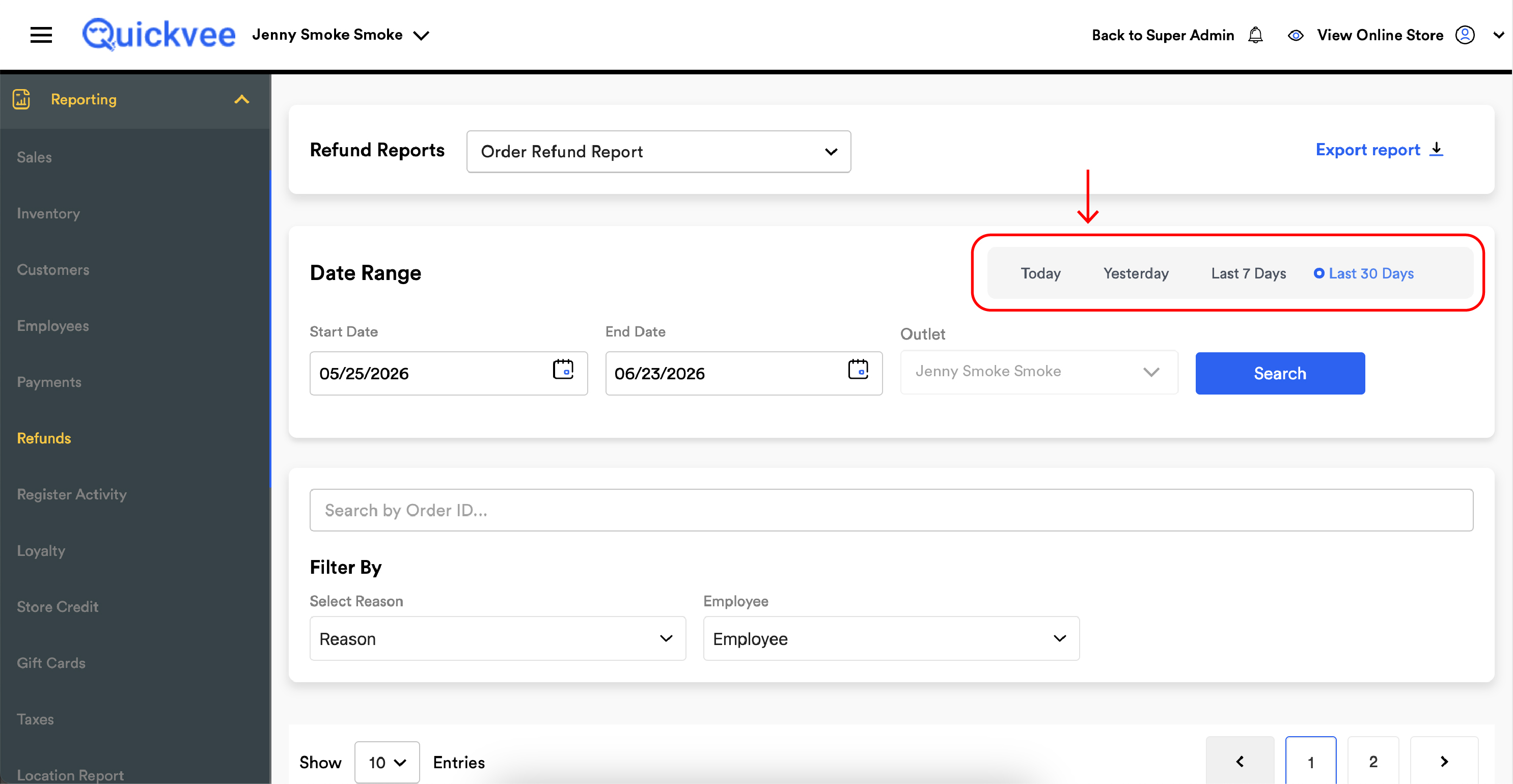
Four buttons let you skip the calendar picker: Today, Yesterday, Last 7 Days, Last 30 Days.
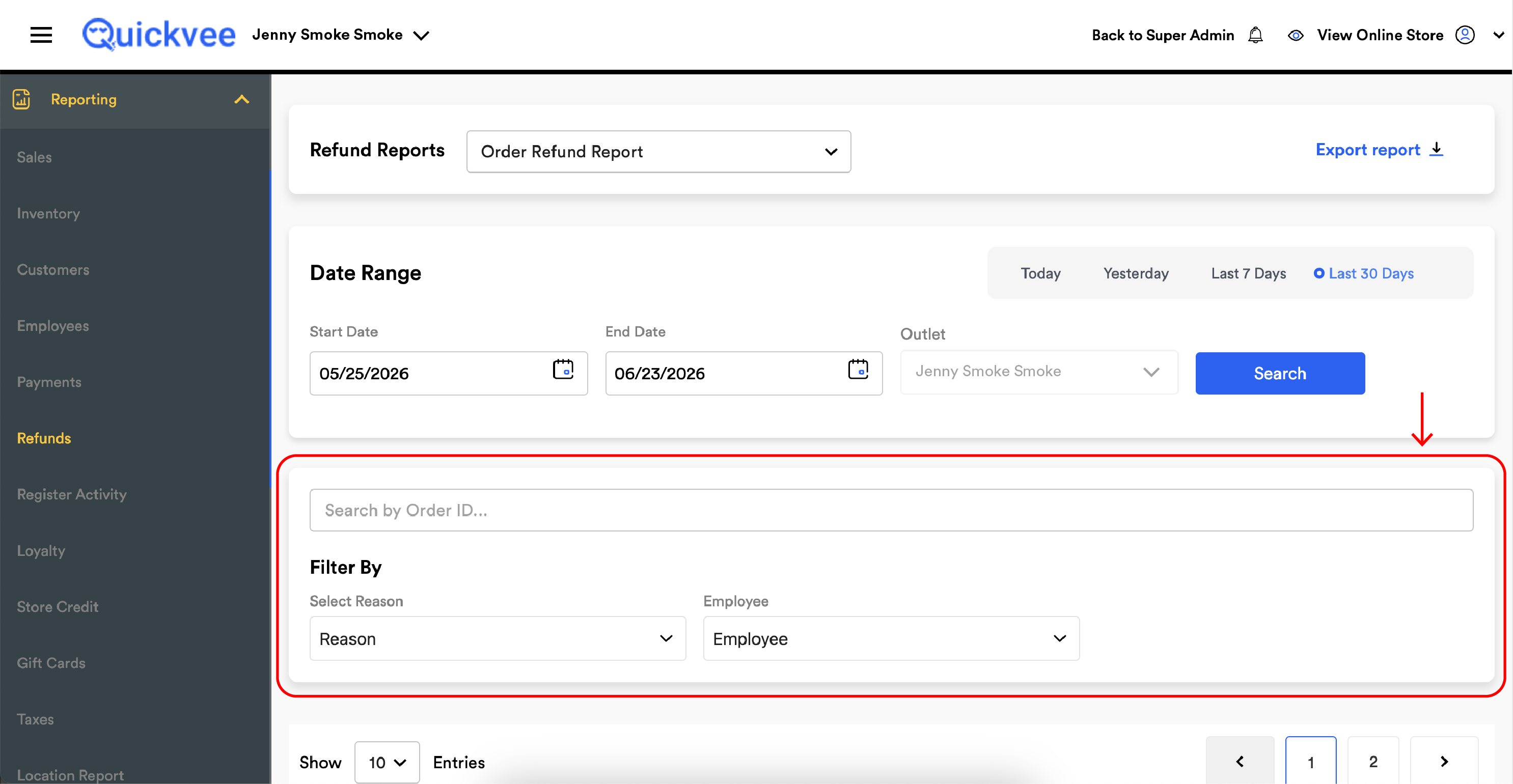
Search by Order ID
Below the Date Range section, a single Search by Order ID… field accepts a full or partial Order ID. Paste in an ID from a customer email, a register receipt, or the Orders module and the report filters live to show just that order's refund row(s). The search works in combination with the active date range and Filter By filters — clear all filters if you want to find an order outside the current range.
Filter By
|
Filter |
What it does |
|---|---|
|
Select Reason |
Dropdown of every refund reason in your reason library — e.g. Out of Stock, Returned Goods, Damaged, Wrong Item, Customer Changed Mind. Pick one to see only refunds tagged with that reason. |
|
Employee |
Dropdown of every cashier who processed at least one refund in the period. Pick one to see only that cashier's refunds. |
Export report
The Export report link at the top-right downloads the full filtered report as a spreadsheet.
Reading the report
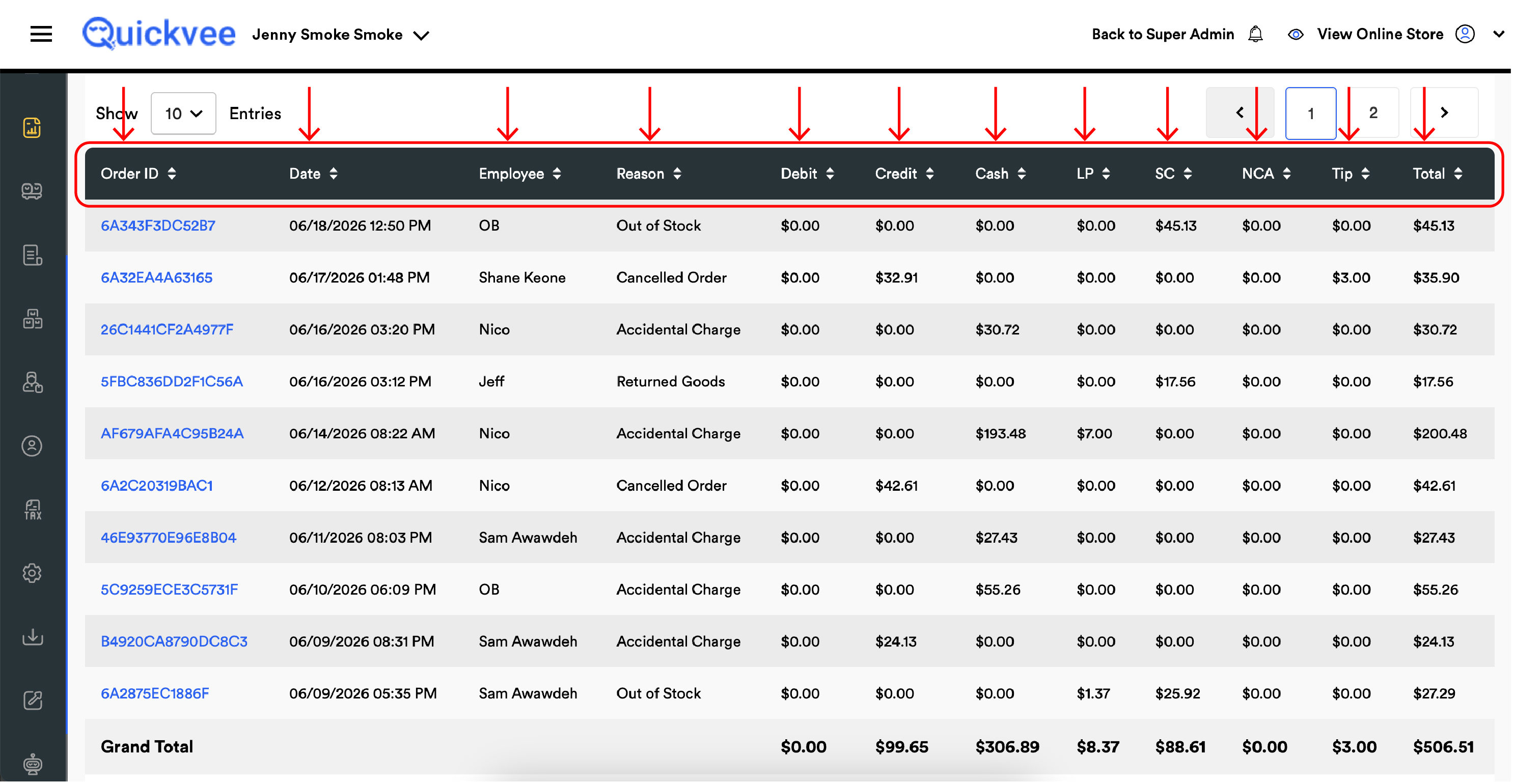
The report is a single flat table where each row is one refunded order. The columns are:
|
Column |
What it shows |
|---|---|
|
Order ID (sortable) |
The customer-facing order ID. Click to open the full order detail in a new tab — including the items refunded and the full transaction log. |
|
Date (sortable) |
The date and time the refund was processed, formatted MM/DD/YYYY HH:MM AM/PM. |
|
Employee (sortable) |
The name of the cashier who processed the refund. Null or blank means processed by a deleted employee or via an automated process — worth investigating. |
|
Reason (sortable) |
The refund reason picked at the time of refund. Reasons come from your reason library — set up under Store Settings. |
|
Debit |
The portion of the refund returned to the customer's debit card. |
|
Credit |
The portion of the refund returned to the customer's credit card. |
|
Cash |
The portion of the refund returned in cash from the drawer. |
|
LP |
Loyalty Points. Returned to the customer's loyalty points balance — applies when the original purchase was paid (partially or fully) with redeemed points. |
|
SC |
Store Credit. Issued as store credit on the customer's account, instead of returning to the original payment method. |
|
NCA |
Non-Cash Adjustment. The portion that returned the non-cash adjustment surcharge — applies when your store uses cash-discounting / dual-pricing. |
|
Tip |
The portion of the refund that returned a tip. Only applies to orders that originally included a tip. |
|
Total |
The sum of all refund channels above — the full dollar amount of the refund. |
Each refund row shows the channel-by-channel breakdown of where the money went back to. A pure cash refund will have Cash = Total and every other column at $0.00. A split refund (e.g. half to credit, half to store credit) will have non-zero values in both Credit and SC, and Total will equal their sum.
LP, SC, and NCA are abbreviated in column headers because the columns need to fit side-by-side. Hover any column header to see the full name if needed.
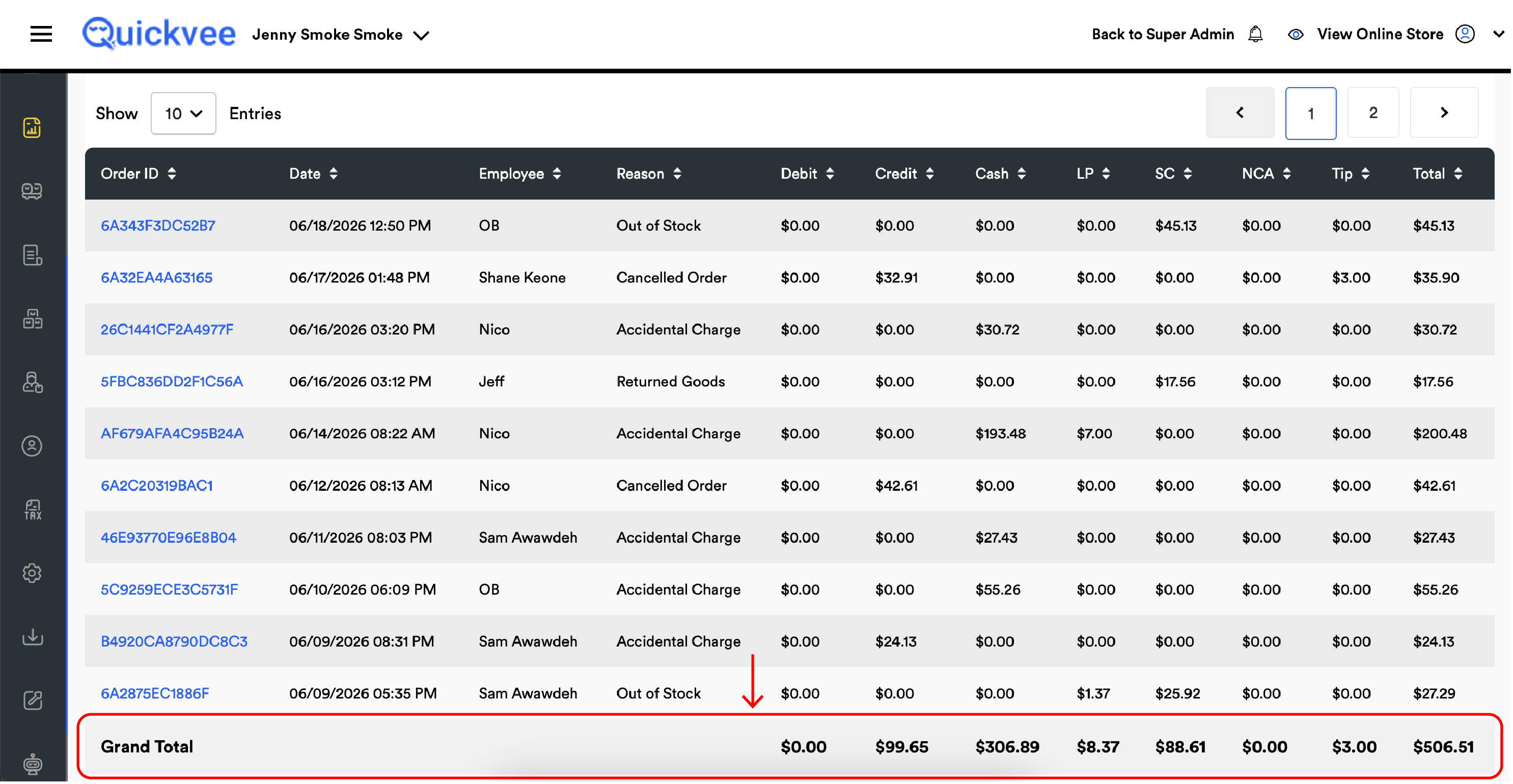
The Grand Total
The last row of the report is a Grand Total that sums every column across every refund in the filtered period. The Grand Total respects every active filter — if you've filtered to Reason = Damaged or Employee = Nick P, the Grand Total reflects only those refunds.
How to read unusual rows
|
Pattern |
What it usually means |
|---|---|
|
Total in SC column only |
Customer accepted store credit instead of a refund to their original payment method. Often the smoother choice for both sides when the customer plans to return. |
|
Total split across two payment columns |
Original purchase was a split payment (e.g. partly cash, partly card), so the refund went back proportionally to each method. |
|
Non-zero LP |
Original order used redeemed loyalty points — the refund credits the points back to the customer's account. |
|
Employee = Null or blank |
Refund was processed by a deleted employee account or by an automated process. Worth investigating for audit trail purposes. |
|
Same Order ID appearing twice |
The order was partially refunded twice (two separate partial refund events on the same original order). Each refund event gets its own row. |
|
Total = $0.00 |
Edge case — usually a refund record that was cancelled or voided. Check the order detail for the full story. |
A refund row is not a sale row. The Grand Total here is money paid back to customers — it's a subtraction from your net sales, not an addition. The sales reports already account for refunds in their Net Sales calculations.
What to do with the report
|
Question |
How to answer it |
|---|---|
|
What did we refund yesterday? |
Quick-range Yesterday, run, read the Grand Total. |
|
Which reason is driving the most refunds? |
Run the period, filter by each Reason in turn, compare Grand Totals. |
|
Are any cashiers issuing unusual refund volume? |
Run the period, filter by Employee in turn, compare. Spike on one cashier may signal training need or fraud signal. |
|
Did a specific customer get their refund? |
Paste the Order ID from their receipt into Search by Order ID, verify the row exists and the Total matches what was promised. |
|
Are we issuing too many store credits vs. cash refunds? |
Look at the SC column vs. Cash column in the Grand Total for the period. |
|
Are our NCA surcharges being refunded properly? |
Filter to refunds where Credit or Debit is non-zero, scan the NCA column — every card refund should have a matching NCA refund proportional to the original surcharge. |
Notes
-
The report covers the selected outlet only. Switch the Outlet dropdown and re-run to compare across locations.
-
Refunds processed at the register and from the web backend both appear here — there is no separate column distinguishing the source.
-
The Order ID is a clickable link that opens the full order detail page with the line items refunded and the full transaction history.
-
Pagination at the bottom controls how many rows show per page (10 by default — adjust via the Show ... Entries dropdown).
-
For an item-level breakdown of what was actually refunded inside each order, use the Item Refund Report from the same Refund Reports dropdown.