
The Mix N' Match Pricing module on the Quickvee Merchant Dashboard lets merchants create volume-based promotions where a customer gets a discount on each item when they purchase a minimum quantity of selected products. Unlike BOGO (which discounts only some items in the cart), Mix & Match applies the discount to every qualifying item once the minimum quantity threshold is met.
Common use case: "Buy 3 or more vapes, get $2 off each" or "Buy 5 or more snacks, get 10% off each."
Access path: Merchant Backend → Promotions → Mix N' Match Pricing
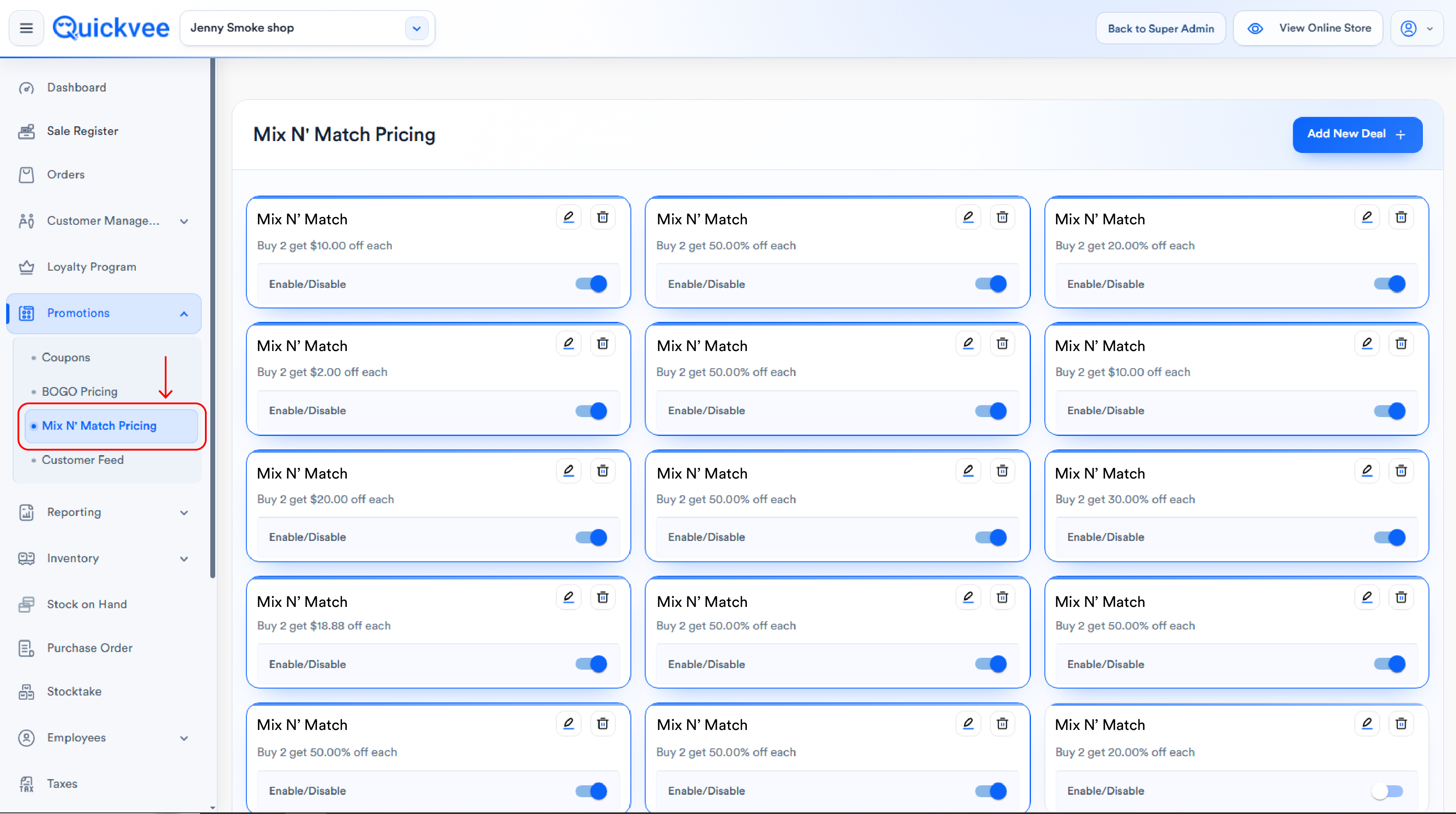
Mix N' Match Pricing home page
The page lists all existing deals as cards. When no deals exist yet, the page displays an empty-state illustration with the message "No Data Found."
Each deal card shows:
-
Deal name (e.g.
Buy 3 get $10 Off each) -
Description in green text — auto-generated from your Minimum Quantity and Discount values (e.g.
Buy 3 get 10.00% off each) -
Enable / Disable toggle — turn the deal on or off without deleting it
-
Edit (pencil icon) — opens the deal for editing
-
Delete (trash icon) — confirmation dialog before removing
The selected deal is highlighted with a blue outline border.
To create a new deal, click + Add New Deal in the top-right.
Disabling a deal vs. deleting it: Disabled deals are kept and can be re-enabled later. Deleted deals are gone permanently.
Creating a Mix N' Match deal
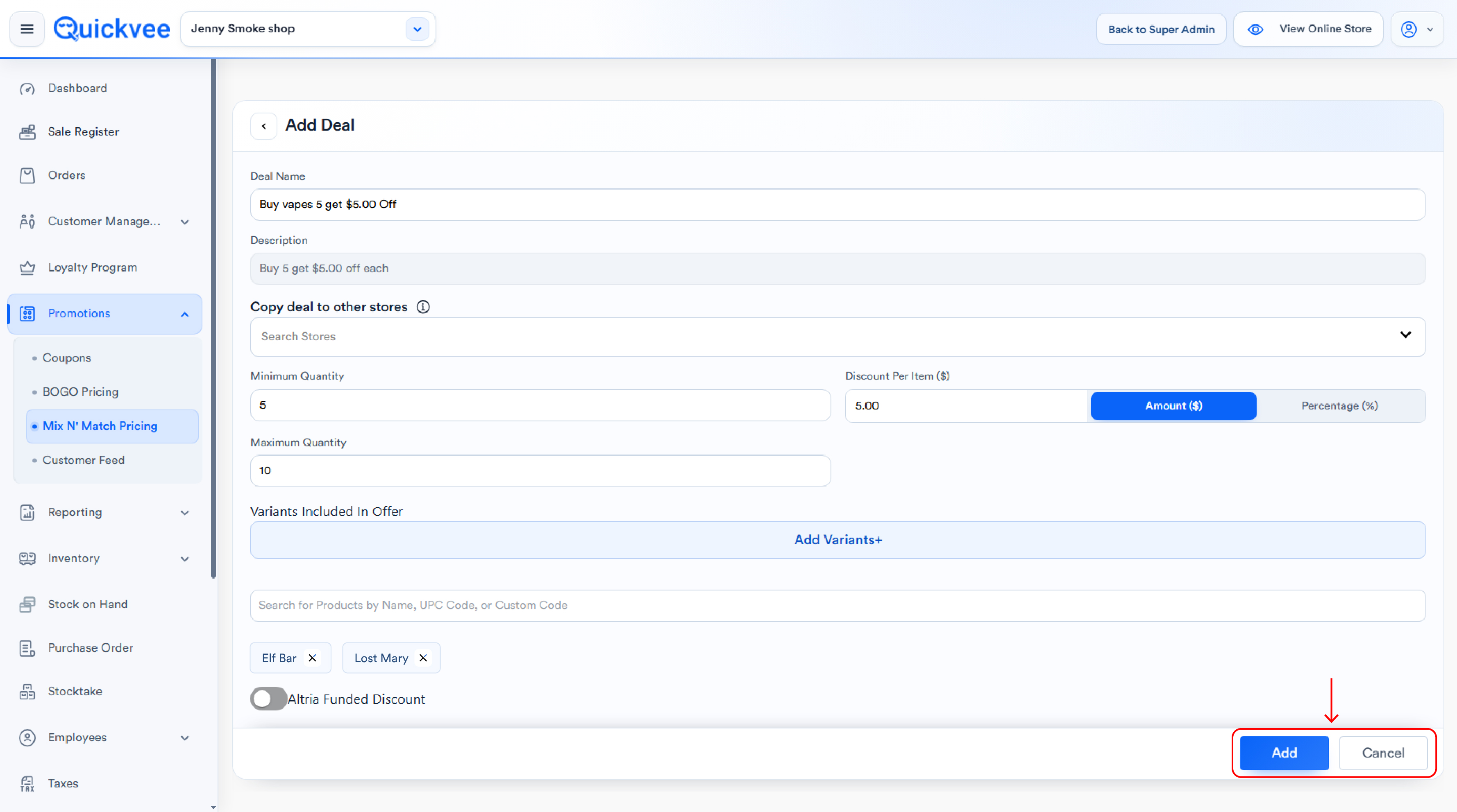
Clicking + Add New Deal opens the Add Deal form.
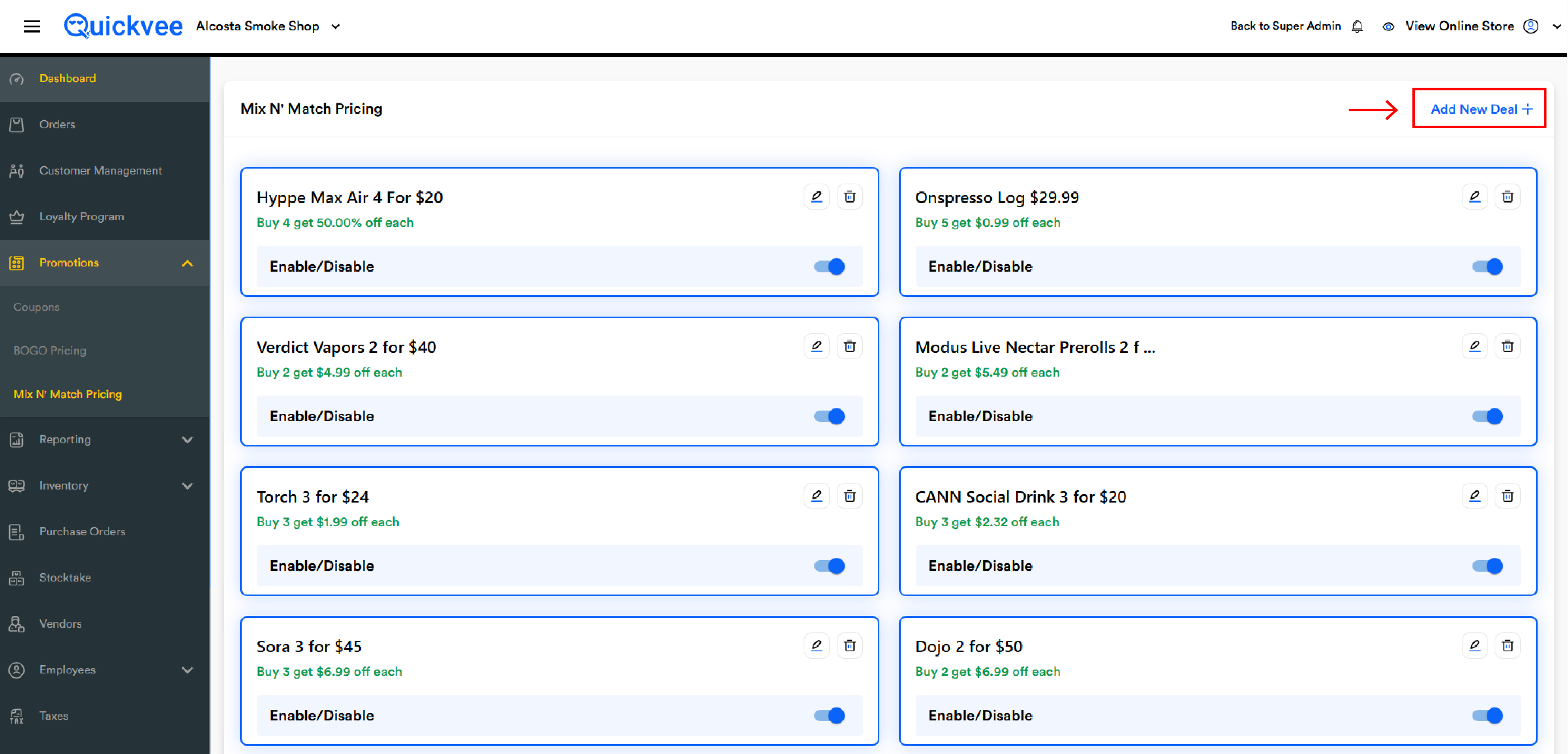
Deal Name
The internal name used in the deal list, reports, and the POS register (e.g. Buy 2 get $2 Off each). Used by staff to identify the deal.
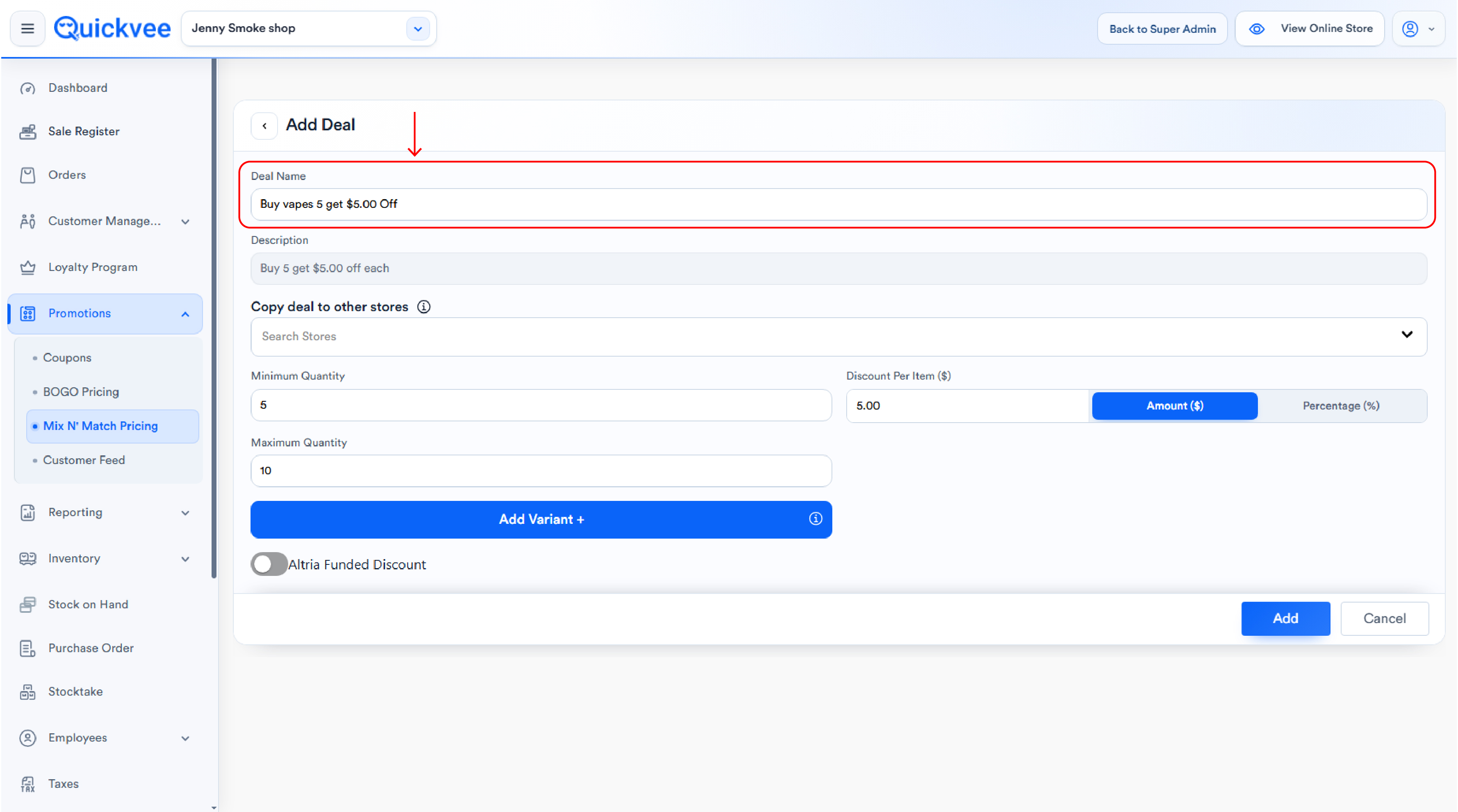
Keep names short and descriptive. Long deal names cause UI distortion on the deal cards — use a clear, short name like Buy 5 Vapes 10% Off.
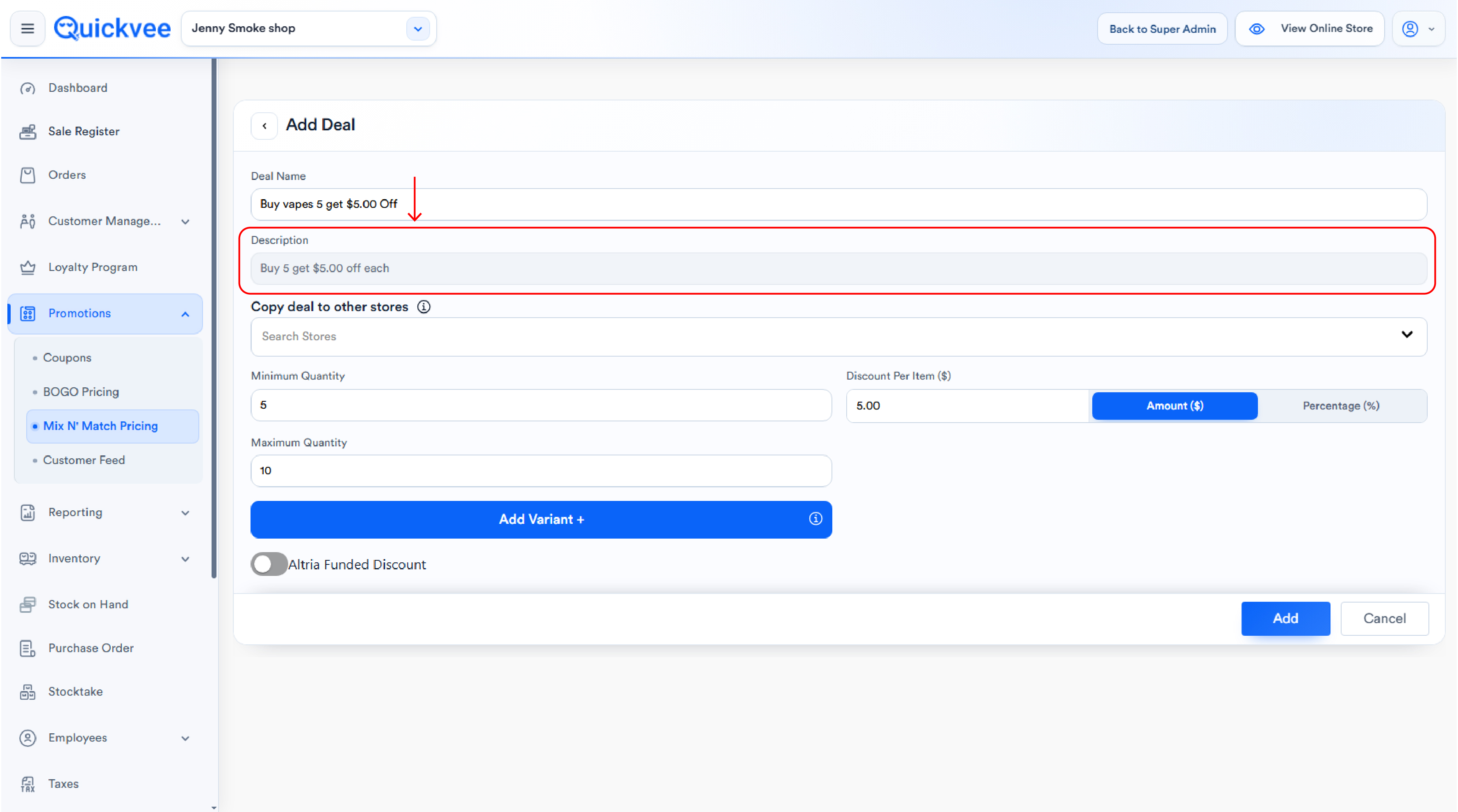
Description
Auto-populated, read-only field. Generated automatically from the Minimum Quantity and Discount values — you cannot type in this field.
|
Discount Type |
Description Format |
|---|---|
|
Amount |
|
|
Percentage |
|
The description updates live as you change the Minimum Quantity, Discount value, or Discount type. This is the customer-facing text that appears on the storefront and on the POS register.
Minimum Quantity
The minimum total quantity of qualifying products the customer must add to their cart for the deal to trigger (e.g. 2, 3, 5). Items can be the same product or any mix of the products you assign to the deal.
-20260922-151815.jpg?cb=c9310b035fd3f6b8a389b70a899dad70)
The discount applies to every qualifying item, not just the one above the threshold. If Minimum Quantity is 3 and the customer buys 5 qualifying items, all 5 get the discount — not just the 3rd through 5th.
Discount Per Item ($ / %)
Two side-by-side buttons control how the discount is calculated. The label of the field next to it changes:
|
Selected Type |
Field Label |
Field Behavior |
|---|---|---|
|
Amount ($) |
Discount Per Item ($) |
Enter a flat dollar value (e.g. |
|
Percentage (%) |
Discount Per Item (%) |
Enter a percentage (e.g. |
Switching between types is allowed even after the deal has been created.
Products
This is where you select which product variants qualify for the deal. The Products section has two controls:
Search Products field
A typeahead search field that lets you find and add products by typing the product name (e.g. typing Geek Vape shows all matching variants). Click a result to add it — selected variants appear as chips below the search field.
Once added, each variant chip shows the full variant name (e.g. Geek Vape Aegis Hero Q~1300mAh/White). Click the chip's remove control to take it out of the deal.
A Mix & Match deal can include any number of variants from the same brand, multiple brands, or across categories — the deal applies as long as the customer's qualifying-product cart quantity meets the minimum.
Category filter
The Category filter icon at the top-right opens the Filter By Category modal:
-
Search Category input at the top
-
Category chips — tap one or more categories (e.g. Nicotine Disposable Vapes, Hookah Tobacco, Hemp Edibles, Glass and Pipe Accessories, Grinders, Detoxes, Containers, etc.)
-
Reset — clears all selected categories
-
Apply (blue) — applies the filter
-
Cancel (grey) — discards the filter
-20260922-152116.jpg?cb=3f69ec8bb5f004768f358be76808bc59)
Once applied, the Search Products field's typeahead results are restricted to variants within the selected categories — useful when adding a large set of products by category instead of one-by-one.
Add / Cancel
-
Add (blue) — saves the deal and returns to the Mix N' Match Pricing list
-
Cancel (grey) — discards changes
%20copy-20260529-112022.jpg?cb=82b3aa1159322316cc8810e038198cb8)
A Mix & Match deal must have at least one product variant attached. The deal will not save without selected variants.
Editing a Mix N' Match deal
Click the pencil icon on any deal card. The Add Deal form opens pre-populated with the deal's current Deal Name, Minimum Quantity, Discount type and value, and product chips. Make your changes — including switching between Amount and Percentage modes — and click Add to save.
-20260922-152026.jpg?cb=05f02ecdc1300dbea38f9bc255893071)
Variant changes take effect immediately. Removing a variant chip stops the Mix & Match discount applying to that product on the next page refresh, both online and at the POS.
Deleting a Mix N' Match deal
Click the trash icon. A confirmation dialog appears: "Are you sure you want to delete this Mix N' Match Pricing?"
|
Button |
Action |
|---|---|
|
Cancel (white) |
Closes the dialog, deal remains |
|
Delete (red) |
Permanently removes the deal |
Deletion is permanent. If you might want the deal back later, use the Enable/Disable toggle instead.
How deals apply
|
Channel |
Behavior |
|---|---|
|
Online Storefront |
Active Mix & Match deals appear in a dedicated Mix & Match section on the home page, and the discount applies automatically once the cart quantity for qualifying items meets the Minimum Quantity |
|
POS Register |
Cashier sees a Mix & Match indicator on qualifying line items. Applies automatically when the Minimum Quantity is met |
|
Order Summary |
Mix & Match discount appears as its own discount line, separate from custom item discounts and coupons |
|
Discount Graph (reporting) |
Mix & Match totals roll up alongside BOGO totals on the dashboard discount graph |
A product variant cannot be in both a BOGO deal and a Mix & Match deal at the same time. A variant can belong to only one of these two promotion types.
Deal interaction with Coupons: When a Mix & Match deal applies and the customer also has a coupon, the Mix & Match discount is calculated first, and the coupon is then applied to the post-Mix & Match subtotal.
Important notes
Discount applies to every qualifying item, not just items above the minimum. If Minimum Quantity is 3 and the customer adds 7 qualifying items, all 7 receive the per-item discount.
Items can be mixed across the deal's product list. For a deal with Minimum Quantity 3 covering Products A, B, and C: the customer can buy 1×A + 1×B + 1×C, or 3×A, or 2×A + 1×B — any combination totaling 3 qualifying items triggers the discount.
Description rendering is automatic. Don't try to write the description manually — it's auto-generated from your Minimum Quantity and Discount values and updates live as you change them.
Deal name length. Keep deal names under 100 characters to avoid UI distortion on the deal cards.
Disabled categories. If a category is disabled for online ordering, products from that category will not appear in Mix & Match deals on the storefront — even if the deal itself is active.
Pickup / Delivery toggles. If a product is disabled for pickup or delivery, it will not show in the Mix & Match section of the online storefront. Only products enabled for the customer's selected fulfillment method appear.
Deleted products. When a product included in a Mix & Match deal is deleted from Inventory, it should be automatically removed from the deal. If a deleted product still appears, hard-refresh the page or contact support.
Permission required. A separate Mix N' Match permission controls access to this module — it is not bundled with the BOGO or Coupons permissions.
Multi-location support. Multi-location merchants can copy a created Mix & Match deal to selected child stores, so the same deal applies across multiple locations without re-creating it manually at each store.