
An Item-Level Coupon applies a discount to a single product in the cart rather than to the whole order. Quickvee supports two kinds: Universal Coupons, which work on any single item across your entire inventory, and Specific Item Coupons, which are valid only on the products selected when the coupon was created. Both are applied the same way at the register, the difference is which items qualify. For creating and managing item coupons on the POS, see Create item coupons on the POS.
📝 Item-level coupons are applied from within a specific item's detail panel, not from the order-wide Coupons button. This article walks through the cashier workflow.
Where to find your coupons
To check which coupons exist before a shift, or to confirm what a coupon covers:
-
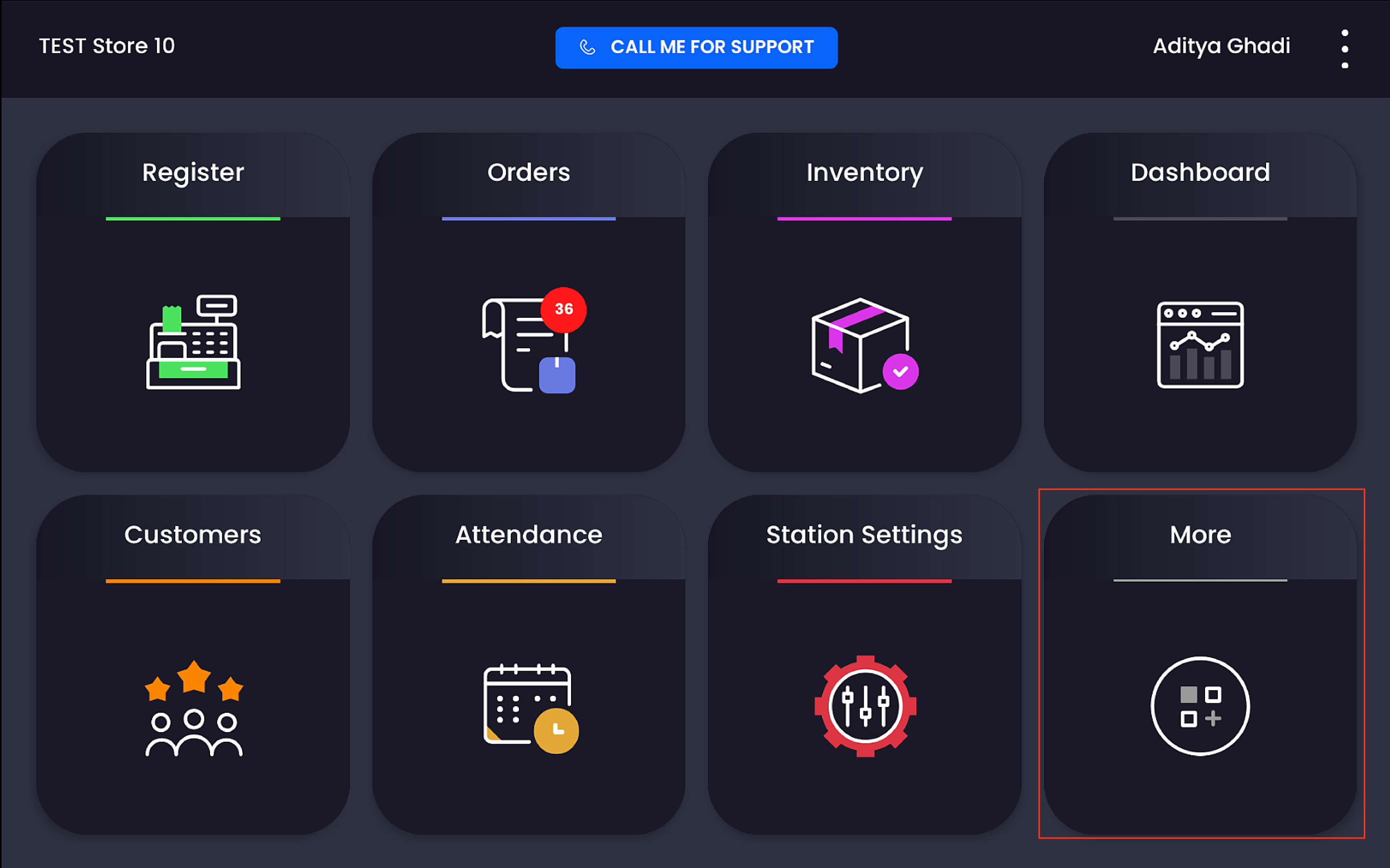
From the POS home screen, tap More.
-
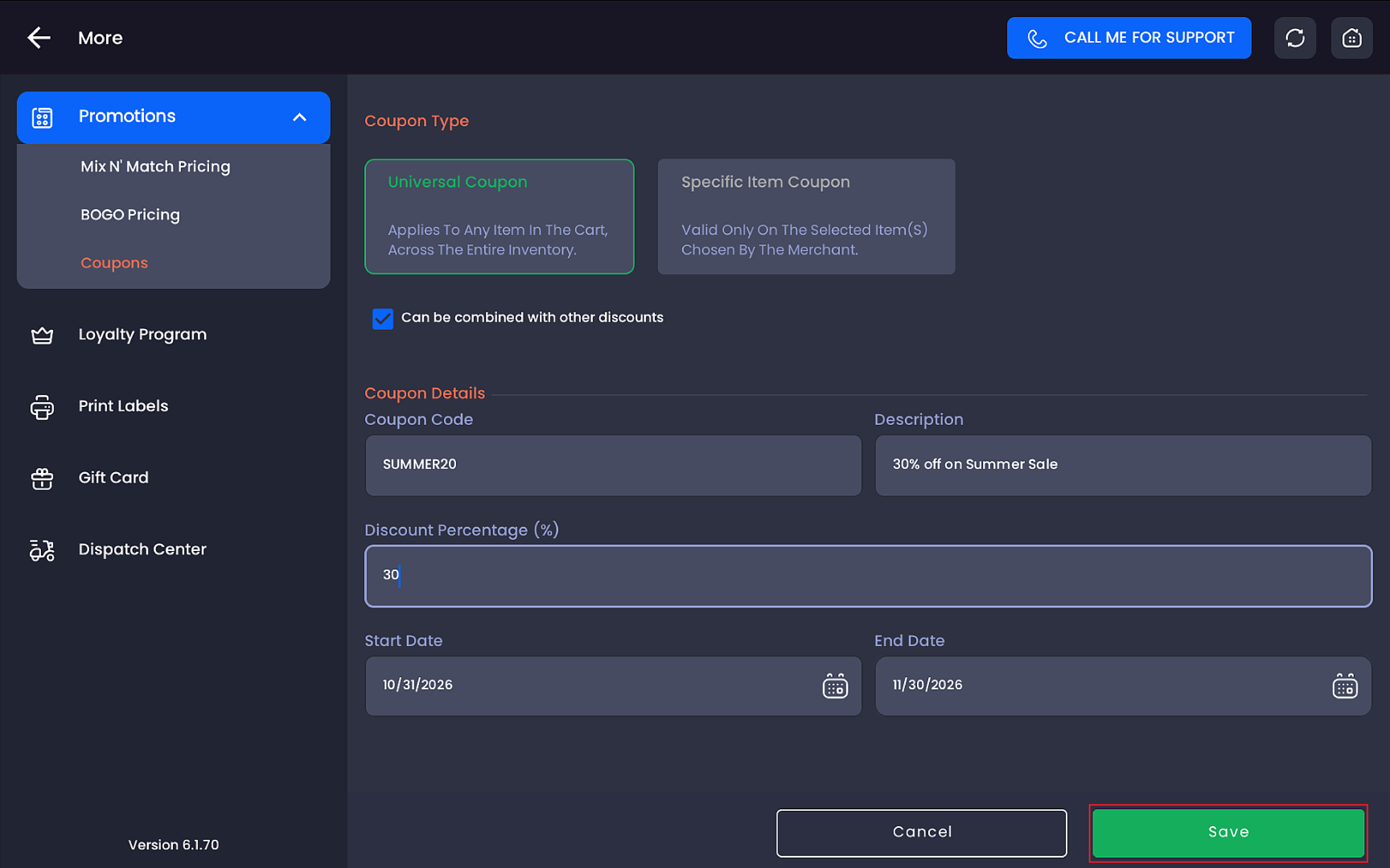
In the left menu, tap Promotions to expand it, then tap Coupons.
-
Use the filter chips, All, Order Level, or Item Level, to view coupons by type. If none exist yet, the screen shows No Coupon Added.
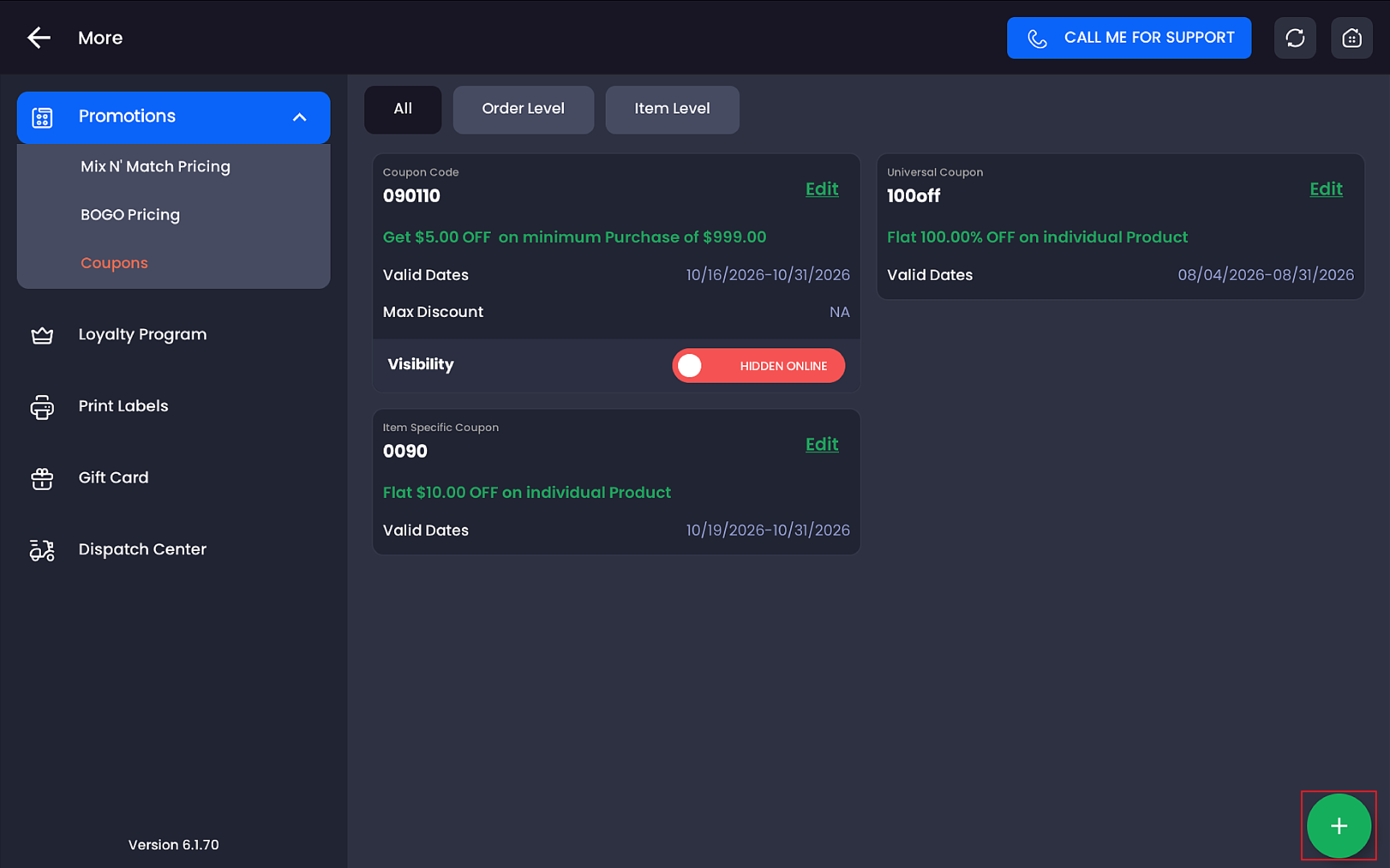
Item-level coupons are separate from Order-Level coupons, which discount the entire transaction. Both types are managed side by side in the Coupons module.
Applying an item coupon at the register
-
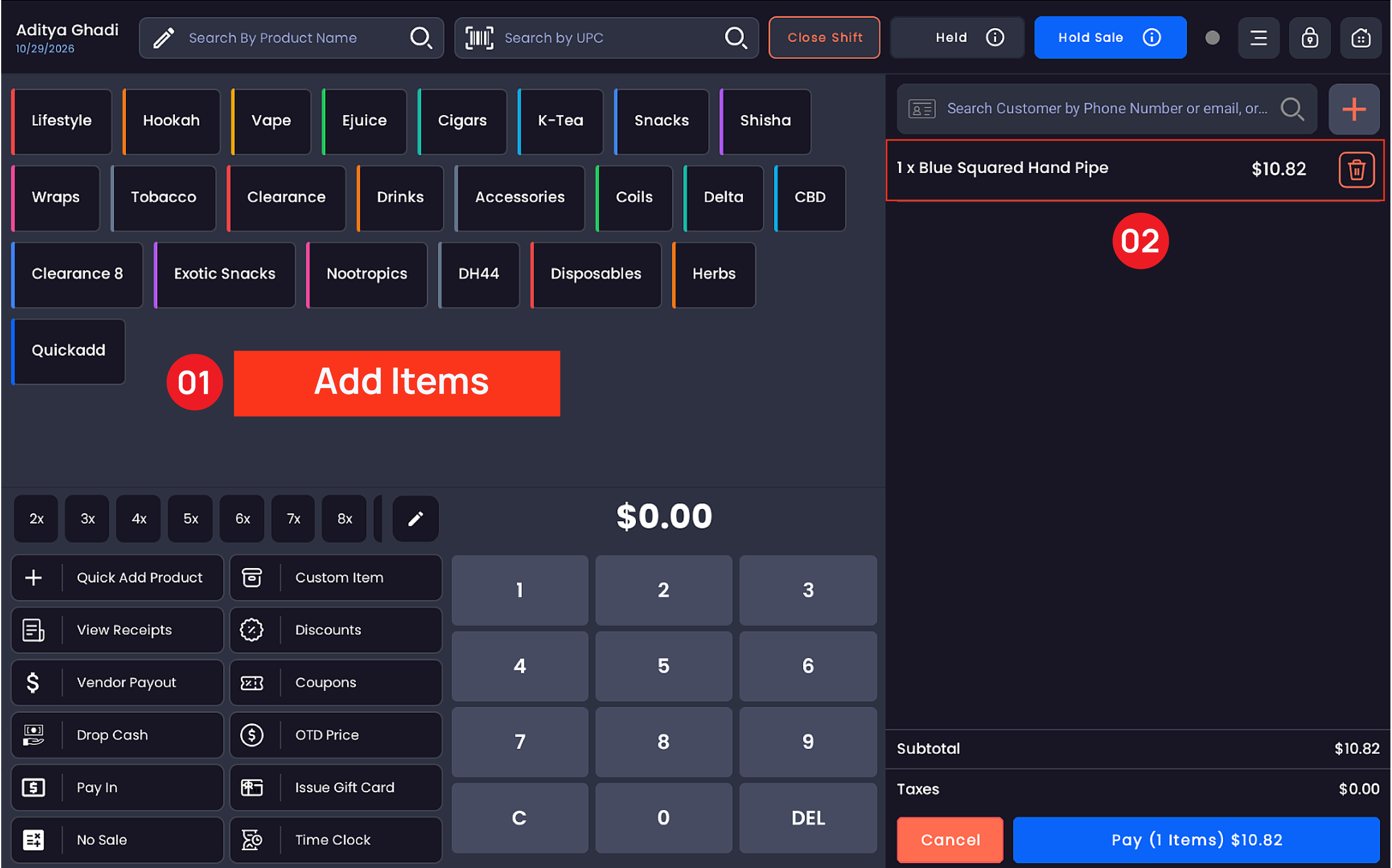
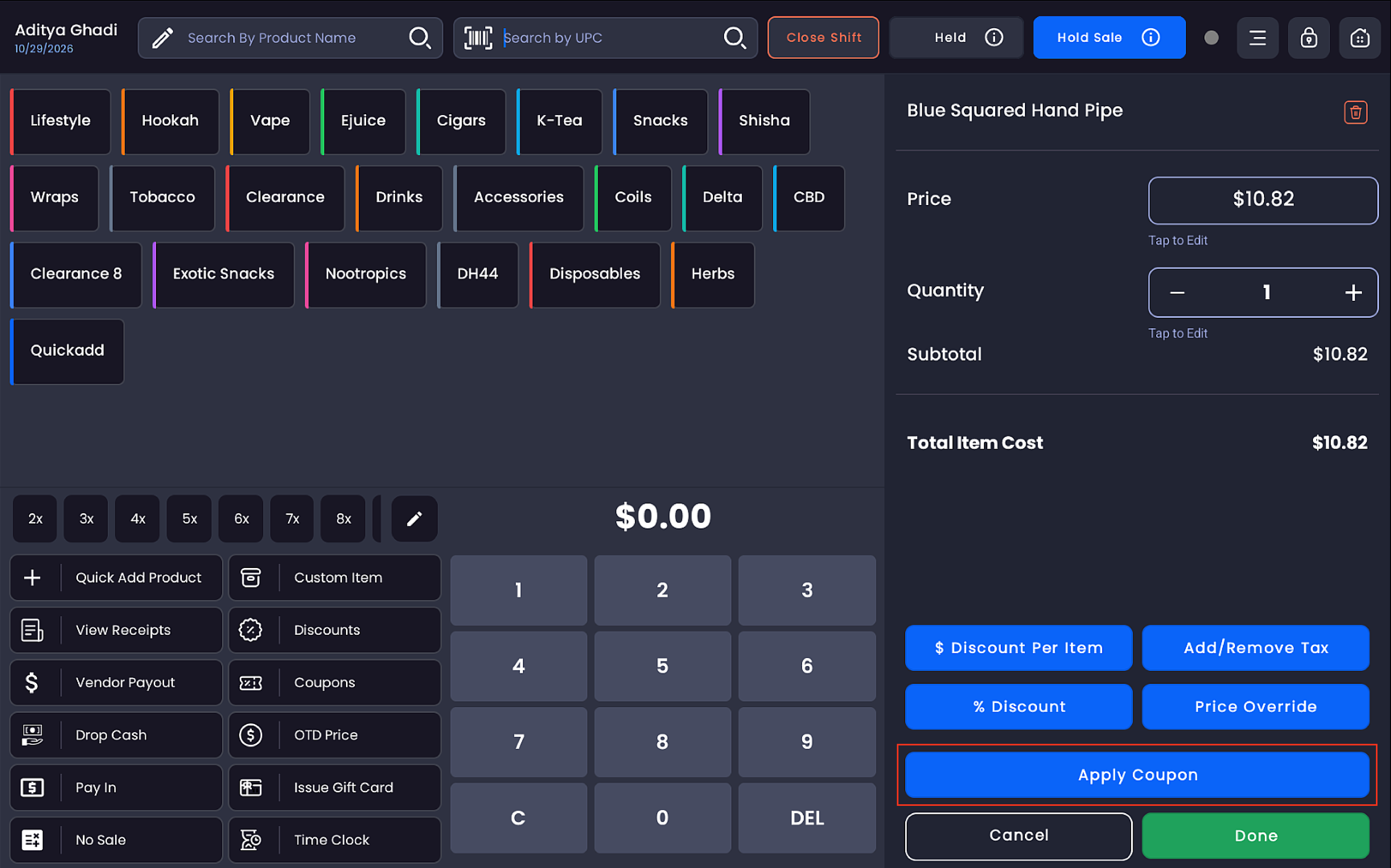
Ring up the sale as usual. In the cart, tap the item name you want to discount.
-
The item detail panel opens on the right, showing Price, Quantity, Subtotal, tax, and Total Item Cost.
-
Tap Apply Coupon.
-20260723-143700.png?cb=ca35eae94830d11dd828aa61e8a8f0aa)
-
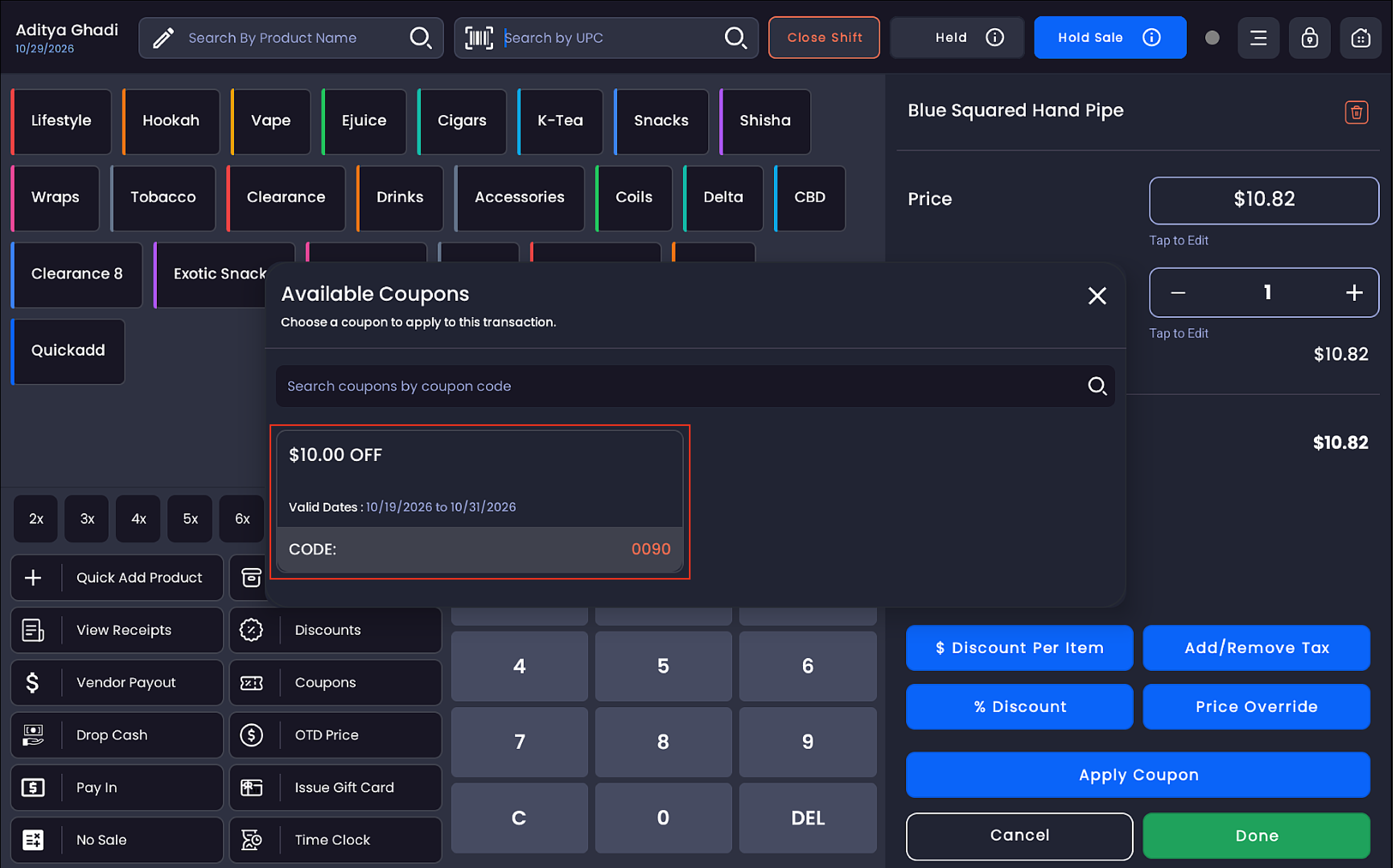
The Available Coupons window opens. Search by coupon code or pick the coupon from the list, each card shows the discount, valid dates, and code.
-
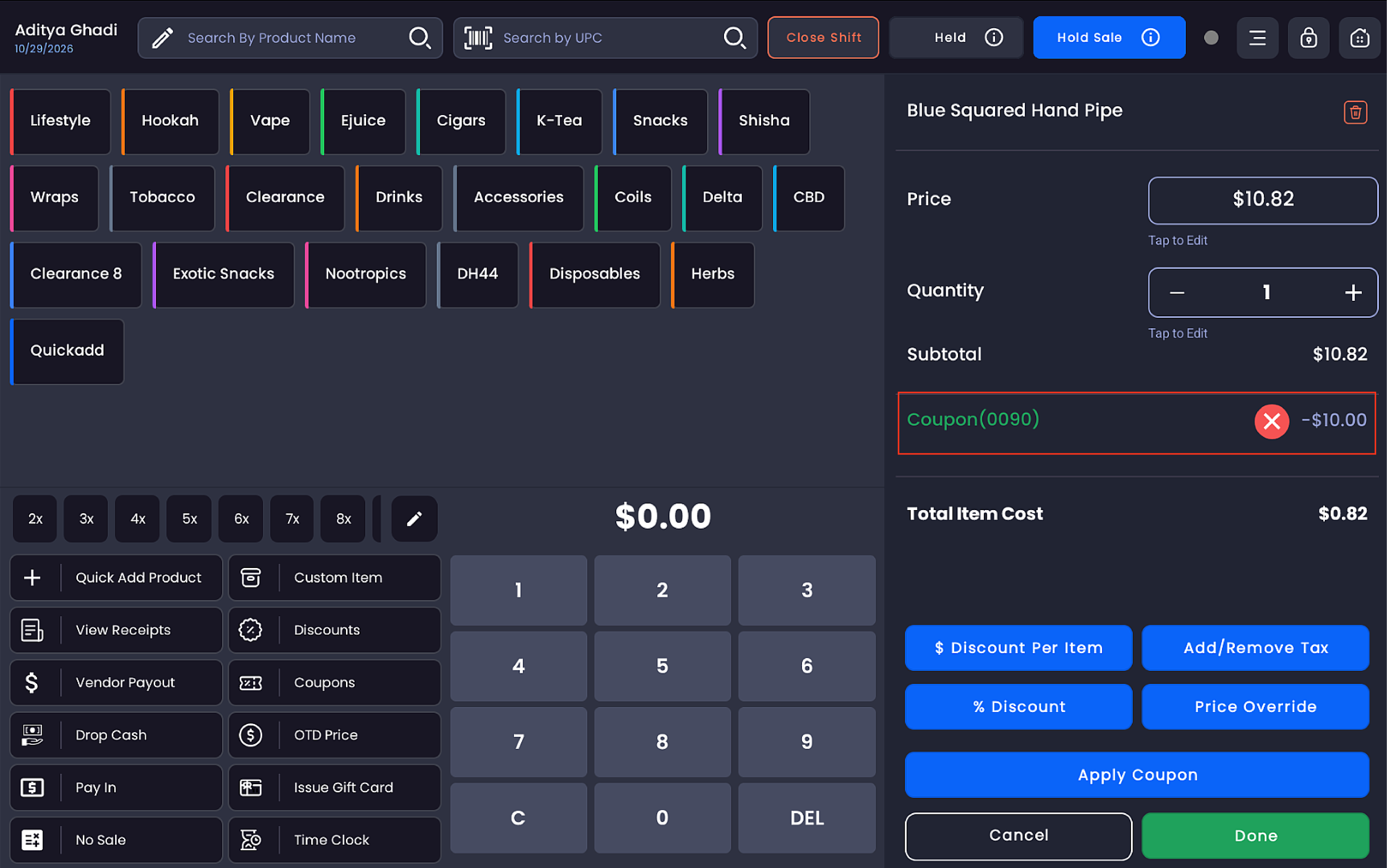
Select the coupon. The item panel updates immediately: a Coupon line appears with the discount deducted, and tax is recalculated on the discounted price.
-
Tap Done. Back in the cart, the item shows an Item Discount ($) line beneath it, and the order total updates.
? Tip. To remove the coupon before completing the sale, reopen the item's detail panel and tap the ✕ next to the Coupon line.
If the item isn't eligible
A Universal coupon works on any item. A Specific Item Coupon applied to a product that is not on its Selected Items list is blocked, and the POS shows Coupon Invalid for current instance, the item's price, tax, and totals remain unchanged.
⚠️ Important. Train cashiers that this message usually means the product isn't on the coupon's eligible list, not that the coupon is expired or broken. A manager can check eligibility in More → Promotions → Coupons → Edit.
Worked examples
Universal coupon, 5% off a $9.99 item:
|
Line |
Before |
After |
|---|---|---|
|
Item price |
$9.99 |
$9.99 |
|
Item coupon |
None applied |
−$0.50 |
|
Tax (8.25%) |
$0.82 |
$0.78 |
|
Total item cost |
$10.81 |
$10.27 |
Specific Item coupon, $10 off an eligible $99.99 item:
|
Line |
Before |
After |
|---|---|---|
|
Item price |
$99.99 |
$99.99 |
|
Item coupon |
None applied |
−$10.00 |
|
Tax (8.25%) |
$8.25 |
$7.42 |
|
Total item cost |
$108.24 |
$97.41 |
In both cases the discount applies only to the selected item, other items in the cart are unaffected, and the order total drops by the item discount plus the tax difference.
⚠️ Important. Tax is calculated on the item's discounted price, not the original price, keeping your Sales Summary and tax reporting aligned with what the customer actually paid.
After the sale, Order Details
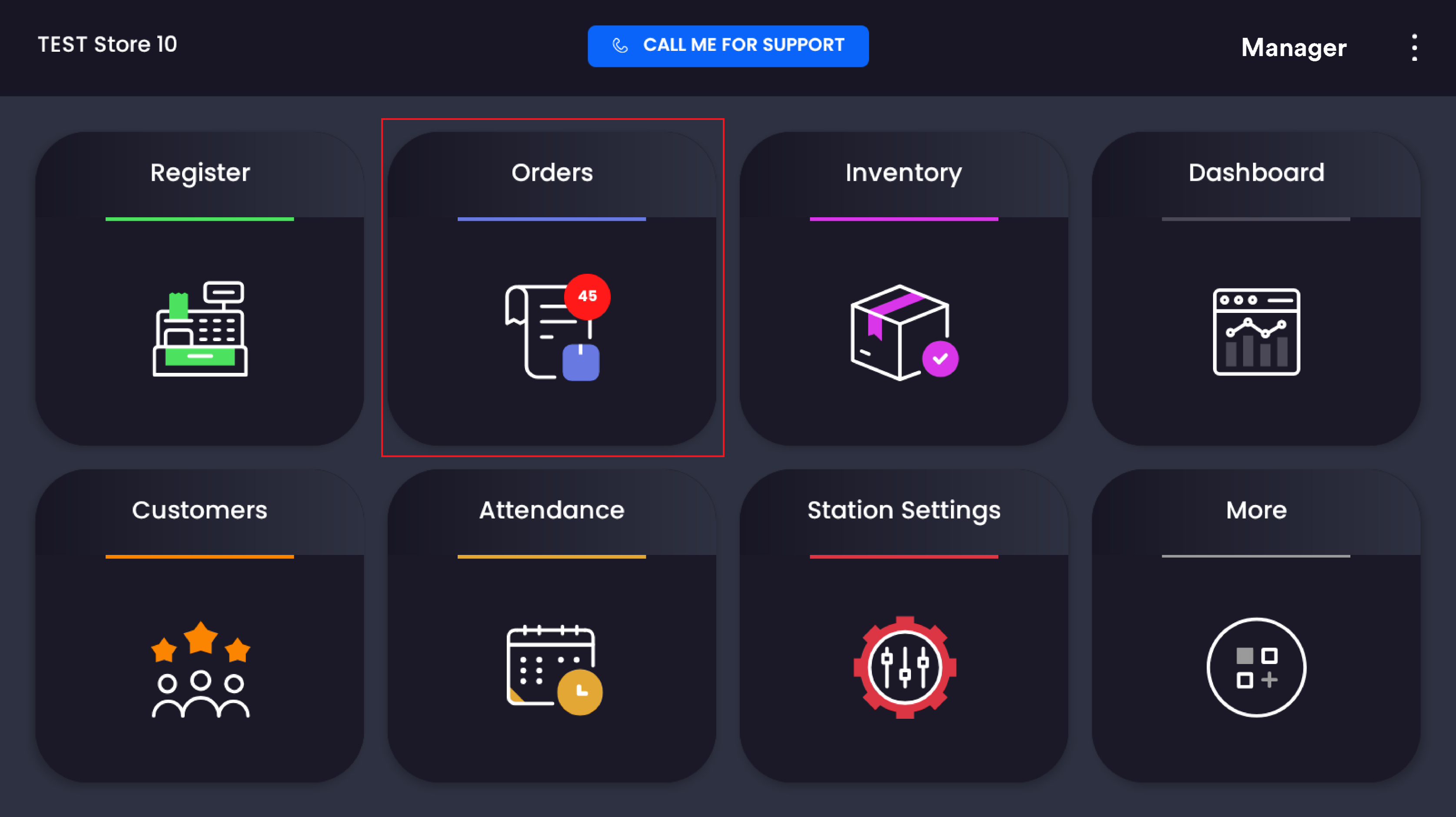
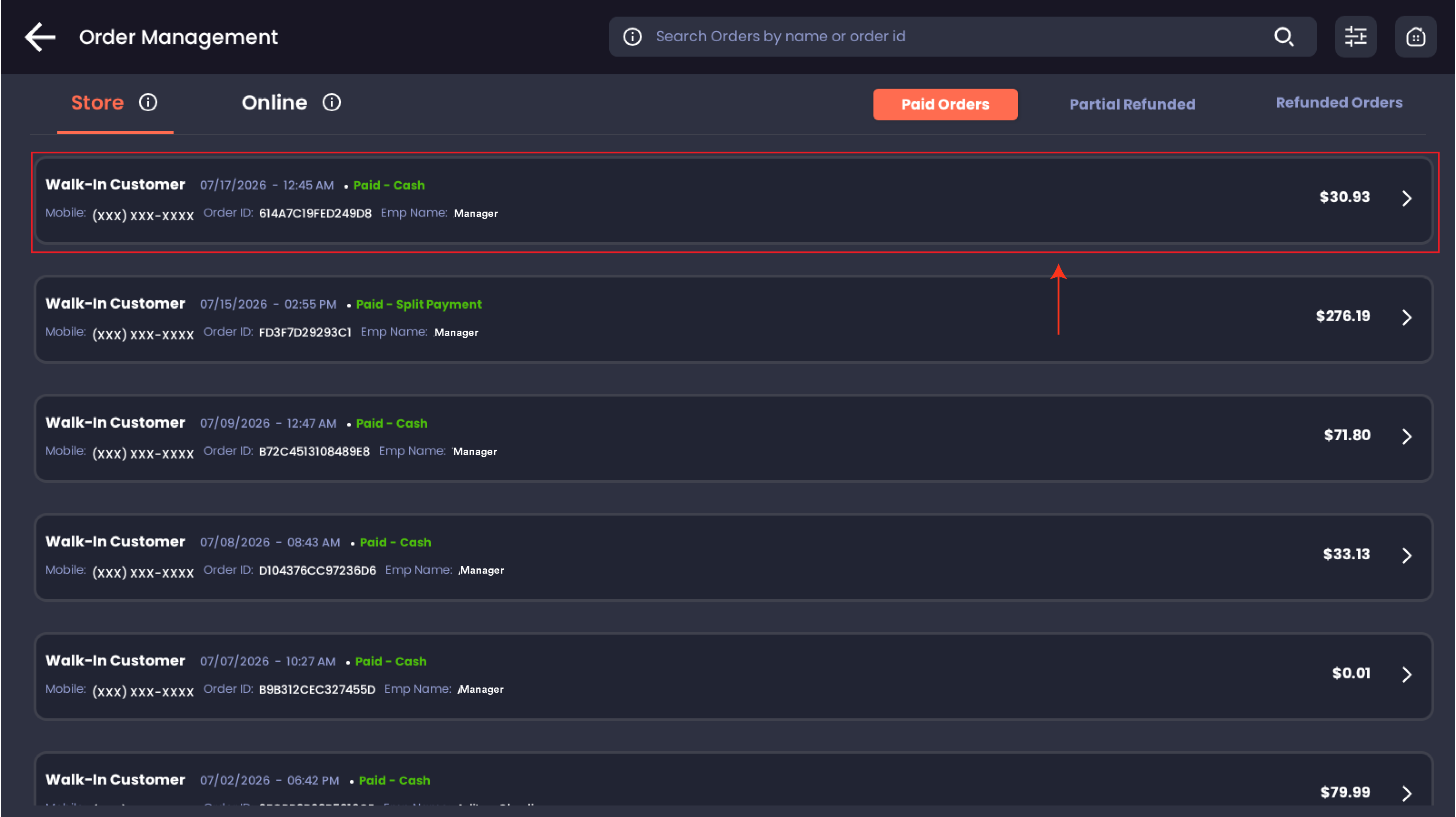
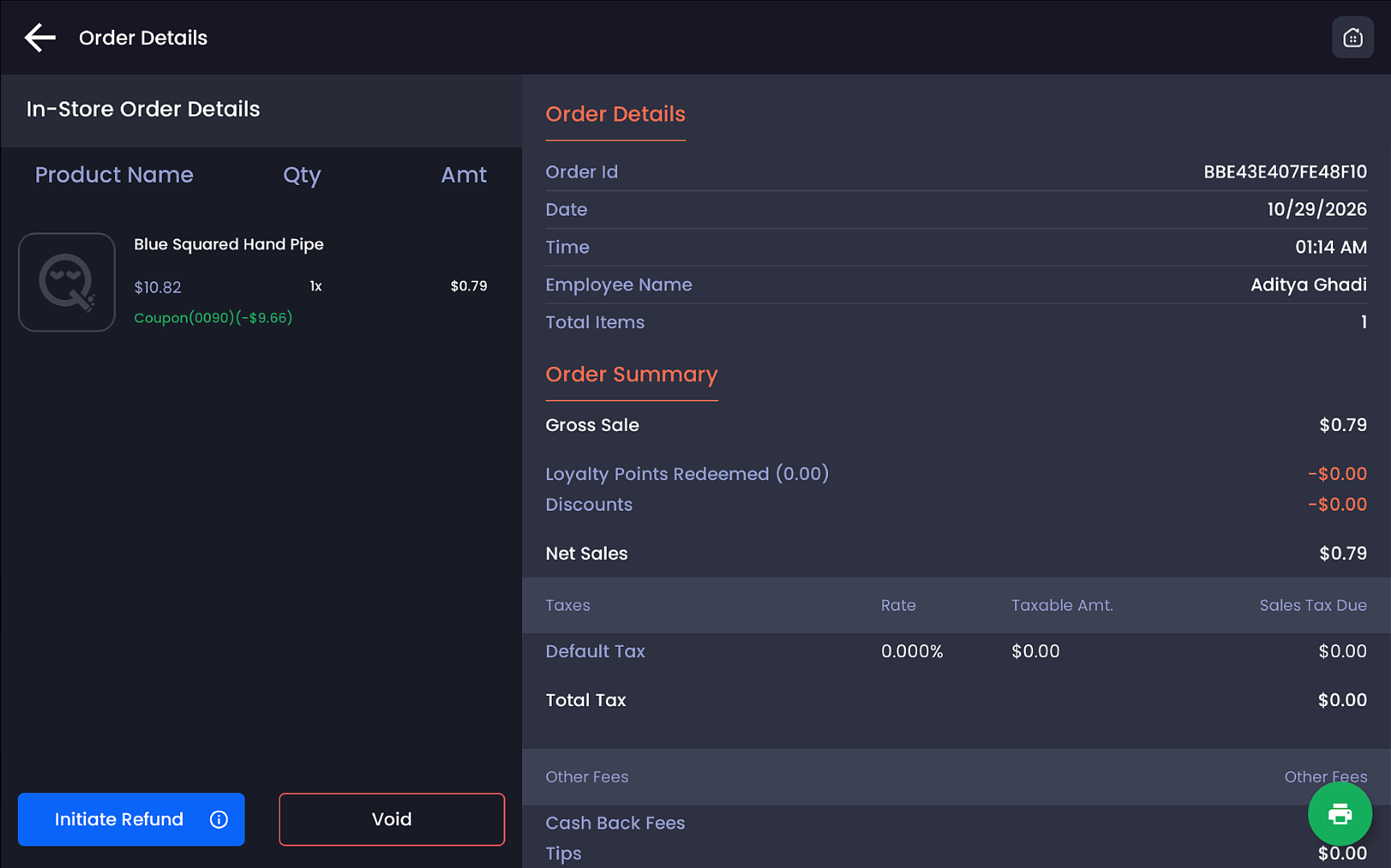
In Orders → In-Store Order Details, the discounted item displays its original price with a green Coupon(CODE)(−$X.XX) annotation, and the line amount reflects the discounted price. The Order Summary's Gross Sale and tax figures are computed on the discounted amounts, so reporting matches what the customer paid.
Universal vs. Specific Item at a glance
|
|
Universal Coupon |
Specific Item Coupon |
|---|---|---|
|
Valid on |
Any single item across the entire inventory |
Only the product(s)/variant(s) selected at creation |
|
Discount types |
Percentage (%) |
Fixed amount ($) or percentage (%) with optional max cap |
|
Ineligible item |
Not applicable, all items eligible |
Blocked with Coupon Invalid for current instance |
|
Best for |
Storewide "pick any item" offers |
Targeted, product-specific promotions |
Known limitations
-
Only one coupon can be applied per order; applying multiple coupons to a single transaction is not yet supported.
-
If a coupon is applied first, an additional item-level discount may be blocked on the same order. Applying the item-level discount first, then the coupon, works as expected.
Related
See Create item coupons on the POS for setting up item coupons, Item coupons (product-level discounts) for the web backend view, and Discounts for other register-side discount workflows.