
The BOGO Pricing feature lets merchants create Buy-One-Get-One style promotions. BOGO deals support both true "get one free" deals and volume discount variations (e.g. Buy 2 Get 2 at 4% off). Deals can be scheduled for specific date ranges and time windows, and apply automatically at the register when qualifying products and quantities are in the cart.
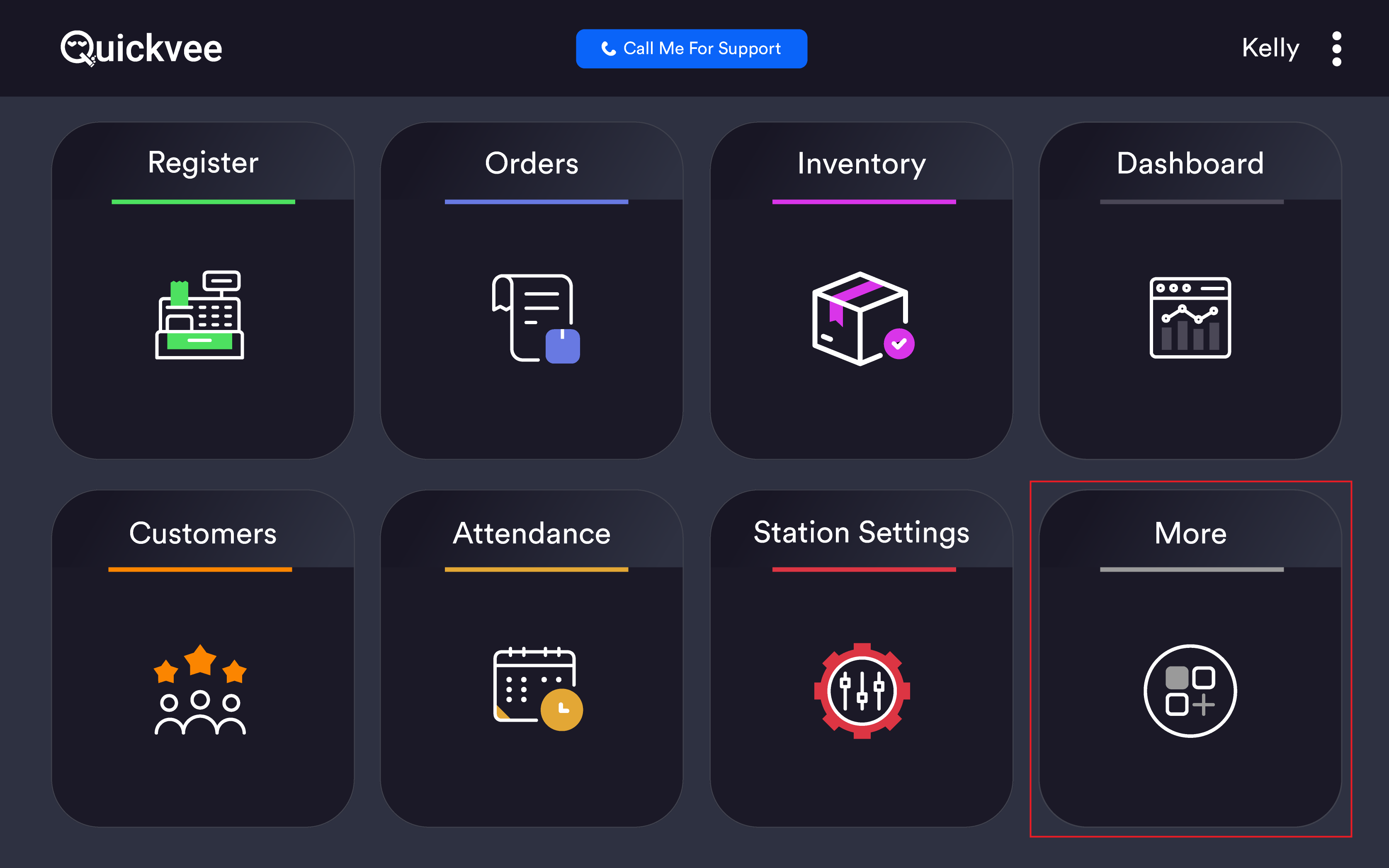
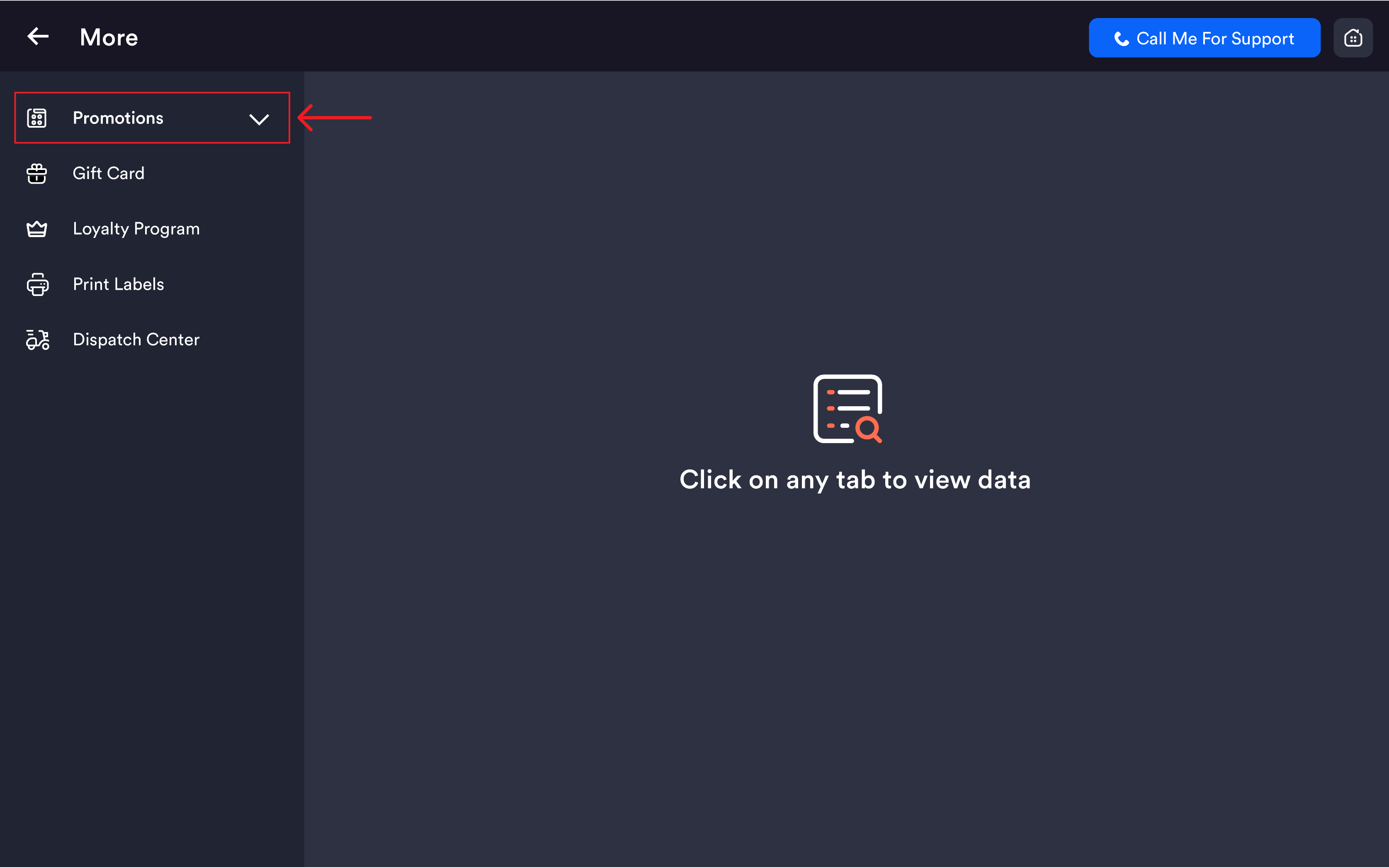
Access path: POS Home → More → Promotions → BOGO Pricing
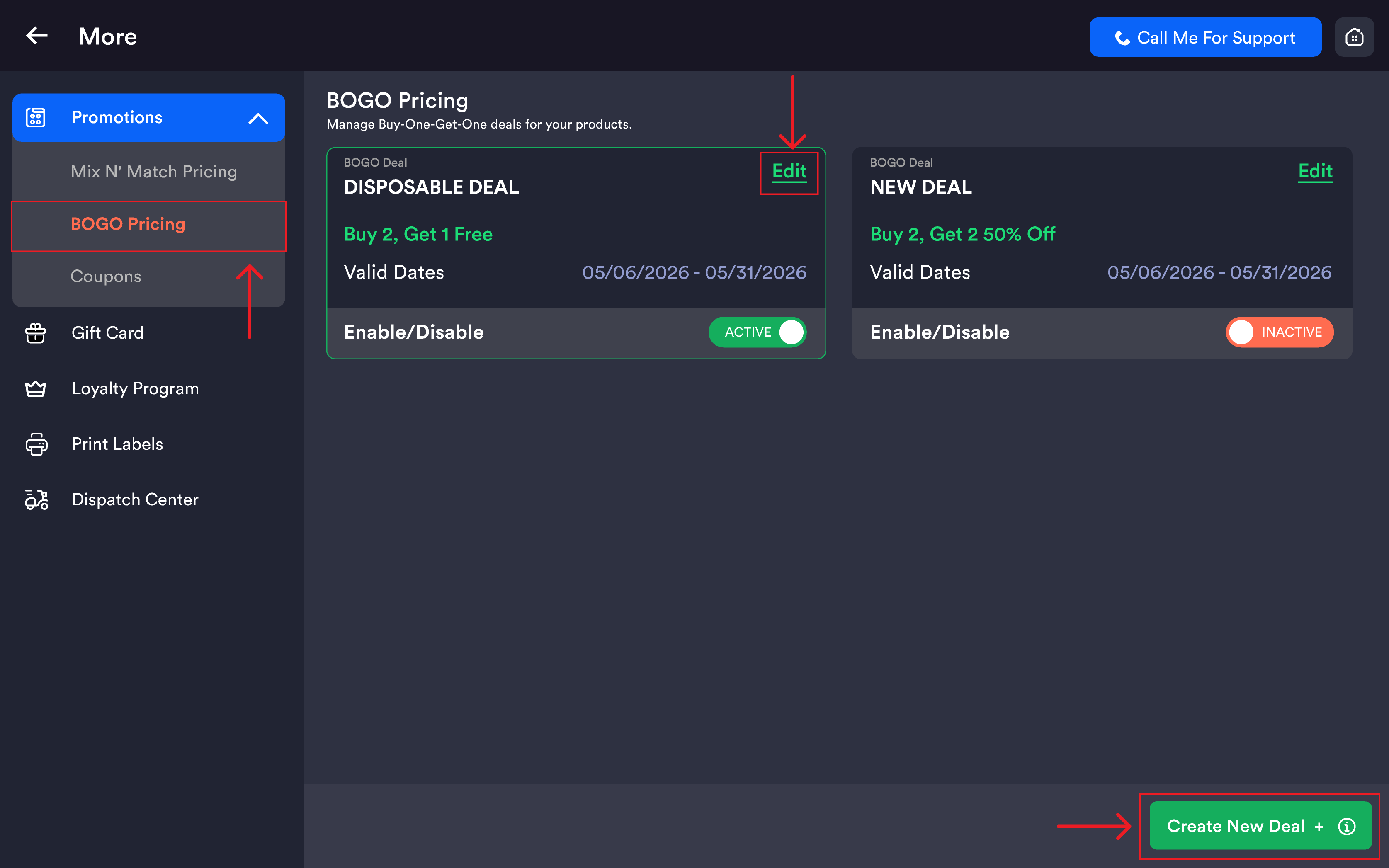
BOGO Pricing list
|
Field |
Description |
|---|---|
|
Deal Name |
Name of the promotion |
|
Deal Summary |
Description in green showing the deal terms (e.g. Buy 2, Get 2 4.00% off · Buy 1, Get 1 Free) |
|
Valid Dates |
Date range the deal is active |
|
Enable/Disable toggle |
Activates or deactivates the deal. Shows ACTIVE in green when on. |
|
Edit |
Opens the deal in edit mode |
Tap the green Create New Deal + button at the bottom-right to create a new BOGO deal.
Creating a BOGO deal
Deal name
Name of Deal — enter a unique name (e.g. Holiday Special, Buy 1 Get 1 Free).
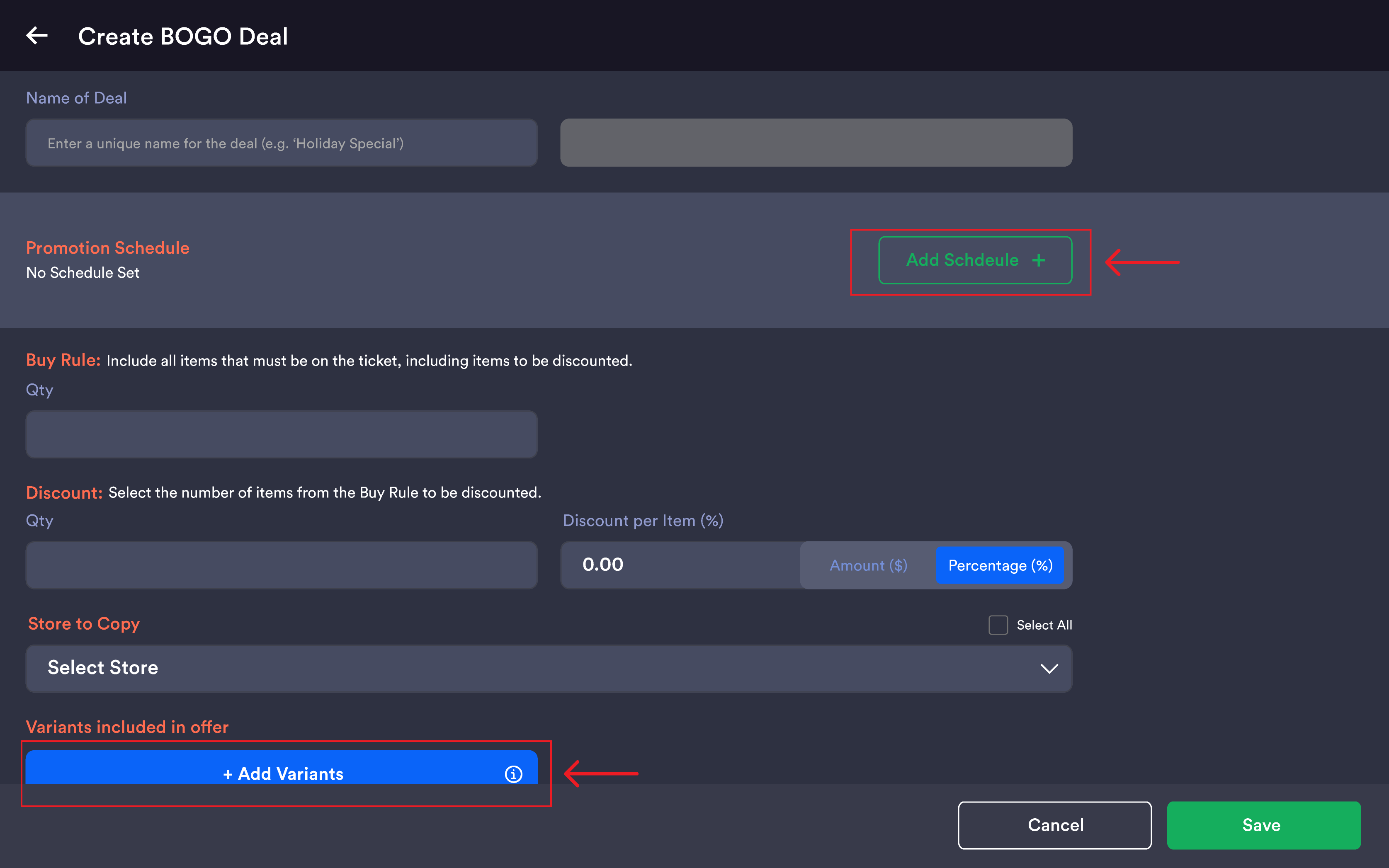
Promotion schedule
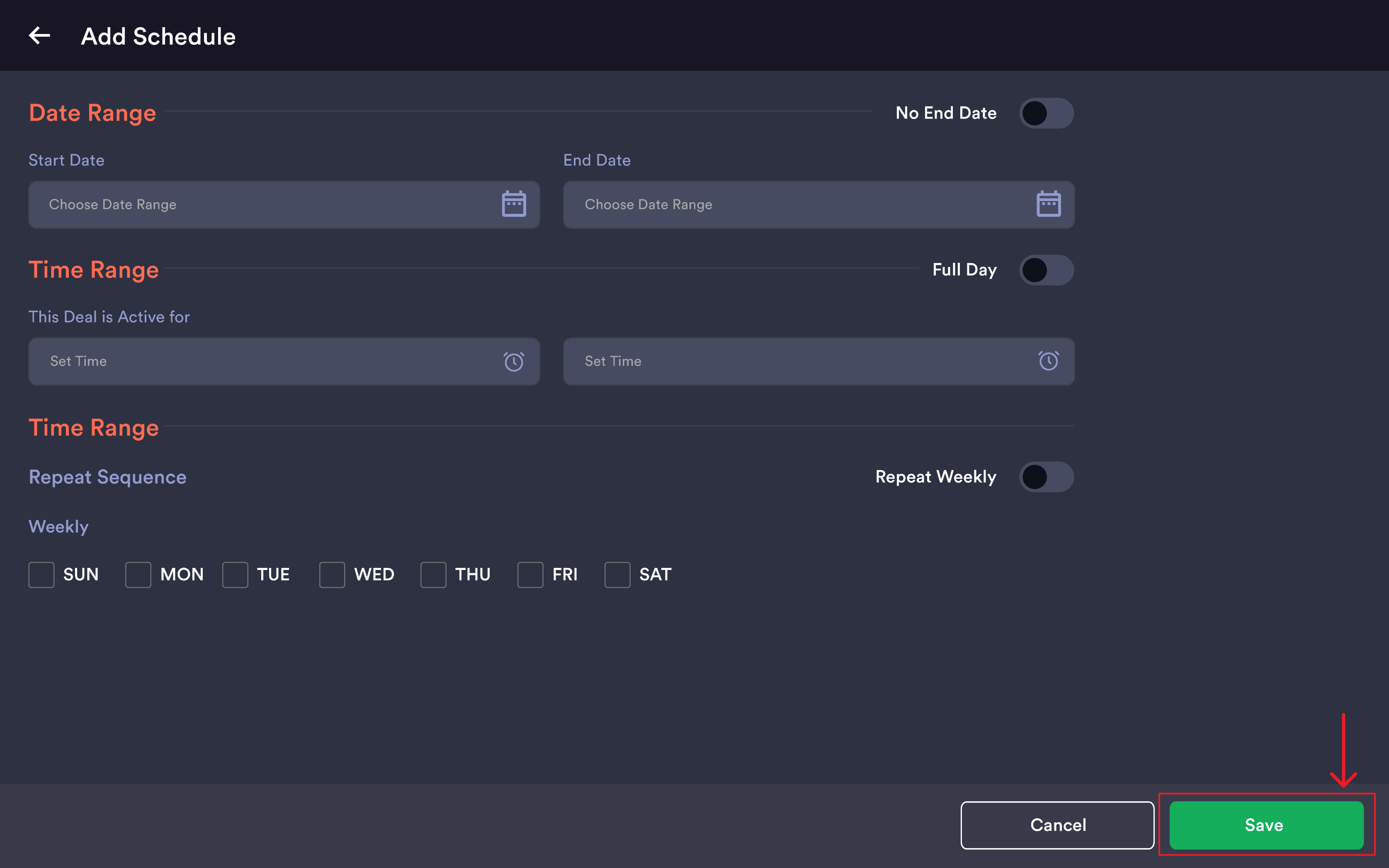
By default, Not Schedule Set is shown — the deal runs indefinitely. Tap Add Schedule + to open the Add Schedule screen.
Date Range
|
Field |
Description |
|---|---|
|
Start Date |
Date the deal begins |
|
End Date |
Date the deal ends |
|
No End Date (toggle) |
When enabled, the deal has no expiry |
Time Range
|
Field |
Description |
|---|---|
|
This Deal Is Active For |
Controls the hours the deal applies |
|
Full Day (toggle) |
When enabled, the deal applies for the entire day |
Days To Repeat
|
Field |
Description |
|---|---|
|
Repeat Sequence |
Whether the deal repeats on specific days |
|
Repeat Weekly (toggle) |
When enabled, the deal repeats on the same days each week within the date range |
Tap Add to save the schedule or Cancel to go back without saving.
Buy Rule
Defines what the customer must purchase to qualify.
Include all items that must be on the ticket, including the items to be discounted.
Qty — the total number of items the customer must add to the cart to trigger the BOGO deal (e.g. enter 2 for a Buy 2 deal).
Discount
Defines how many items receive a discount and what that discount is.
|
Field |
Description |
|---|---|
|
Qty |
Number of items receiving the discount (e.g. |
|
Discount Per Item |
Discount applied to each discounted item |
Discount Type:
|
Mode |
Description |
|---|---|
|
Amount ($) |
Fixed dollar amount off each discounted item |
|
Percentage (%) |
Percentage off each discounted item. Set to 100% for a fully free item. |
Variants Included In Offer
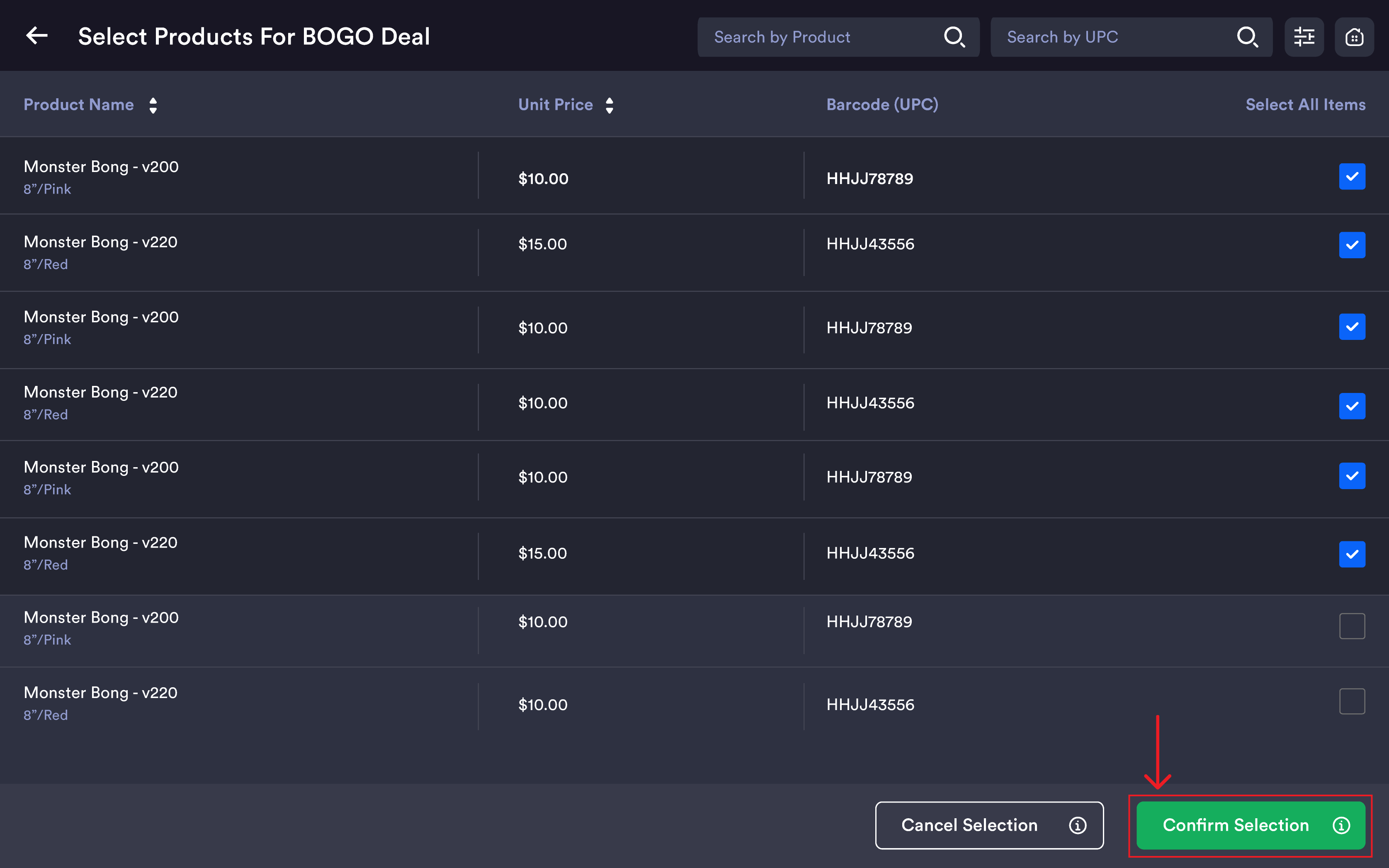
Tap Add Variants + (blue button) to open the Select Products For BOGO Deal screen.
|
Column |
Description |
|---|---|
|
Product Name |
Product name with variant shown below |
|
Unit Price |
Selling price of the variant |
|
Barcode (UPC) |
UPC code for the variant |
|
Checkbox |
Tick to include this variant in the deal |
Use Search By Product Name or Search by UPC at the top. Tap the filter icon to open the Filter by Category modal.
After selecting products, tap Confirm Selection to add them, or Cancel Selection to go back.
Saving the deal
Tap Save (blue) to save the new deal and return to the list, or Cancel to discard. For existing deals, an Update button replaces Save, and a Delete button (red, bottom-left) allows permanent deletion.
Seeing Where a Promotion Was Copied
When you create a BOGO, Mix n Match or Coupon with Copy to all stores, the stores you selected are now saved with the promotion. Open the promotion later — to view it or to edit it — and the list of stores it was copied to is shown with the copy option, so you can tell at a glance which locations are running it.
This matters most when you run store-specific offers alongside chain-wide ones: before you edit a copied promotion, you can see exactly which stores received it the first time and select the same set again, instead of guessing and sending the edit to the wrong locations.
TIP: Keep a naming convention for chain-wide versus store-specific offers — "ALL – 2 for $15" versus "Store 3 – 2 for $15". With the saved store list, the name and the list together make the scope obvious to the warehouse team.
IMPORTANT: The saved list shows where the promotion was copied when it was created or last copied. If a store was added to your account afterwards, it is not on the list until you copy the promotion again.
Enabling and disabling a deal
From the BOGO Pricing list, use the Enable/Disable toggle on each deal card to activate or deactivate it instantly. When active, the toggle shows ACTIVE in green.
Important notes
The BOGO deal triggers automatically at the register when the qualifying products and minimum Buy Rule quantity are in the cart. The cashier does not need to manually apply it.
Buy Rule Qty includes all items on the ticket — both the items being paid for and the items receiving the discount. For a "Buy 1 Get 1 Free" deal, the Buy Qty should be 2 (1 paid + 1 free) and the Discount Qty should be 1 at 100% off.
Valid Dates limit when the deal is active. If a date range is set, the deal automatically stops applying after the end date even if the toggle remains on.
Only active deals apply at the register. Deals toggled off are not applied at checkout even if the cart qualifies.
Discount Percentage of 100% makes the discounted item fully free.