
Item-Level Coupons discount a single product in the cart rather than the whole order. Quickvee supports two types, both created from the same flow on the POS: Universal Coupons, which apply to any item across your inventory, and Specific Item Coupons, which are valid only on the items you select. This article covers creating both types from the POS app. For the cashier-side workflow, see Apply item coupons at the register.
📝 Item-level coupons are separate from Order-Level coupons, which discount the entire transaction. Both live side by side in the Coupons module.
Where to find it
-
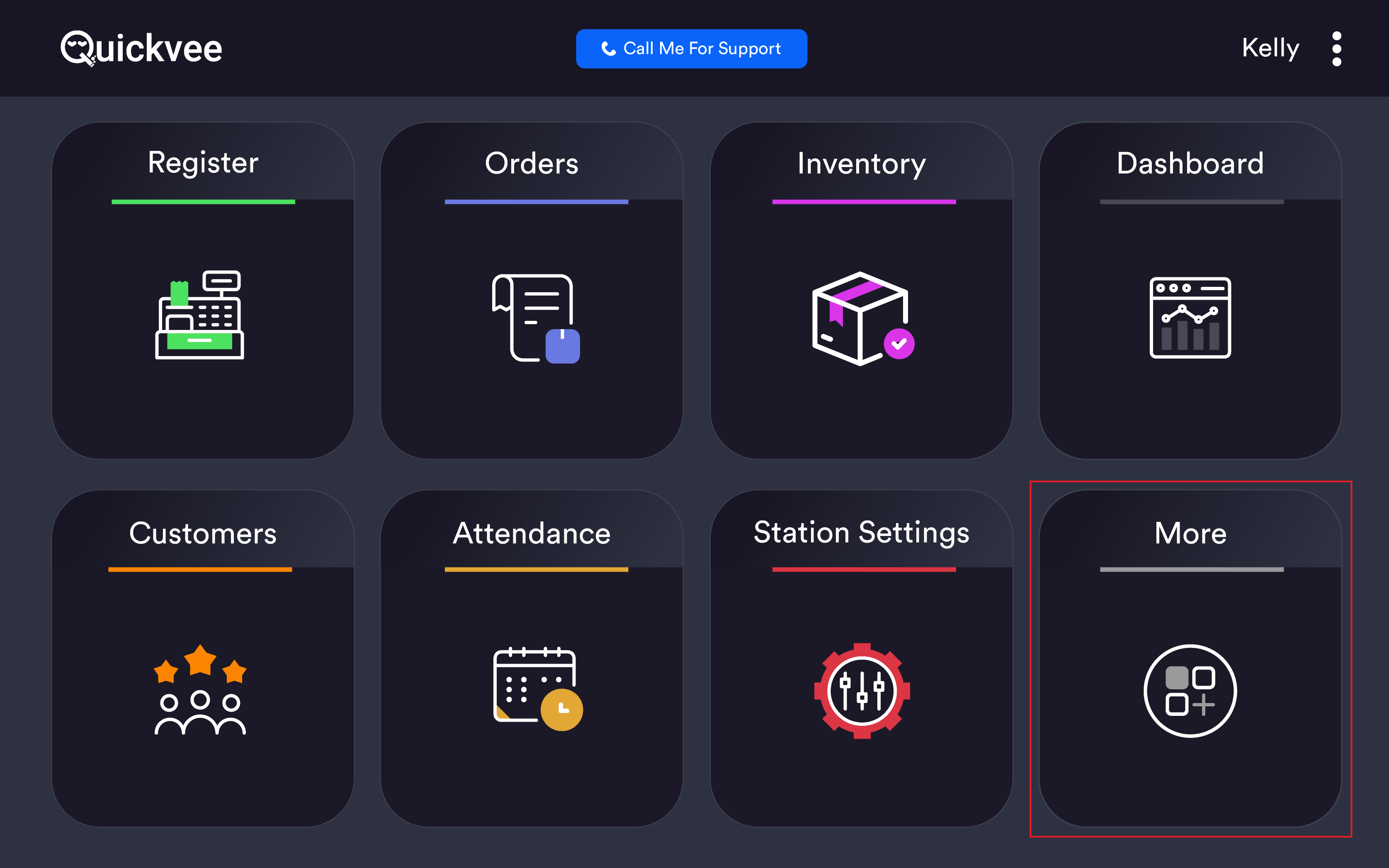
From the POS home screen, tap More.
-
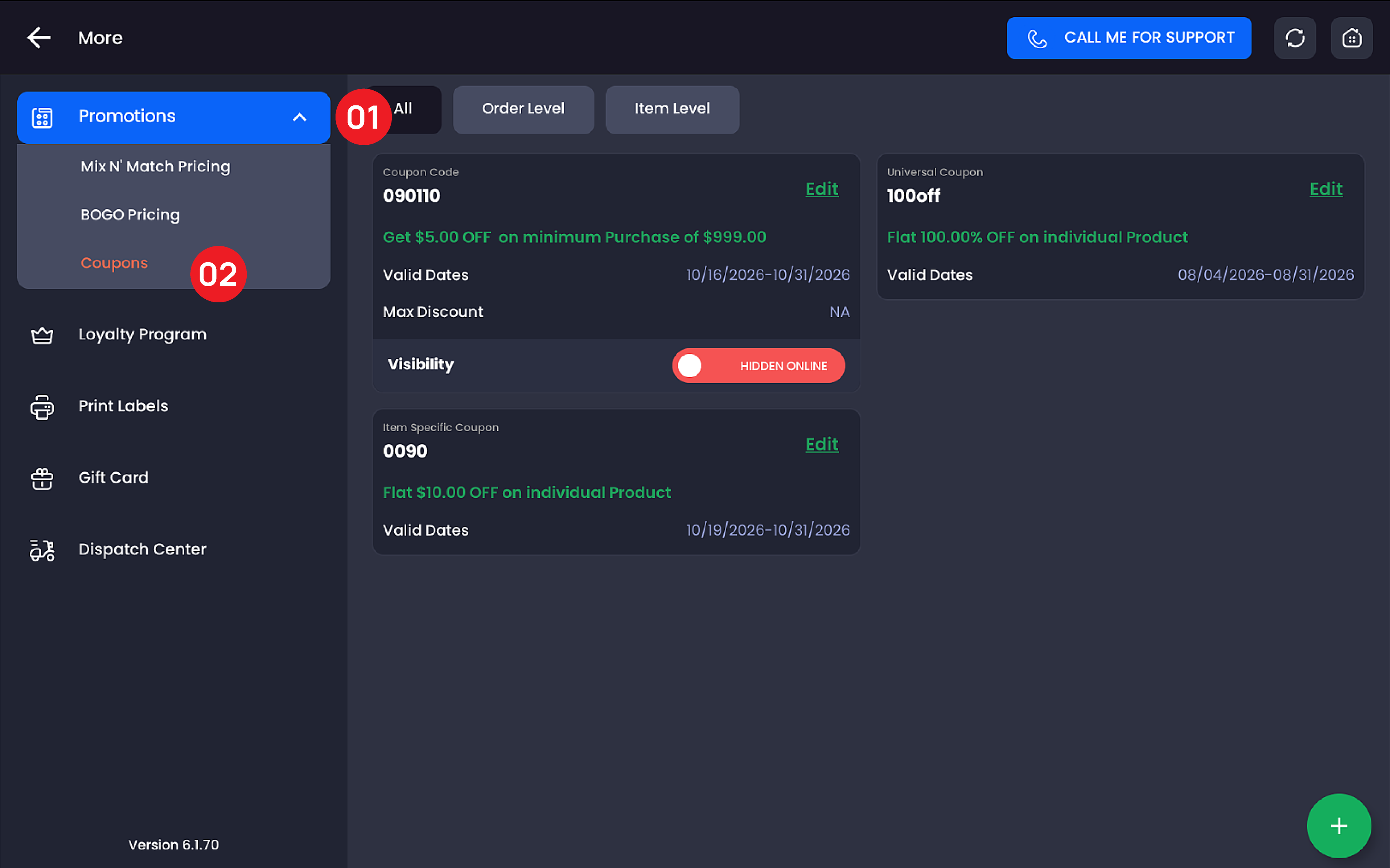
In the left menu, tap Promotions to expand it, then tap Coupons.
-
Use the filter chips at the top, All, Order Level, or Item Level, to view your coupons by type. If no item-level coupons exist yet, the screen shows No Coupon Added.
The two kinds of item coupon
|
Type |
What it does |
|---|---|
|
Universal Coupon |
Applies to any single item in the cart, across your entire inventory. Best for storewide "pick any item" promotions. |
|
Specific Item Coupon |
Valid only on the item(s) you select at creation. Best for targeted promotions on designated products, brands, or variants. |
Creating an item-level coupon
-
On the Coupons screen, tap the green + button in the bottom-right corner.
-20261029-093006.png?cb=f925156df9e0d04f624c3fe14130365f)
-
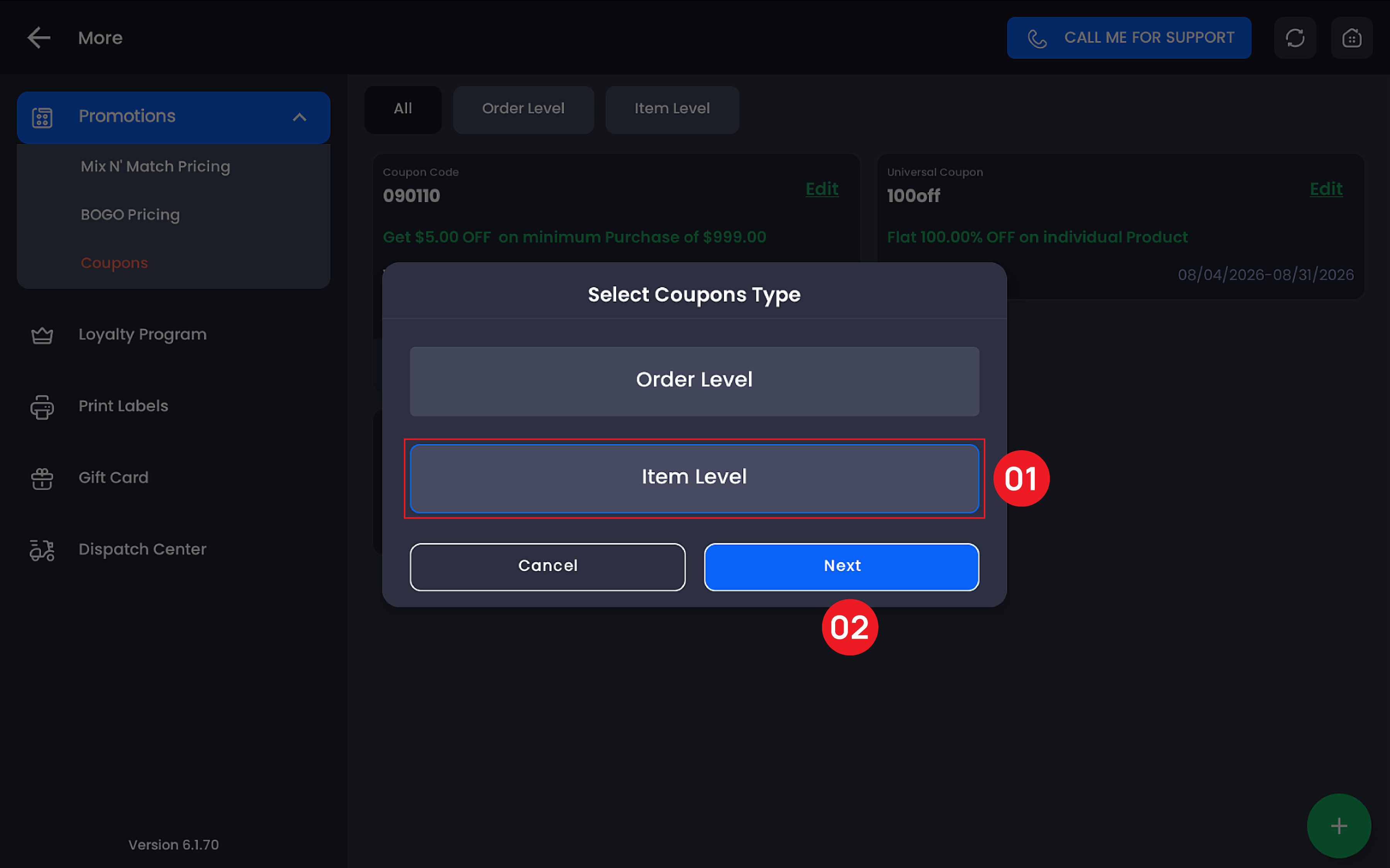
In the Select Coupons Type dialog, choose Item Level and tap Next.
-
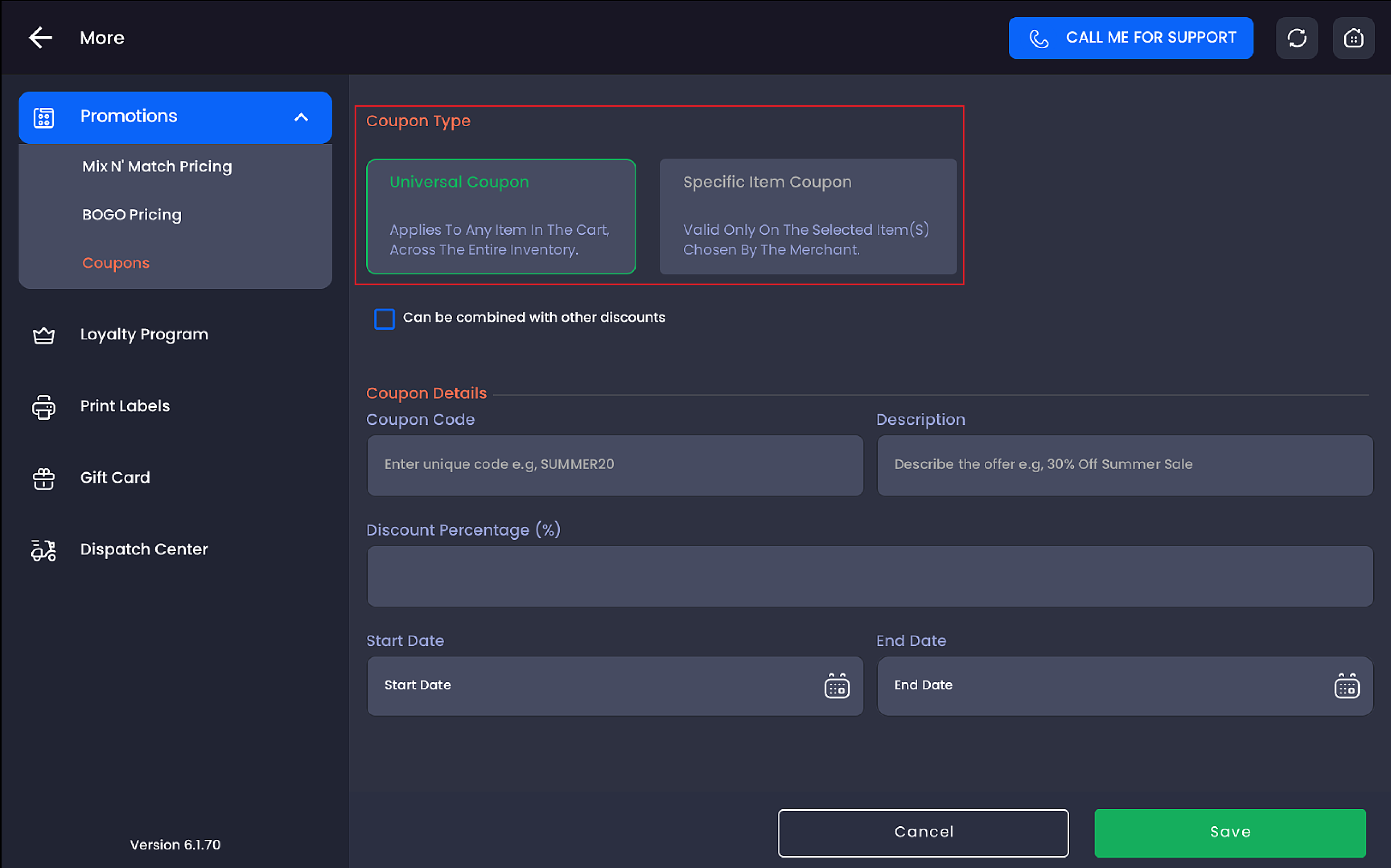
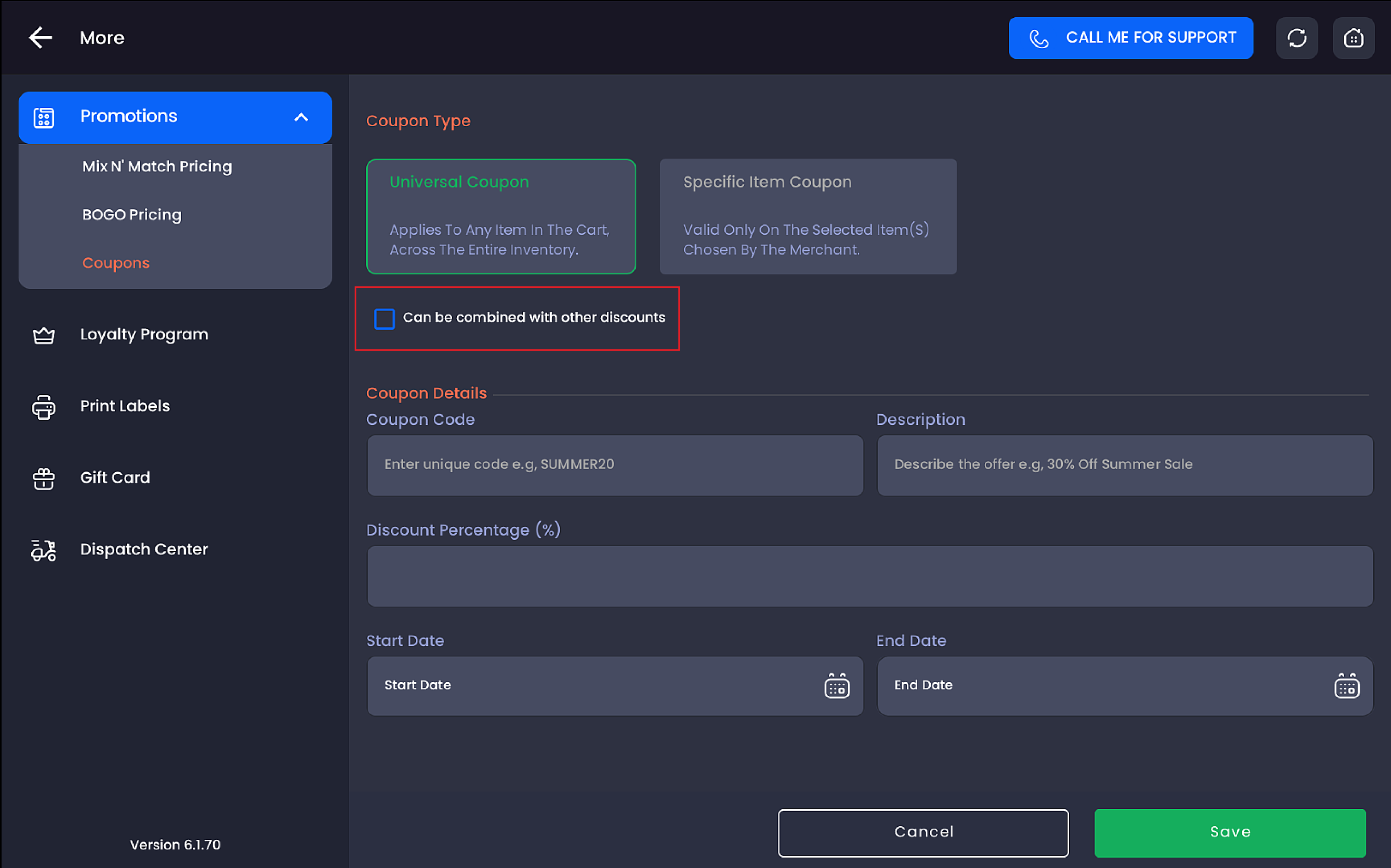
Under Coupon Type, select Universal Coupon or Specific Item Coupon. The form fields adjust based on your selection.
-
If the coupon should stack with other discounts on the same item, check Can be combined with other discounts. Leave it unchecked to keep the coupon exclusive.
-
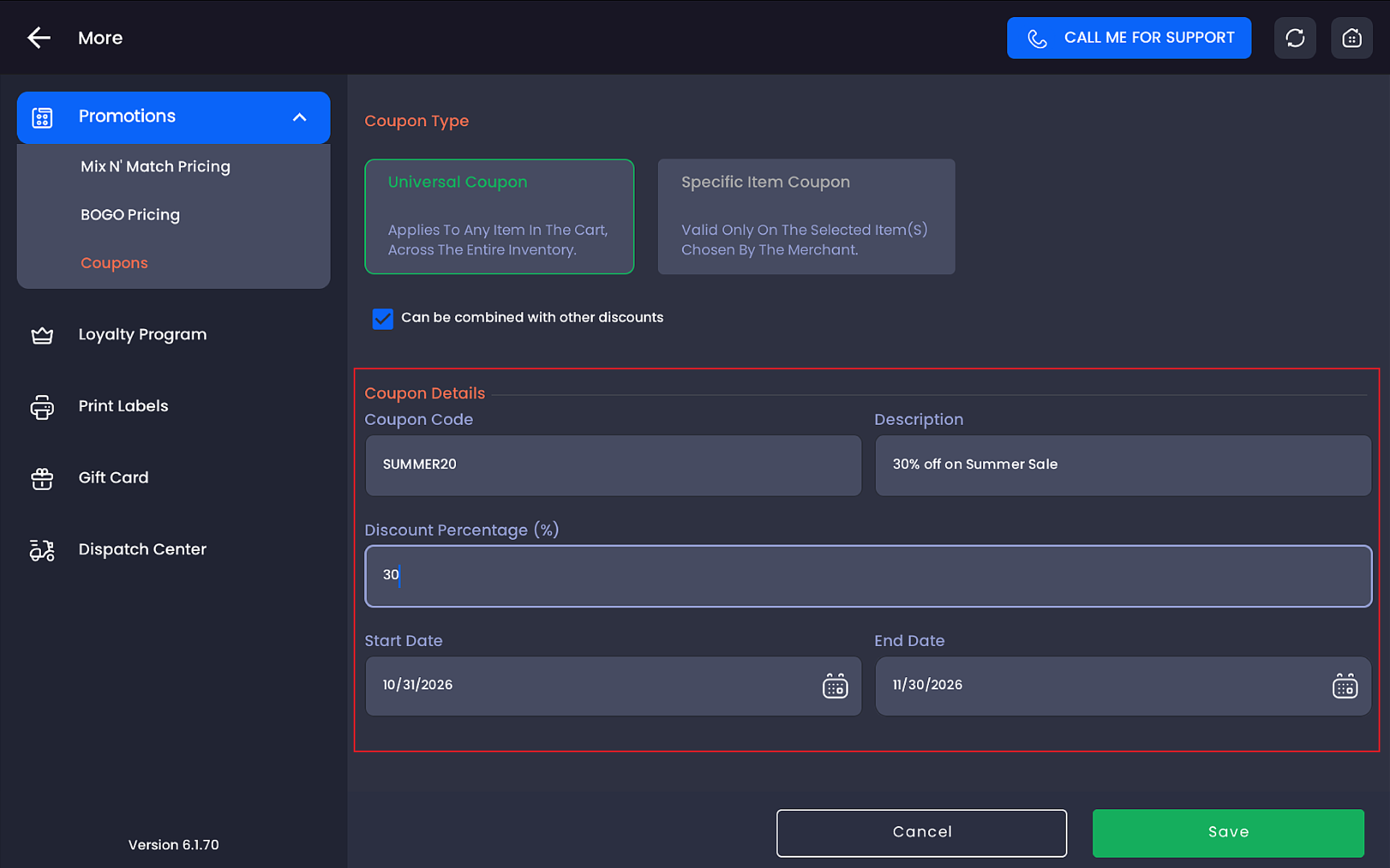
Fill in the coupon details (see field reference below). For a Specific Item Coupon, also select the eligible products.
-
Tap Save.
The coupon appears in the Item Level list as a card, labeled Universal Coupon or Item Specific Coupon, showing its code, discount, and valid dates. Tap Edit on any card to change it later.
Field reference
|
Field |
Applies to |
Description |
|---|---|---|
|
Coupon Code |
Both |
The unique code identifying the coupon (e.g., SUMMER20). Displays in uppercase at the register. |
|
Description |
Both |
A short label describing the offer (e.g., 30% Off Summer Sale). |
|
Discount Percentage (%) |
Universal |
The percentage taken off the individual item's price. Universal item-level coupons are percentage-based. |
|
Discount Amount / Percentage toggle |
Specific Item |
Choose Amount ($) for a fixed dollar discount or Percentage (%) for a percentage off the item price. |
|
Max Discount Amount ($) |
Specific Item (percentage only) |
Optional cap on the maximum dollar value the coupon can deduct, useful when a percentage coupon could apply to high-ticket items. |
|
Start Date / End Date |
Both |
The window during which the coupon can be applied. A single-day coupon uses the same start and end date; expired coupons no longer appear at the register. |
|
Selected Items |
Specific Item |
The product(s) the coupon is valid on. Use Search Include Product to find and add items, each appears as a chip with an ✕ to remove it. Tap Add New Item + to keep adding products, or Add Variants to include specific product variants. |
|
Can be combined with other discounts |
Both |
When checked, the coupon can stack with other discounts on the same item. |
💡 Tip. Need a "$10 off this product" style promotion? Use a Specific Item Coupon, it supports fixed-dollar discounts, while Universal coupons are percentage-based.
✅ Best practice. For Specific Item Coupons, include every variant the promotion should cover. A coupon restricted to one variant will be rejected on sibling variants of the same product at the register.
✅ Best practice. Keep codes short and recognizable (e.g., VAPE5, DUDHOOKAH). Cashiers can search the register's coupon list by code, so consistent naming speeds up checkout.
Universal vs. Specific Item at a glance
|
|
Universal Coupon |
Specific Item Coupon |
|---|---|---|
|
Valid on |
Any single item across the entire inventory |
Only the product(s)/variant(s) selected at creation |
|
Discount types |
Percentage (%) |
Fixed amount ($) or percentage (%) with optional max cap |
|
Product selection |
None required |
Required, Selected Items with product search, chips, and variant support |
|
Best for |
Storewide "pick any item" offers |
Targeted, product-specific promotions |
Related
See Apply item coupons at the register for the cashier workflow, Item coupons (product-level discounts) for the web backend version, and Coupons for the Order Coupon tab that sits alongside item coupons.