
The Mix N' Match Pricing feature lets merchants create volume discount promotions — when a customer buys a minimum number of qualifying products, they receive a discount on each item. Discounts can be set as a fixed dollar amount or as a percentage off per item. Mix N' Match deals apply automatically at the register when the qualifying products and quantity are in the cart.
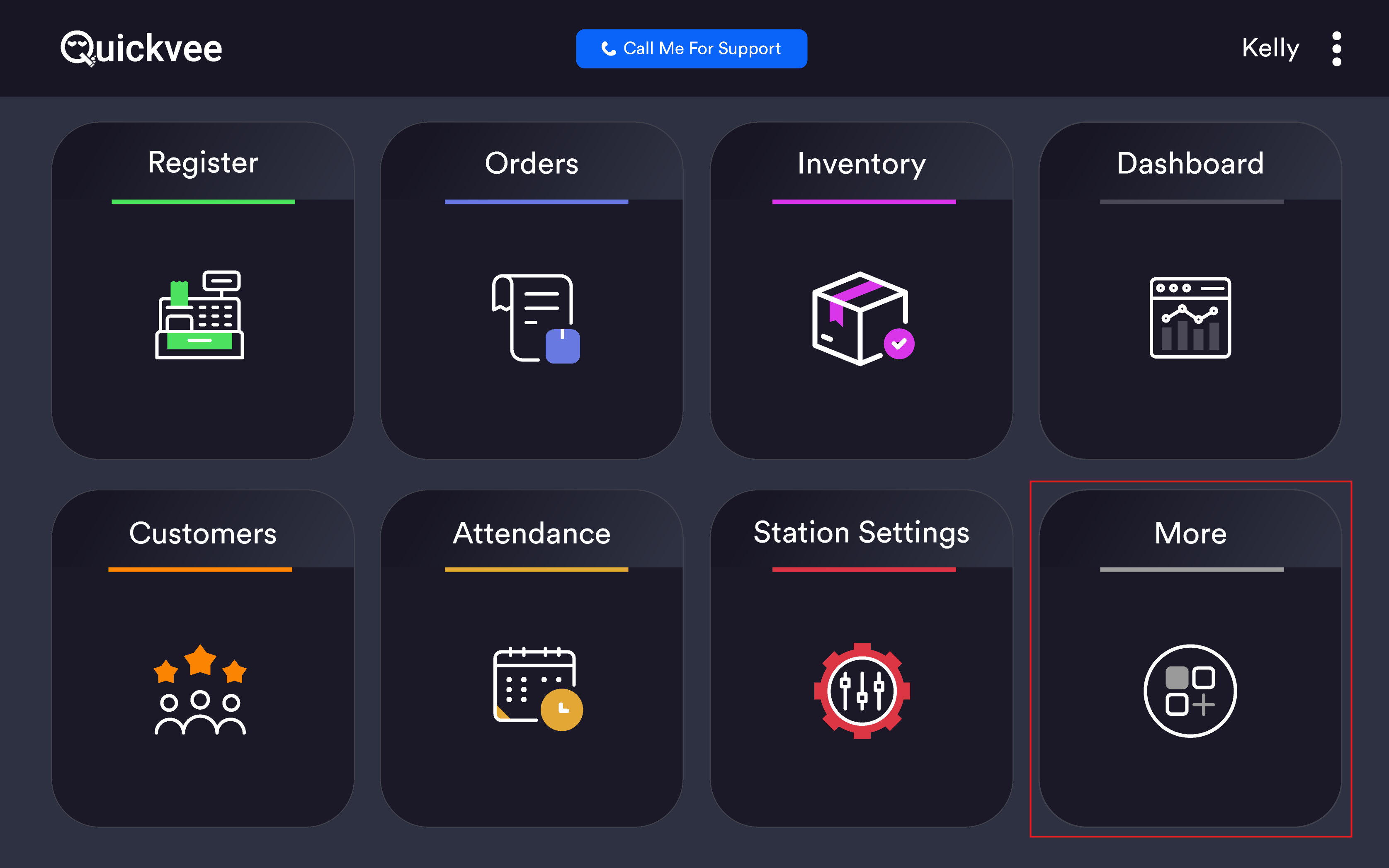
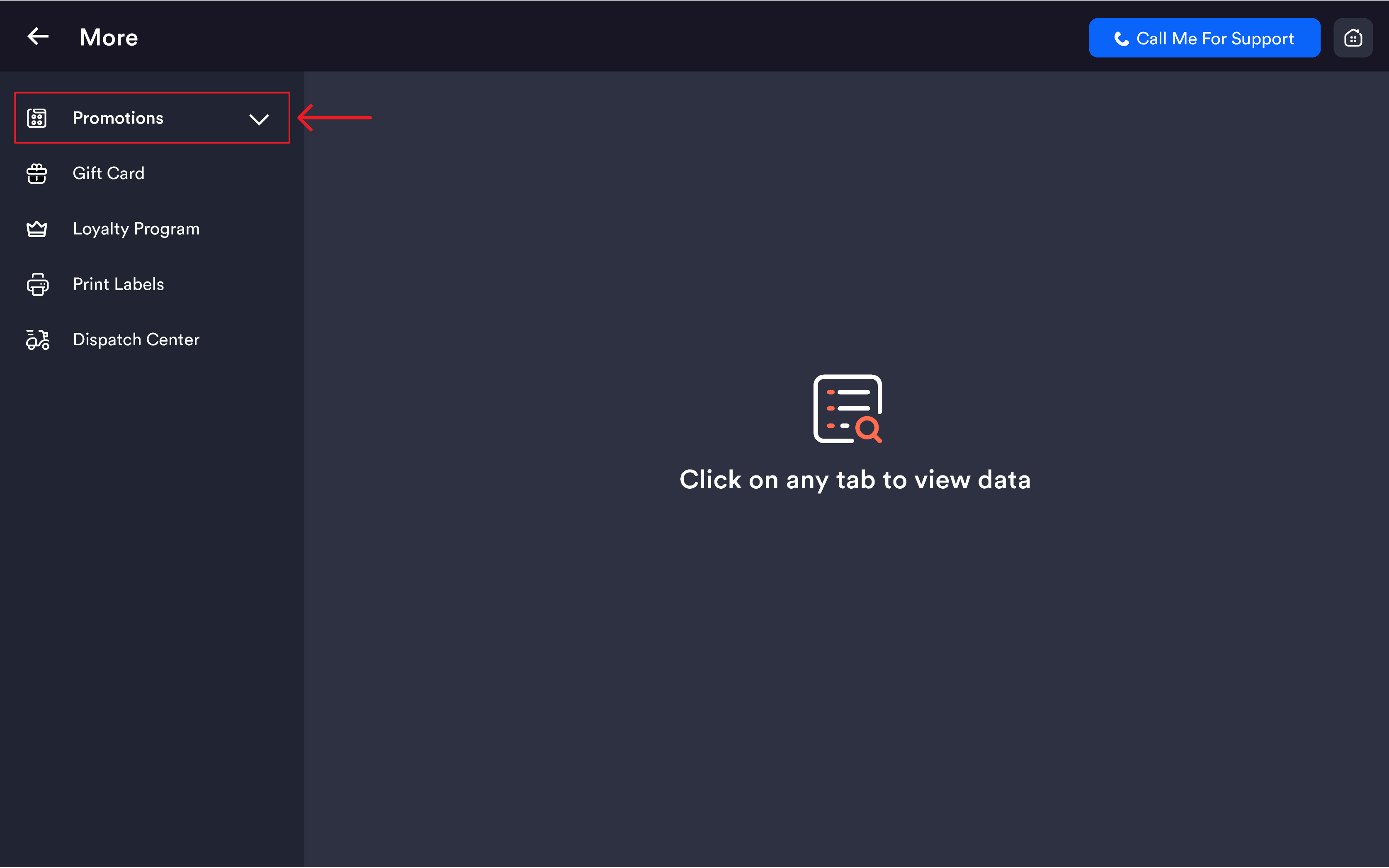
Access path: POS Home → More → Promotions → Mix N' Match Pricing
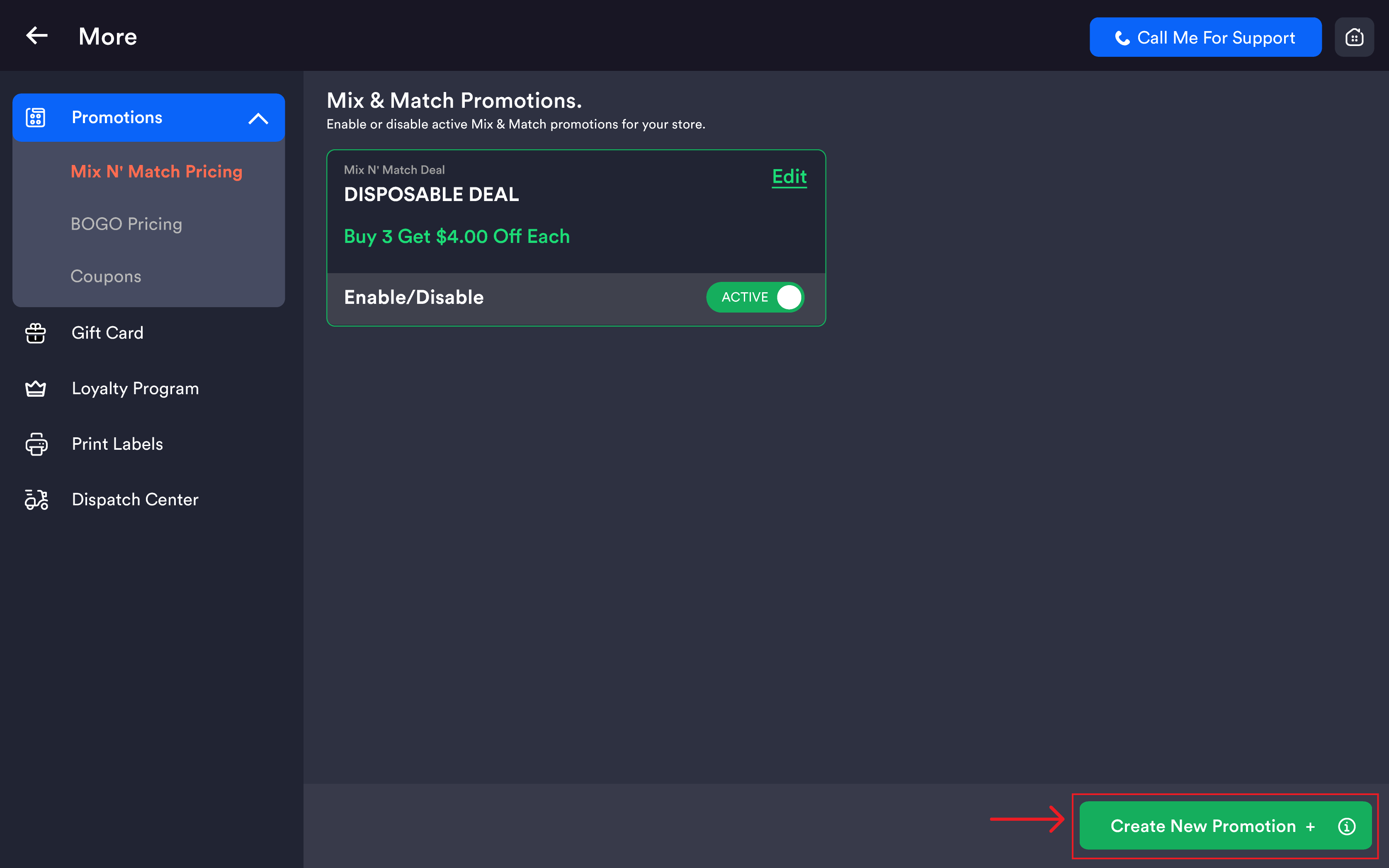
Mix N' Match Promotions list
|
Field |
Description |
|---|---|
|
Deal Name |
Name of the promotion |
|
Deal Summary |
Short description in green (e.g. Buy 2 Get $2.50 off Each, Buy 3 Get 5.00% off Each) |
|
Enable/Disable toggle |
Activates or deactivates the deal. Shows ACTIVE in green when on. |
|
Edit |
Opens the deal in edit mode |
Tap the green Create New Promotion + button at the bottom-right to create a new Mix N' Match deal.
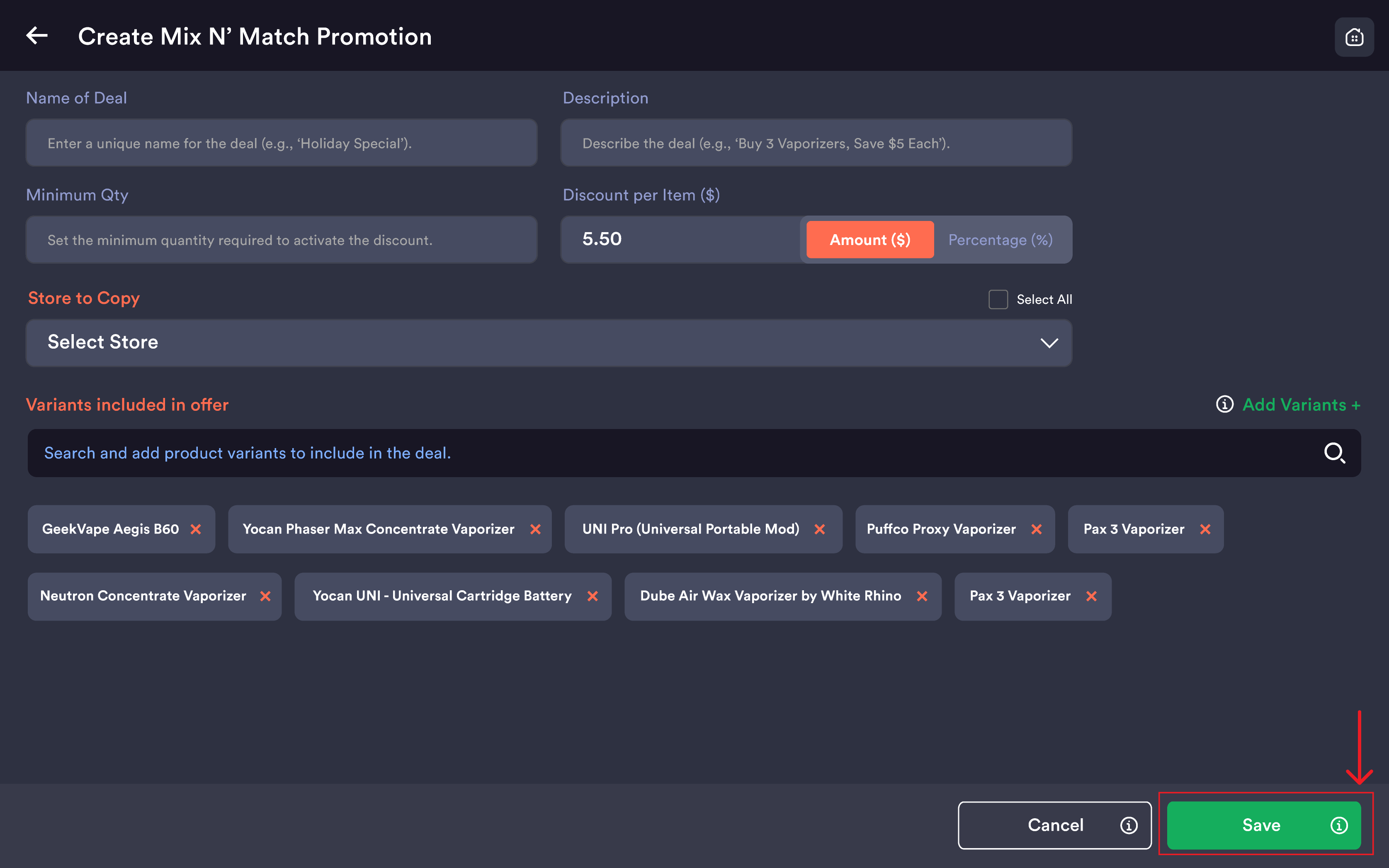
Creating or editing a Mix N' Match deal
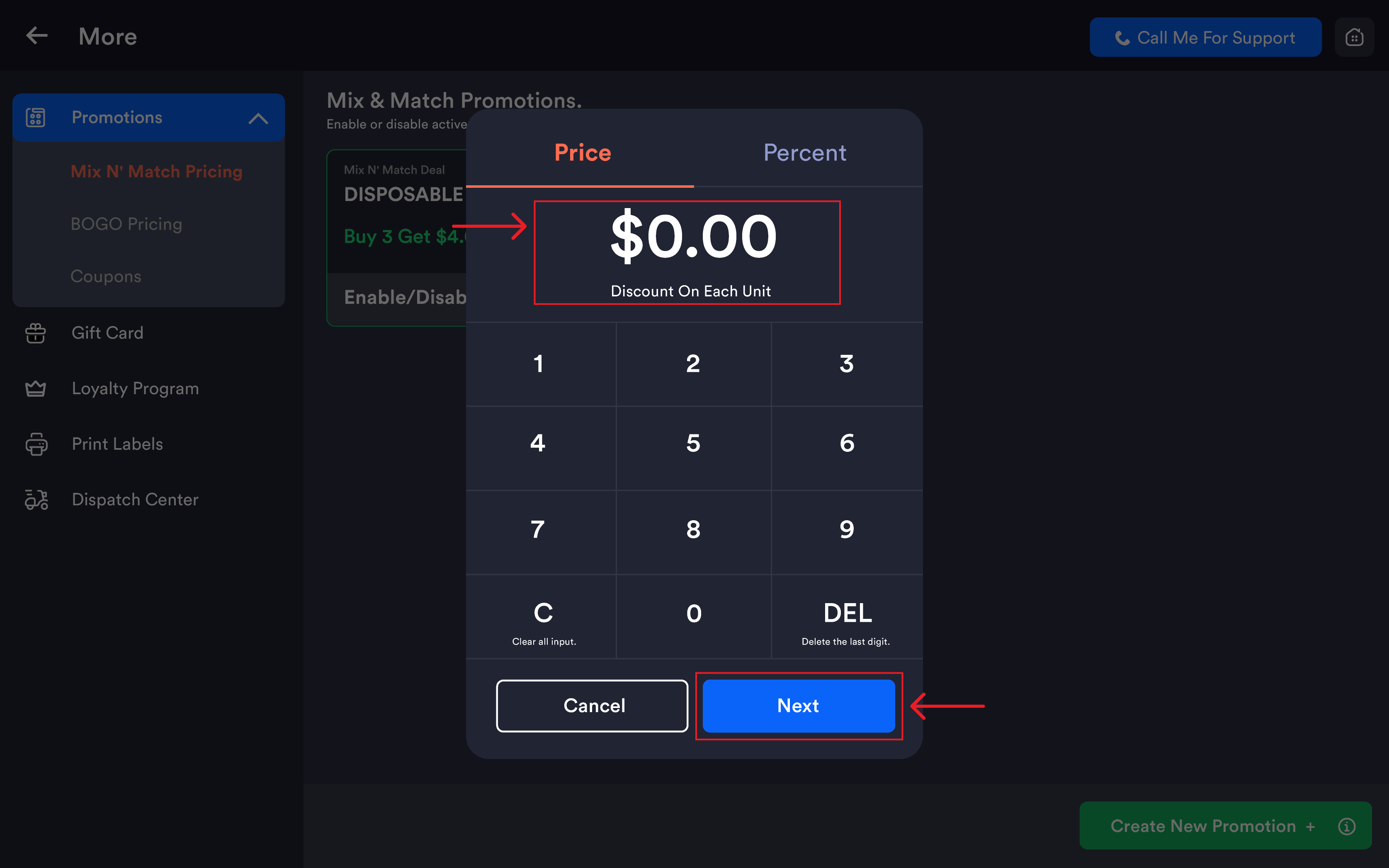
Discount type
|
Mode |
Description |
|---|---|
|
Amount ($) |
Fixed dollar discount off each qualifying item (e.g. $2.50 off each) |
|
Percentage (%) |
Percentage discount off each qualifying item (e.g. 10% off each) |
The active mode is highlighted in orange. The keypad also shows two tabs at the top — Price and Percent — to switch between discount types.
Setting the discount amount
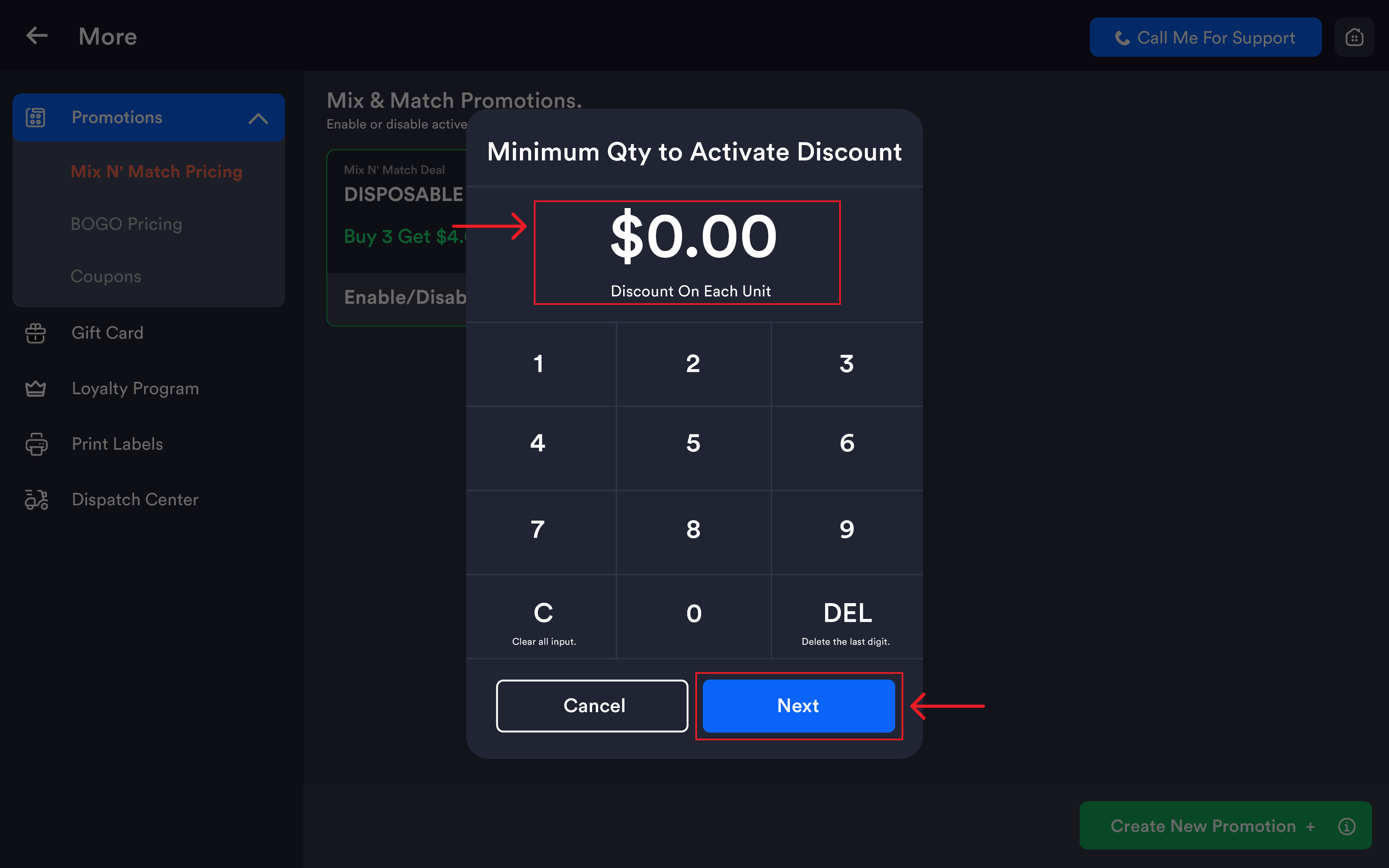
When editing the discount value, a numeric keypad appears:
|
Key |
Action |
|---|---|
|
0–9 |
Enter the discount value |
|
C |
Clear all input |
|
DEL |
Delete the last digit |
|
Cancel |
Closes without saving the value |
|
Next |
Confirms the value and proceeds |
Deal details
|
Field |
Description |
|---|---|
|
Name of Deal |
The name for this promotion |
|
Description |
Auto-generated based on deal settings (e.g. Buy 2 Get $2.50 off Each) |
|
Minimum Qty |
Minimum items a customer must add to trigger the discount |
|
Discount Per Item |
Discount applied to each qualifying item when the minimum is met |
Seeing Where a Promotion Was Copied
When you create a BOGO, Mix n Match or Coupon with Copy to all stores, the stores you selected are now saved with the promotion. Open the promotion later — to view it or to edit it — and the list of stores it was copied to is shown with the copy option, so you can tell at a glance which locations are running it.
This matters most when you run store-specific offers alongside chain-wide ones: before you edit a copied promotion, you can see exactly which stores received it the first time and select the same set again, instead of guessing and sending the edit to the wrong locations.
Variants included in offer
This section defines exactly which product variants qualify for the Mix N' Match deal.
Adding variants
Tap Add Variants + at the top-right to open the product selection screen.
|
Column |
Description |
|---|---|
|
Product Name |
Product name with variant shown below |
|
Unit Price |
Selling price of the variant |
|
Barcode (UPC) |
UPC code for the variant |
|
Checkbox |
Tick to include this variant in the deal |
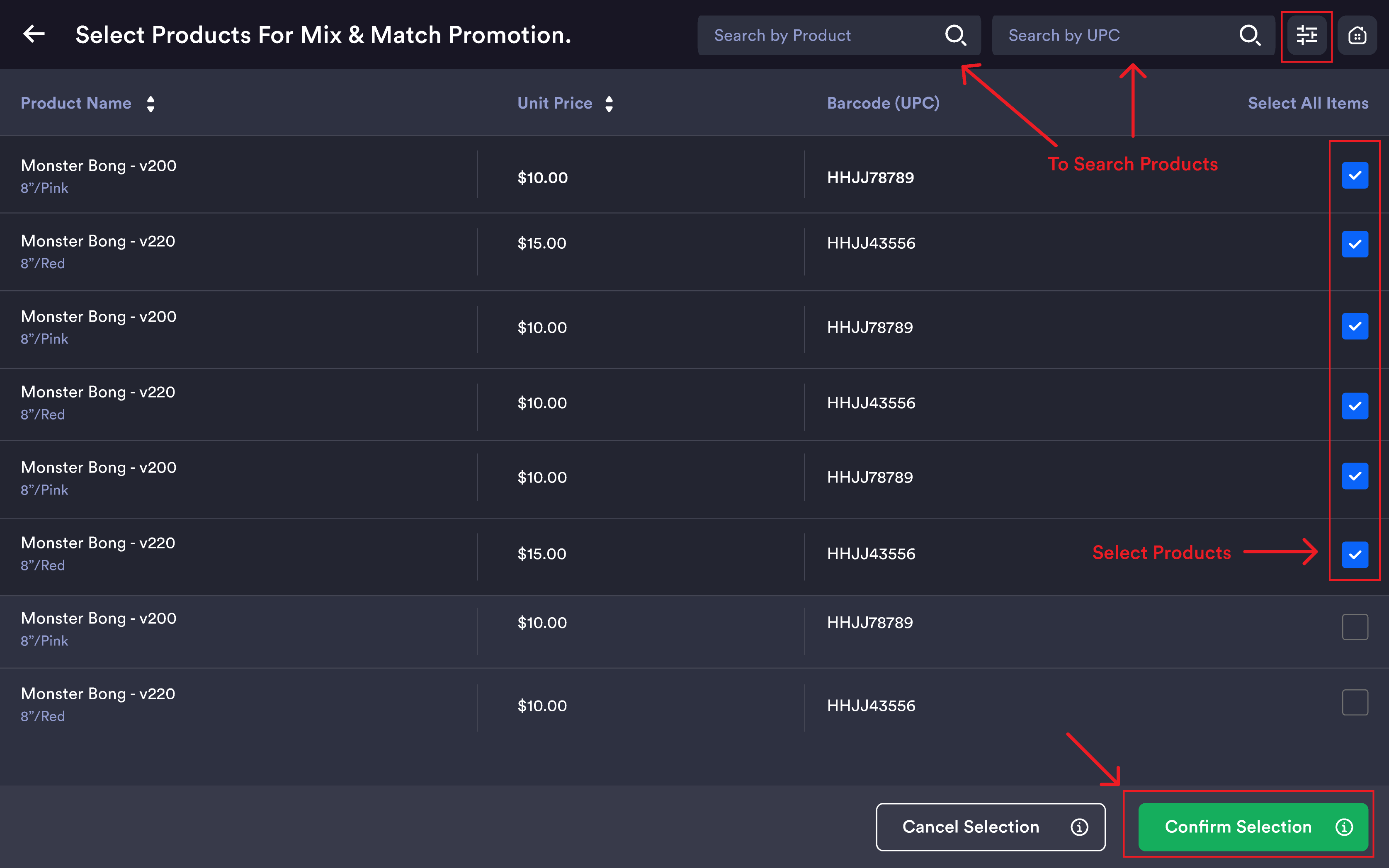
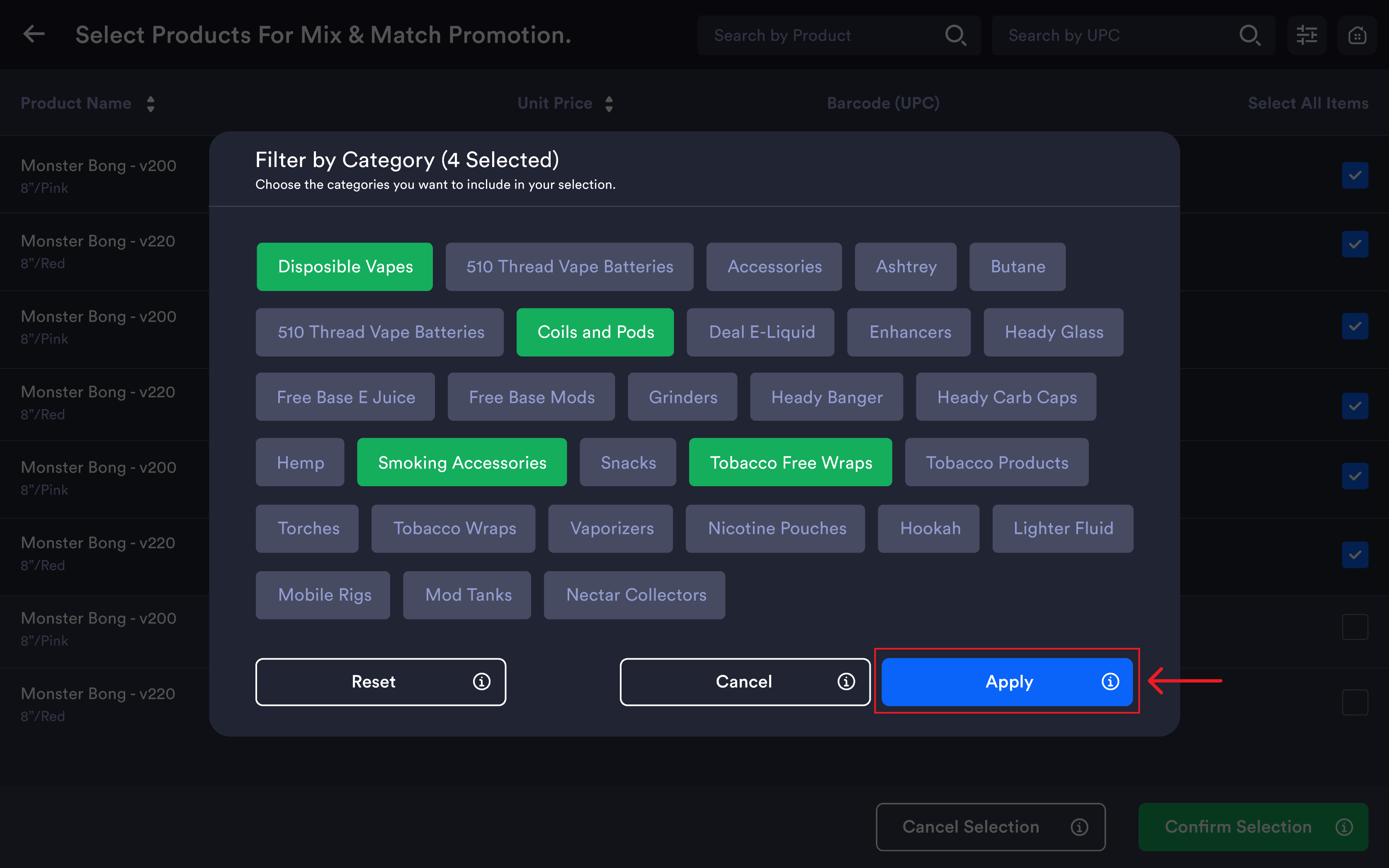
Use Search By Product Name or Search by UPC at the top. Tap the filter icon to open the Filter by Category modal.
Filter actions: Apply, Cancel, Reset.
After selecting products, tap Confirm Selection to add them to the deal, or Cancel Selection to go back.
Managing added variants
Selected variants appear as tags below the search field, each showing the product name and variant. Tap the ✕ on any tag to remove that variant from the deal.
📷 Add screenshot: Variants selection with category filter
Saving changes
|
Button |
Description |
|---|---|
|
Update (blue) |
Saves all changes to the existing deal |
|
Cancel |
Discards changes and returns to the promotions list |
|
Delete (red, bottom-left) |
Permanently deletes the deal |
For new promotions, a Save or Create button replaces Update.
Enabling and disabling a deal
Use the Enable/Disable toggle on each deal card to turn it on or off without opening the edit form. When a deal is active, the toggle shows ACTIVE in green.
Important notes
The deal triggers automatically at the register when the minimum quantity of qualifying variants is in the cart.
Minimum Qty is per deal — if the deal requires Buy 2, the customer must have at least 2 qualifying variants. Mixing different qualifying variants counts toward the minimum.
Amount vs Percentage — Amount gives a fixed dollar discount per item. Percentage gives a proportional discount per item.
Only active deals apply at the register. Deals toggled off are not applied even if the customer's cart qualifies.
Deleted products that were part of a deal may still appear in the deal until the deal is edited and saved again. Review deals after removing products from inventory.