
The BOGO Pricing module on the Quickvee Merchant Dashboard lets merchants create flexible "Buy X Get Y" promotions on selected products. Each deal consists of a Buy Rule (the items the customer must purchase to qualify) and a Discount (the number of items that get reduced or free, plus the dollar or percentage discount amount). Deals can run continuously or on a scheduled time window, and apply automatically at both the online storefront and the POS register.
Access path: Merchant Backend → Promotions → BOGO Pricing
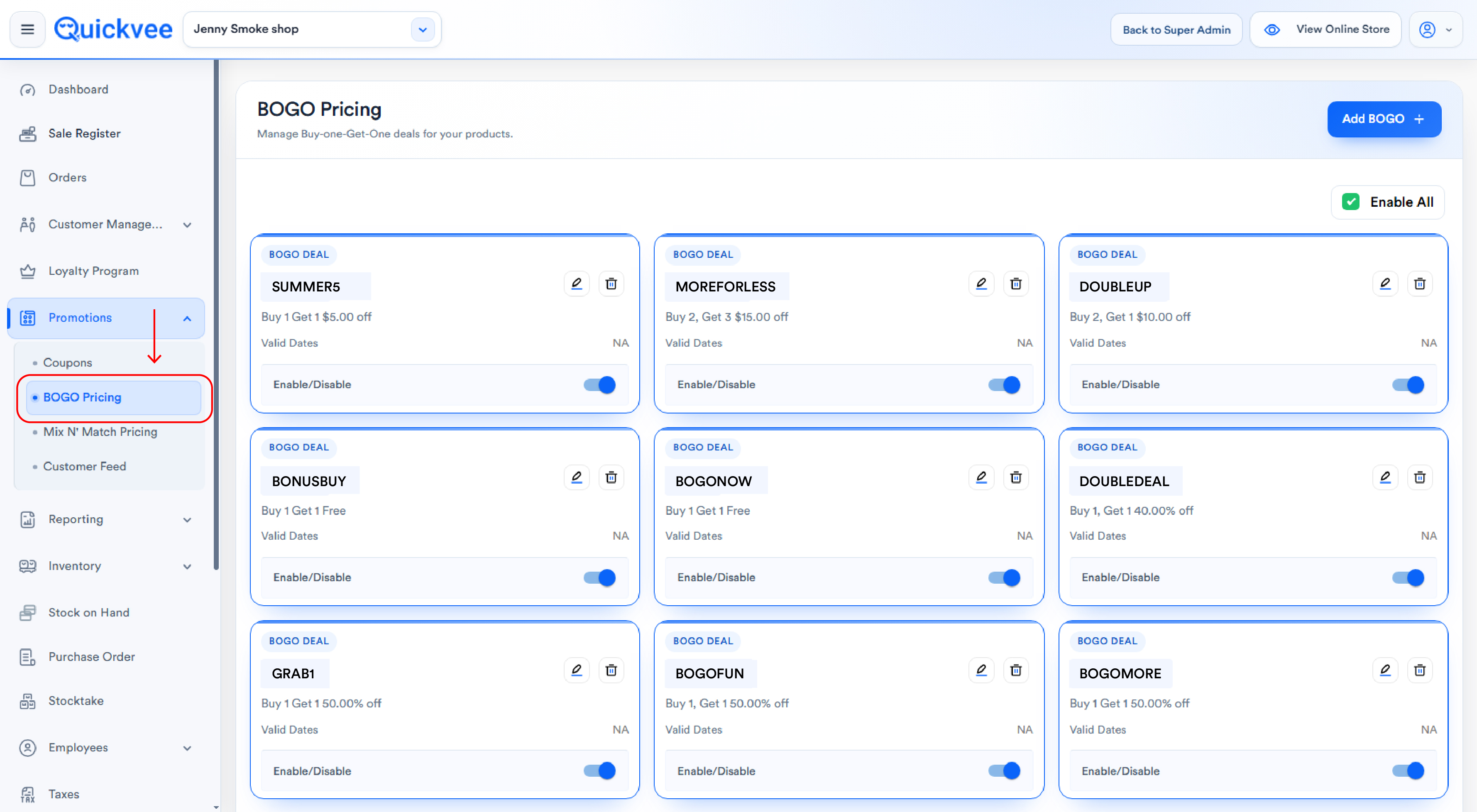
BOGO Pricing home page
The BOGO Pricing page lists all existing deals as cards, two per row. Each card shows:
-
BOGO Deal label at the top
-
Deal name in a blue pill (e.g.
BUY 2 GET 1 FRE…,PICK 3 GET 1 FR…) -
Deal description (e.g.
Buy 2 Get 1 Free) -
Valid Dates — the active date range, or
NAif no dates set -
Enable / Disable toggle — turn the deal on or off without deleting it
-
Edit (pencil icon) — opens the deal for editing
-
Delete (trash icon) — opens a confirmation before removing
Disabling a deal vs. deleting it: Disabled deals are kept and can be re-enabled later. Deleted deals are gone permanently.
To create a new deal, click Add BOGO Deal at the top of the page.
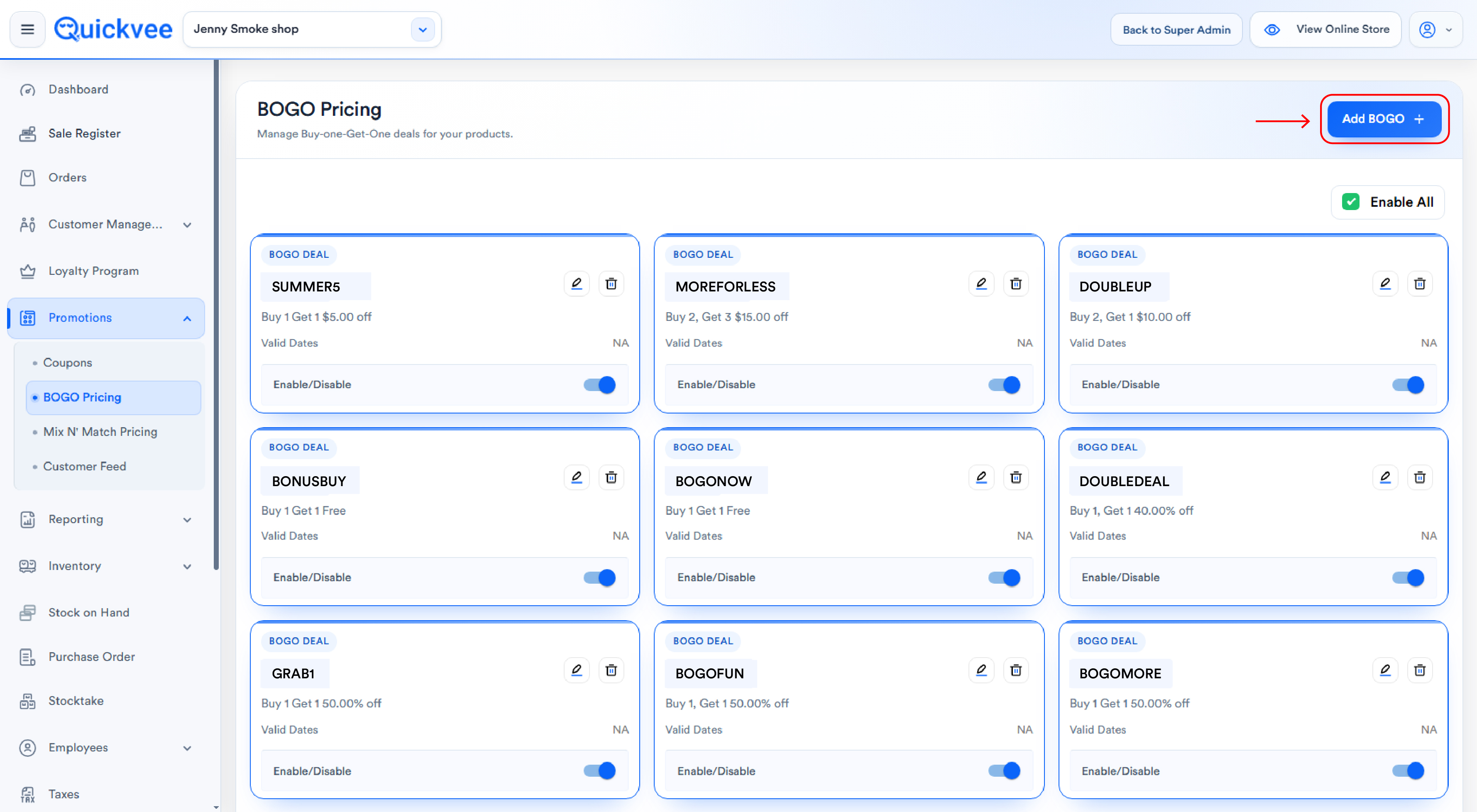
Creating a BOGO deal
The Create BOGO Deal form has three sections.
Section 1 — Name of Deal
|
Field |
Purpose |
|---|---|
|
Name of Deal (left, editable) |
Internal name used in the deal list, reports, and POS register (e.g. |
|
Deal description (right, auto-populated, read-only) |
Customer-facing description (e.g. |
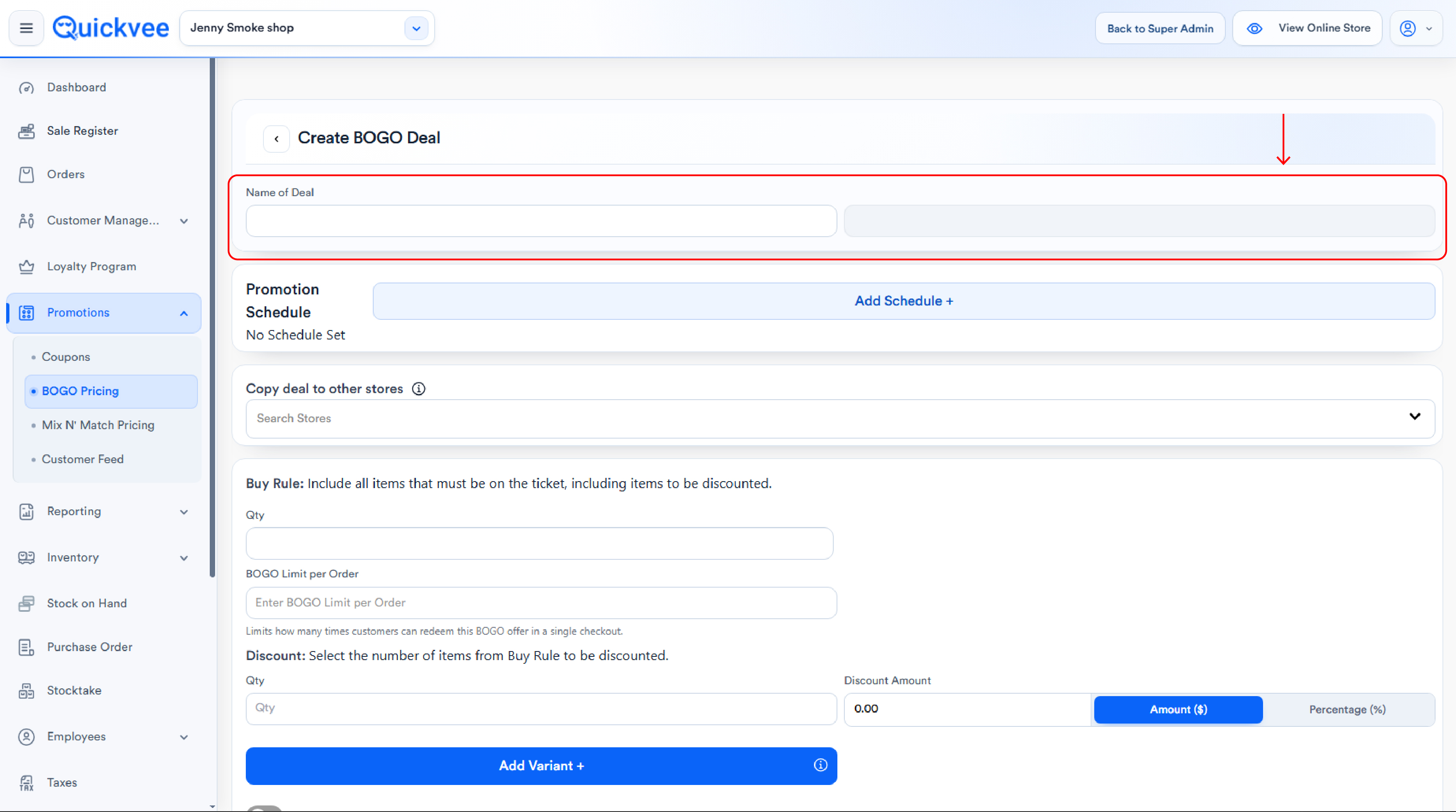
The description field updates automatically as you change Qty and Discount values. Keep the internal name descriptive but short — long names get truncated on the deal list cards.
Section 2 — Promotion Schedule
Defines when the deal is active. By default No Schedule Set. Click + Add Schedule to open the schedule editor.
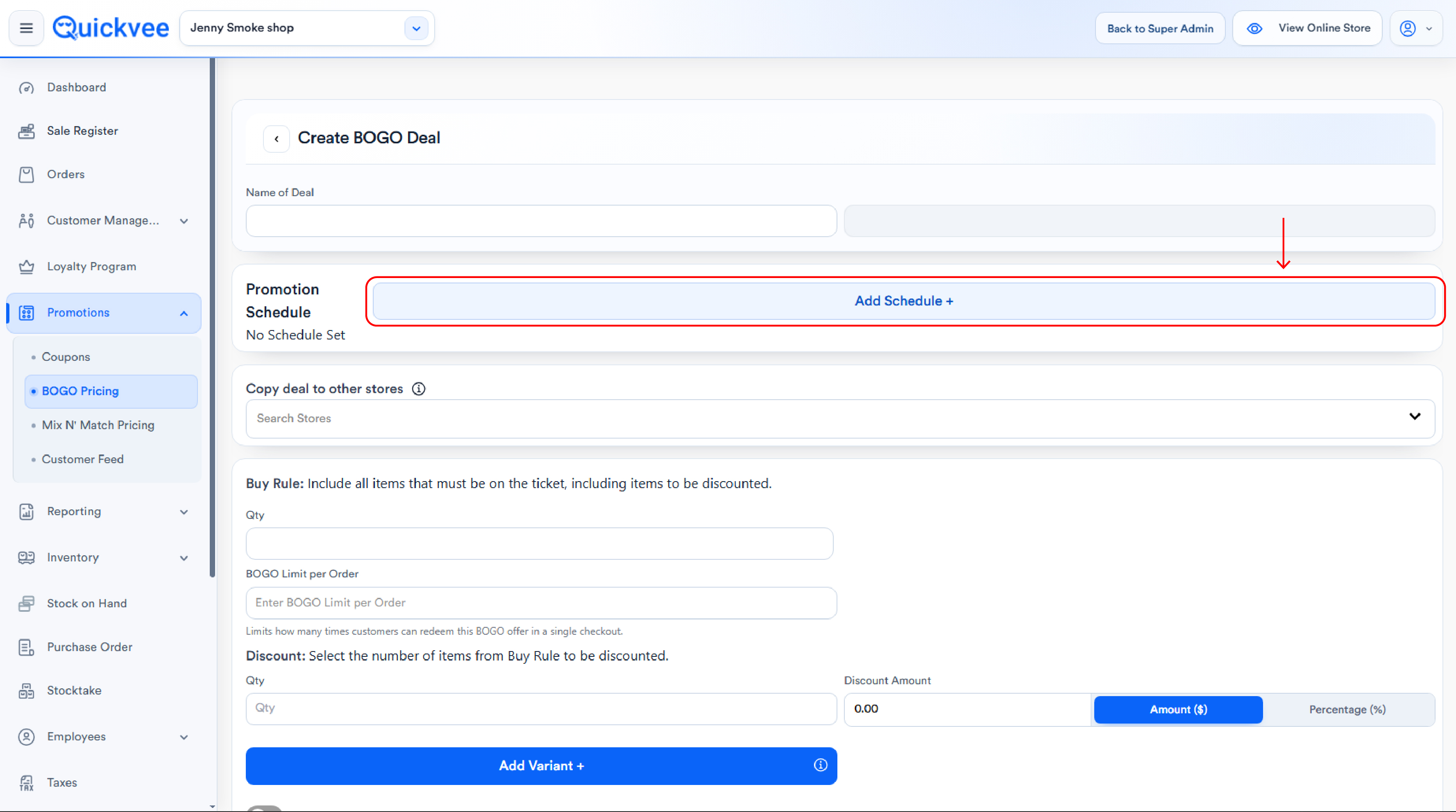
Date Range
|
Control |
Behavior |
|---|---|
|
No End Date toggle |
When ON, the deal runs from Start Date forward indefinitely. When OFF, both Start Date and Expire Date are required |
|
Start Date |
First day the deal is active. Format: |
|
Expire Date |
Last day the deal is active |
Time Range
Full Day toggle: When ON (default), the deal runs all day on every active day. When OFF, Start Time / End Time fields appear so you can limit to specific hours (e.g. happy-hour 4 PM – 7 PM).
Days To Repeat
Repeat Weekly toggle: When ON, day-of-week checkboxes appear. Select which weekdays the deal should run (e.g. Friday + Saturday + Sunday only). When OFF, the deal runs every day in the date range.
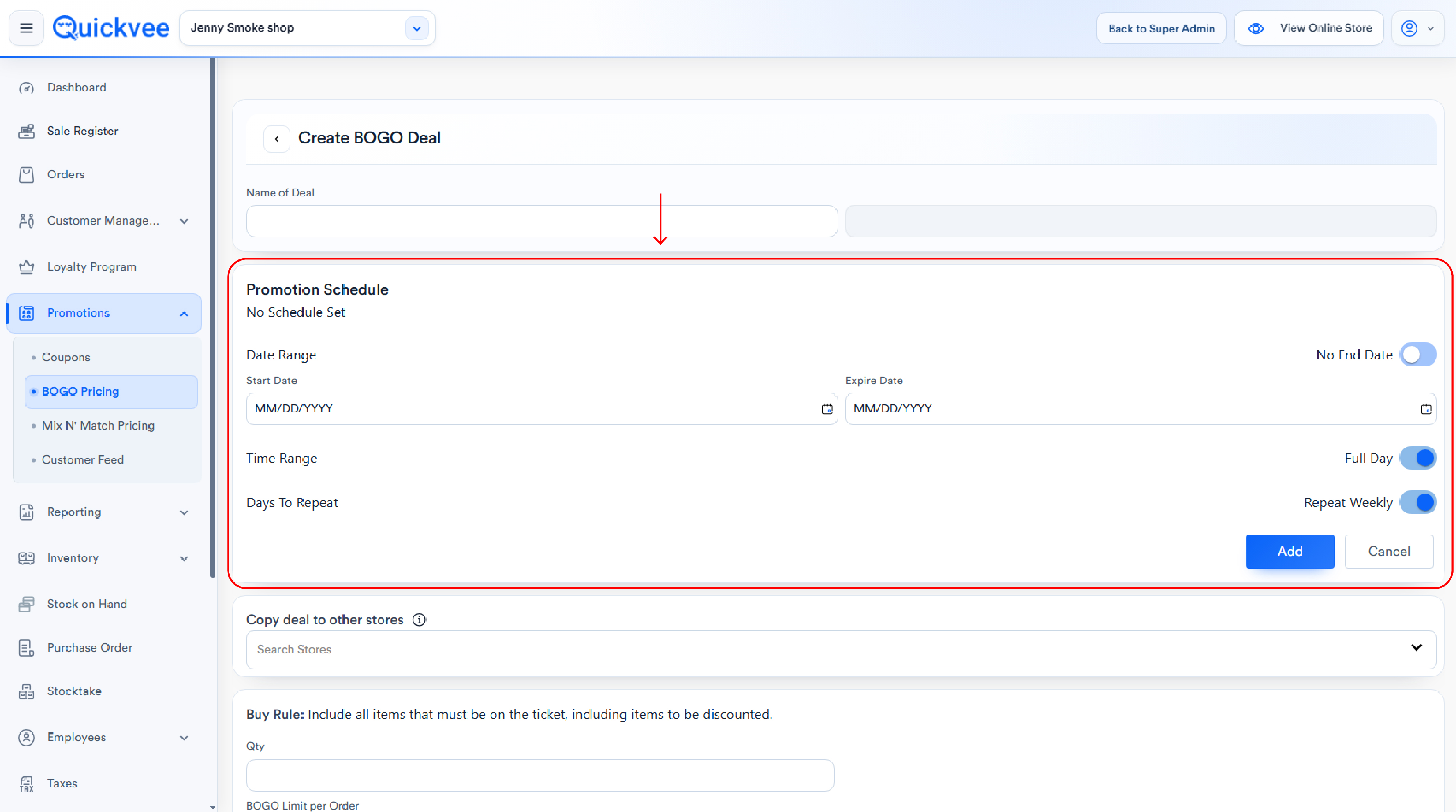
All schedule fields work together. A deal can run, for example, every Saturday and Sunday from 6 PM to closing, between Nov 1 and Dec 31.
No Schedule Set means always-on. If you save the deal without adding a schedule, it runs continuously from creation until you disable or delete it. The Valid Dates field will show NA.
Section 3 — Buy Rule and Discount
This is the heart of the deal.
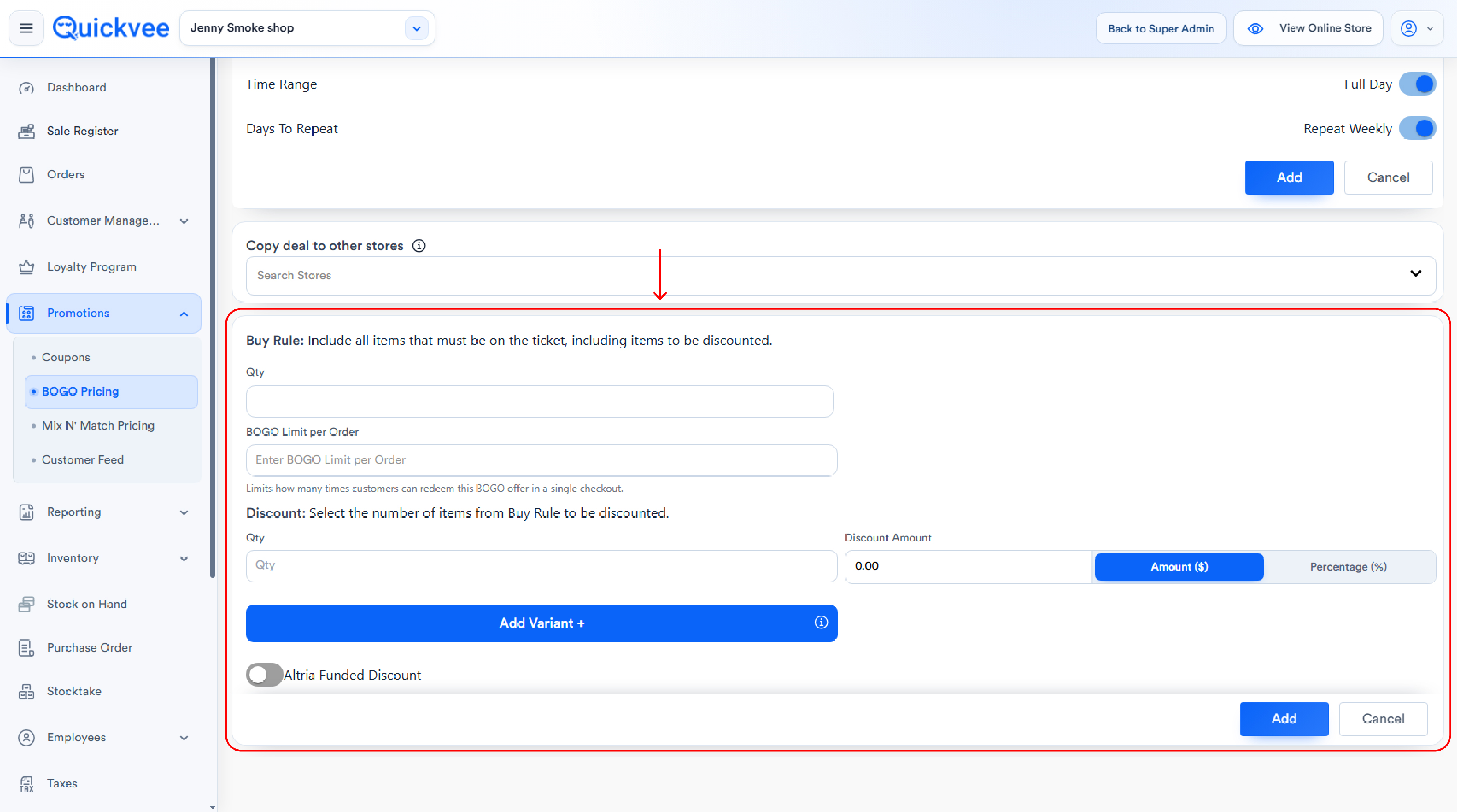
Buy Rule — Include all items that must be on the ticket
|
Field |
Purpose |
|---|---|
|
Qty |
The total number of qualifying items the customer must have in their cart for the deal to trigger (e.g. |
Buy Rule Qty is the total cart quantity, not the "buy" portion alone. For "Buy 2 Get 1 Free" enter 3. For "Buy 3 Get 1 Free" enter 4. The number of free or discounted items is set in the next section.
Discount — Select the number of items from Buy Rule to be discounted
|
Field |
Purpose |
|---|---|
|
Qty |
How many of the qualifying items get the discount. For "Buy 2 Get 1 Free" enter |
|
Discount Amount / Percentage |
The discount value applied to those items |
|
Amount ($) / Percentage (%) selector |
Selected type highlighted blue |
|
Selected Type |
Field Label |
Effect |
|---|---|---|
|
Amount ($) |
Discount Amount |
Flat dollar amount off each discounted item (e.g. |
|
Percentage (%) |
Discount Percentage |
Percent off each discounted item (e.g. |
Common BOGO patterns
|
Pattern |
Buy Rule Qty |
Discount Qty |
Discount Type |
Value |
|---|---|---|---|---|
|
Buy 1 Get 1 Free |
2 |
1 |
Percentage |
100.00 |
|
Buy 2 Get 1 Free |
3 |
1 |
Percentage |
100.00 |
|
Buy 3 Get 1 Free |
4 |
1 |
Percentage |
100.00 |
|
Buy 2 Get 3rd $5 Off |
3 |
1 |
Amount |
5.00 |
|
Pick 4 Get 2 Free |
6 |
2 |
Percentage |
100.00 |
|
Buy 2 Get 1 50% Off |
3 |
1 |
Percentage |
50.00 |
Add Variant +
After defining the Buy Rule and Discount, click Add Variant + to open the Select Products for BOGO Deal popup.
-20260922-142612.jpg?cb=2b0d29c8c8488e86c6cbaf3fee9850c3)
A BOGO deal must have at least one product variant attached. The deal will not save without selected variants.
Selecting products for the deal
|
Element |
Purpose |
|---|---|
|
Search bar (top) |
Search products by Name or UPC Code |
|
Category filter (top-right) |
Opens Filter By Category modal |
|
Show Entries |
Adjust list page size: 10, 25, 50, or 100 |
|
Product table |
Columns: Product Name · Unit Price · Barcode (UPC) · Select checkbox |
|
Select All Items |
Checkbox in table header — selects all variants on the current page |
|
Pagination |
Navigate through pages |
|
Update (blue) |
Saves selections and returns to the deal form |
Select All applies to the current page only. If your store has many product pages, navigate page by page to select all items, or use filters to narrow the list.
Filter By Category
Clicking the Category filter icon opens the Filter By Category modal: Search Category input, Category chips (tap to filter), Reset / Apply / Cancel buttons.
Only the Category filter is available in the popup currently. Brand and Tag filters have been requested as a future enhancement.
Saving the deal
Once Name, Promotion Schedule (optional), Buy Rule, Discount, and Variants are all set, click Add at the bottom-right. The new deal appears with the Enable/Disable toggle ON by default.
Editing a BOGO deal
Click the pencil icon on any deal card. The Create BOGO Deal form opens pre-populated. Make your changes — including Buy Rule Qty, Discount Qty/Type/Value, Schedule, or adding/removing variants — and click Add to save.
-20260922-142637.jpg?cb=a096de7ff0d33b456085b6bbbed05c49)
Variant changes take effect immediately. Removing a variant stops the BOGO discount applying to that product on the next page refresh, both online and at the POS.
Deleting a BOGO deal
Click the trash icon. A confirmation dialog appears: "Are you sure you want to delete this Bogo Deal?"
-20260922-142653.jpg?cb=7dacb13e2429a8805c1194009d51310f)
|
Button |
Action |
|---|---|
|
Cancel (white) |
Closes the dialog, deal remains |
|
Delete (red) |
Permanently removes the deal |
Deletion is permanent. If you might want the deal back later, use the Enable/Disable toggle instead.
How deals apply
|
Channel |
Behavior |
|---|---|
|
Online Storefront |
Active BOGO deals appear in a dedicated BOGO section on the home page and product detail pages. Applies automatically at checkout when the cart matches the Buy Rule |
|
POS Register |
Cashier sees a BOGO indicator on qualifying line items. Applies automatically when Buy Rule is met |
|
Discount Graph (reporting) |
BOGO totals roll up alongside Mix & Match totals on the dashboard discount graph |
Same product cannot be used in both BOGO and Mix N' Match deals. A variant can belong to only one of these promotion types at a time.
BOGO interacts with Coupons: When a BOGO deal applies and the customer also has a coupon, BOGO is calculated first, then the coupon is applied to the post-BOGO subtotal.
Important notes
Deal name vs description. Left field (Name of Deal) is internal and editable; right field is customer-facing and auto-populates from your Buy Rule + Discount.
No End Date deals. Only the Start Date is required; the deal runs indefinitely from that date.
Day-of-week selection. Day checkboxes only appear when Repeat Weekly is enabled. If OFF, the deal runs every day in the date range.
Buy Rule and Discount Qty interact. Buy Rule Qty is total qualifying items; Discount Qty is how many get the discount. The non-discounted portion is Buy Rule Qty − Discount Qty.
100% Discount = Free. To configure a "Free" deal, set Discount Type to Percentage and Discount Value to 100.00.
Mandatory fields: Name, Buy Rule Qty, Discount Qty, Discount value, and at least one variant. Promotion Schedule is optional.
Add Schedule button enablement. Works independently of the main deal form — you can add a schedule without filling out all the deal fields first.
Enable/Disable is instant. Toggling a deal off immediately stops it from applying without deleting the deal data.
"Copy to Stores" for multi-location. Multi-location merchants can copy a created BOGO deal to selected child stores during creation.