
Lottery Payout records cash paid out to a customer for a winning non-scratcher lottery ticket — Powerball, Mega Millions, Pick 3/4/5, daily numbers, and other multi-state lottery games. The payout adds a negative line item to the current sale, which then either cashes out the winnings or applies the winnings against a product purchase. It's one of two payout types — the other is Scratcher Payout, used only for scratch-off / instant tickets.
Access path: Register → three-dot menu (top-right) → Lottery/Scratcher Payout → Lottery Payout
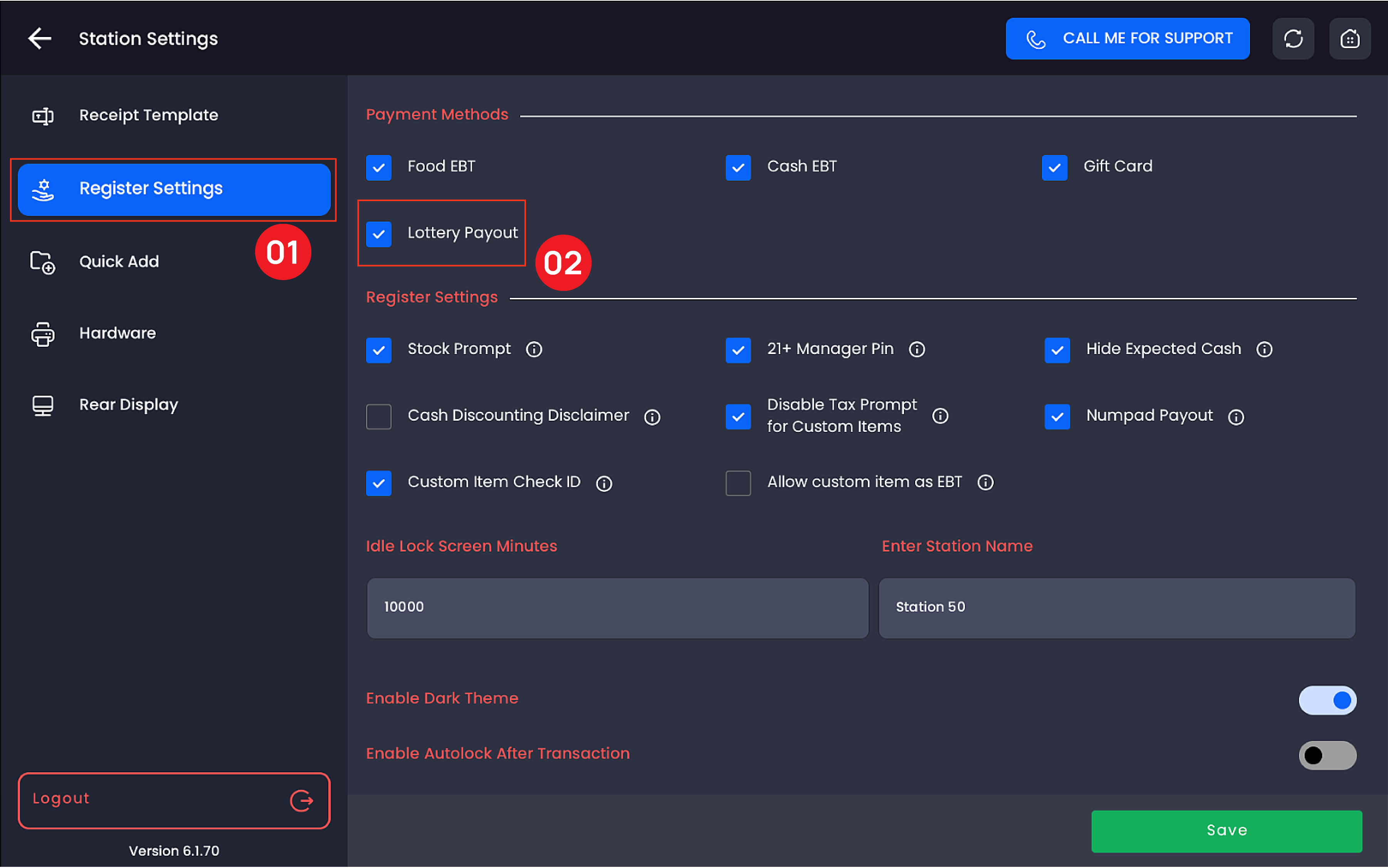
Before you start: enable the setting
Lottery Payout is off by default. The same setting controls both Lottery and Scratcher.
-
Go to Register Settings → Payment Methods
-
Turn on the Lottery Payout checkbox
-
Save
If Lottery/Scratcher Payout doesn't appear in your three-dot menu, this setting is the most likely cause. Contact your manager if you don't have access to Register Settings.
Step 1 — Enter the payout amount
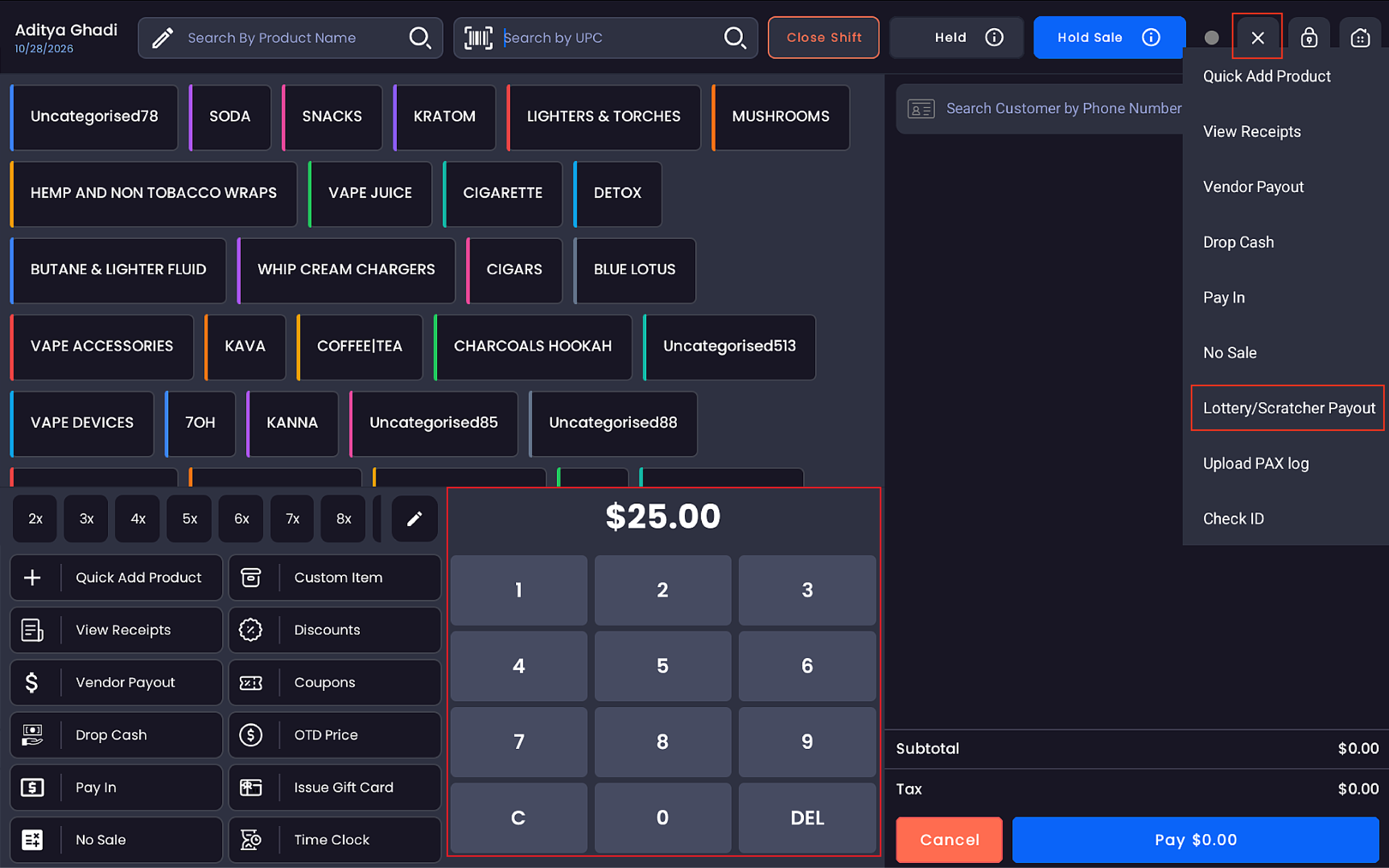
The amount field reads (-$0.00) by default — payouts are always shown as negative. Tap the field and enter the winning amount the customer is owed (e.g. 150.00). The Sale Summary on the right updates to show 1× Lottery Payout −$150.00.
The payout entry is colored red. The To Pay total at the bottom of the Sale Summary will also display in red as a negative value.
-20260527-104411.png?cb=add9a37fe4363c81c6d54a25740ef115)
Verify the ticket is a winner first. Enter the amount only after you've validated the win on the state lottery terminal. Once you commit the payout, the cash leaves the drawer (or comes off the customer's bill).
Step 2 — Open the three-dot menu
Tap the three-dot icon at the top-right. The dropdown shows: Quick Add Product · Expected Cash · View Receipts · Vendor Payout · Drop Cash · Pay In · No Sale · Lottery/Scratcher Payout · Upload PAX log · Check ID
Tap Lottery/Scratcher Payout.
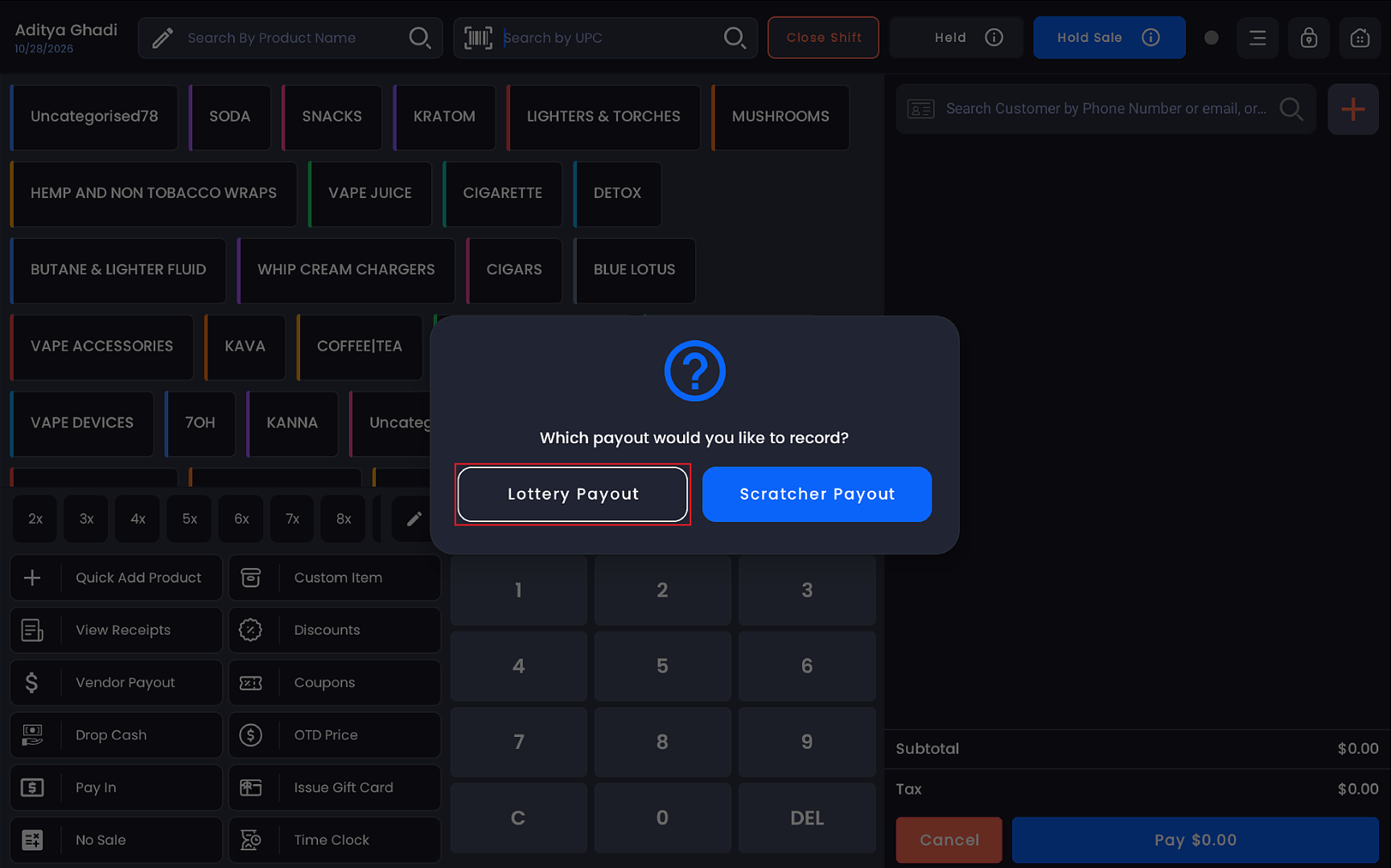
Step 3 — Choose Lottery Payout
A Lottery modal opens with two large blue buttons:
|
Button |
When to use |
|---|---|
|
Lottery Payout |
Powerball, Mega Millions, Pick 3/4/5, daily and multi-state lottery winnings |
|
Scratcher Payout |
Scratch-off / instant ticket winnings only |
Tap Lottery Payout. The system adds a Lottery Payout line to the cart with a negative value (e.g. 1 × Lottery Payout −$150.00).
Step 4 — Decide: cash out or apply to purchase
Path A — Customer cashes out (no purchase)
-
Tap Pay. The order total is the negative payout.
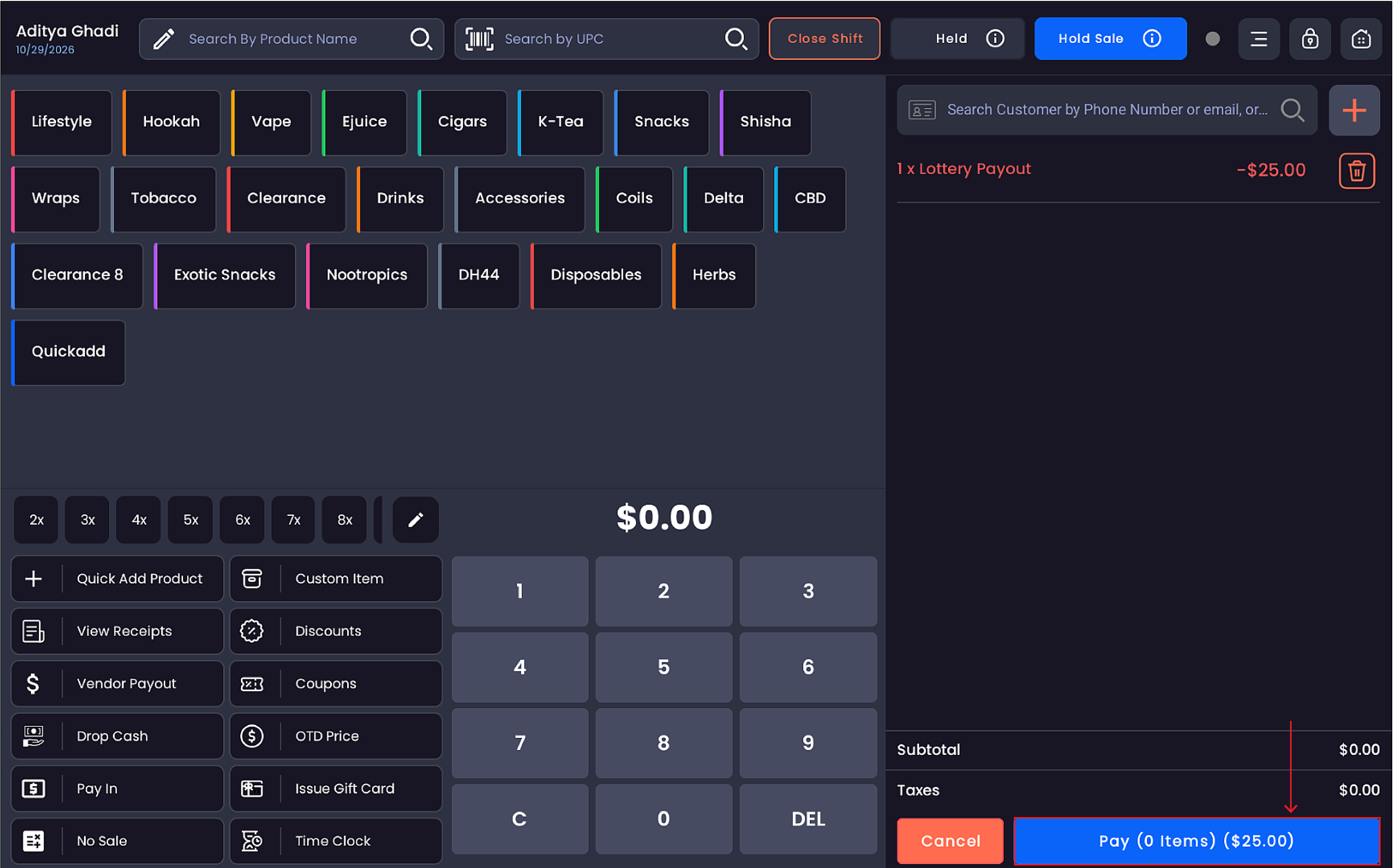
-
The Balance screen treats the negative as cash going out of the drawer.
-
Tap Cash as the tender. Confirm and complete.
-
The cash drawer opens automatically. Hand the customer the cash.
Receipt printing is suppressed for payout-only orders by default. The receipt will still print on demand if you select Payment Receipt.
Path B — Customer applies winnings to a product purchase
Add the regular products to the cart after the payout line. The negative payout reduces the order total. Customer pays the remaining balance with any tender.
Path C — Winnings exceed purchase
If the math goes negative (e.g. $50 lottery win toward a $7.99 purchase), the customer takes the item and the difference in cash. The Balance screen shows the negative as cash owed back; cash goes out of the drawer; the system handles it as a single transaction.
Choose payout method
On the Balance screen, select a payment method tile. Each tile shows the negative amount that will be paid out via that method. Loyalty and Store Credit display the customer's current balance in parentheses.
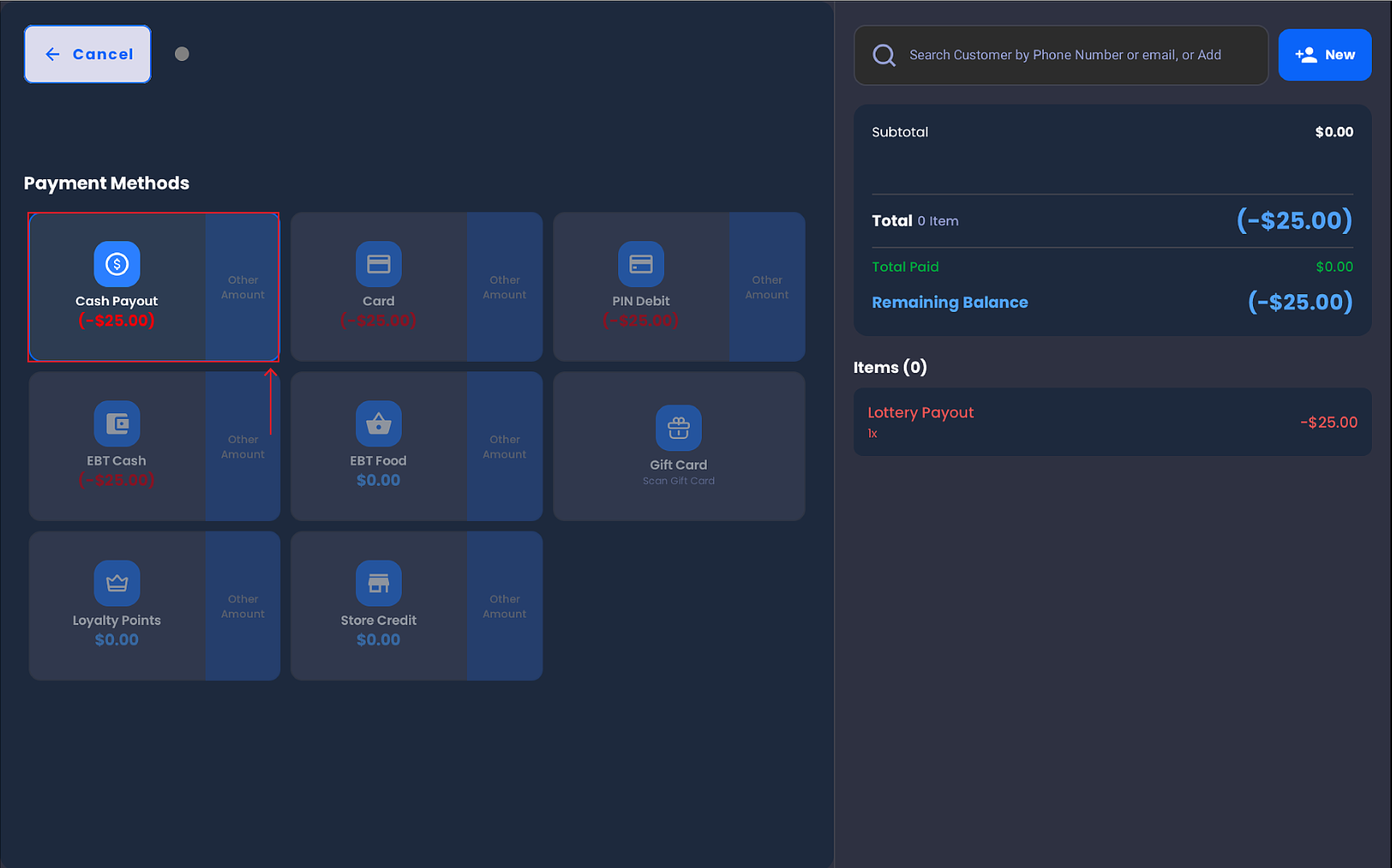
|
Method |
Behavior |
|---|---|
|
Cash |
Cash drawer opens; cashier hands the customer cash equal to the payout amount. Lottery payouts are typically issued in cash only. |
Tap the highlighted payment tile to confirm. Once processed:
-
A Change Due modal appears showing the payout amount (e.g.
Change Due $150.00) -
The cash drawer opens (for Cash payouts)
-
The order is recorded with the Lottery Payout line item
Receipt options
After the payout completes, the Change Due modal asks "How would you like your receipt?":
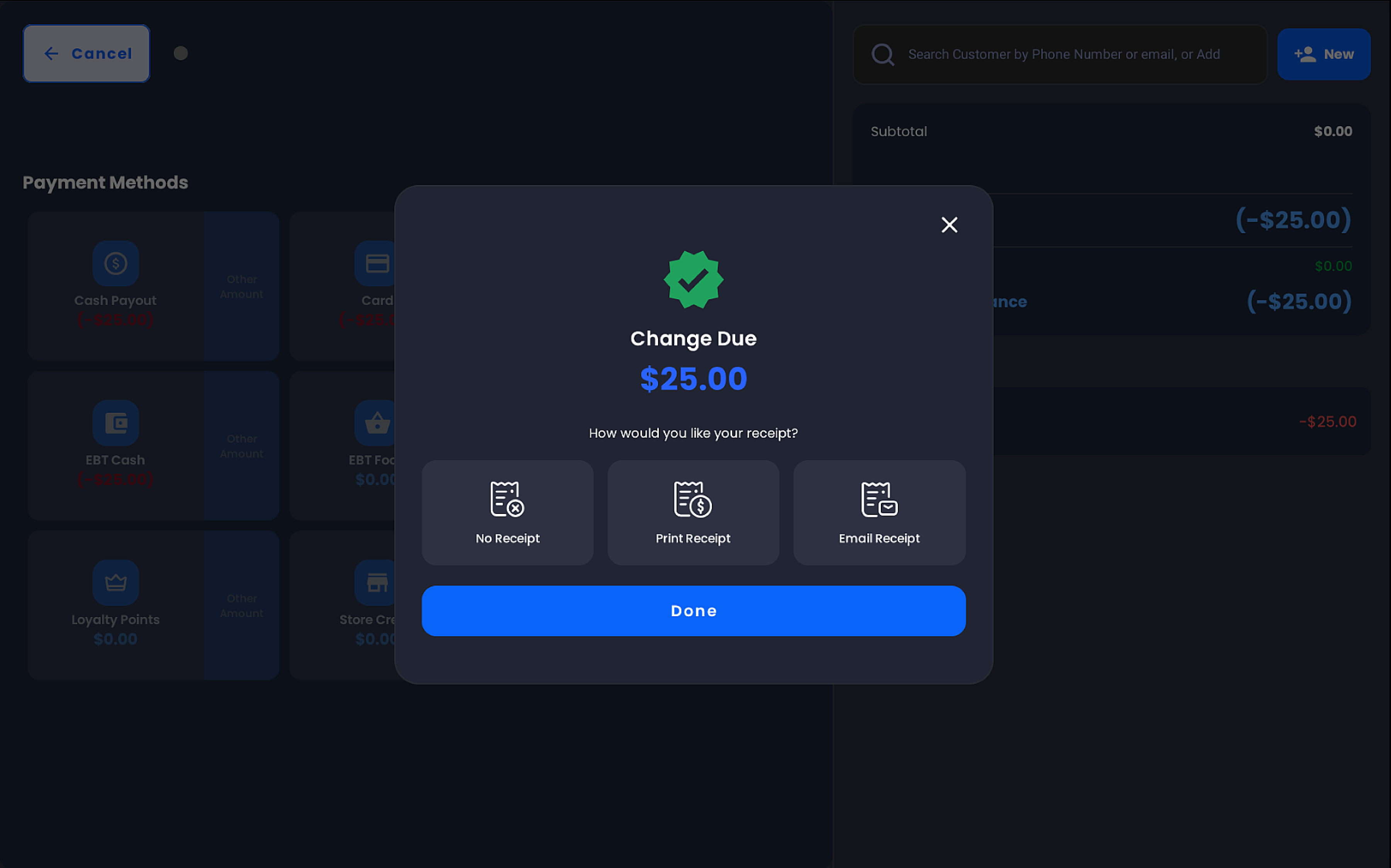
|
Option |
Behavior |
|---|---|
|
No Receipt |
Closes the order without printing or emailing |
|
Payment Receipt |
Prints a receipt showing the payout amount and tender used |
|
Email Receipt |
Emails the receipt to the customer's address on file (requires customer attached) |
What gets recorded
|
Where |
What appears |
|---|---|
|
Order History |
Order shows products purchased (if any) and the payout line with the negative value |
|
Sales Summary Report |
Lottery Payout appears as its own line under Lottery activity |
|
Location Report |
Lottery Payout amount tracked separately from Cash Back |
|
Lottery Activity Report (coming soon) |
A dedicated report combining Total Lottery Sold and Total Lottery Payouts |
|
Expected Cash |
Cash paid out is subtracted from Expected Cash. Drawer should be short by the cash-out portion at Close Shift — expected, not a variance |
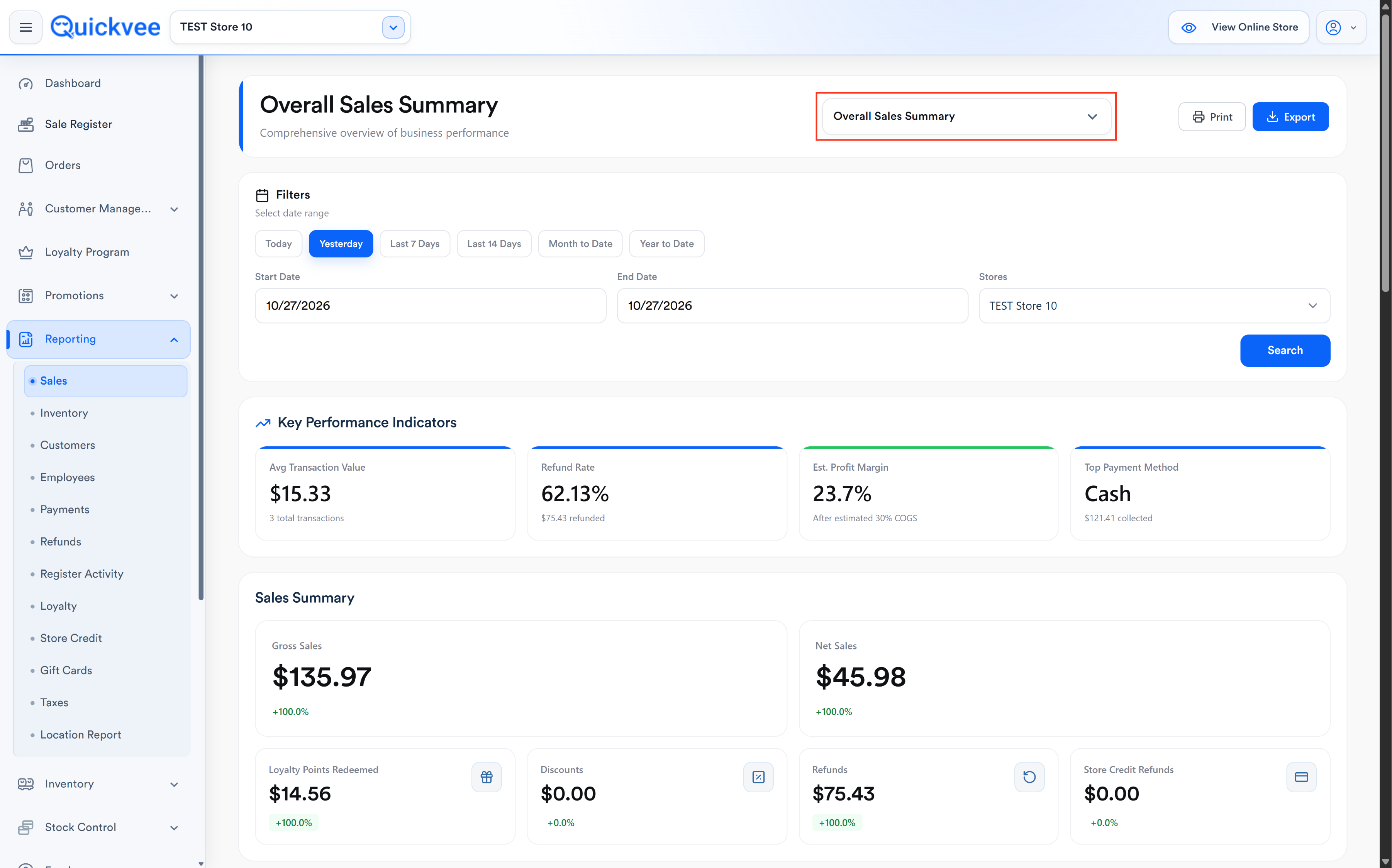
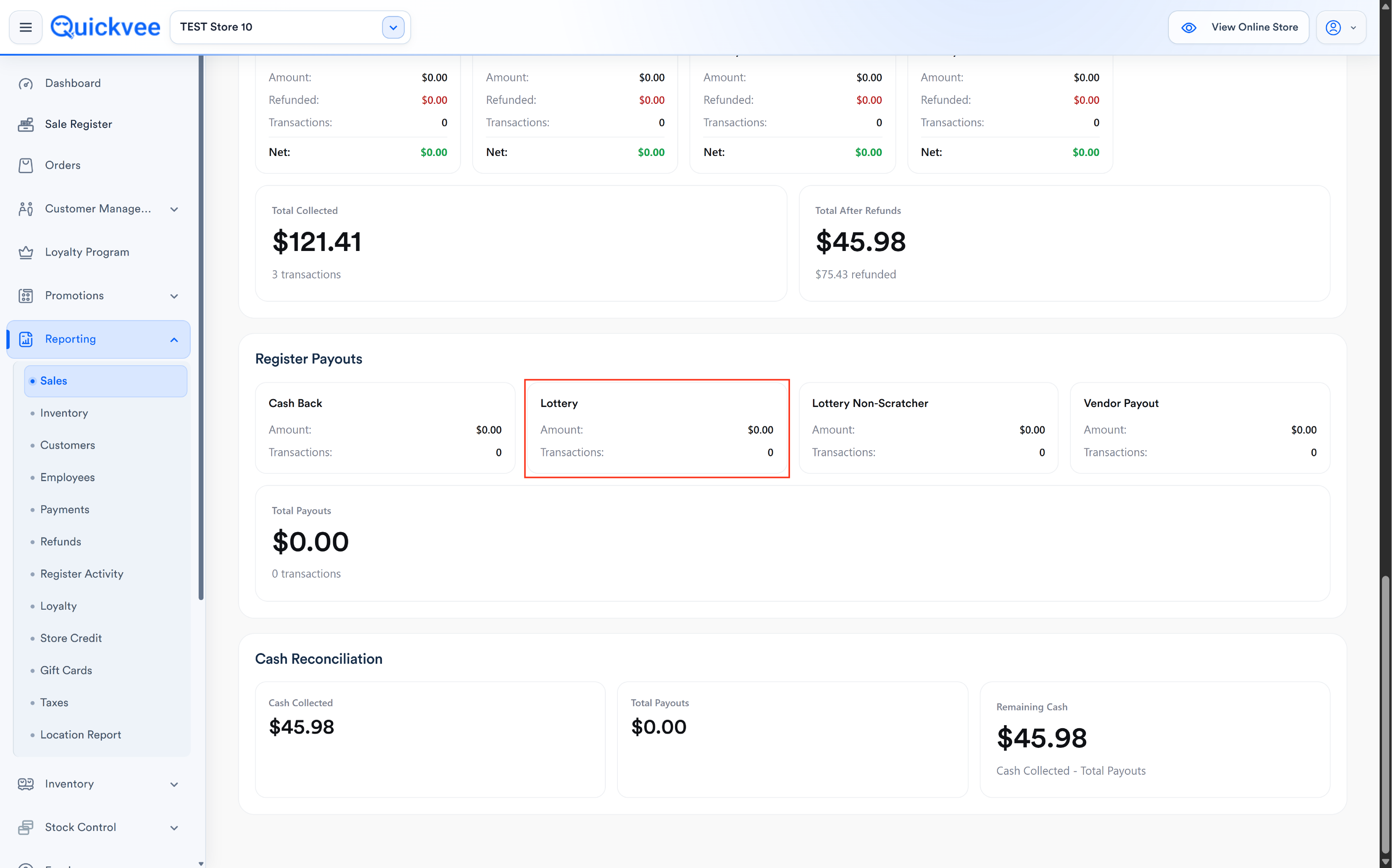
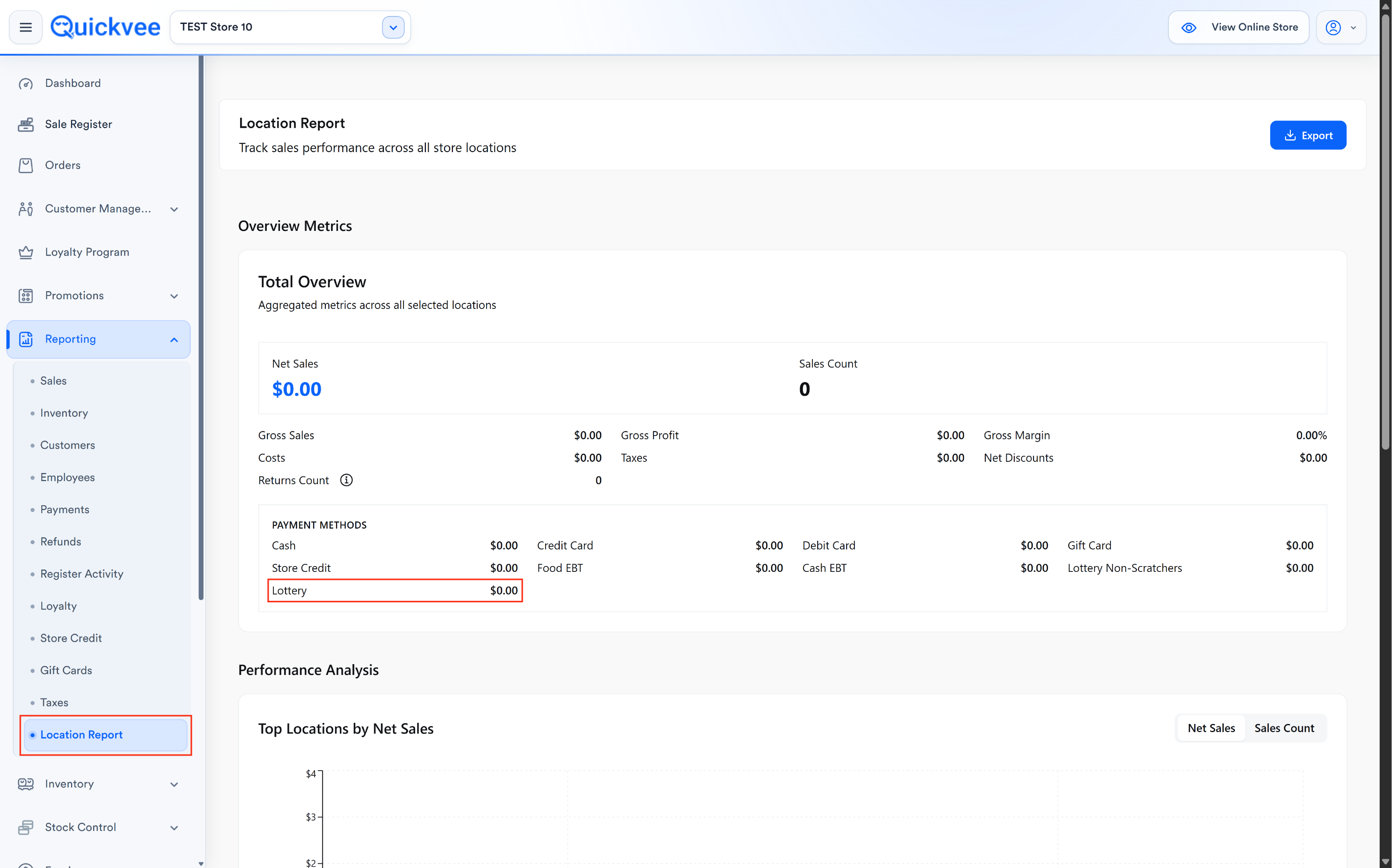
Lottery Payout vs Scratcher Payout in reports: Tracked under separate categories. Lottery Payout amounts roll up to the Lottery Non-Scratchers total in some reports — Scratcher Payout amounts must never be combined into that total.
Permissions
|
Permission |
Category |
What it allows |
|---|---|---|
|
Vendor Payout |
POS — Register |
Required to access any payout flow including Lottery/Scratcher |
|
Cash Payment |
POS — Register |
Required to issue cash payouts |
Also gated in the web backend under Employees → Permissions → Lottery Permissions.
Larger lottery wins (typically $600 and above per US state retailer rules) may need to be claimed at a state lottery office rather than paid out at the register.
Common questions
Why is the payout a negative line in the cart instead of just opening the drawer?
The system has to handle two scenarios — cash-out only and applied-to-purchase — with the same flow. A negative line works for both: pure cash-out when the cart has only the negative line; bill reduction when there are also products.
The customer wants to use a $20 win toward a $50 purchase. Does it work?
Yes. Add the $50 product, run a $20 payout. Cart shows: product +$50, payout −$20, total $30 (plus tax). Customer pays $30 plus tax with any tender.
The customer has a $50 win and wants to buy a $7.99 item — they take the item plus $42 cash.
Same flow. Add the $7.99 product, run a $50 payout. Cart total goes negative. The Balance screen treats this as cash owed back to the customer.
My drawer is showing overbalanced and I'm seeing lottery payouts I never made
This was a known issue affecting all merchants after a release in April 2025 — phantom lottery payouts. The root cause was fixed. If still seeing it, confirm the Add Lottery Payout setting, refresh the POS app, and contact support if it persists.
The payment buttons gray out when I do a lottery payout
That's correct behavior when the cart is payout-only and the total is negative — most tenders aren't valid for cashing out (only Cash). Adding a customer or product re-enables valid tenders.
The order summary is missing the Lottery payout entry
A previous bug dropped the payout line in some flows (especially when balance was paid by card). Fixed. Update the app and reprint from Order Details — the data is in the order, just a display issue.
I see "Cashback" in my Location Report instead of "Lottery Payout"
This was a misclassification bug. Fixed. Current reports separate Cashback and Lottery/Scratcher Payouts.
Can I refund a lottery payout?
No. You can't refund lottery payouts.
Is there a separate Lottery Activity Report?
A dedicated Lottery Activity Report is being built (currently in development). Until it ships, lottery activity is reported within the Sales Overview Report and the Location Report.
The customer's purchase was paid entirely with lottery winnings (zero balance owed)
The order completes with $0 due. No tender prompt, no cash drawer kick. The negative payout line covered the products' cost exactly.
Can I use Lottery Payout for vendor returns or cash refunds?
No. Lottery Payout is specifically for state-lottery winnings. Vendor returns go through Vendor Payout. Customer cash refunds go through the regular order refund flow.
Important notes
Receipt amount display. Lottery Payout amounts always show as a negative value on the receipt (e.g. −$150.00).
Payout-only orders. When a Lottery Payout is the only line, the order summary displays "Lottery Payout" with the negative amount — no product name appears.
Cash drawer reconciliation. Lottery Payout entries appear in your closing report under Lottery activity. If you see unexpected payout entries you did not perform, contact support.