
Pay In records cash physically added to the register drawer for non-sale reasons — typically a manager bringing change from the bank, a vendor refund handed over in cash, or correcting a previous Drop Cash that was over-counted.
It's a cash-in event with no sale and no customer attached. The cash physically enters your custody on the register; the system adds the amount to your expected cash and logs the action with a reason.
What Pay In is for
-
Bank-supplied change — manager comes back from the bank with $200 in singles to refill the drawer mid-shift
-
Returned vendor cash — a vendor refunds money in cash and you put it back in the drawer
-
Correcting an over-counted Drop Cash — you typed $200 for a drop but only physically removed $150; record a $50 Pay In to balance the books
-
Adding float mid-shift — drawer is running low on small bills and someone tops it up from the safe
It's not for sales, customer payments, or store credit — those flow through normal sale channels. Pay In is purely an administrative cash-in event.
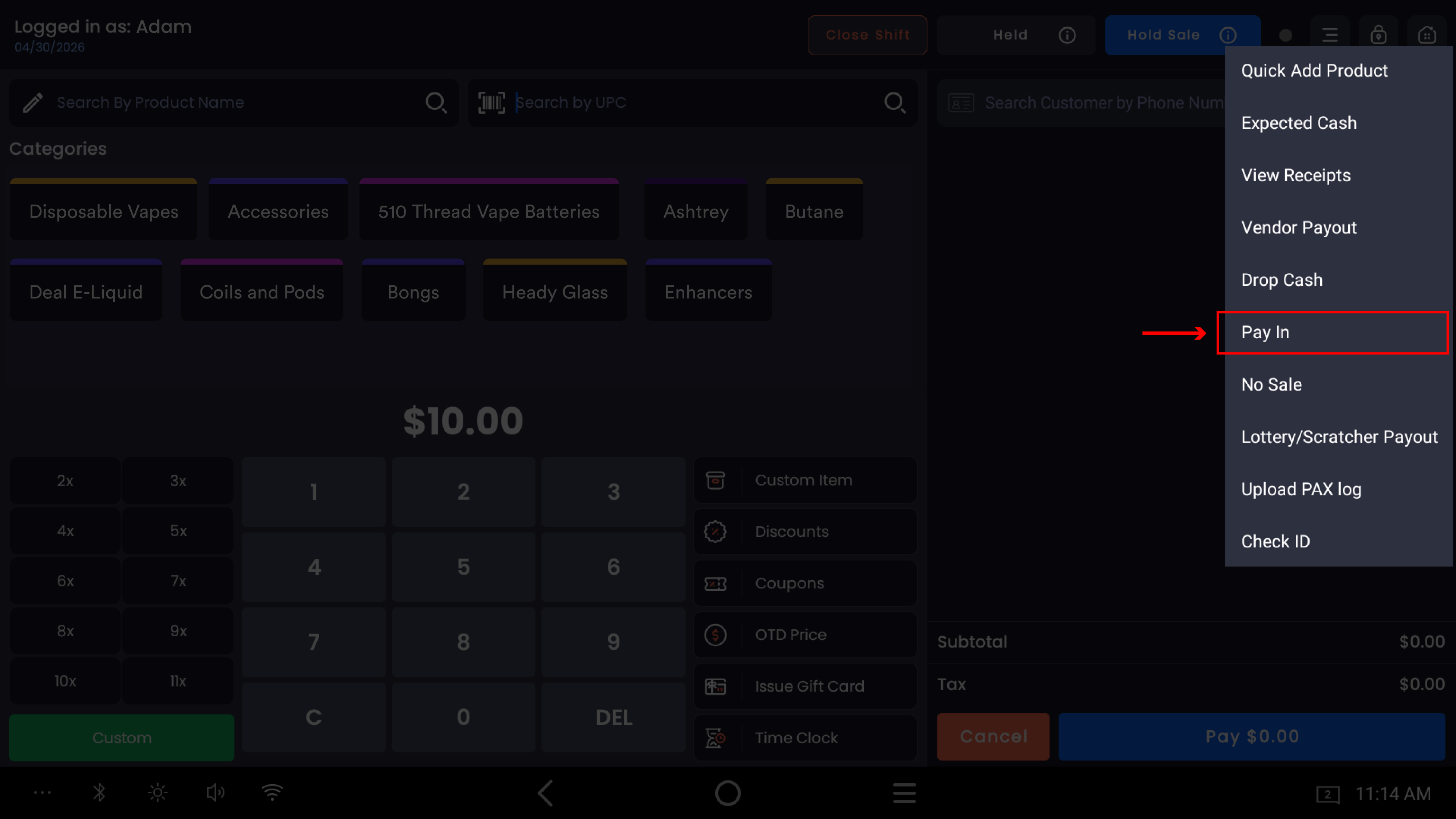
Where to find it: From the POS register, tap the three-dot menu at the top-right → Pay In.
Step 1 — Enter the Pay In amount
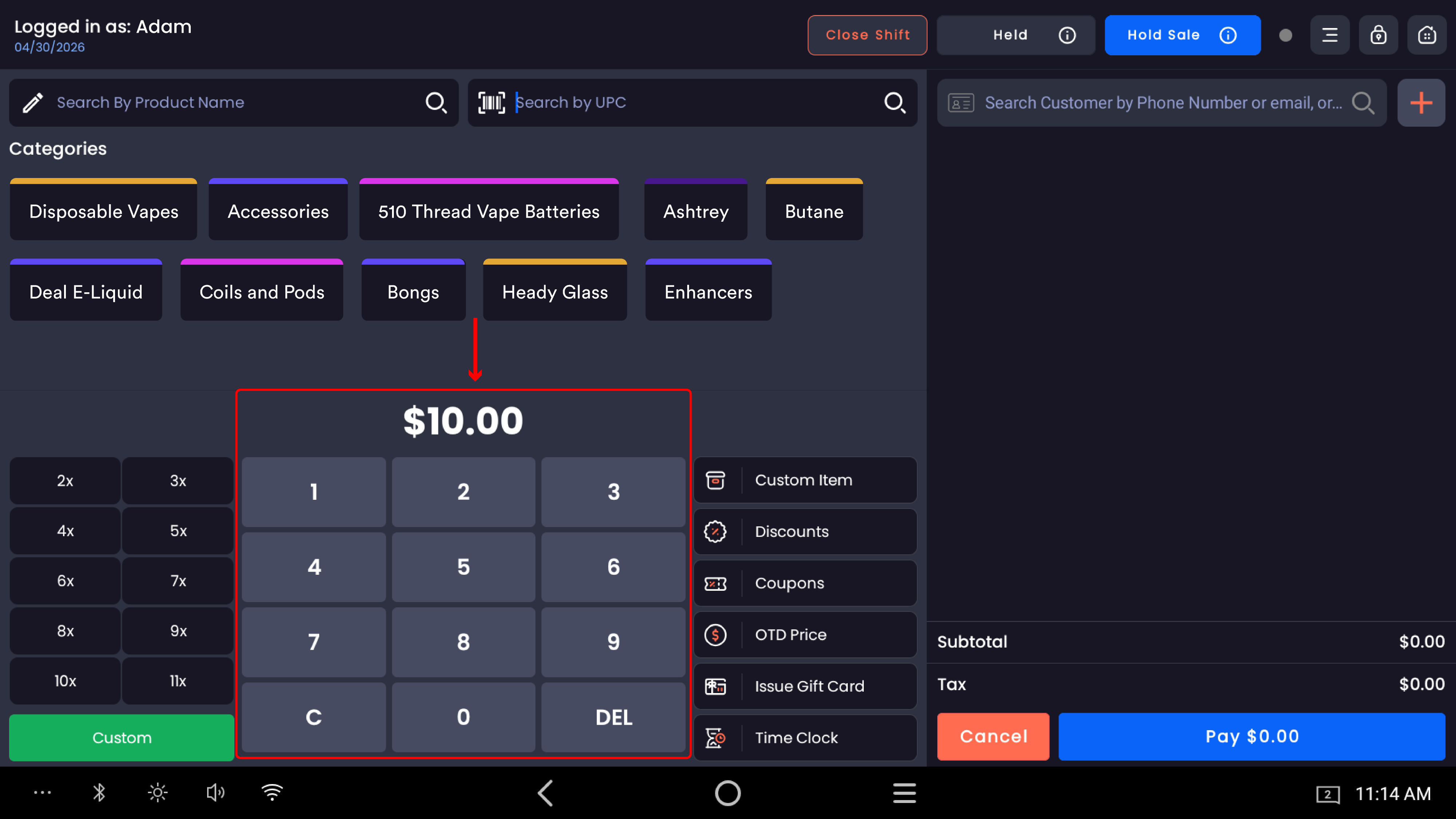
Type the amount you're adding to the drawer using the on-screen keypad.
|
Keypad button |
What it does |
|---|---|
|
0–9 |
Adds a digit. Cents fill from the right. |
|
DEL |
Deletes the last digit. |
|
C |
Clears the entire amount. |
The amount formats from right to left in cents. For $200.00, type 2, 0, 0, 0, 0.
Count the cash before you type. Lay it out, count it twice, then enter. A typo creates a real cash discrepancy at Close Shift.
Step 2 — Open the three-dot menu
Tap the three-dot icon at the top-right of the register screen. Tap Pay In from the dropdown.
-20260527-091307.jpg?cb=dfebfd44bde73445f02ead4fc536170b)
Step 3 — Add a reason and confirm
The Cash Pay In modal opens. The header shows the amount in red (e.g. $200.00) and the prompt "Enter details to record this cash pay in."
-20260527-091403.jpg?cb=dbf41fd5f4353ca62d4e52a09c907d95)
Reason for Cash Pay In
A required text field labeled Reason for Cash Pay in asks why cash is being added. Common reasons:
-
Change from bank — singles and fives -
Refund received from vendor for faulty products -
Correction — Drop Cash overstated by $50 -
Float top-up from safe — running low on $1s -
Manager added cash from petty cash
Be specific. "Pay in" or "adding cash" alone isn't enough.
The reason becomes part of the audit trail. Specific reasons settle disputes about extra cash on hand.
Confirm
Tap Pay In to commit. The cash drawer opens automatically so you can physically deposit the cash. Tap Cancel to abandon — nothing is recorded.
What gets recorded
|
Where |
What appears |
|---|---|
|
Register Activity Report |
A |
|
Pay In Report |
All Pay In events for the date range, exportable to CSV for accounting |
|
Expected Cash for the shift |
The Pay In amount is added to Expected Cash. At Close Shift, your drawer should be over by the Pay In amount, and that's expected — not a variance. |
Permissions
Pay In is permission-gated in the web backend under Employees → Permissions. Without the permission, the option doesn't appear in the three-dot menu.
Pay In can be misused to mask shortages — recording a fake "bank change" Pay In to cover for missing cash. Limit the permission to managers and trusted senior staff, and require specific reason text.
Common questions
What's the difference between Pay In and Drop Cash? Opposite directions. Pay In adds cash to the drawer. Drop Cash removes cash from the drawer.
A vendor refunded me cash. Should I use Pay In or something else? Use Pay In with a clear reason like "Refund received from [vendor name] for faulty products." There's currently no dedicated vendor refund flow on the POS.
I typed the wrong amount on a Pay In. Don't physically adjust the drawer. If you over-typed: run a Drop Cash for the difference with a correction note. If you under-typed: run another Pay In for the difference.
Can I delete a Pay In entry? No. The cleanest correction is to record an offsetting Drop Cash with a clear "correction" reason. For a true deletion, contact support with the date, time, amount, and reason.
The drawer didn't open after I tapped Pay In. Check that the cash drawer is connected and powered. The Pay In event is still recorded; just open the drawer manually.
Does Pay In count as a sale or affect my sales totals? No. Sales Summary, Net Sales, Gross Sales, and tax reports are unaffected.
Can I record a customer paying off store credit as a Pay In? No. Customer balance payments and store credit transactions go through the normal sale or customer-management flow — not Pay In.
Should I record getting change from the bank as a Pay In? Yes. Any cash that physically enters the drawer outside of a sale should be recorded — otherwise Close Shift will show your drawer as over by the change amount.
Can I do a Pay In mid-transaction? Best practice is to finish or hold the customer's transaction first. Use Hold Sale if you need to interrupt the sale.