
Vendor Payout records cash you pay out of the drawer to a vendor or supplier. Use it when a delivery driver shows up with stock and wants paying on the spot, when you settle a small invoice from petty cash, or any other time vendor money leaves the drawer mid-shift.
What it does
-
Removes cash from the drawer — the amount is deducted from Expected Cash at close, so reconciliation stays accurate.
-
Records a payment against that vendor — the entry shows up in the vendor's payment history in the web backend, contributing to their running balance.
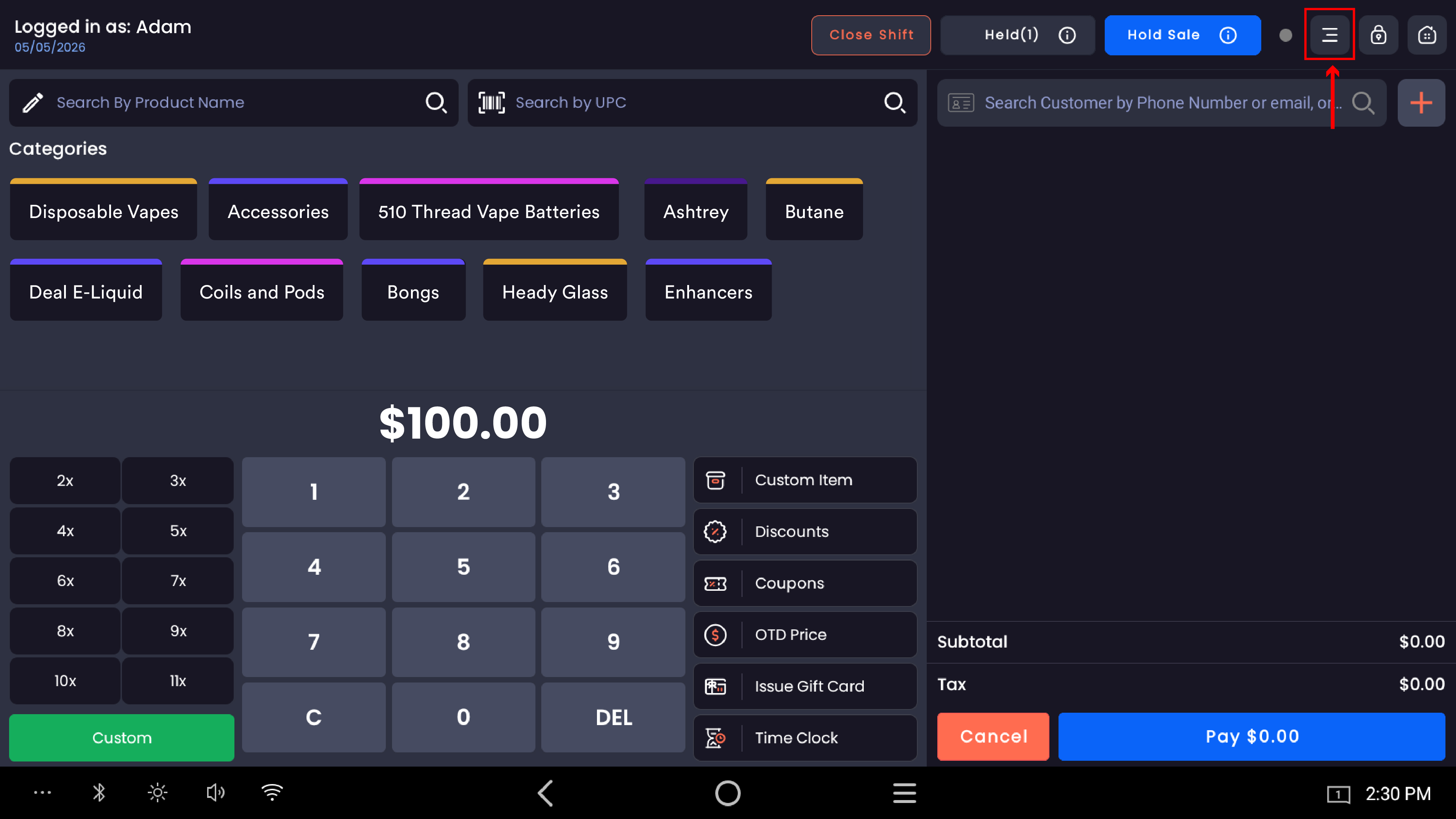
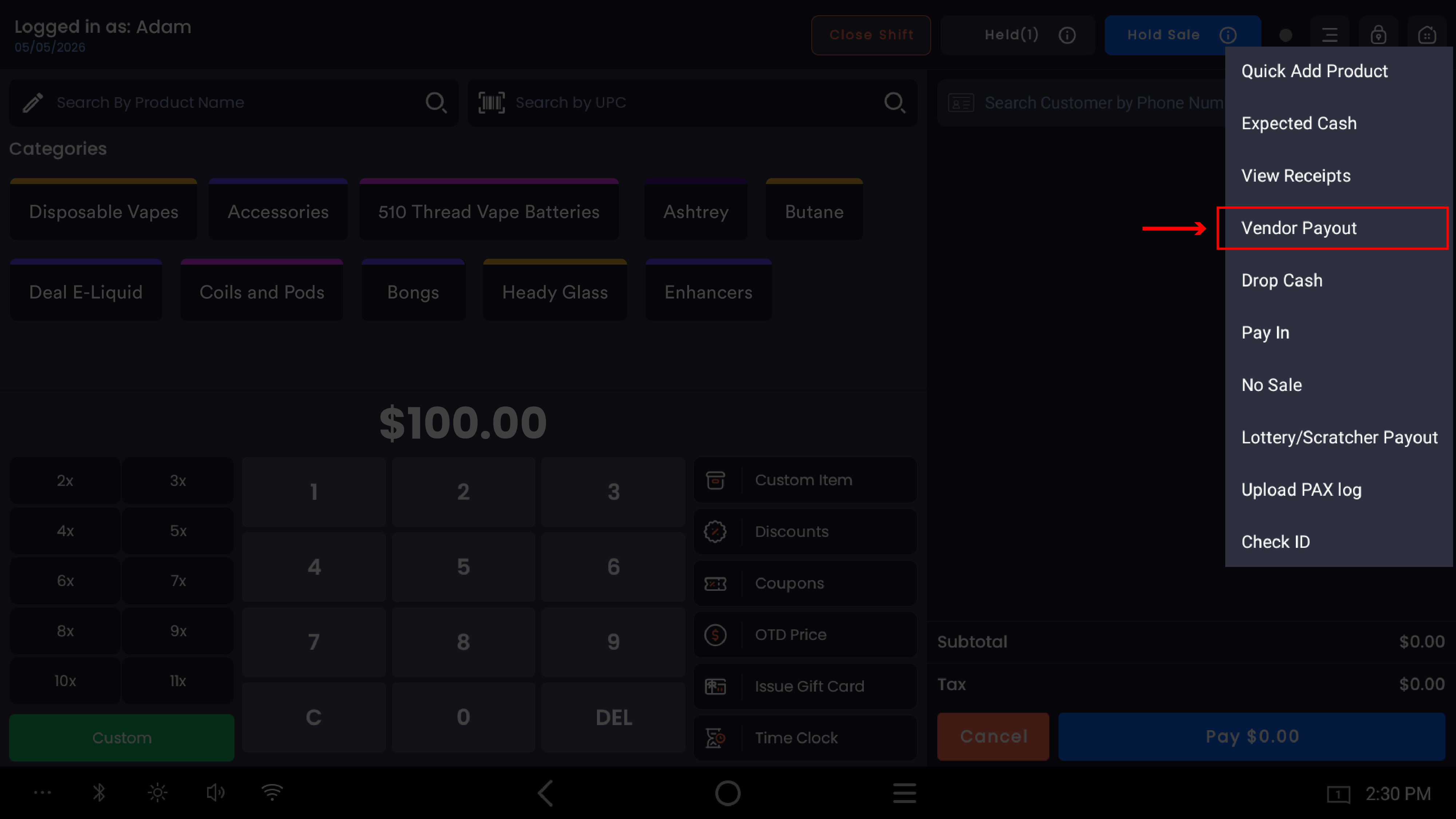
Where to find it: From the POS register, tap the three-dot menu at the top-right → Vendor Payout.
Step 1 — Type the payout amount
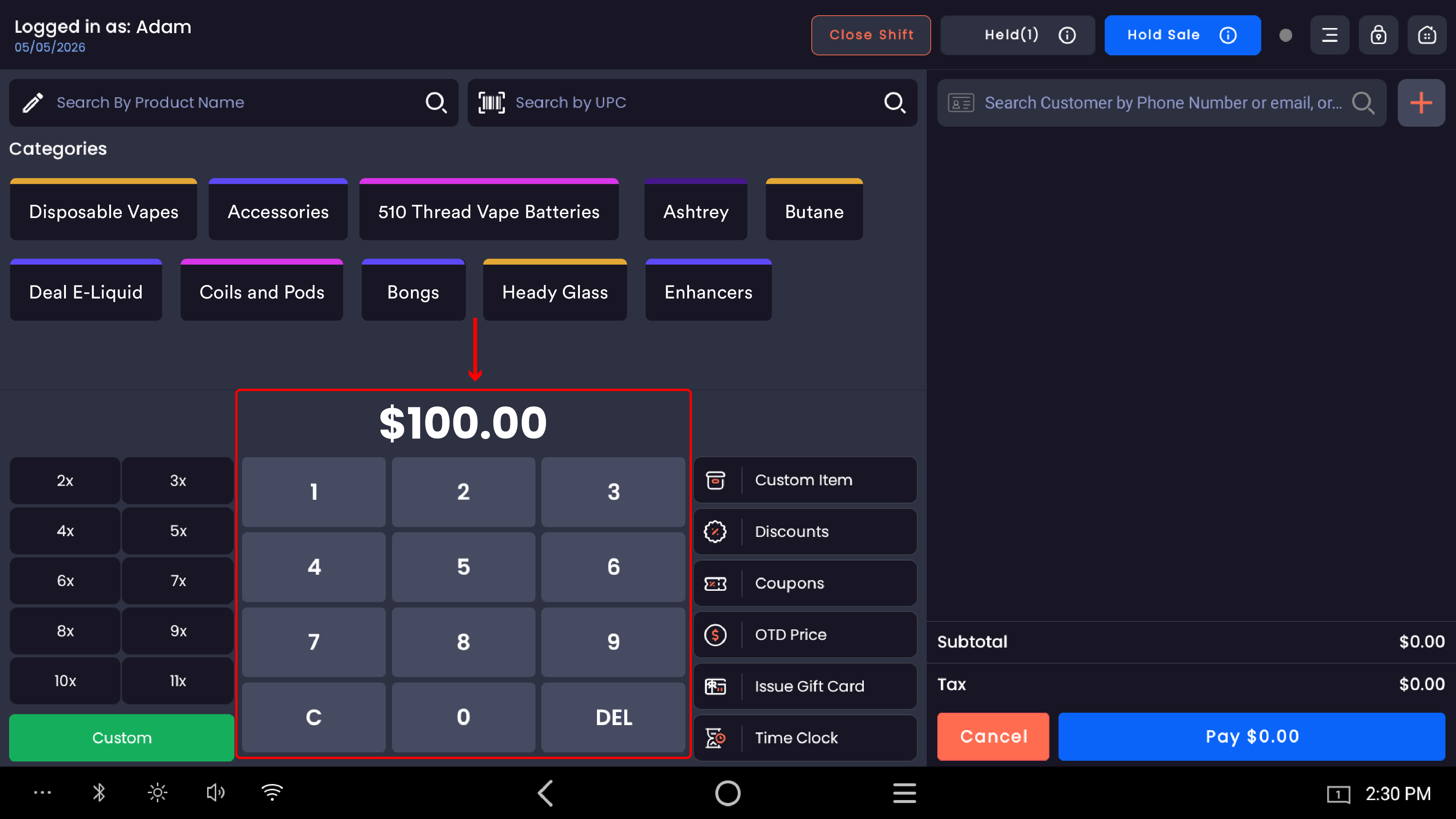
Before opening the Vendor Payout flow, type the dollar amount on the register's main keypad. For $100, tap 1, 0, 0, 0, 0 — the display shows $100.00.
The amount is entered first, then you open the Vendor Payout option. If you open Vendor Payout with the amount still at $0.00, the flow won't let you proceed.
Step 2 — Open Vendor Payout from the three-dot menu
Tap the three-dot menu at the top-right of the register screen. Tap Vendor Payout from the dropdown.
Step 3 — Select the vendor and add notes
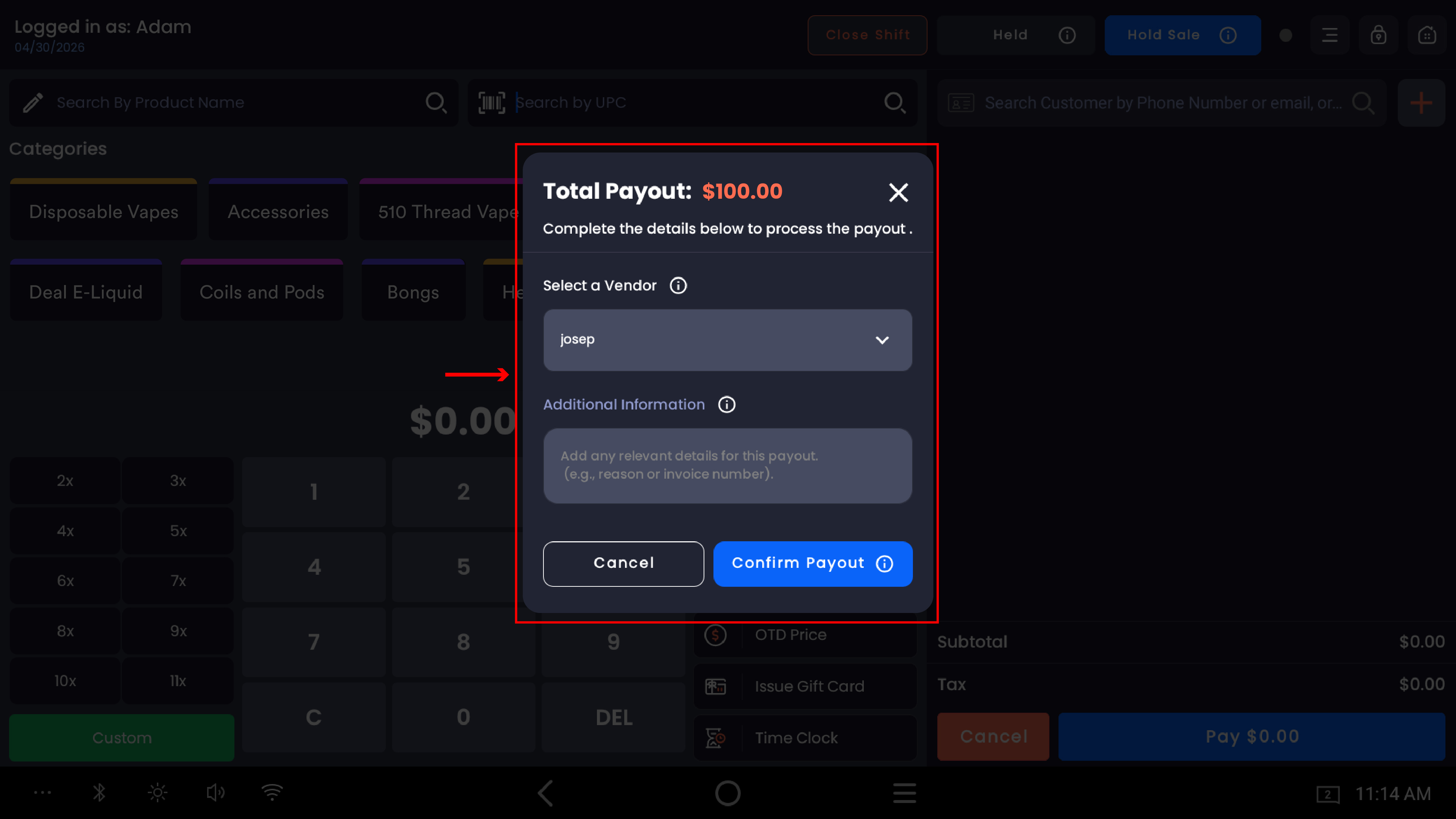
The Total Payout modal opens with the amount in red (e.g. Total Payout: $100.00) and the subtitle "Complete the details below to process the payout."
|
Field |
What it does |
|---|---|
|
Select a Vendor (required) |
Dropdown showing all active vendors in your store. Tap to open and pick the vendor receiving the payment. |
|
Additional Information (optional) |
Free-text field for context — invoice number, what you bought, who delivered, etc. |
Always pick the right vendor. The payout becomes part of that vendor's running balance. Picking the wrong one pollutes both vendors' ledgers and makes month-end reconciliation a hunt.
Use Additional Information for invoice numbers. A free-text note like INV #4582 — 2 cases backwoods takes ten seconds to type and saves an hour later.
What if the vendor isn't in the list?
You'll need to add them first. Vendors are managed in the web backend under Vendors. Common reasons a vendor doesn't appear: they've never been added, they've been disabled, or there's a typo in the name. Add or re-enable the vendor in the web backend, then return to the POS.
Step 4 — Confirm
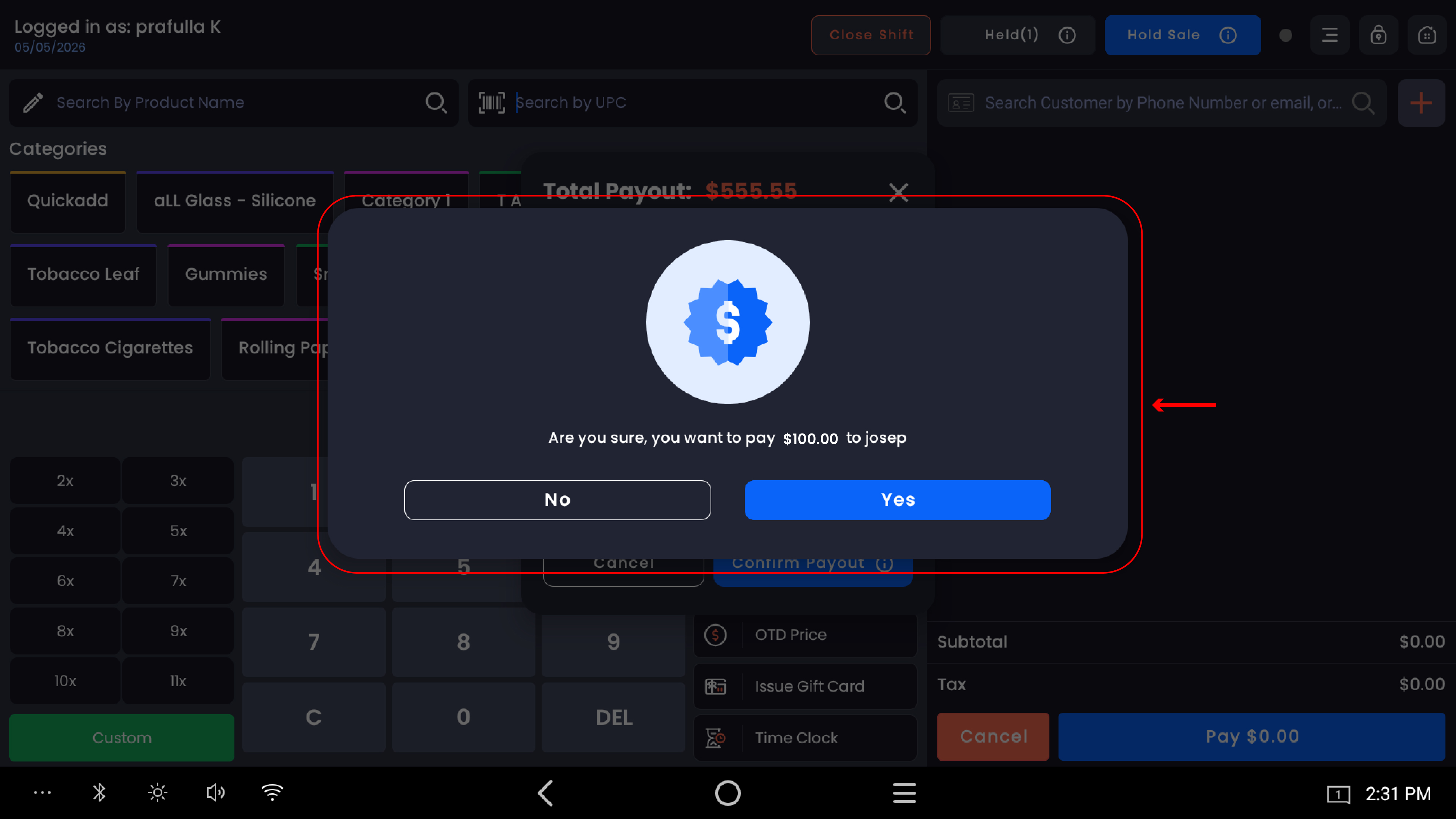
Tap Confirm Payout. A second confirmation appears with a blue verified-badge icon, showing Total Payout: $100.00 and the message "Are you sure, you want to pay $100.00 to [Vendor Name]".
This second prompt is your last chance to catch a mistake — the amount, the vendor name, or both. Tap Yes to commit the payout. No returns you to the previous modal so you can adjust.
Step 5 — Confirmation and receipt
A success modal appears with a circular checkmark badge: Payout Successful, the amount, plus OK and Print buttons. The cash drawer pops open automatically.
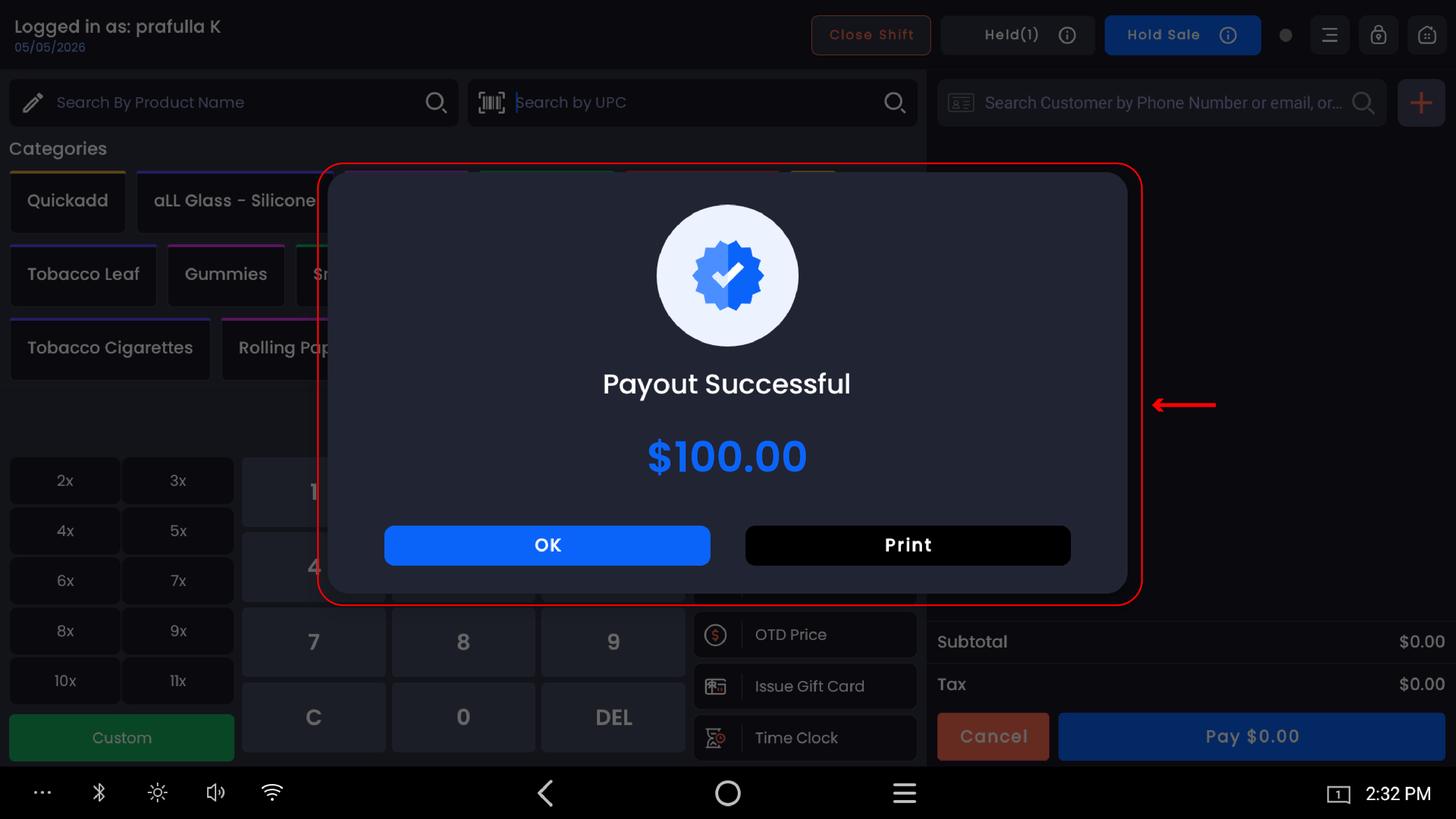
Tap Print to print a payout receipt for your records. Tap OK to close without printing.
No printer connected? A "No Printer Found" notification appears at the bottom of the screen. The payout is still recorded — print isn't required for the transaction to commit.
What gets recorded
A Vendor Payout creates two ledger entries automatically:
On the register / shift report
-
The amount deducts from Expected Cash at close (
Starting Cash + Cash Sales − Cash Refunds − Vendor Payouts − Drop Cash − Lottery Payouts) -
The transaction appears in the Register Activity Report with employee, timestamp, vendor, amount, and any notes
On the vendor's payment history
-
Recorded under Vendors → [Vendor Name] → Payment History in the web backend
-
Increases the vendor's Total Paid amount
-
Updates the vendor's Net Balance (Paid − any refunds recorded)
Vendor Payout vs Drop Cash vs Pay In
|
Action |
Cash direction |
What it's for |
Records against |
|---|---|---|---|
|
Vendor Payout |
Cash out |
Paying a vendor for stock, services, or invoices |
Selected vendor's payment history |
|
Drop Cash |
Cash out |
Removing cash to a safe / drop box for security |
Drawer only — no vendor |
|
Pay In |
Cash in |
Adding cash to the drawer (extra change, owner deposit) |
Drawer only — no vendor |
Don't use Drop Cash for a vendor payment — the supplier ledger will drift. Don't use Vendor Payout for cash that's just being moved to a safe.
Permissions
Vendor Payout access is managed in the web backend under Employees → Permissions. Without the permission, the menu option is hidden or disabled.
-20260527-093102.jpg?cb=ebe2d7a341dce002ba7a530834b1e85d)
Limit Vendor Payout to managers and trusted senior staff. Every payout removes cash from the drawer with the auditor's-trail living off-register.
Common questions
The amount in the modal shows $0.00 and Confirm Payout is grayed out. You opened Vendor Payout without first typing an amount on the register keypad. Close the modal, type the amount on the main keypad, then re-open.
The vendor I want isn't in the dropdown. The vendor either hasn't been added yet or is disabled. Add them in the web backend under Vendors.
Can I edit a vendor payout after it's confirmed? No. The entry is final. Mistakes require a manager-level correction via the web backend.
The vendor gave me back $10 (defective items refund). How do I record that? Currently there's no in-POS way. Document it manually as a variance at shift close and have your manager adjust the vendor's balance in the web backend.
The drawer didn't open after the payout was confirmed. The drawer is kicked by the printer's "open drawer" command. If your printer is offline, use No Sale to open the drawer manually.
I got a "No Printer Found" message — was the payout still recorded? Yes. The payout is recorded the moment you tap Yes on the confirmation. Print is optional.
Where can I see all the vendor payouts I've made today? Two places: the Register Activity Report in the web backend, and Vendors → [Vendor Name] → Payment History.
Does Vendor Payout count as a sale? No. Net Sales, Gross Sales, tax reports, and product reports are all unaffected.
Can I split a vendor payout across cash and card? No. Vendor Payout is cash-only by design. For card or check payments to vendors, record directly in the vendor's payment history in the web backend.