
Spotlight Search at the top of the Quickvee POS register is how cashiers find anything during a sale — products, variants and customers — without leaving the register screen. Results appear as you type: there is no search button to press, no scanner toggle and no separate search mode to enter or leave.
Where to find it
The search fields are on the register screen at all times — whether a category is selected or a cart is in progress. Search By Product Name and Search by UPC sit at the top of the product panel; Search Customer sits above the cart.
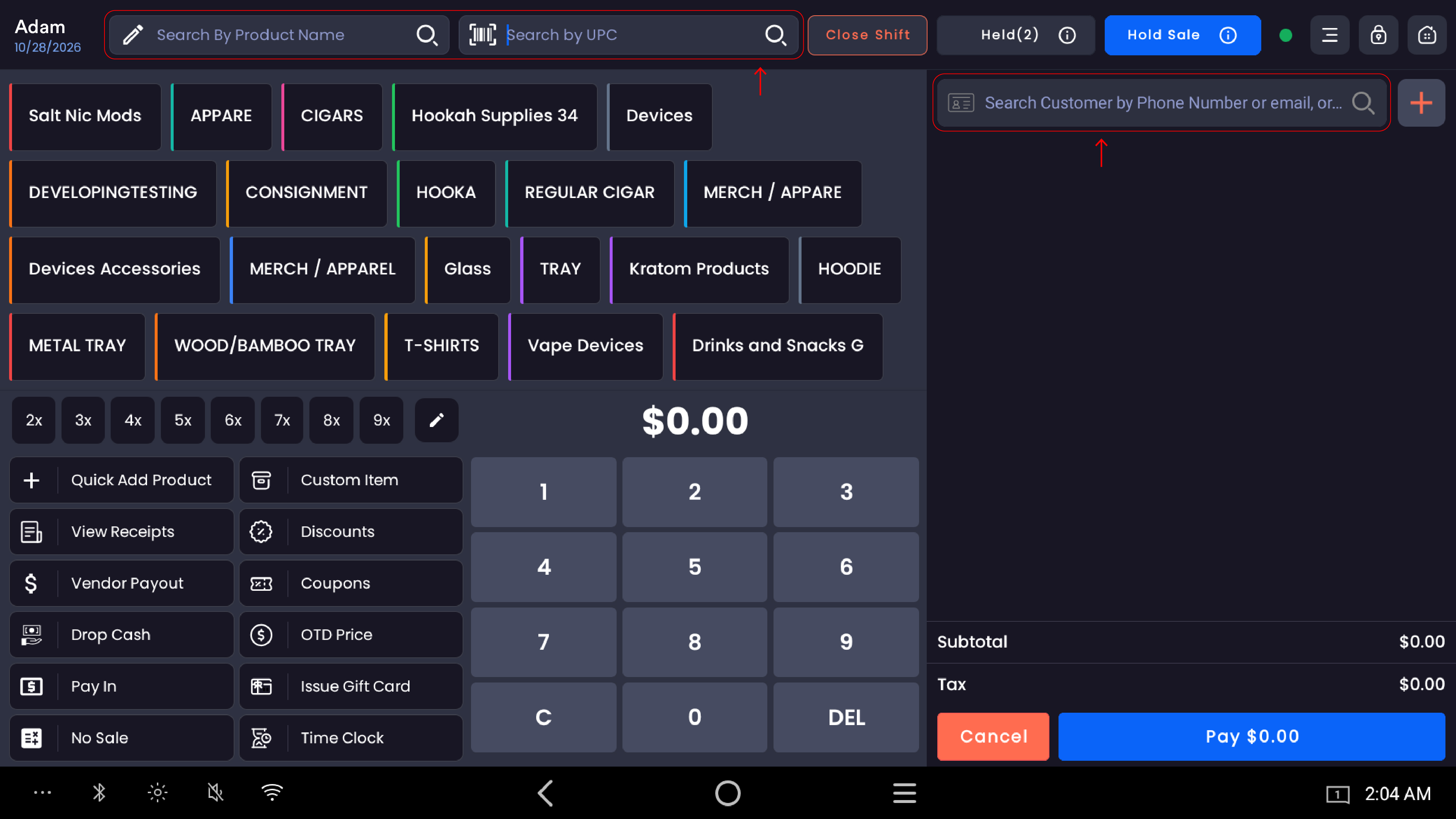
The three search inputs
|
Search input |
What it finds |
|---|---|
|
Search By Product Name |
Products and variants by name or brand keyword. Matches any part of the product or variant name, the brand name, or the category. |
|
Search by UPC |
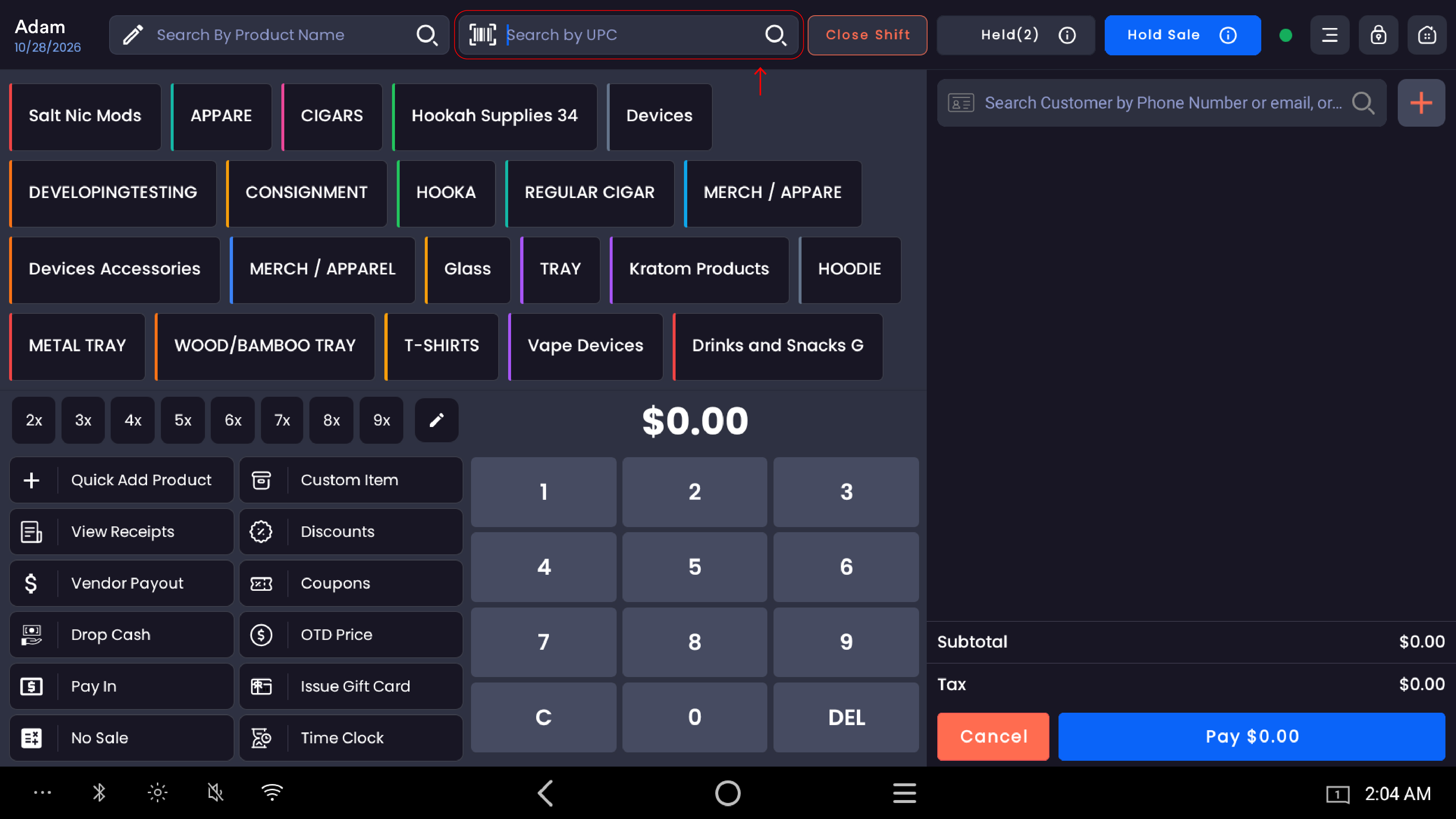
Products and variants by UPC, custom code or scanned barcode. Type a number, or simply scan — the field captures the scan instantly. |
|
Search Customer |
Customers by phone number, name or email. Partial input is enough — the cashier doesn't need the full value. |
All three fields are independent. A cashier can search a product by name, jump to scan a UPC, then look up a customer — the register keeps the cart and the search context throughout.
Search by UPC — every code on the product
The Search by UPC field doesn't just match the primary UPC. The register checks every code attached to a product or variant:
-
The primary UPC Code
-
All Custom Codes added to the product
-
All Custom Codes added to a specific variant
In the inventory module you can stack several custom codes on one product or variant — a manufacturer code, an internal SKU, a supplier reference or any other identifier. At the register, any of those codes pulls up the same product or variant, so cashiers can scan whichever label is on the package — the manufacturer's UPC, your shelf-tag SKU, a supplier's batch sticker — without re-mapping or re-labelling anything.
|
Scan or typed input |
What the register does |
|---|---|
|
A UPC matches a product or variant |
Adds that product or variant to the cart |
|
A custom code matches a product |
Adds the product to the cart |
|
A custom code matches a specific variant |
Adds that exact variant — not the parent product |
|
The input matches more than one identifier |
Resolves to the first matching record. UPCs are unique across the catalog, so this is uncommon, but heavily stack-coded inventory can occasionally hit it |
|
No match |
The register shows a Product not found message and clears the field for the next scan |
💡 Tip. Carry the same product from more than one supplier? If a vendor change brings the item in with a different SKU, add that SKU as an extra custom code on the product. Your team can scan either label at checkout without re-tagging anything on the shelf.
📝 Note. The cashier doesn't need to know which identifier is on the package. UPC, manufacturer code, internal SKU or supplier reference — the register accepts any of them in the same Search by UPC field.
Search by product name — partial keywords
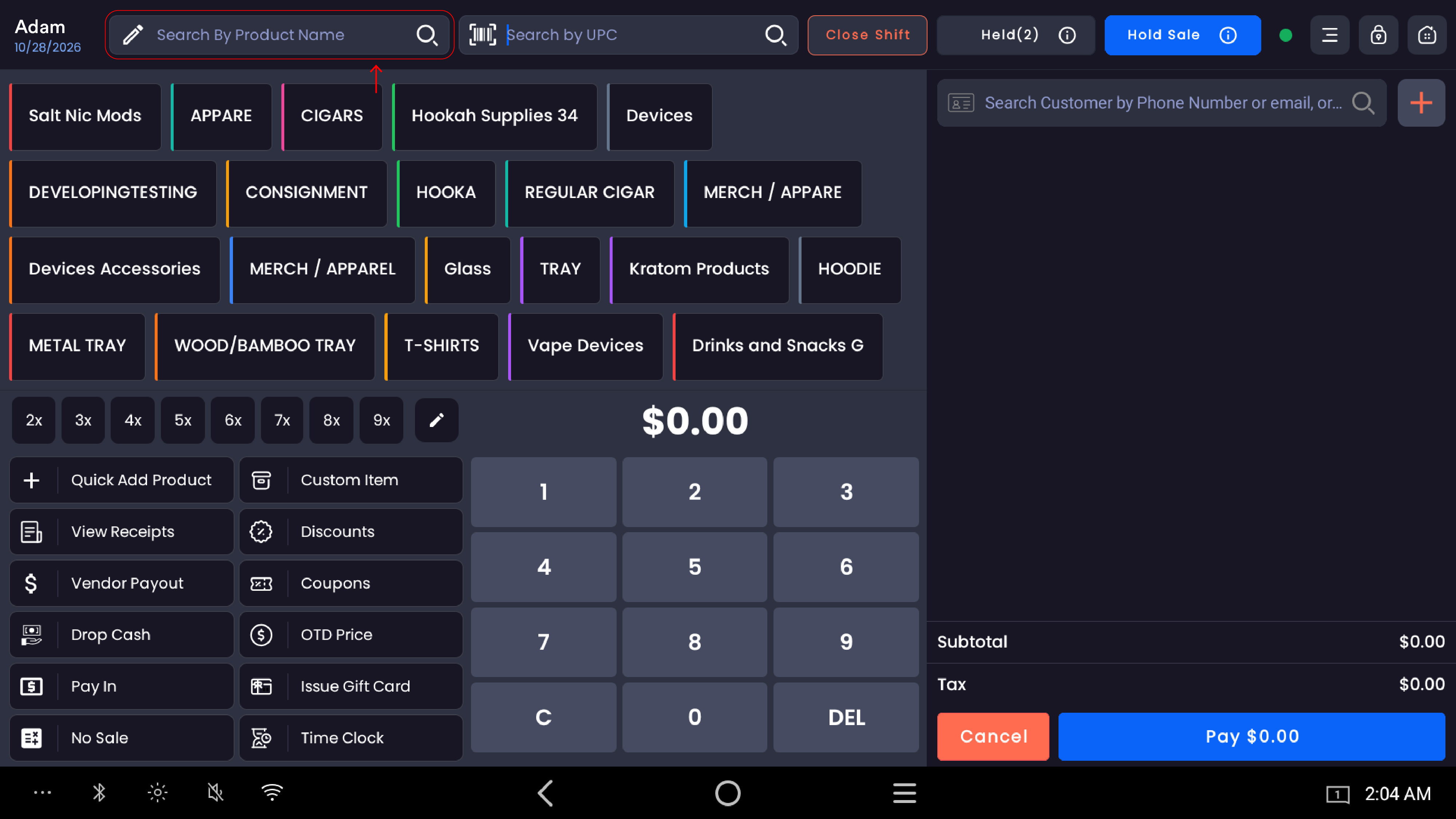
The Search By Product Name field returns results live as the cashier types:
-
Partial keywords work. Typing marl returns Marlboro Red, Marlboro Gold, Marlboro Menthol and so on.
-
Brand search works. Typing the brand returns every product made by that brand.
-
No exact match required. Any part of a product, variant or brand name finds it.
-
Real-time as you type. No need to press Enter or tap a search button — results refresh on every keystroke.
Search customer — name, phone or email
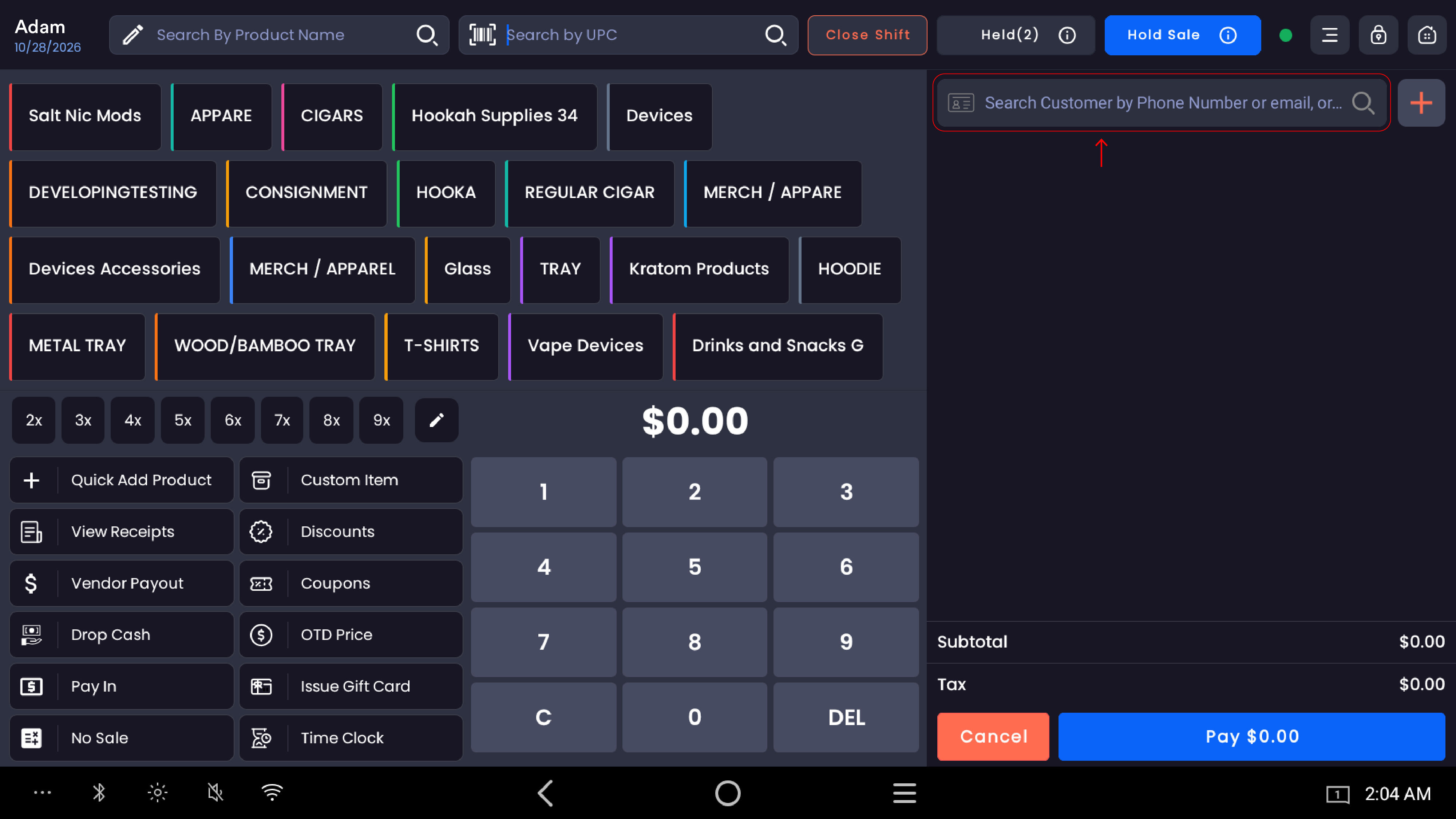
The Search Customer field accepts:
-
Phone number — partial match; typing 555-12 returns every matching number.
-
Name — first name, last name or any part of either.
-
Email — partial match against the email address.
A cashier can pull up a loyalty customer with three digits of their phone number — far faster than asking the customer to repeat the full number.
Stock shows in the results
Each product or variant in the search results shows its stock status — In Stock or Out of Stock — and the current quantity on hand. The cashier sees this before tapping the item into the cart, which prevents accidental sales of out-of-stock items.
Combine search with a category
Search and category filters work together:
-
Tap a category tile (for example Vape Devices) to filter the product grid.
-
Use Search By Product Name or Search by UPC — the search runs only against products in the active category.
✅ Best practice. In stores with large catalogs, a generic keyword such as 5000 returns too many results. Filter to the category first, then narrow with search.
What Spotlight Search can do
Spotlight Search runs on a dedicated search engine (Elasticsearch), which gives the register:
|
Capability |
Detail |
|---|---|
|
Real-time results |
Results update on every keystroke — no submit required |
|
Partial keyword matching |
Any part of a name, brand, UPC or custom code returns matches |
|
Multi-identifier UPC search |
UPC, custom codes and variant codes are all searchable from the same field |
|
Category-aware search |
The active category narrows search results automatically |
|
Stock awareness |
Results show In Stock / Out of Stock and the current quantity |
|
Built for large catalogs |
Stays fast across thousands of products and variants |
Tips for the fastest checkout
|
Goal |
Best method |
|---|---|
|
Find a product by name |
Type 2–3 characters of the name or brand in Search By Product Name |
|
Ring in a specific variant |
Scan the package — the variant resolves directly from its UPC or custom code |
|
Use your internal SKU instead of the UPC |
Add the SKU as a custom code on the product or variant, then scan or type it in the UPC field |
|
Check stock before selling |
Search by name — the stock status and quantity appear in the result row |
|
Pull up a returning customer |
Type the first three digits of their phone number in Search Customer |
|
Browse one category |
Tap the category tile, then search within it |
Good to know
-
A USB barcode scanner works out of the box with no setup — once connected, scans go straight into the UPC field.
-
Stock status and current quantity appear in search results for every product and variant.
-
Search Customer accepts any partial input across name, phone and email.
-
All three search fields are available at the same time, whatever the cart state or active category.
-
Any UPC or custom code attached to a product or variant works — the register treats them as interchangeable identifiers.
Related
See Add products with Quick Add, Sell custom items, and Hold a sale and retrieve held orders.