
Quickvee POS lets merchants apply discounts, override prices, and adjust taxes at the individual line item level directly from the register — without affecting the rest of the cart.
Accessing the item edit panel
-
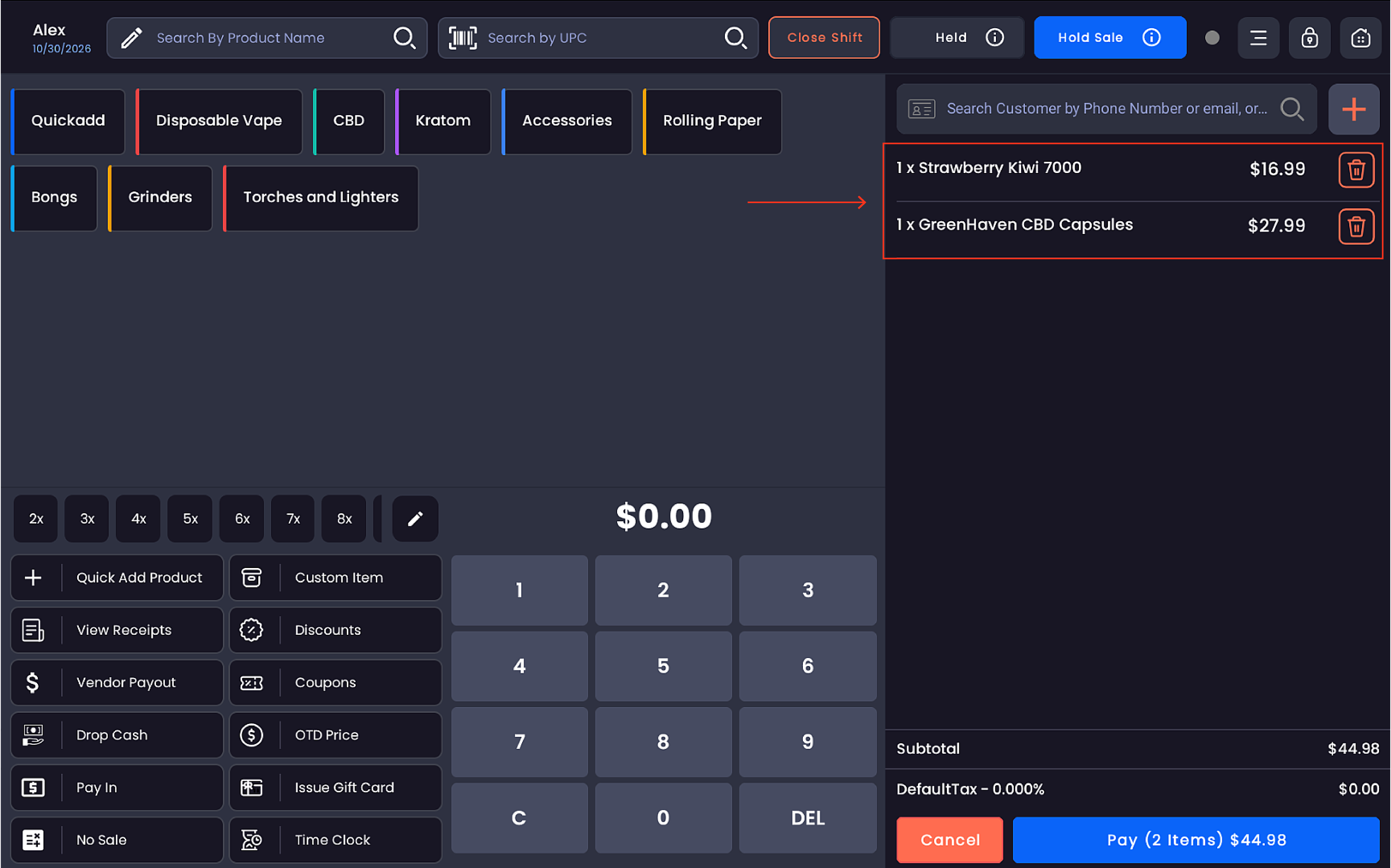
Add a product to the cart
-
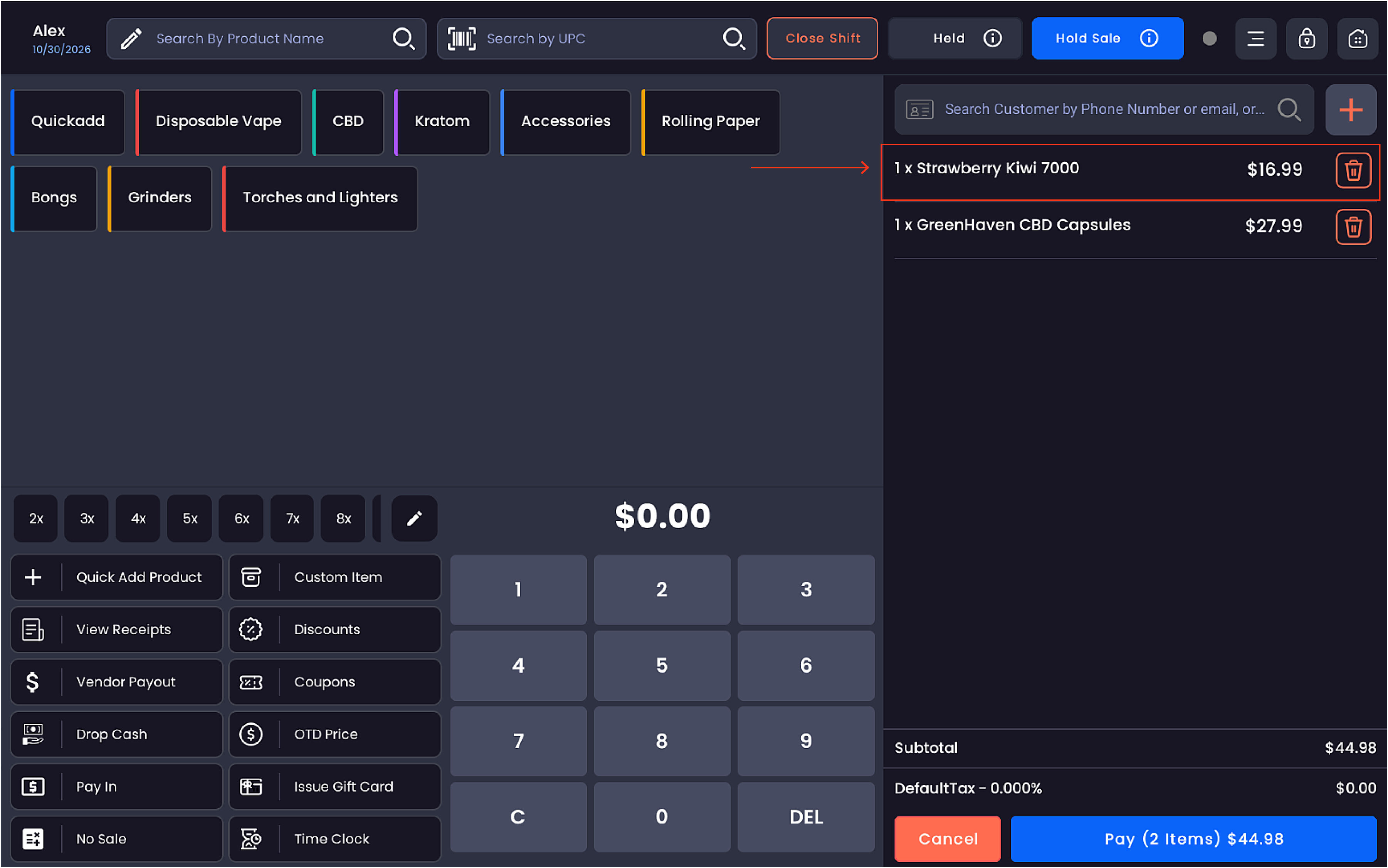
Tap on the product in the cart panel on the right
-
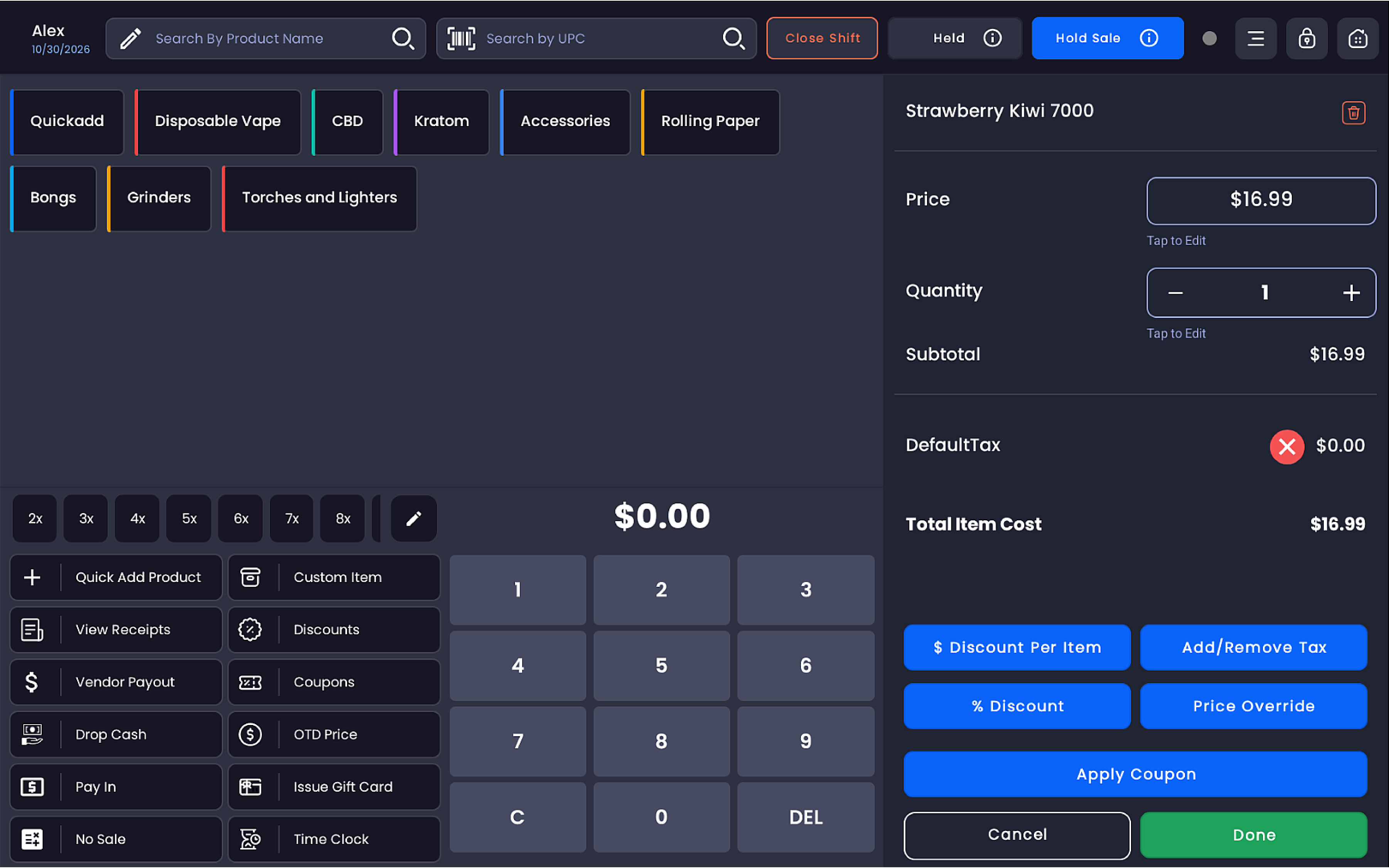
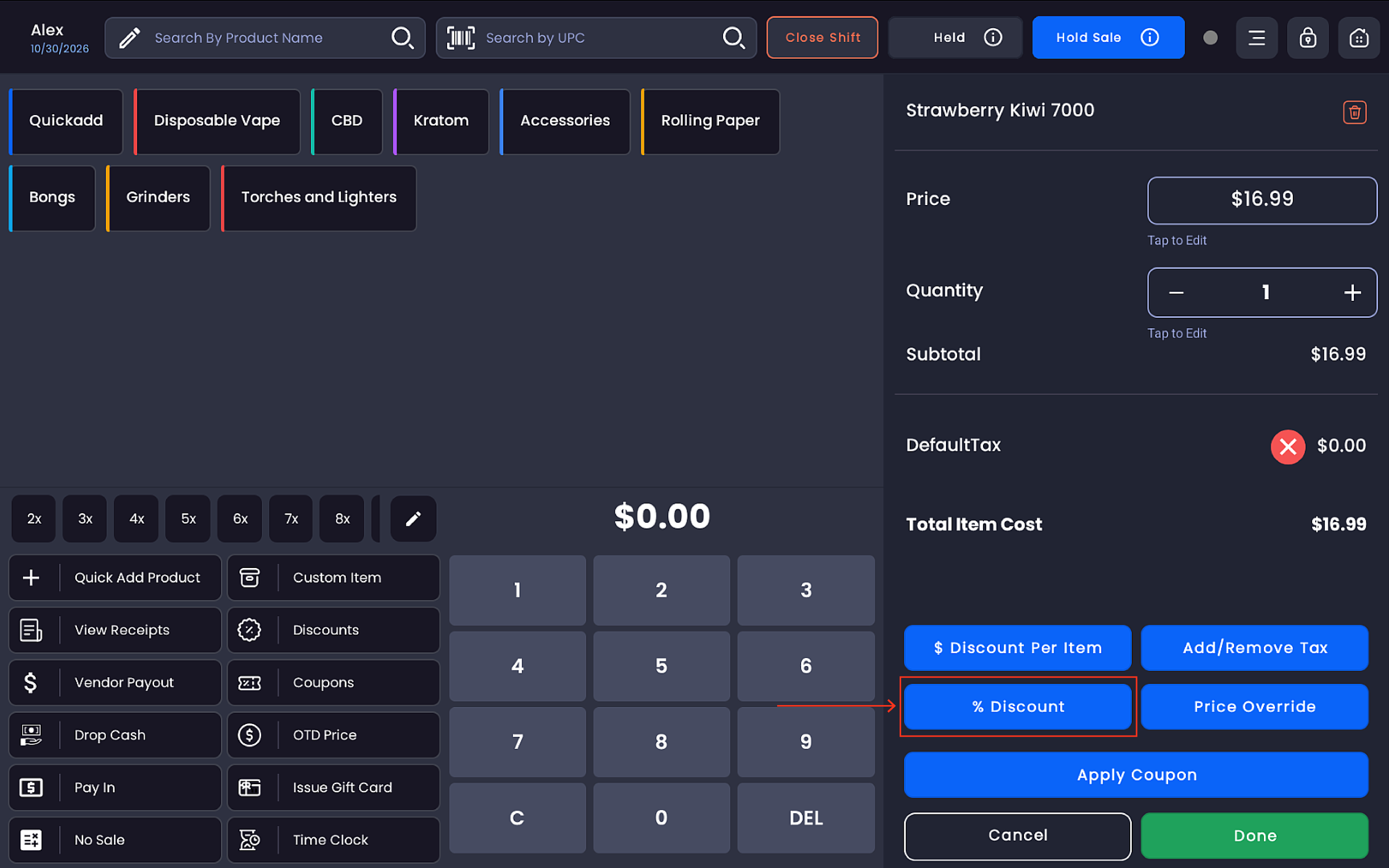
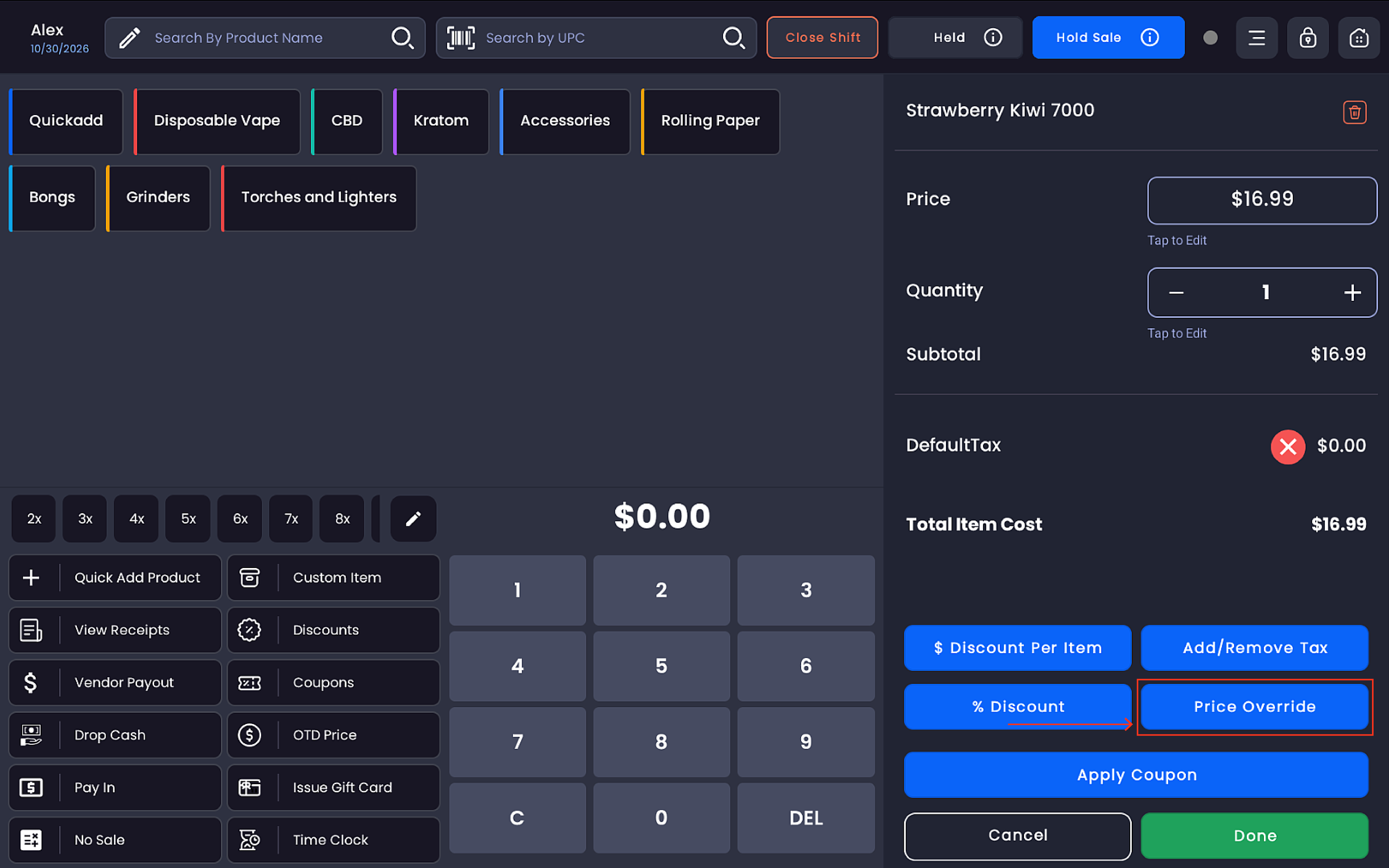
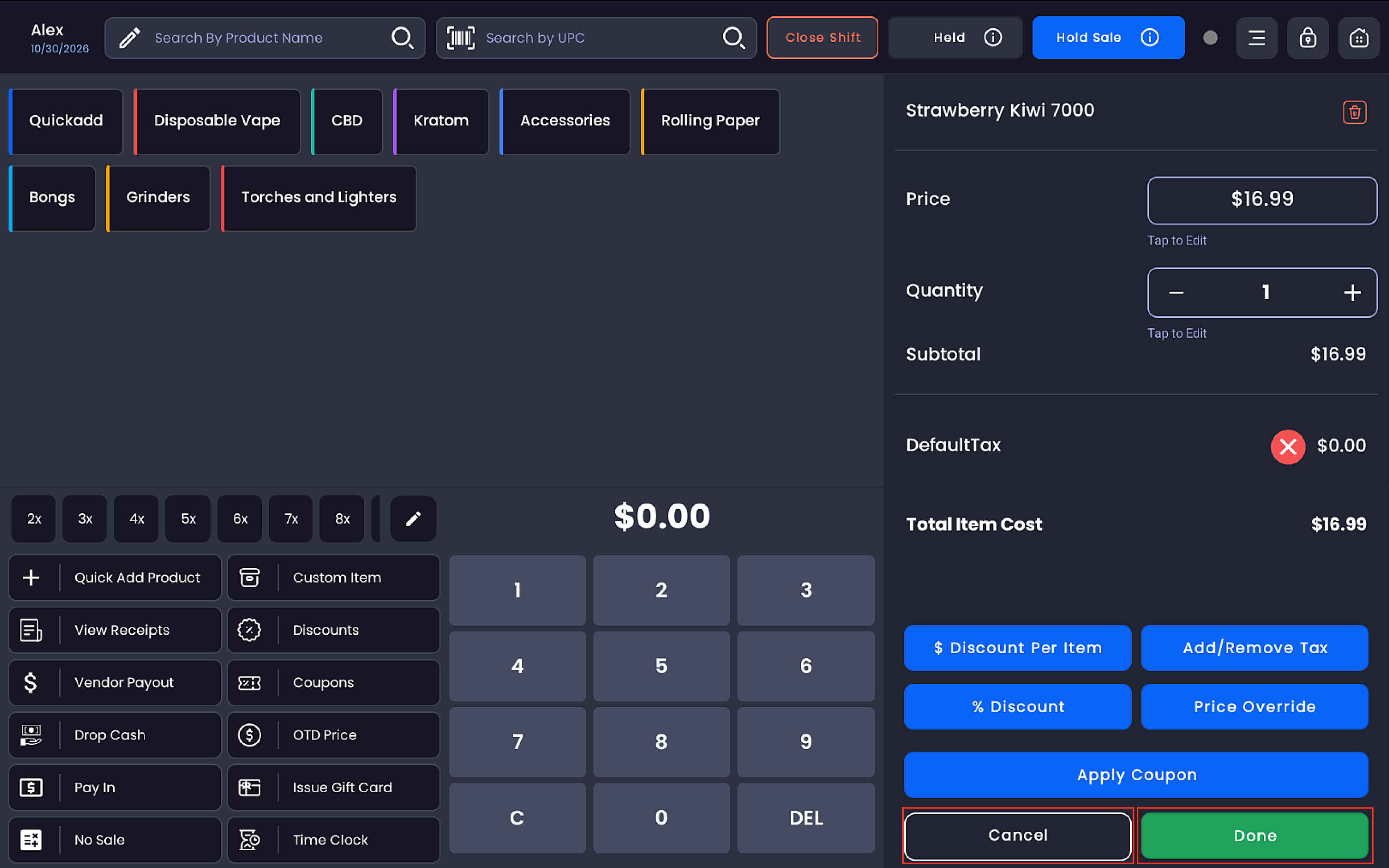
The item edit panel opens, displaying:
-
-
Price — current listed price (tap to edit)
-
Quantity — with +/− controls (tap to edit)
-
Adjustment — shows any active discount or override with an ✕ to remove it
-
Subtotal — updated item subtotal after adjustments
-
DefaultTax — tax applied with an ✕ to remove
-
Total Item Cost — final cost including tax
-
Four action buttons are available at the bottom:
|
Button |
Action |
|---|---|
|
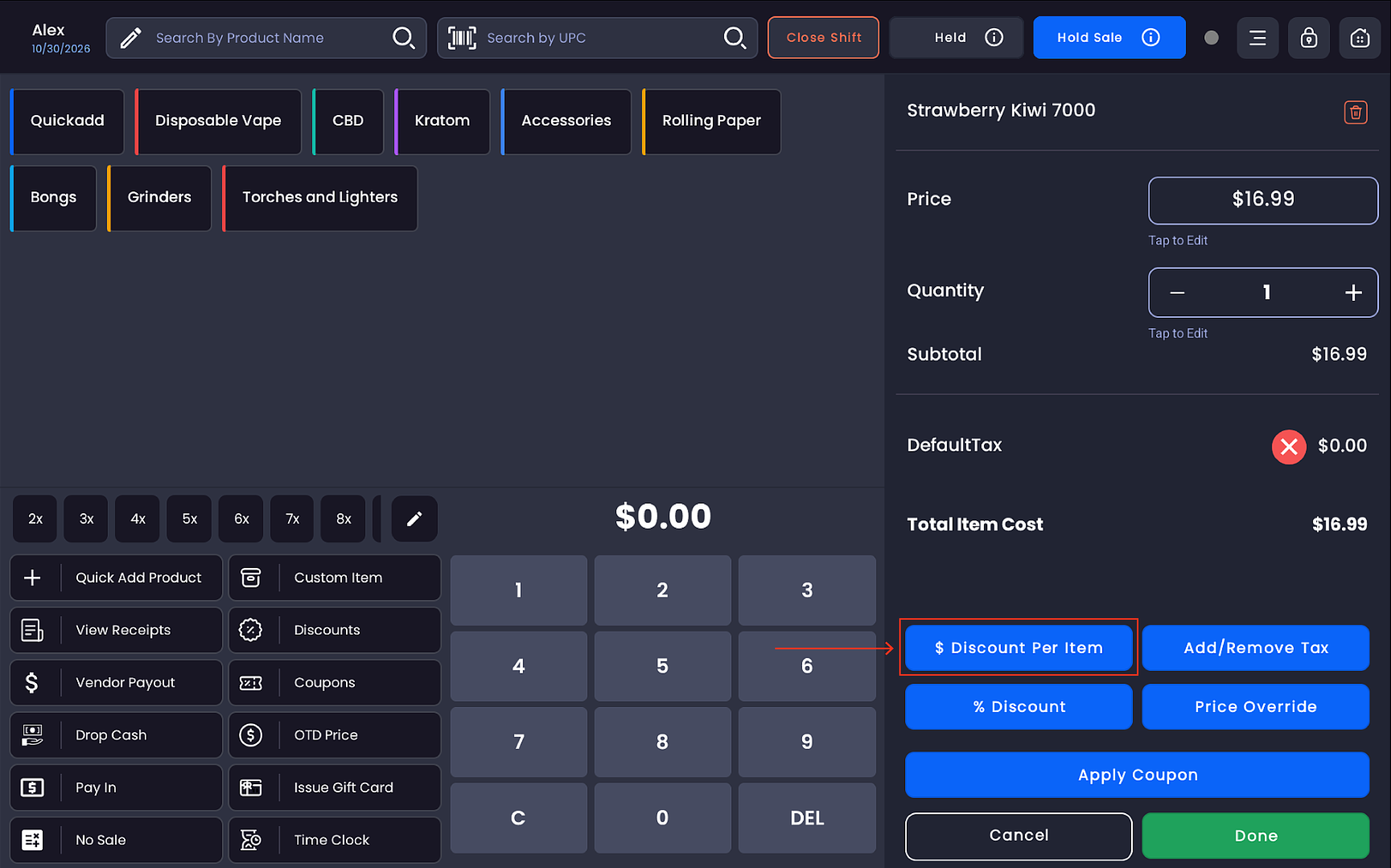
$ Discount Per Item |
Apply a fixed dollar discount to this item |
|
% Discount |
Apply a percentage discount to this item |
|
Add/Remove Tax |
Add or remove tax from this item |
|
Price Override |
Set a custom selling price for this item |
$ Discount Per Item
-
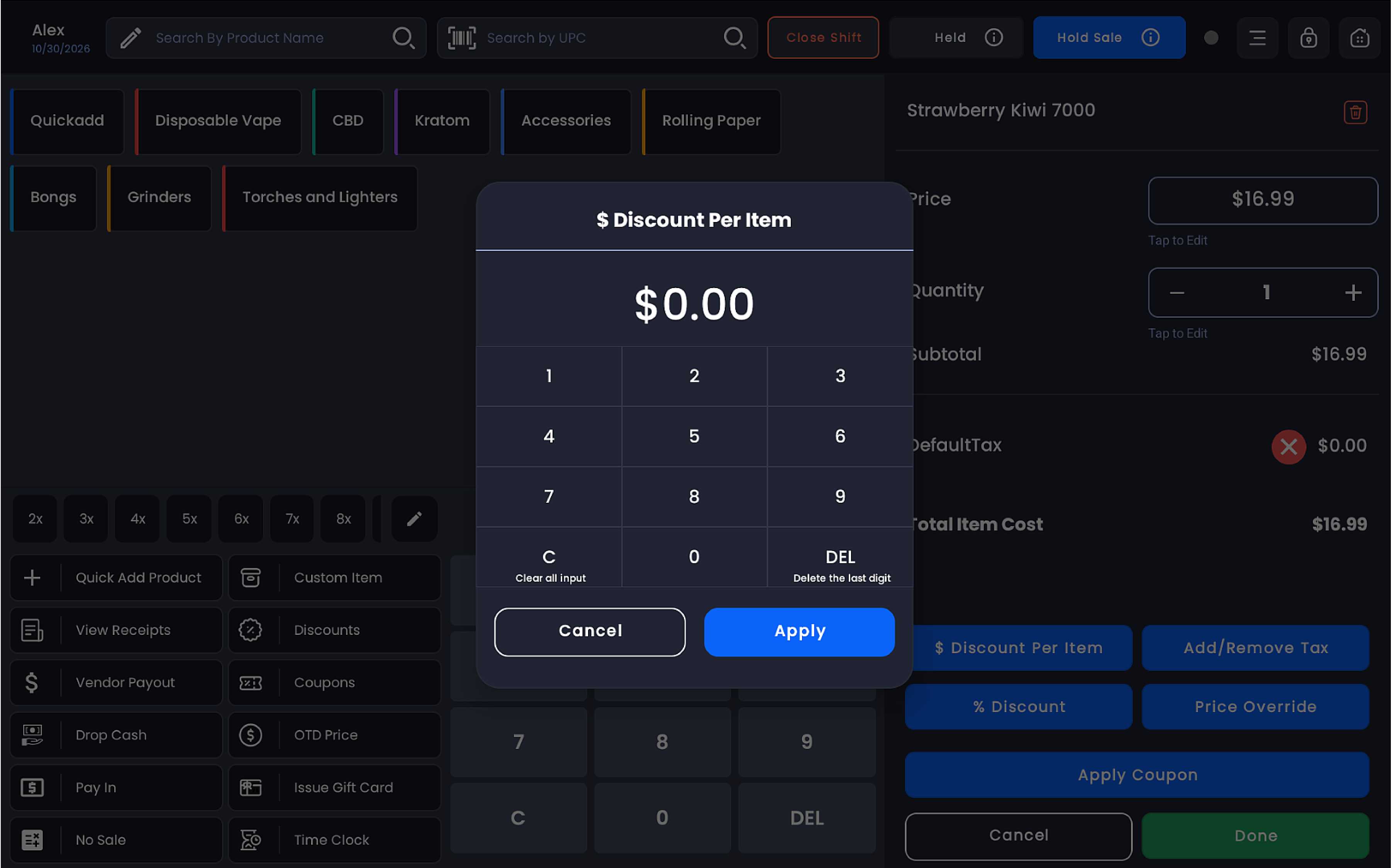
Tap $ Discount Per Item
-
A numpad popup titled "$ Discount Per Item" appears
-
Enter the dollar amount to discount
-20261030-110802.png?cb=d7242e391f08c58a8b1f7d253604be5b)
-
Use C to clear all input or DEL to delete the last digit
-
Tap Apply — the adjustment will appear in the item panel as a negative value (e.g. -$3.99)
% Discount
-
Tap % Discount
-
A numpad popup titled "% Discount" appears
-
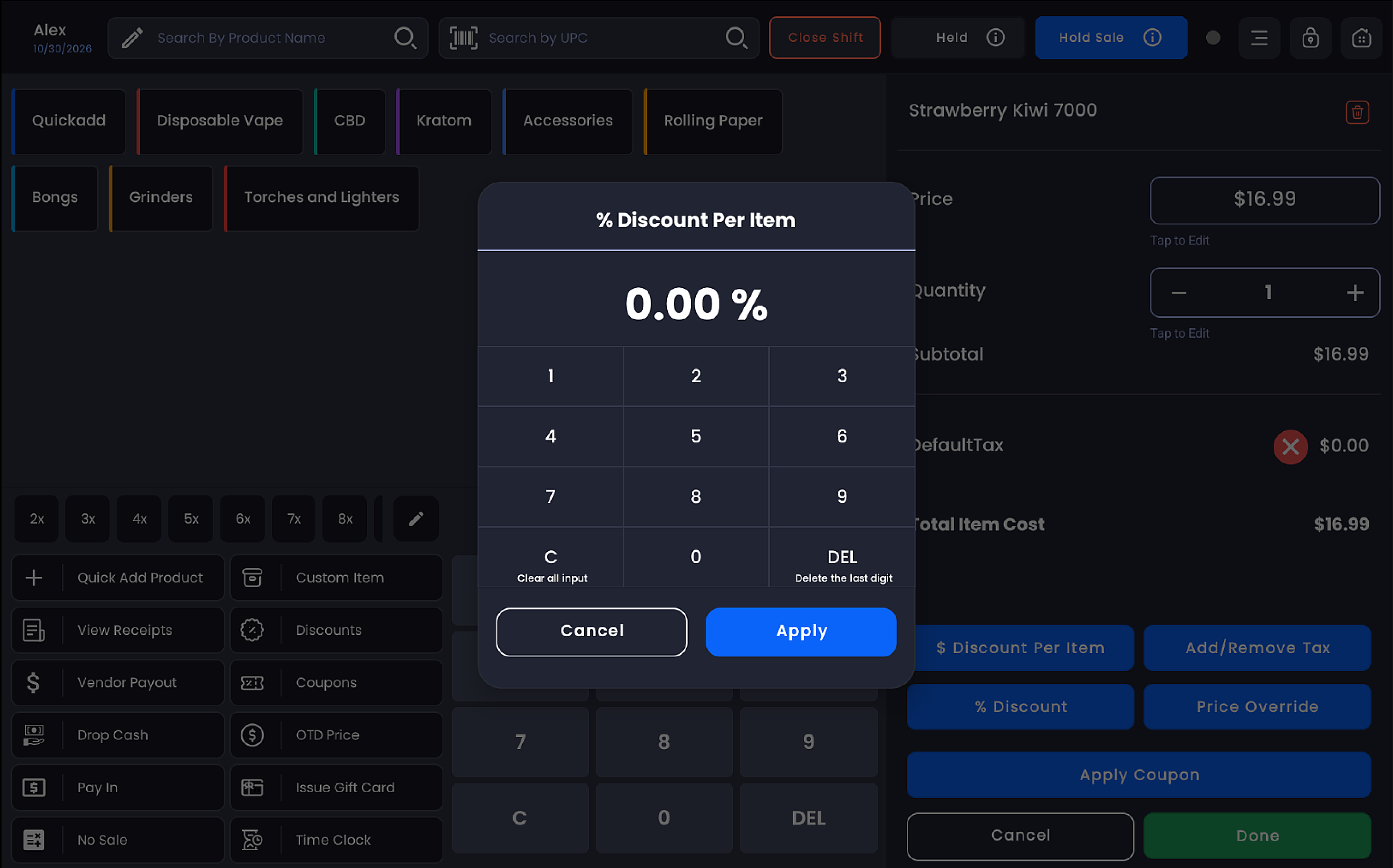
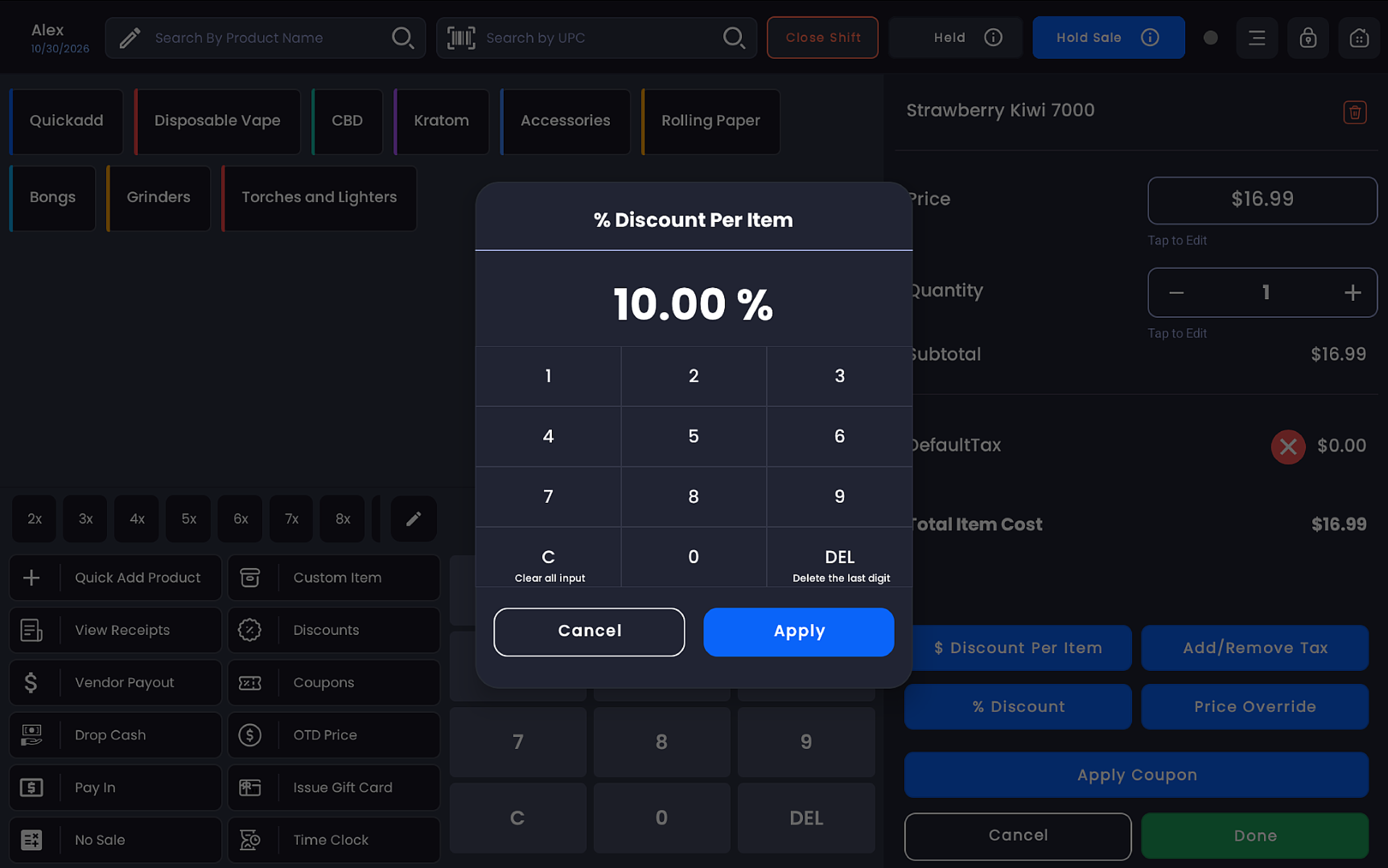
Enter the percentage value (e.g. 10 for 10%)
-
Use C to clear all input or DEL to delete the last digit
-
Tap Apply — the percentage-based adjustment is calculated and reflected in the item subtotal
Price Override
Price Override lets a merchant set a completely new selling price for a line item — higher or lower than the original listed price.
-
Tap Price Override
-
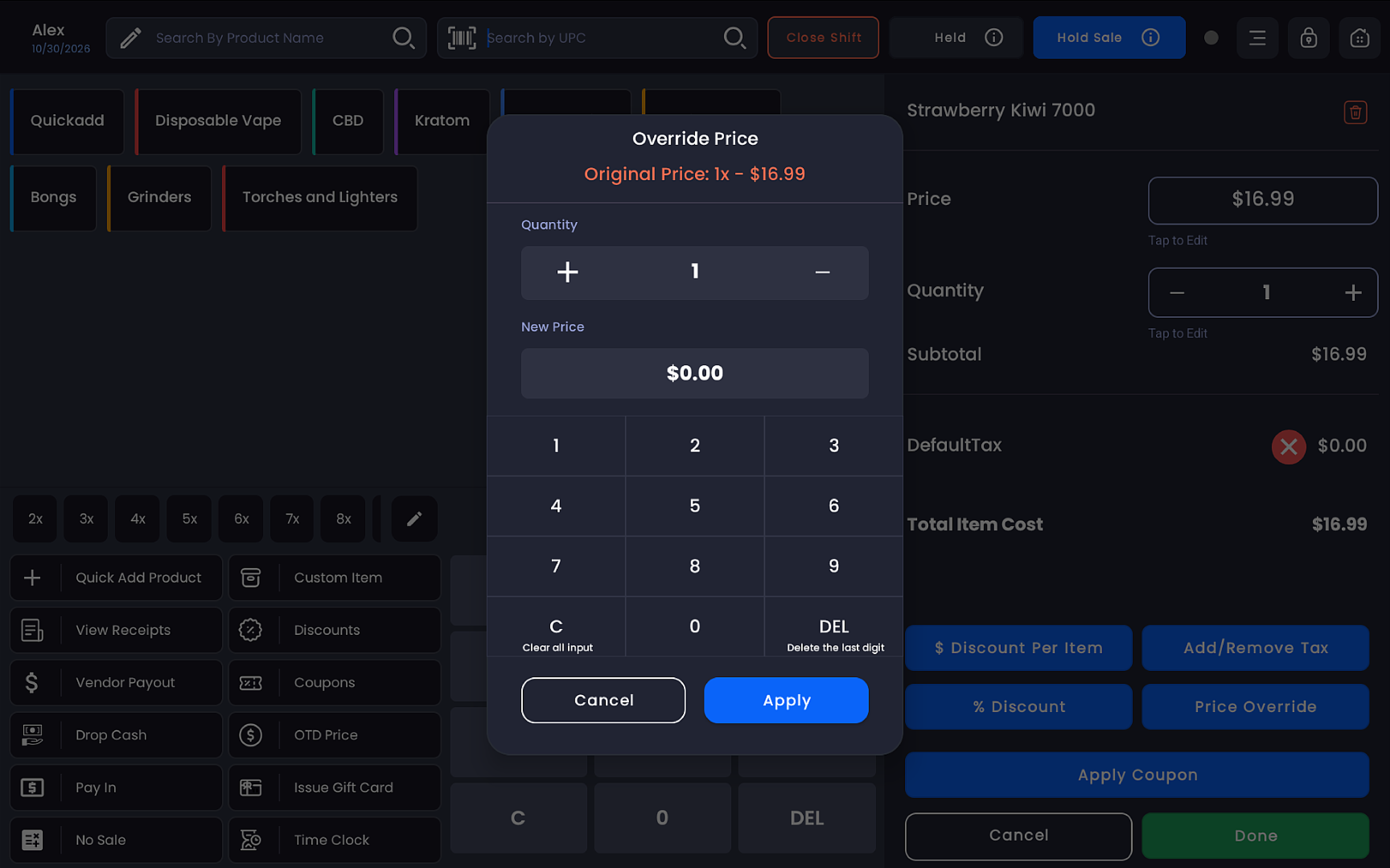
A popup titled "Override Price" appears, showing the Original Price (e.g. 1x — $5.99)
-
Adjust the Quantity using the +/− controls if needed
-
Enter the New Price using the numpad:
-
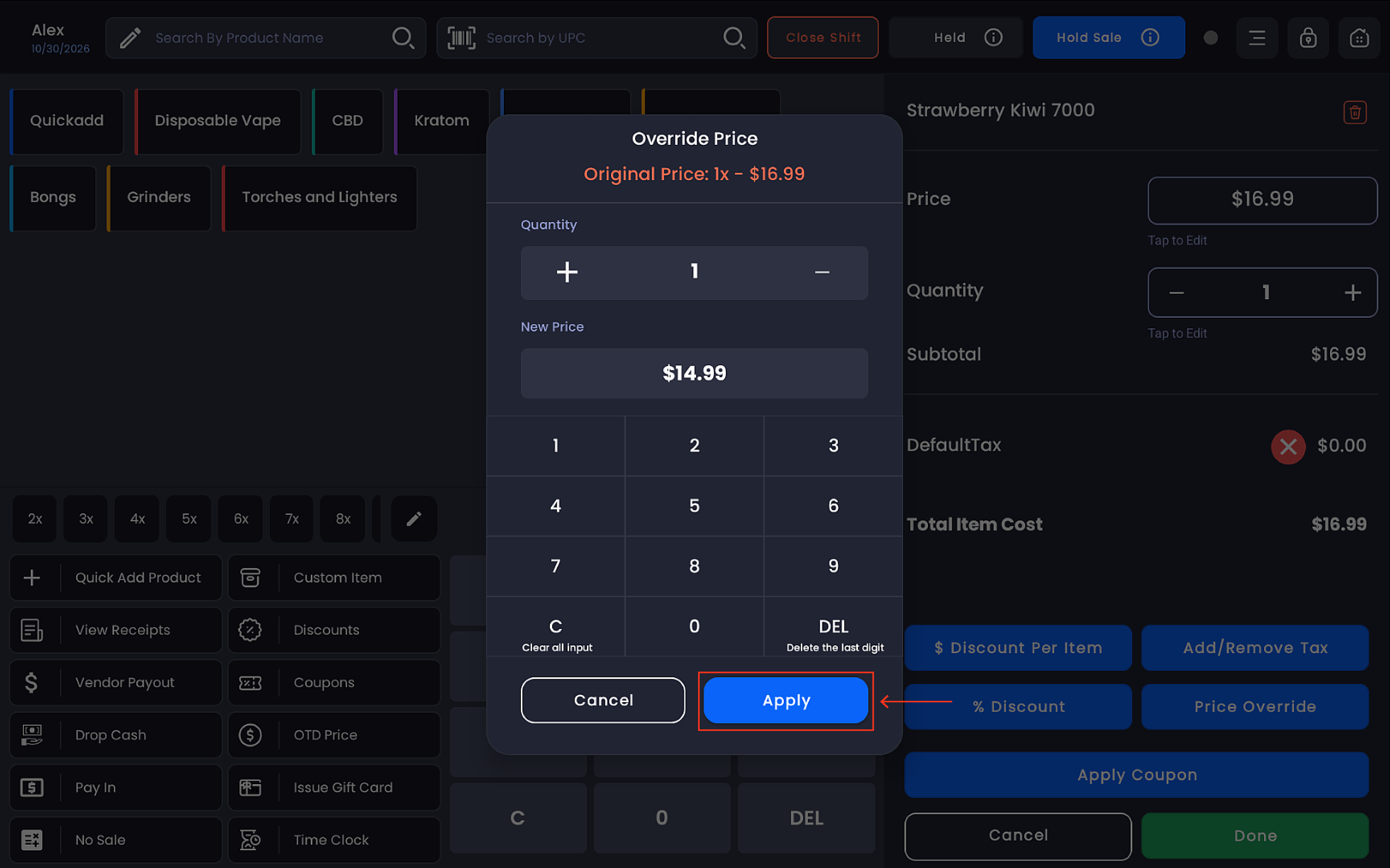
Enter a higher value to increase the price — a positive adjustment appears in the cart
-
Enter a lower value to reduce the price — a negative adjustment appears in the cart
-
-
Tap Apply — the cart updates to reflect the overridden price
Add / Remove Tax
-
Tap Add/Remove Tax
-20261030-131541.jpg?cb=969dfc574038dca4c8050364214a1cda)
-
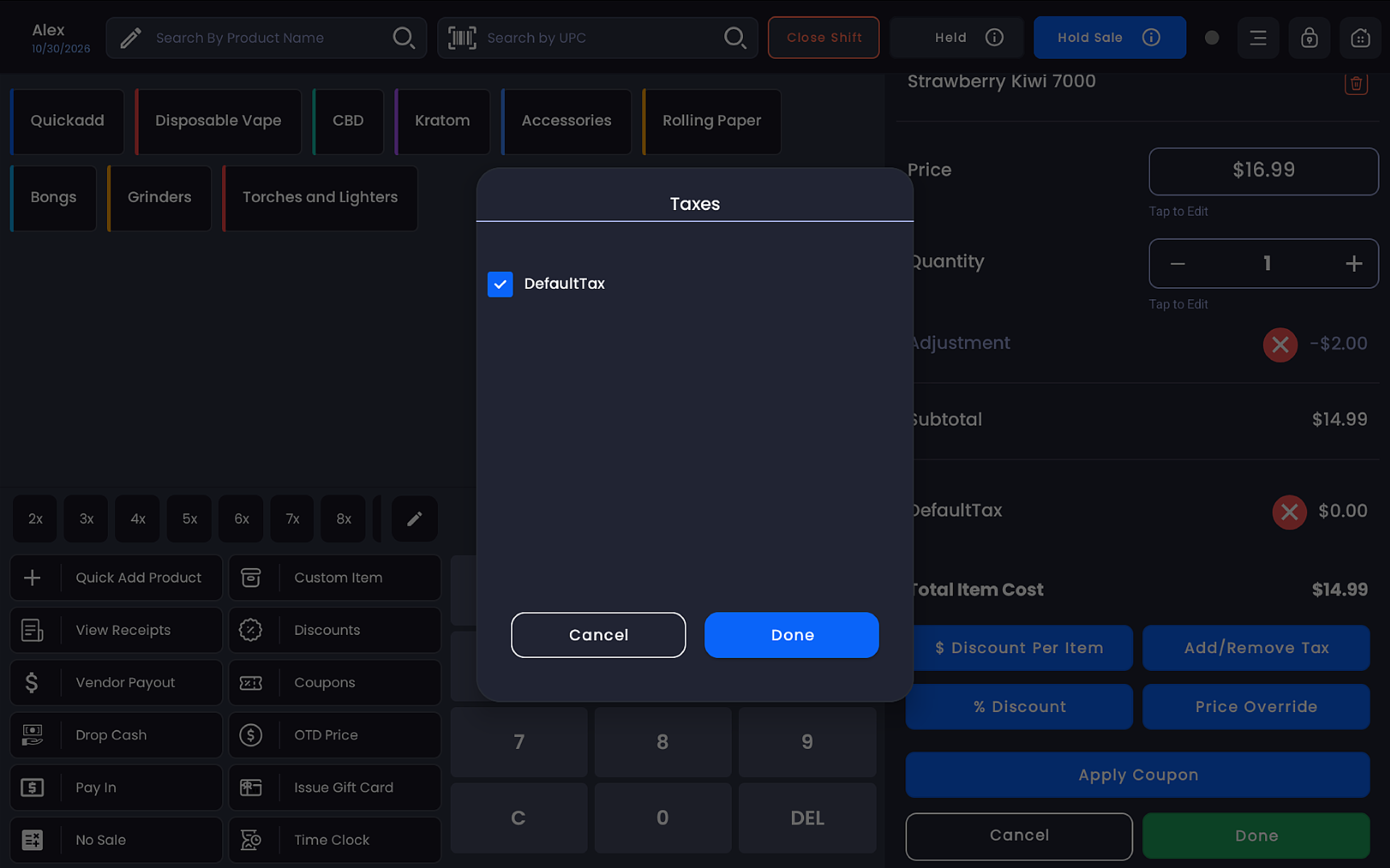
A Taxes popup appears listing all available taxes (e.g. DefaultTax)
-
Check a tax to apply it to this item
-
Uncheck a tax to remove it from this item
-
Tap Done to confirm
Finalizing changes
-
All edits — discount, price override, and tax — can be made within a single item edit session
-
The Subtotal and Total Item Cost update in real time as changes are applied
-
Tap Done to confirm all changes and return to the register
-
Tap Cancel to discard changes
Any active adjustment shows in the item panel with an ✕ button — tap it to remove that adjustment at any time before completing the sale.