
The Orders (Online) tab shows every order placed through your online ordering site — pickup orders customers will collect at your store, and delivery orders going out to their address. Unlike in-store orders (which end the moment the receipt prints), online orders have a workflow — you accept them, pack them, mark them ready, and then close them out when they're picked up or delivered.
Access path: Merchant Backend → Orders → Orders (Online) tab
-20260601-071113.jpg?cb=4dc236313970368a67ece5d85e13e6a5)
This article covers the list view, how to move orders through the status workflow, the compliance details surfaced on the detail page, and the rules around refunds.
Three things to know up front
The online orders page shows three notes above the list. They're worth internalising because each one explains a behavior that's different from in-store orders:
|
Note |
What it means for you |
|---|---|
|
"The customer will be notified of order Status changes." |
When you change an order's status — Accepted, Packing, Ready, etc. — the customer gets an automatic notification. Don't flip statuses to test or preview; flip them when they're actually true. |
|
"Cancellation and refunds must be made through your Payment gateway." |
Canceling an online order in Quickvee does not automatically refund the customer's card. You have to issue the refund in your payment processor (USAePay, etc.) separately. The exception is the automated USAePay refund flow for Uber and item-level returns, if enabled on your account. |
|
"The below record is only showing successfully placed orders." |
Failed or incomplete checkout attempts do not appear here. Every row you see represents a payment that succeeded at the gateway. |
The Online Orders list
Date range
Same as the in-store list: Start Date, End Date, and four presets — Today, Yesterday, Last 7 Days, Last 30 Days. The online tab usually opens on Last 30 Days because pickup and delivery windows are often longer than same-day.
Search
One bar accepting Order ID, Card Last 4, customer name, or exact amount. Same behaviour as the in-store search.
Filter By — Order Status
Unlike the in-store tab (which filters by Employee and Payment Type), the online tab filters by Order Status:
|
Filter |
What it includes |
|---|---|
|
All |
Every online order in the date range |
|
New |
Orders that haven't been closed out yet — still somewhere between Accepted and Ready/Out for Delivery. Usually the most useful view for an active shift |
|
Completed |
Orders that were picked up or delivered successfully |
|
Failed |
Orders that were cancelled or couldn't be fulfilled |
List columns
The results table is different from the in-store tab. Four columns plus an action link:
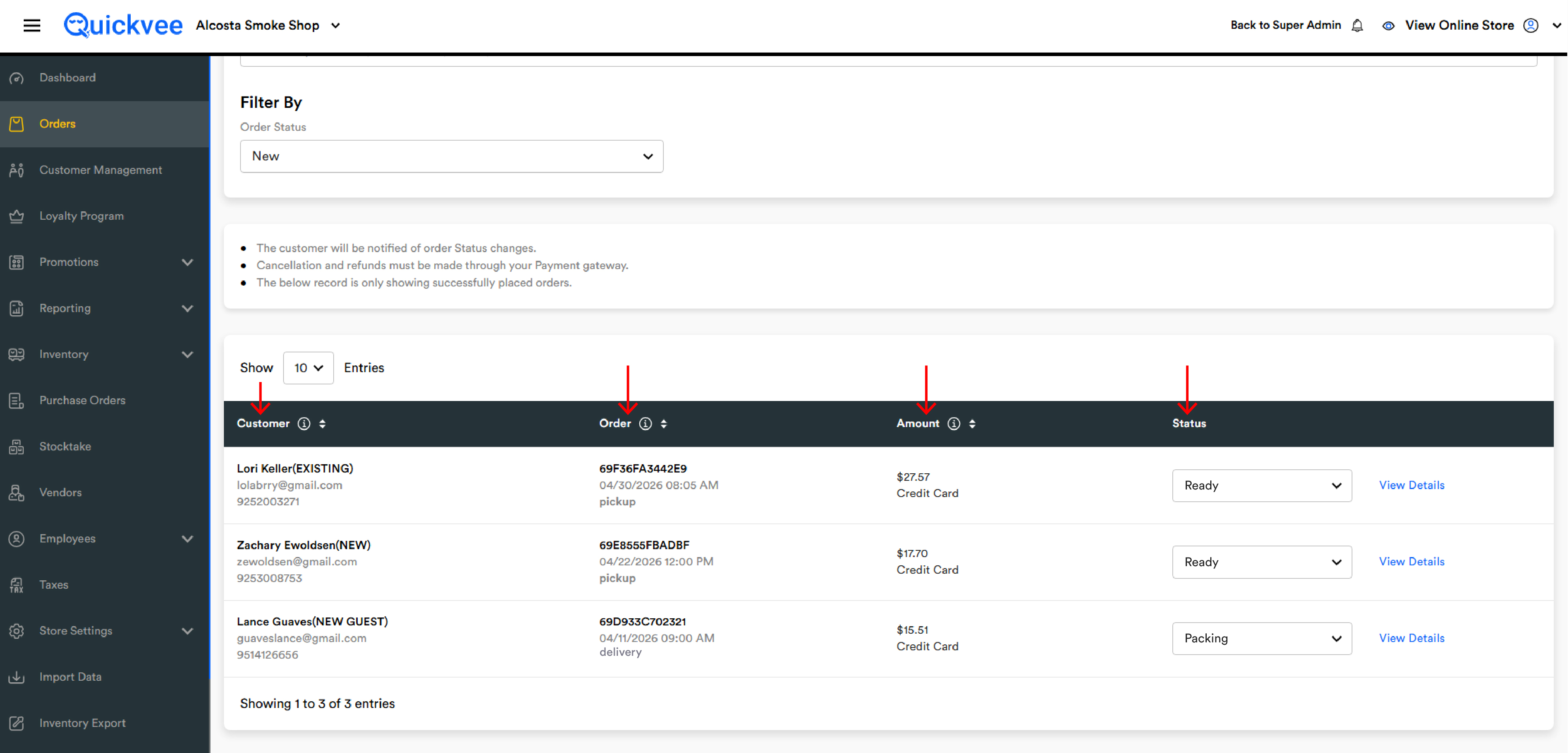
|
Column |
What it shows |
|---|---|
|
Customer |
Name, email, phone. A tag after the name — |
|
Order |
Order ID, date/time the order was placed, and the order type — |
|
Amount |
Grand total with the payment method labelled beneath (e.g. |
|
Status |
A dropdown showing the order's current status. Click to change it |
A View Details link to the right of the status opens the full order page.
The Customer (NEW) tag is handy during a rush — a new customer may need more hand-holding at pickup (ID verification, first-time explanation), whereas an (EXISTING) customer is usually in and out.
Moving an order through the workflow
Each online order follows a status workflow, and you drive it forward manually as you prepare the order. The available statuses depend on the order type.
Pickup orders
Accepted → Packing → Ready → Picked-Up
-20260601-071646.jpg?cb=eb5647f355e2f8f8c3dd80f8ed29cc8f)
|
Status |
When to set it |
|---|---|
|
Accepted |
You've acknowledged the order and will fulfill it. Set this when you first see the order come in |
|
Packing |
A staff member is physically pulling items off the shelf |
|
Ready |
Everything is bagged and waiting at the counter. The customer gets a notification telling them they can come collect it |
|
Completed / Picked-Up |
The customer has taken the order. This closes the workflow |
|
Cancel |
Something's wrong and the order won't be fulfilled (see Canceling an order below) |
Delivery orders
Accepted → Packing → Out for Delivery → Delivered
|
Status |
When to set it |
|---|---|
|
Accepted |
You've acknowledged the order |
|
Packing |
The order is being prepared |
|
Out for Delivery |
The order has left the store with a driver (yours or a delivery partner) |
|
Completed / Delivered |
The customer has received the order |
|
Cancel |
The order won't be fulfilled |
Changing the status
Click the status dropdown on the row in the list, or use the Order Status tracker on the detail page. The status you pick is pushed to the customer immediately, so only move the status forward when it's true.
Once an order reaches a terminal state — Ready, Out for Delivery, Completed, or Delivered — the status can no longer be freely changed back. This is intentional, because the customer has already been notified and acted on that notification. If you need to correct a status change, contact support.
Canceling an order
Changing an order's status to Cancel stops the fulfillment and notifies the customer that the order won't go through. But cancellation in Quickvee is only half the picture:
-
Change the status to Cancel in Quickvee. The customer is notified and the order moves to the Failed filter.
-
Issue the refund in your payment gateway separately. Quickvee does not automatically return the money on a cancel — you have to do that through USAePay (or whichever processor you're using).
The one exception is automated USAePay refunds for Uber and item-level returns, which can be configured to fire a refund automatically. For everything else, treat cancel + refund as two steps.
The order detail page
Clicking View Details on a row opens the full order page. The layout is divided into a main column on the left and a detail stack on the right.
Order Status tracker (top)
A horizontal progress tracker visualises where the order is. For a pickup order it shows four circles: Accepted → Packing → Ready → Picked-Up. The circle the order is currently at is filled in and coloured; earlier stages show as completed (checkmark), later stages are greyed out. The order type label (Pickup or Delivery) sits to the right of the tracker.
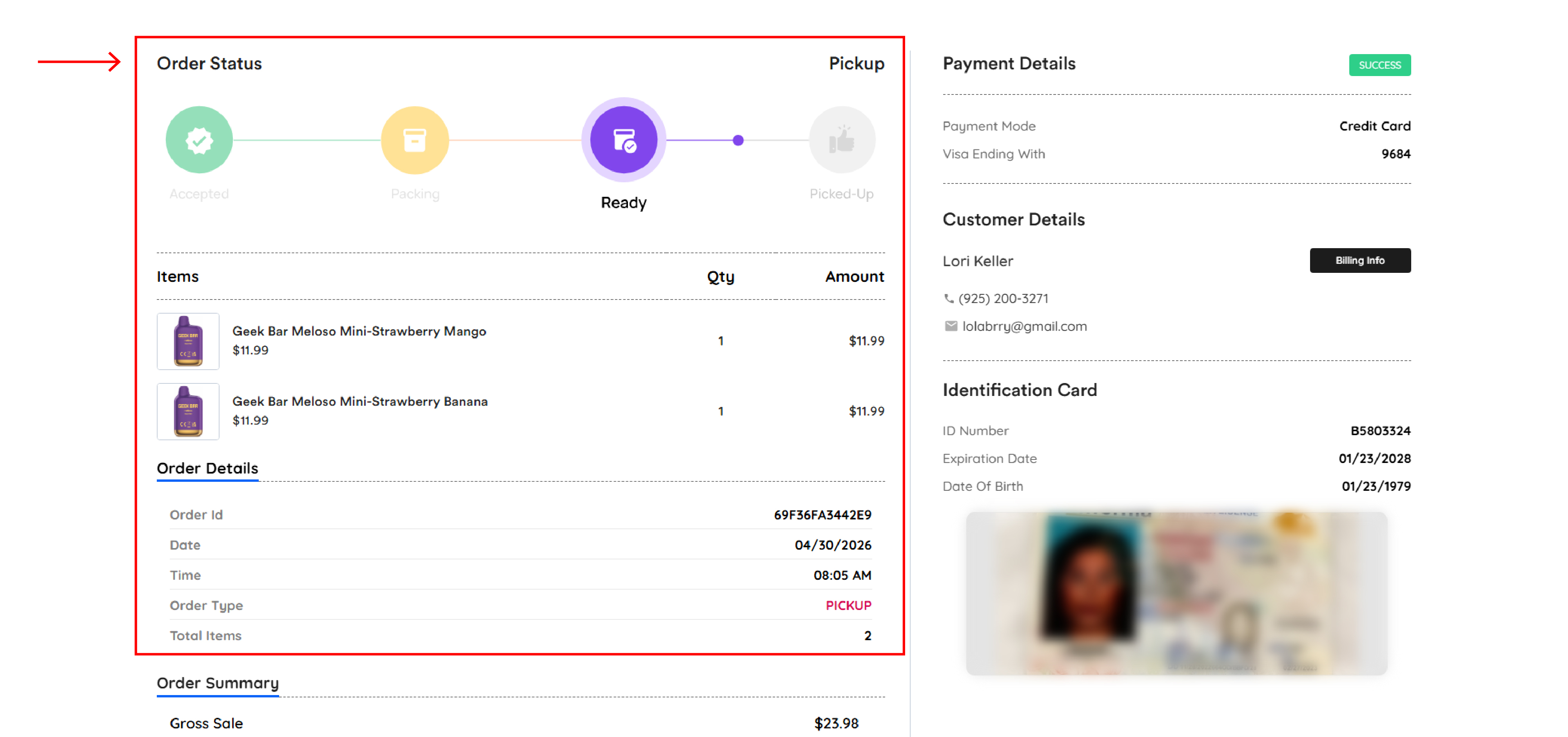
Items
A table listing every product in the order: thumbnail, product name, unit price, quantity, and line amount.
Order Details
|
Field |
What it shows |
|---|---|
|
Order Id |
The unique order reference |
|
Date |
Date the order was placed |
|
Time |
Time of day the order was placed |
|
Order Type |
|
|
Total Items |
Sum of item quantities |
Order Summary, Taxes, Other Fees, Grand Total, Tenders, Loyalty Points
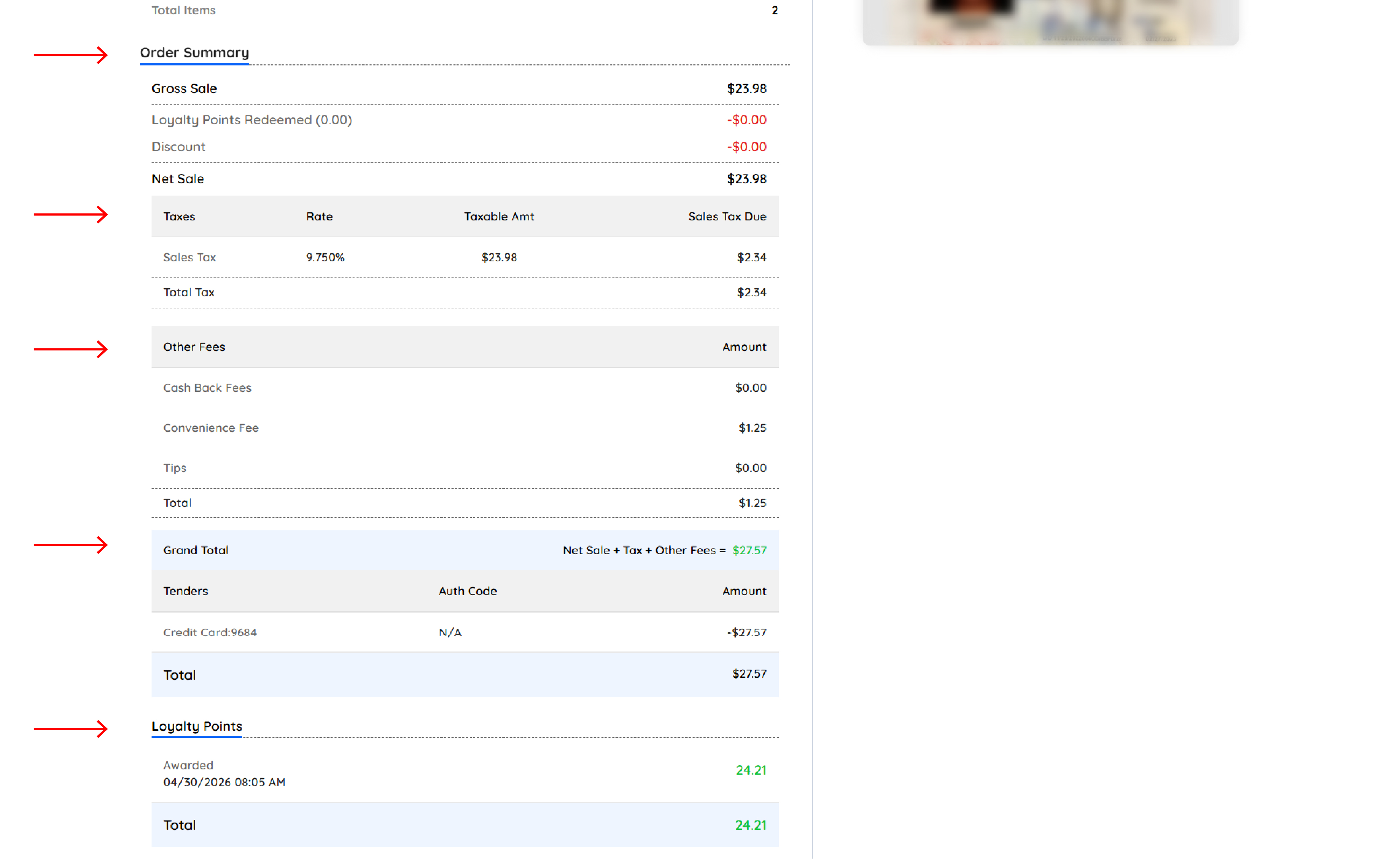
Same structure as the in-store order detail page: Gross Sale, Loyalty Points Redeemed, Discount, Custom Discount (if any), Net Sale, tax table, Cash Back Fees, Tips, Total, Grand Total, and the Tenders table.
Online tenders are always card — the Tenders row typically shows Card with an N/A auth code (online payments authorize through the gateway rather than through a card reader, so there's no register auth code to display).
The Loyalty Points section at the bottom shows the points awarded on this order, if the customer is enrolled.
Payment Details panel (right)
-20260601-072005.jpg?cb=6c1f9dc634e00bc6e245d44ce805a9e5)
-
Payment Mode — Credit Card, Debit Card, etc.
-
Visa/Mastercard Ending With — last four of the card that paid
-
SUCCESS badge at the top right when the gateway confirmed payment
Customer Details panel (right)
Customer name, phone, email, and a Billing Info button that expands the billing address on file.
Identification Card panel (right)
Online ordering of age-restricted products requires the customer to upload a government-issued ID at checkout. When they do, the detail page surfaces:
-
ID Number
-
Expiration Date
-
Date Of Birth
-
A Front Side image of the scanned ID
Always verify the ID at pickup or delivery against the customer actually receiving the order. The panel is there to help you confirm the buyer meets the age requirement; it does not replace your in-person check.
Why online orders only show card payments
Online payments run through your gateway — the customer enters a card on the website and the gateway authorizes it. That's why:
-
You'll never see
Cashas a payment method on this tab -
The Tenders row shows
CardwithN/Ain the Auth Code column; the authorization lives in the gateway, not on the Quickvee order -
Refunds go back to the original card, through the gateway
Common questions
A customer called and said they didn't get the "Ready" notification
Check the status on the list view — if it says Ready, the notification was sent. If it says Packing or Accepted, the customer hasn't been notified yet. Common causes of a missed notification are the customer's phone number or email being mis-entered at checkout.
I clicked Cancel but the customer's card wasn't refunded
That's by design. Cancellation in Quickvee stops the fulfillment and notifies the customer, but the refund is processed separately through your payment gateway. Open your gateway portal and issue the refund there. The exception is the automated USAePay flow for Uber and item-level returns, if it's enabled on your account.
An order isn't showing on the list
Check three things: (1) the date range covers when the order was placed, (2) the status filter isn't excluding it (switch to All to be sure), and (3) the payment actually went through — failed checkouts don't appear here at all.
Can I see both pickup and delivery orders on the same list?
Yes. The list is unified; the pickup / delivery label in the Order column tells you which is which. If you only want to see one type, sort or filter by that column.
Why does the Tenders row show an N/A auth code?
Online card payments are authorized by your gateway, not at a physical card reader, so there's no register auth code to record on the order. The authorization itself is on file with the gateway under the order ID.
The customer uploaded an ID at checkout but the Identification Card panel is empty
The panel only appears for orders that contain age-restricted items and when the ID upload completed successfully. If you're expecting to see one and it's missing, contact support — it usually indicates the upload was interrupted or the image failed to save.
Can I change the payment on an online order?
No. The payment is tied to the gateway authorization. If you need to switch tenders, cancel the order and have the customer re-order.
Why do I see orders with a 'Packing' status from hours ago?
Because status doesn't auto-advance. If a staff member marked the order Packing and then got distracted, it'll sit in Packing until someone updates it. A spike of old Packing orders usually means the workflow wasn't completed on a busy shift.