
The Orders (In-Store) tab in the web backend shows every transaction rung up at your POS register by an employee. This article covers the list view, filters, search, and what each piece of an order's detail page means.
Access path: Merchant Backend → Orders → Orders (In-Store) tab
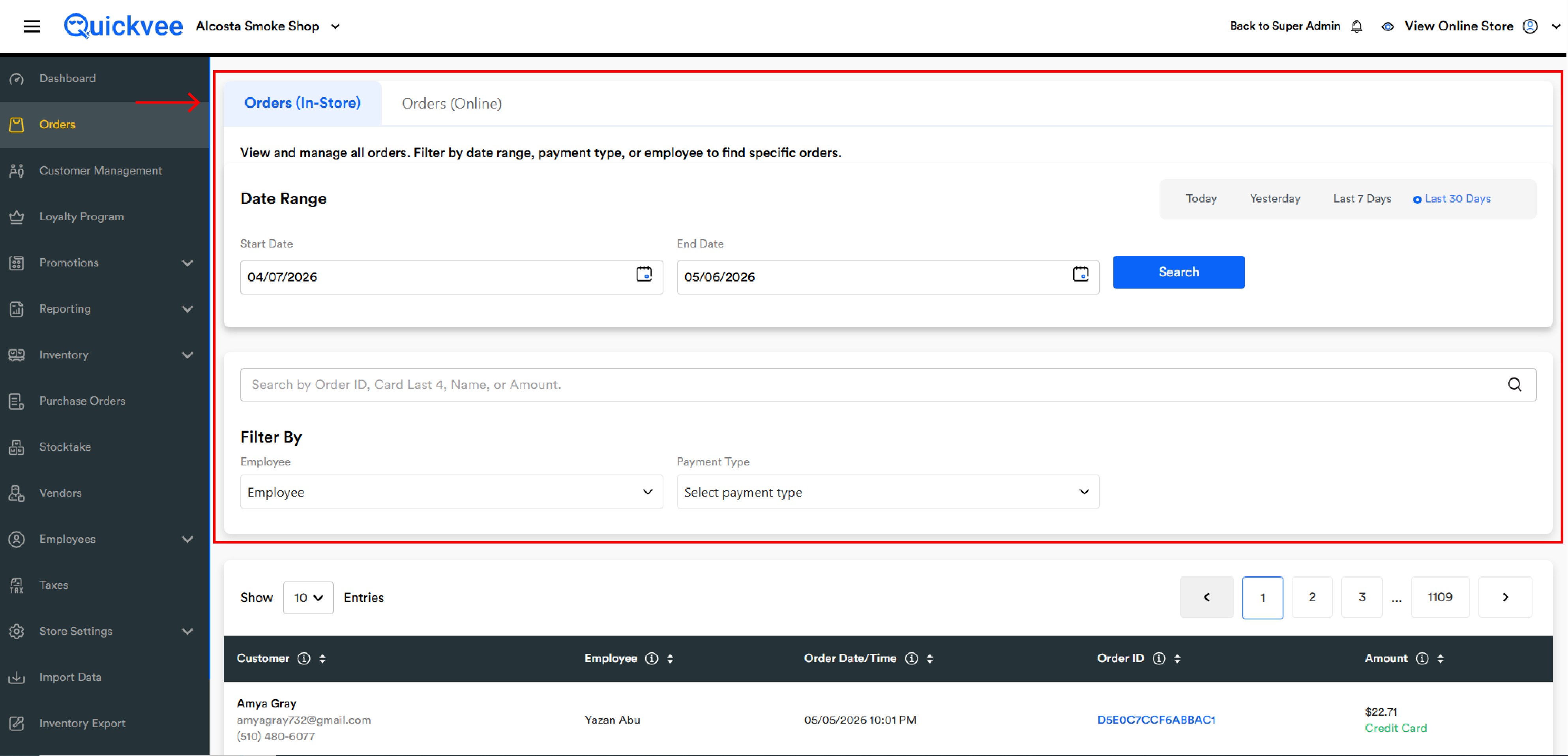
Header strip: "View and manage all orders. Filter by date range, payment type, or employee to find specific orders." Pick a window, narrow down, open the order you want.
The In-Store Orders list
Date range
Every view starts with a date range. Four quick presets sit to the right:
|
Preset |
What it does |
|---|---|
|
Today |
Sets both Start and End Date to today (default) |
|
Yesterday |
Sets both dates to the previous calendar day |
|
Last 7 Days |
Start Date = 7 days ago, End Date = today |
|
Last 30 Days |
Start Date = 30 days ago, End Date = today |
After picking a preset or typing custom dates, click Search to refresh.
Search bar
Below the date range, the search bar accepts any of four lookups:
-
Order ID — full or partial (e.g.
EEBC57F7F1F79C4B) -
Card Last 4 — last four digits of the card used to pay (e.g.
2025) -
Customer Name — works for named customers; walk-ins won't match
-
Amount — exact order total (e.g.
12.96)
Type to filter as you go; clear the bar to return to the date-range view.
Filter By
|
Filter |
Options |
|---|---|
|
Employee |
Every employee who rang up an order in the current range. A search bar inside the dropdown helps if your roster is long |
|
Payment Type |
Credit, Debit, Cash, Food EBT, Cash EBT — tick any combination or All |
Filters apply immediately — you don't need to click Search again.
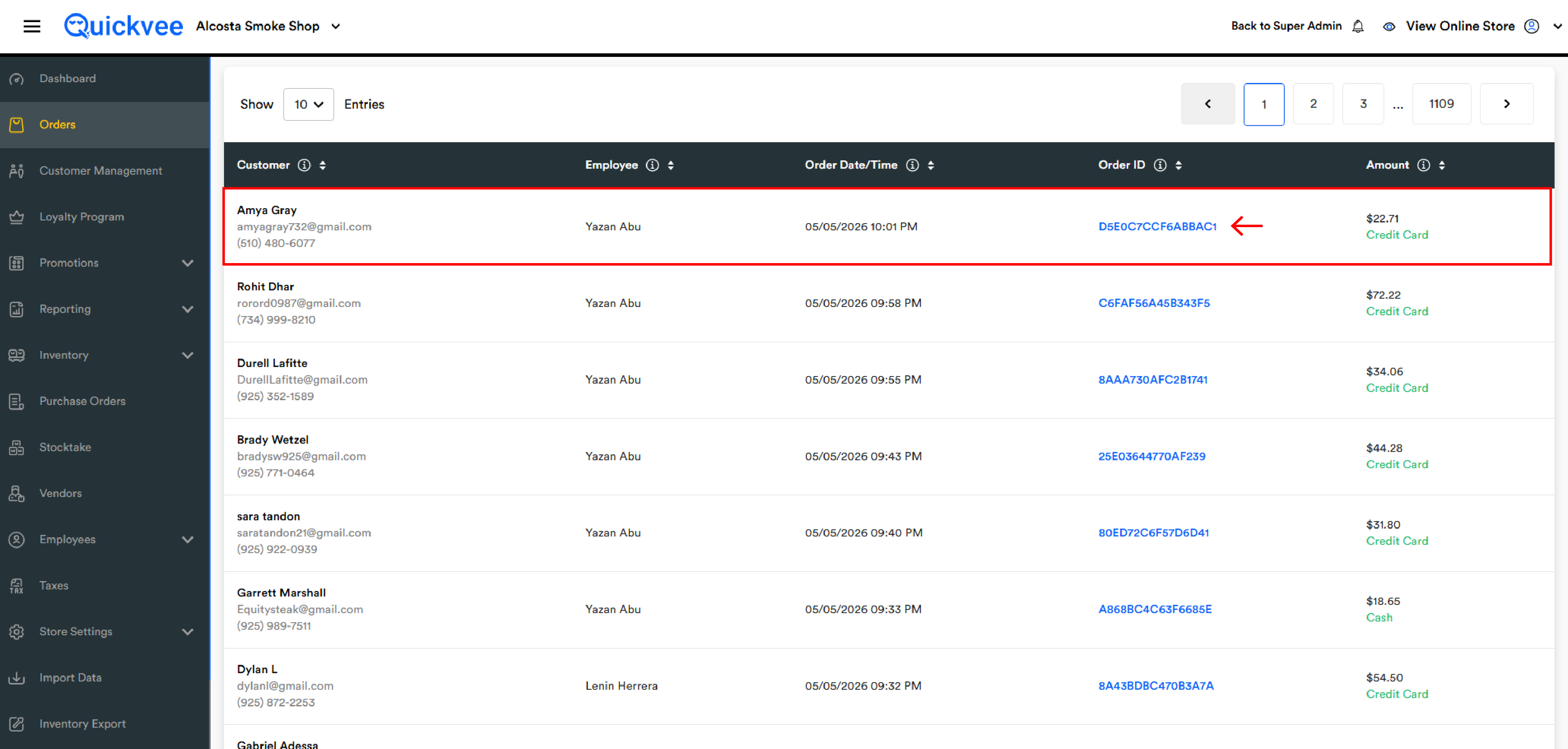
List columns
|
Column |
What it shows |
|---|---|
|
Customer |
The attached customer's name, email, phone. Orders without a customer show |
|
Employee |
The cashier who rang up the sale |
|
Order Date/Time |
When the order was completed at the register |
|
Order ID |
Unique order reference. Click to open the detail page |
|
Amount |
The grand total. Below the dollar amount, the payment method is shown in colour — Cash, Credit Card, or Split (orange) for multi-tender orders |
Show Entries selector (10, 100, etc.) controls how many per page. Pagination sits at the bottom.
Sort applies across the entire filtered date range, not just the visible page. Sorting by Amount floats the biggest order in the range to page 1.
Opening an order
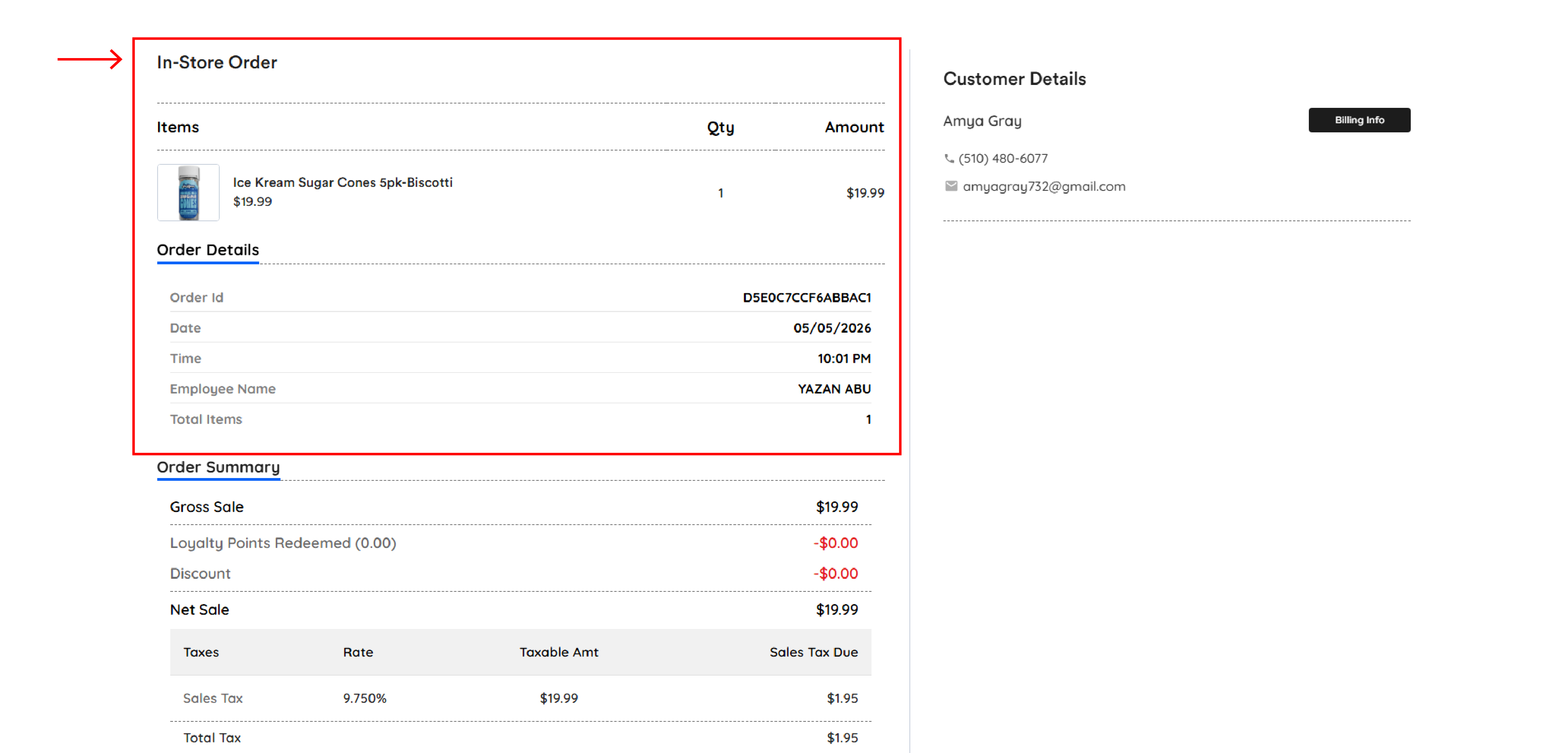
Click any Order ID to open the order's detail page. Header reads In-Store Order.
Items
One row per product sold, showing product name, unit price, quantity, and line amount.
Order Details
|
Field |
What it shows |
|---|---|
|
Order Id |
The full order reference |
|
Date |
Calendar date the order was rung up |
|
Time |
Time of day the order was completed |
|
Employee Name |
The cashier |
|
Total Items |
Sum of item quantities — not the count of distinct products. |
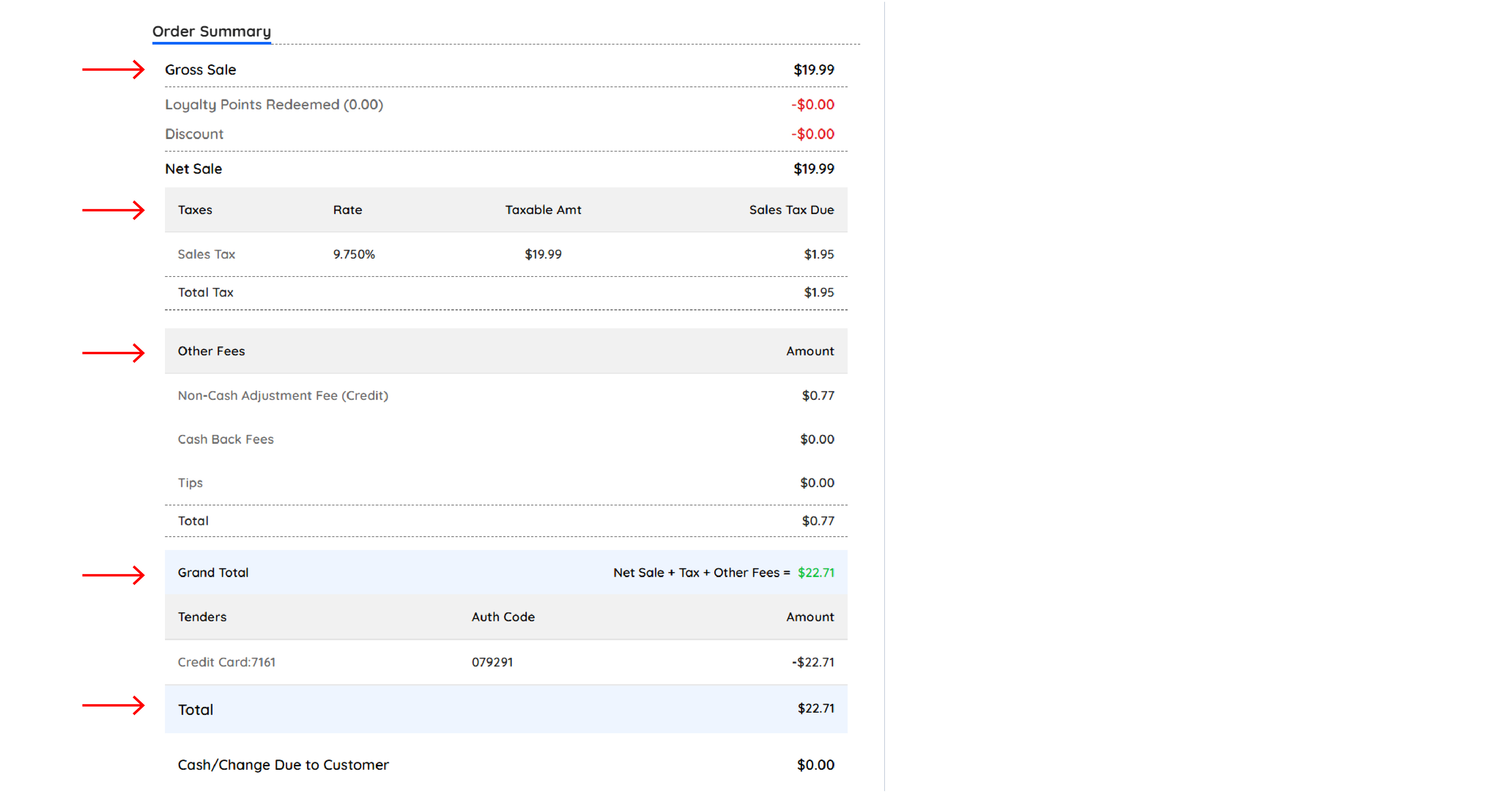
Order Summary
|
Line |
What it means |
|---|---|
|
Gross Sale |
Sum of item prices before any adjustments |
|
Loyalty Points Redeemed (n.nn) |
Points the customer spent. Number in parentheses is the point count; dollar value beside it is the redemption value. Shown in red because it reduces the sale |
|
Discount |
Percentage or fixed-amount discount from a predefined rule. Shown in red |
|
Custom Discount |
One-off discount typed in at the register (e.g. manual $3 off). Listed separately from Discount so the two reconcile against their respective reports |
|
Net Sale |
|
Taxes
|
Column |
What it shows |
|---|---|
|
Taxes |
Tax name (e.g. |
|
Rate |
Tax rate as a percentage (e.g. |
|
Taxable Amt |
Portion of Net Sale that this tax applies to — may be less than Net Sale if some items are tax-exempt |
|
Sales Tax Due |
|
Total Tax sums every tax row.
Other Fees
|
Field |
What it shows |
|---|---|
|
Cash Back Fees |
Fees charged on cash-back transactions |
|
Tips |
Tip the customer added at checkout |
|
Total |
Sum of the Other Fees section |
Grand Total
The final amount the customer paid. Right-side label: Net Sale + Tax + Other Fees = $xx.xx.
Tenders
|
Column |
What it shows |
|---|---|
|
Tenders |
The payment method. For cards, last four digits appear after the tender name (e.g. |
|
Auth Code |
Authorization code returned by the card processor (blank for cash) |
|
Amount |
Dollar amount paid with that tender, shown as a negative because it reduces the balance due |
A single-tender order has one row. Split payment orders have one row per card or cash portion, summing to the grand total. The list view shows Split in orange below the amount for these orders.
Cash/Change Due to Customer line shows change handed back (usually $0.00 on card-only orders; positive on cash-paid orders where the customer gave more than the total).
Loyalty Points
If a customer was attached and loyalty is active, a Loyalty Points section appears:
-
Awarded — points earned on this order, with date and time
-
Total — sum of points activity on the order
Customer Details panel
If a customer was attached, a panel on the right shows their name, phone, and email. A Billing Info button reveals their billing address. If no customer was attached, the panel is absent and the order shows as Walk-In Customer.
Common patterns
Walk-in vs named customer
A walk-in order has no customer record attached, no email goes out, and no loyalty points are earned. If a customer forgot to check in at the register, there's no way to attach them after the fact from this screen.
Split payment
If the customer paid with more than one tender, the order shows Split in the Amount column of the list, and every tender appears as a separate row in the Tenders table. Grand Total = sum of all tender amounts.
100% loyalty redemption
If a customer pays the full order with loyalty points, Net Sale = $0.00 and Grand Total = $0.00. The Loyalty Points Redeemed line shows the point count and dollar value; the Tenders row shows Cash −$0.00.
Custom Discount vs Discount
Discount covers anything driven by a configured promotion (coupons, Mix & Match, BOGO). Custom Discount covers manual price adjustments typed in at the register.
Common questions
Why doesn't the date range include today by default for Last 7 / Last 30 Days?
The "Last N Days" presets do include today — Last 7 Days is today back through 6 days ago. To exclude today, set End Date manually.
I searched by Card Last 4 and got nothing
Card Last 4 search only matches card tenders. Cash and EBT orders won't appear.
An order isn't in the list but I know it happened today
Confirm: date range is Today; no Employee or Payment Type filters narrowing the list; you're on the In-Store tab (not Online). If none of those is the cause, the order may not have synced from the POS yet — wait a minute and click Search again.
The Amount column shows two different colours — what do they mean?
The payment-method label under the amount is colour-coded: green for completed card or cash, orange for Split to flag multi-tender orders.
Can I refund or void an order from this screen?
No. Refunds and voids are handled at the POS register. This module is for viewing and reporting.
Can I email a customer their receipt from this screen?
Receipts are sent automatically at the register when the customer is attached. There's no resend-receipt button here — the cashier can resend from the POS order summary.
Why do some orders show Total Items: 4 when the item list has only 2 lines?
The list shows distinct products; Total Items sums the quantity on each line. An order with 3 × water + 1 × lighter has 2 item lines and a Total Items of 4.