
The View Receipts feature lets merchants access and reprint completed transactions directly from the register without leaving the POS.
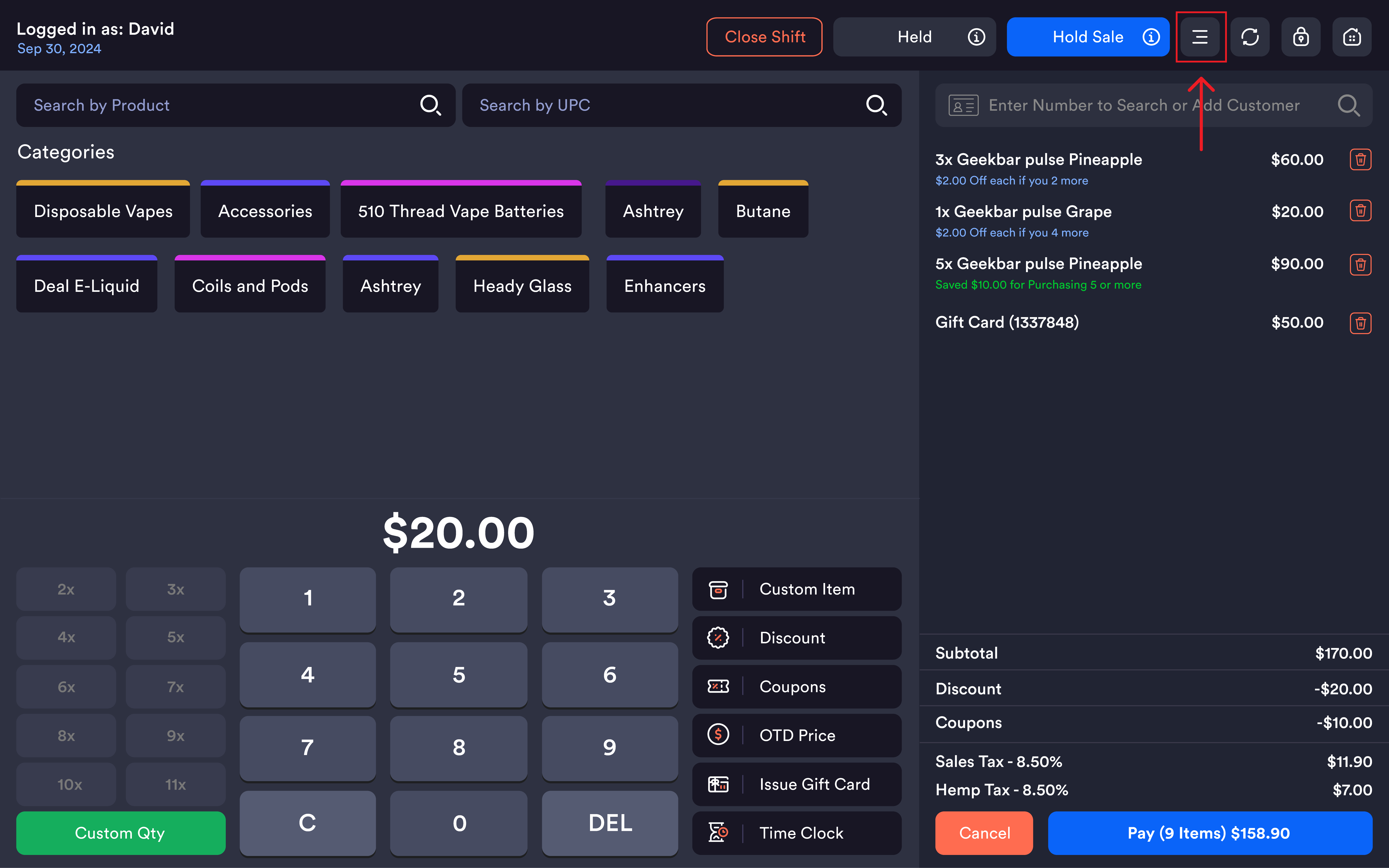
Step 1 — Open the menu
Tap the ≡ menu icon in the top bar of the register screen.
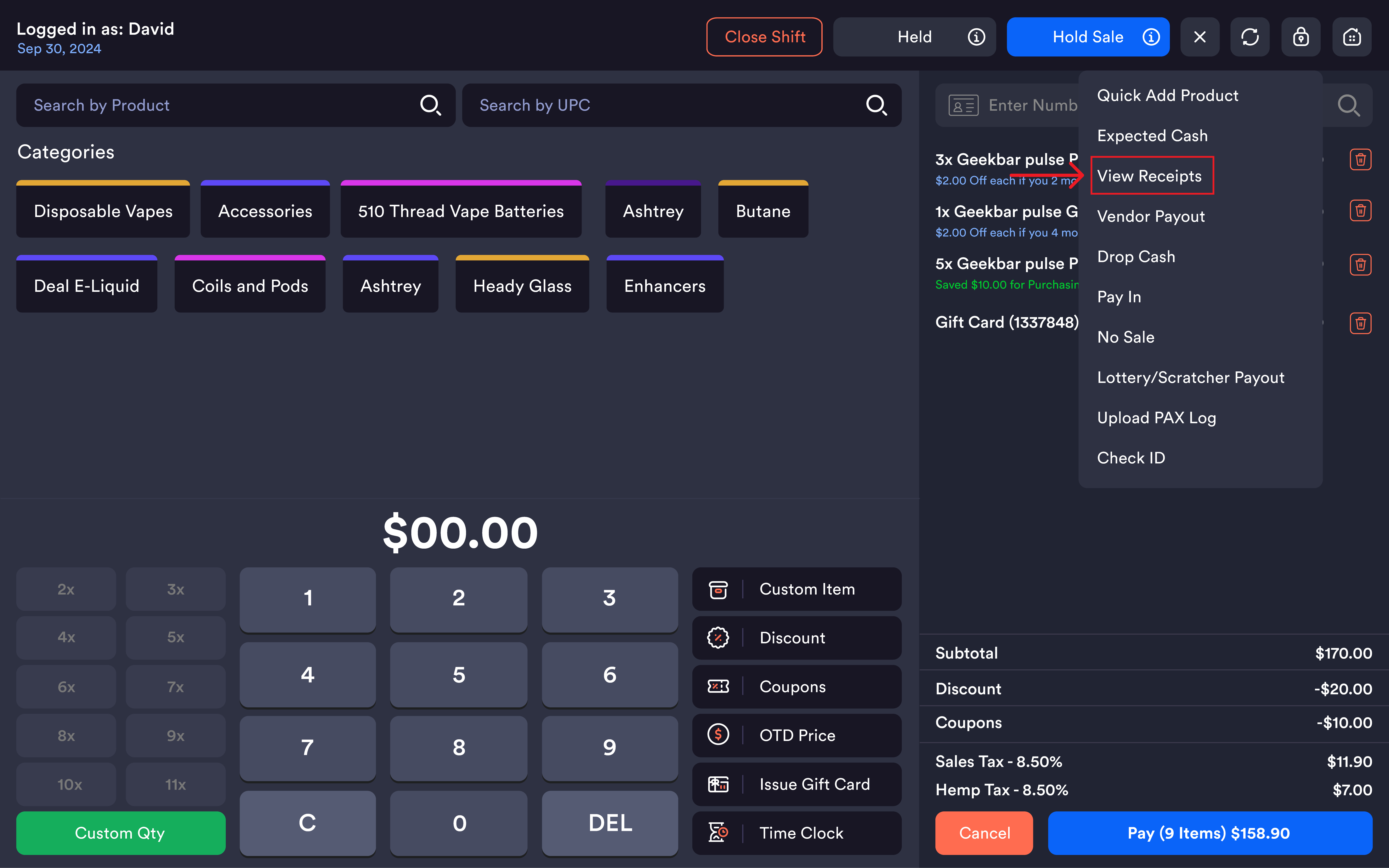
Step 2 — Select View Receipts
From the dropdown menu, tap View Receipts.
Step 3 — Browse the receipts list
The Receipts screen opens, displaying all completed transactions for the current date. Each entry shows:
-
Time — when the transaction was completed (e.g. 07:00 PM)
-
Price — the total amount charged (e.g. $58.56)
Use the 📅 calendar icon in the top-right to switch to a different date.
-20260527-110047.png?cb=9c404197b355c15697827c9ee731f50f)
Step 4 — View order details
Tap any transaction from the list to open its full details:
Order Details
-
Order ID
-
Date
-
Time
-
Employee Name
-
Total Items
Order Summary
-
Product image, name, unit price, quantity, and line total
-
Full price breakdown
-20260527-110119.png?cb=9c404197b355c15697827c9ee731f50f)
Step 5 — Reprint a receipt
-
Tap the 🖨 print icon (bottom-right of the order detail view)
-
A Print popup appears with two options:
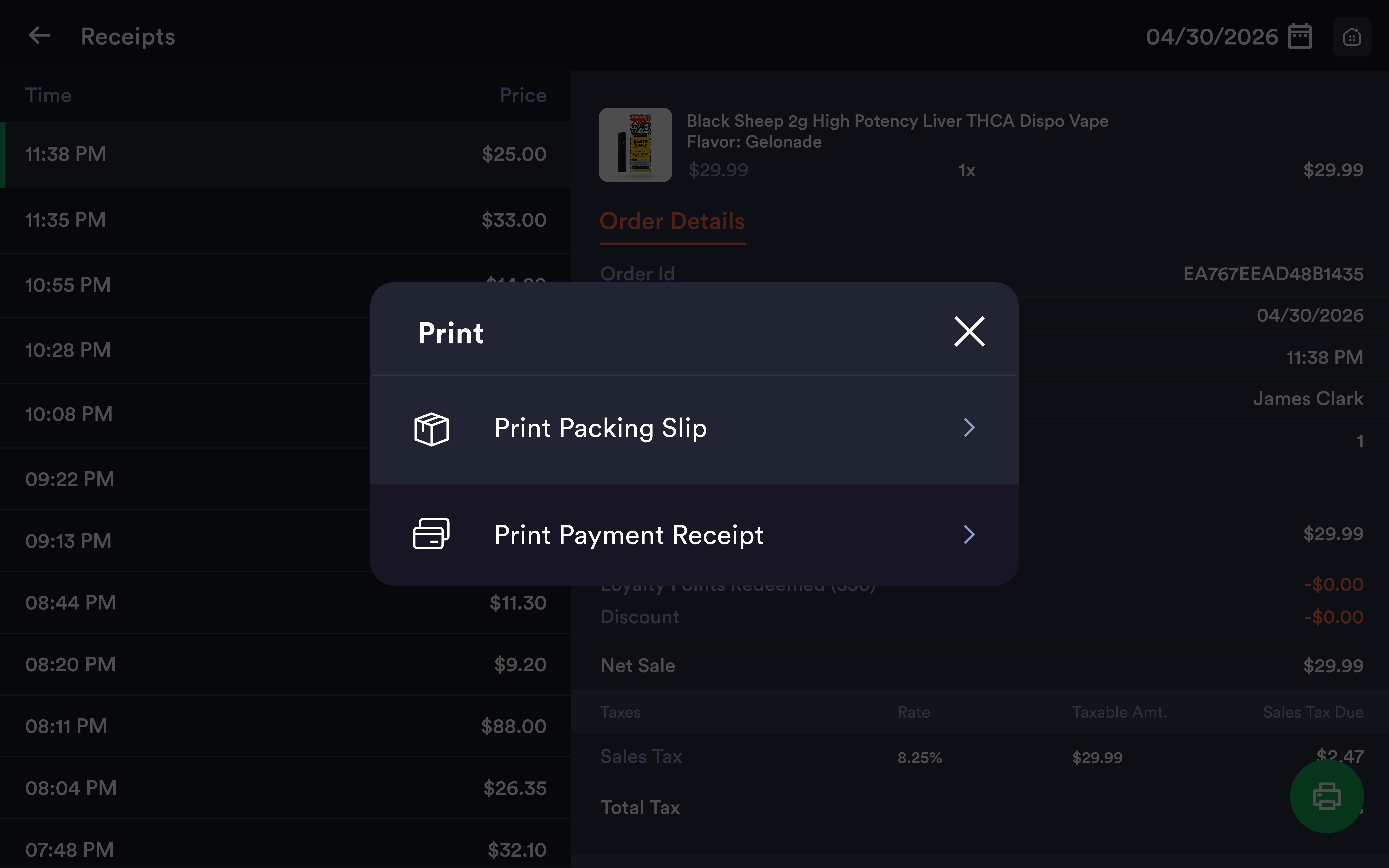
|
Option |
Description |
|---|---|
|
Print Packing Slip |
Prints a packing/fulfillment slip for the order |
|
Print Payment Receipt |
Prints the customer payment receipt |
-
Tap the desired option to send to the connected printer
Step 6 — Return to register
Tap the ← back arrow in the top-left of the Receipts screen to return to the register.