
The Time Clock lets employees clock in, clock out, and take breaks directly from the POS register. Every clock action is recorded against the employee's PIN, so their hours flow into your Timesheet reports automatically.
The Time Clock is independent from selling. An employee can be clocked in but the register might still be locked, or another employee might be ringing up sales. Clocking in records who is on the clock for payroll; opening or signing into the register is a separate action.
Where to find it: Tap the three-dot menu (top-right of the POS register) → Time Clock. The Time Clock option is in the same menu as Custom Item, Discounts, Coupons, OTD Price, and Issue Gift Card.
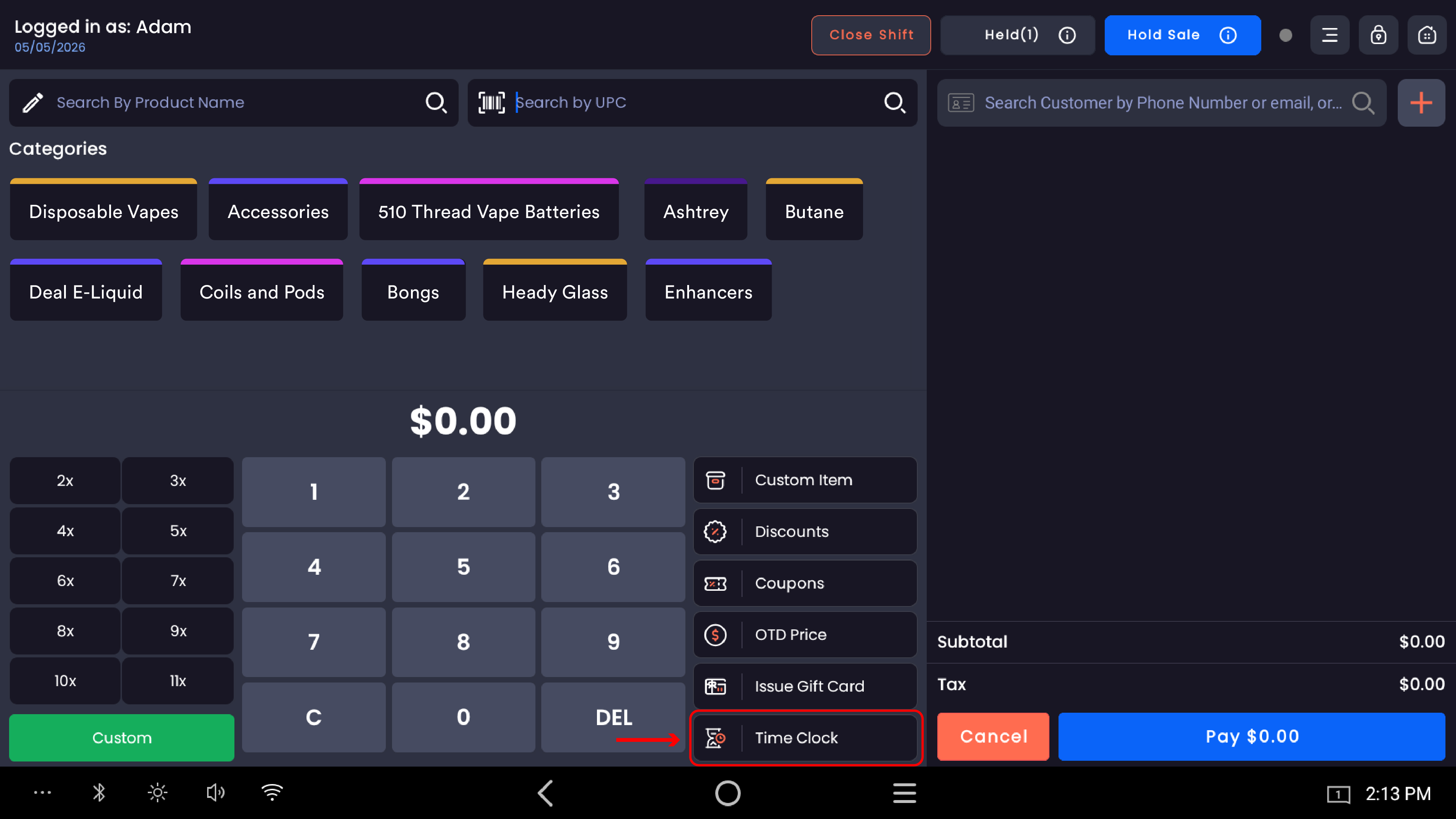
Step 1 — Open the Time Clock
From the register screen, tap the menu and choose Time Clock. The PIN entry screen opens — a black full-screen pad showing Please Enter Passcode with four PIN dots and a 0–9 keypad.
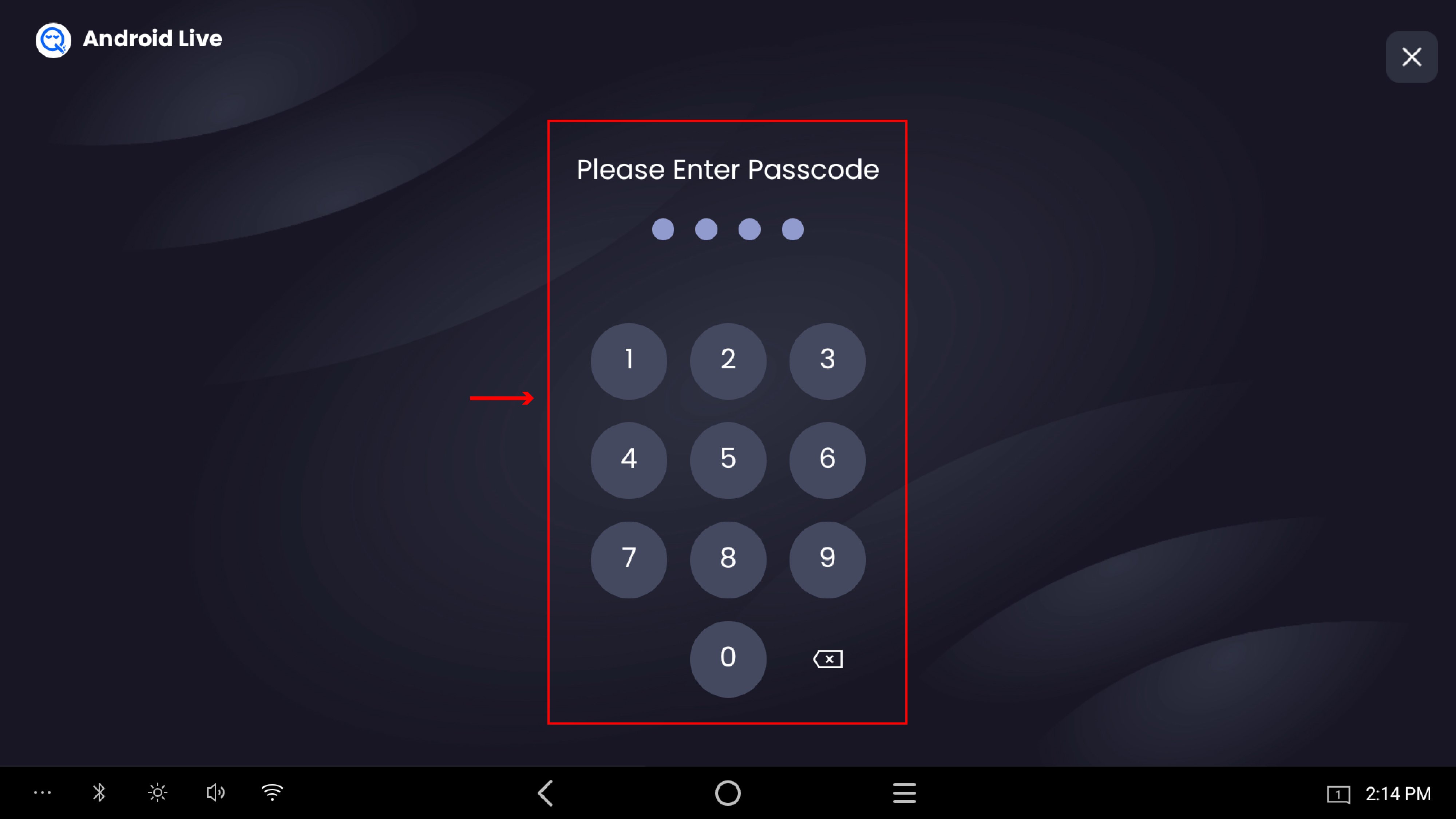
The Time Clock requires the employee's own PIN. Don't share PINs across staff — every clock action is recorded against whoever's PIN was entered.
Step 2 — Enter the employee PIN
Type the four-digit PIN on the keypad. Each tap fills one of the four dots at the top.
|
Action |
What it does |
|---|---|
|
0–9 |
Enters a digit |
|
⌫ (backspace) |
Clears the last digit you entered |
|
✕ (top-right) |
Closes the PIN screen and returns to the register without clocking in or out |
If the PIN is correct, the system advances to the Clock In/Out screen. If the PIN is wrong, an "Invalid Passcode" message appears.
Don't tap a digit during the moment of confirming a PIN action — the system needs a beat to process. Wait for the screen to respond.
Step 3 — Clock in, clock out, or start a break
After a valid PIN, the Clock In/Out modal opens with subtitle "Track your work hours easily. View attendance history or clock in."
The middle of the modal shows Last check in or Last check out with the date and time of the employee's most recent clock action.
Action buttons
|
Employee state |
Buttons shown |
What they do |
|---|---|---|
|
Not clocked in |
Clock In (green) |
Records the clock-in time and starts the shift |
|
Clocked in, on shift |
Clock Out (green) + Start Break (red) |
Clock Out ends the shift; Start Break begins a break |
|
On break |
End Break (or Resume) |
Ends the break and resumes the shift |
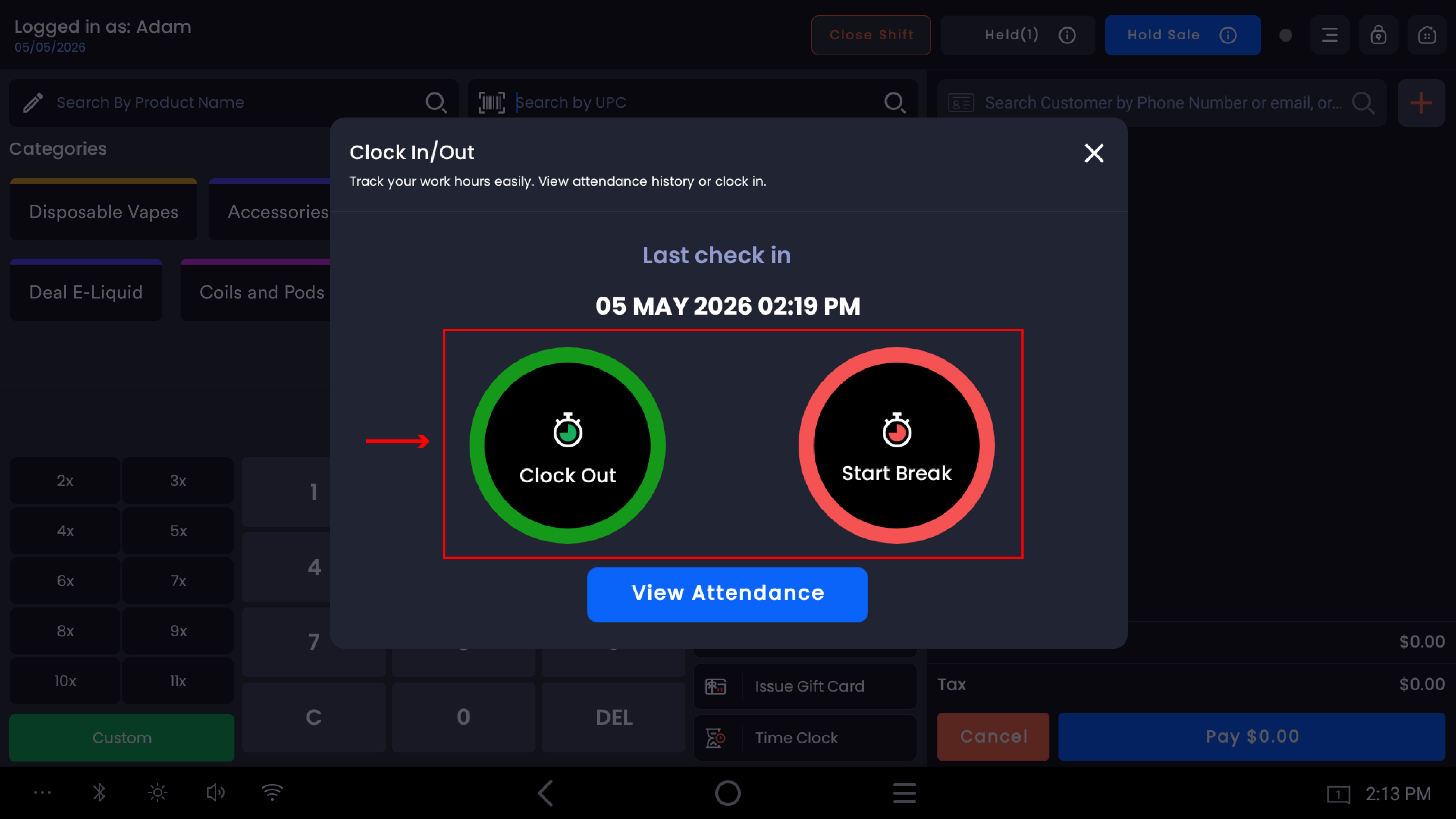
The button automatically reflects the employee's true state. If you ever see Clock In when the employee is already on shift, refresh the screen and try again.
A blue View Attendance button at the bottom takes the employee to a read-only summary of their recent clock-ins and clock-outs.
Tap the ✕ at the top-right of the modal to close it without taking any action.
-20260529-132612.jpg?cb=31ef26e18d0744f8aa25ebefe8cc6ae9)
Breaks
Breaks are tracked separately from clock-out. An employee on break is still on shift — the system just records the time they weren't actively working.
Starting a break
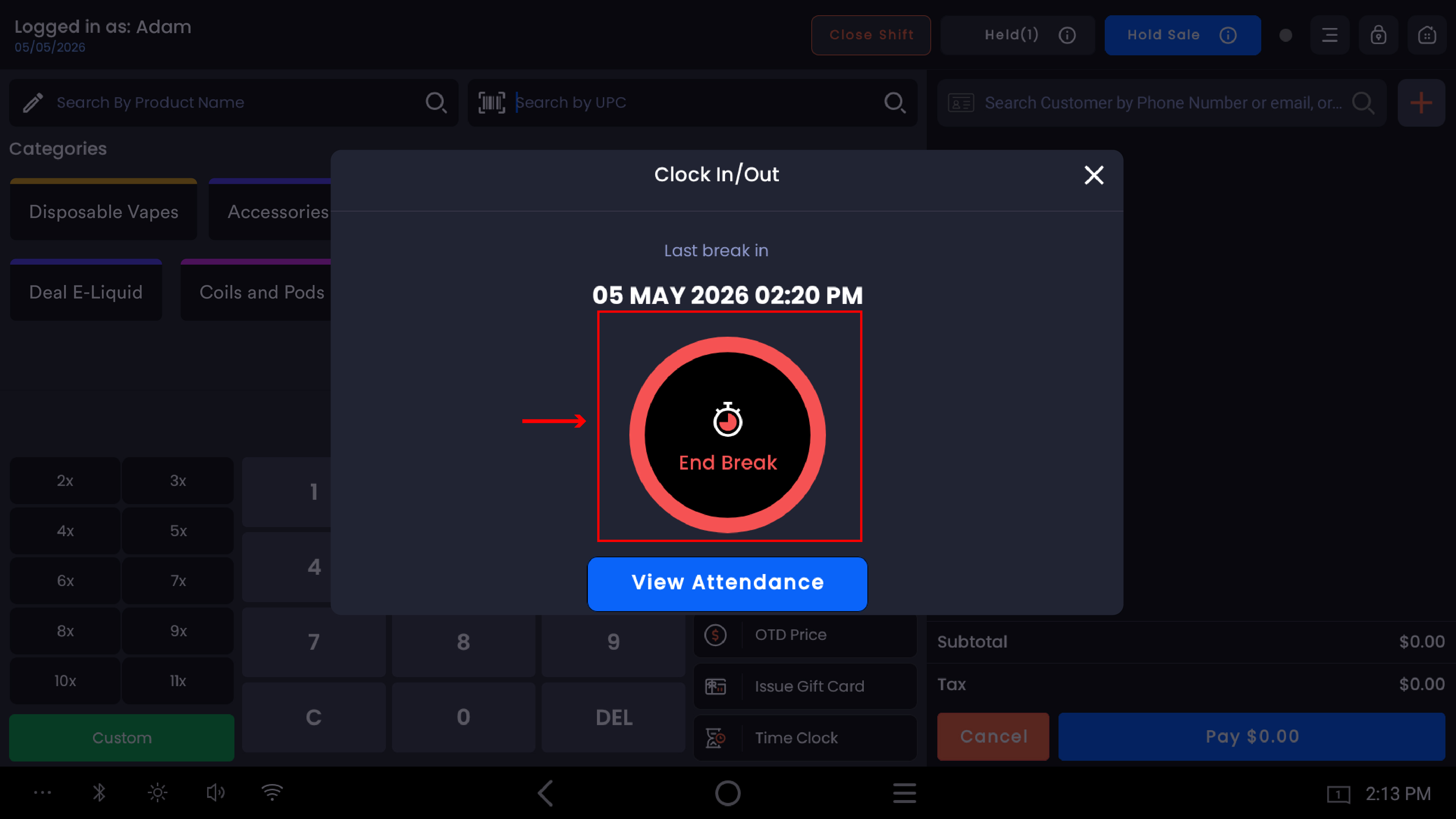
With the employee clocked in, tap Start Break. The system records the break start time. The modal updates to show End Break/Resume the next time you open it with the same PIN.
Ending a break
Re-open the Time Clock with the same PIN. Tap End Break/Resume. The system records the break end time and the employee is back to "on shift" status.
Paid vs unpaid breaks
Whether a break is paid or unpaid is configured in your store's Break & Compliance settings (web backend). Common configurations:
-
15-minute paid break every 2 hours
-
15-minute paid break every 4 hours
-
30-minute unpaid meal break for shifts over a configured length
The POS records the break time; rules in Break & Compliance decide whether it counts as paid or unpaid for payroll.
Inactive break types won't appear on the POS time clock. If staff report a break option missing, check whether it's been deactivated in the web backend.
Clocking out at the end of shift
Tap Time Clock → enter PIN → tap Clock Out. The system records the clock-out time and closes the shift. Any open break must be ended first — you cannot clock out while still on break.
Stores open past midnight: Time Clock works correctly across midnight. Clock-out at 1 AM closes the shift that started before midnight.
Clock-out is not the same as closing the register. An employee can clock out without affecting the register's open shift or the cash drawer. The two systems are separate.
Viewing attendance
Tap View Attendance from the Clock In/Out modal to see a summary:
-
Total work data — cumulative hours worked
-
Total break data — total minutes on break
-
Actual work data — work time minus break time, used for payroll
This is a read-only view from the POS. Managers needing to edit a punch do that from Timesheet in the web backend.
Permissions
-
Every employee with a PIN can clock themselves in, out, and take breaks — no special permission required
-
Editing or deleting another employee's punch is a manager-level action performed from the web backend Timesheet module
-
The PIN itself is the audit trail. Don't enter another employee's PIN to clock them out — record manual adjustments in the Timesheet instead
Common questions
The "Clock Out" button isn't showing — only "Clock In." Usually a stale state. Close the modal, re-tap Time Clock, re-enter the PIN. If the wrong button still shows, check the web backend Timesheet.
An employee said they clocked in but the Timesheet shows nothing. Confirm they entered their own PIN. Check whether the clock-in entry was deleted from the web backend. If neither, refresh the POS app.
The PIN is correct but the system says "Invalid Passcode." Check whether the employee's PIN was changed in the web backend, or whether their account is still active.
The employee took a break but it shows as 0 minutes. Most often End Break wasn't tapped — the break is still open. Re-enter the PIN and end the break, or fix the duration in the web Timesheet.
An employee clocked out but their hours don't appear on payroll. Reports may be cached. Refresh the Timesheet view in the web backend.
Can I edit a clock entry from the POS? No. Edits happen in the web backend Timesheet only.
Two employees share a station. How do they clock in separately? Each enters their own PIN. The clock state is per-PIN, not per-station.
A break is being flagged as outside shift range. Happens when a break's end time is later than the clock-out time. Fix it in the web Timesheet by adjusting either the break or the clock-out.
The Time Clock screen is gray and slow to load. A brief gray transition is normal. If it persists, check the network indicator. If chronic, contact support.