
The Store tab in POS Order Management is where cashiers and managers handle every in-store transaction processed on the POS register. From here you can look up any paid order, view full order details, reprint receipts, initiate refunds, and void orders.
Access path: POS Home → Orders → Store tab
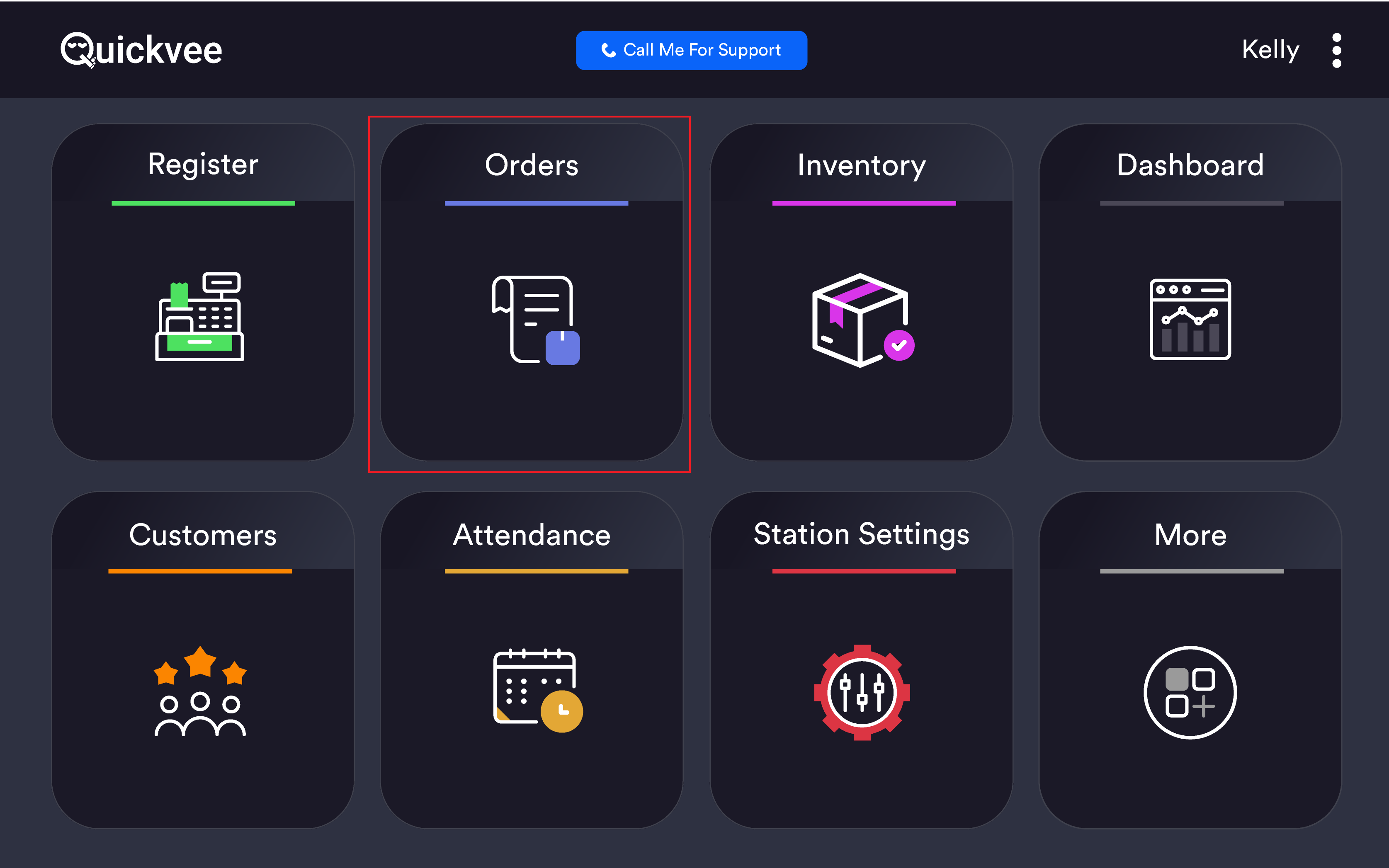
The Orders tile on the home screen displays a badge showing the number of pending or new orders requiring attention.
Order status filters
Three filter buttons sit at the top-right of the Order Management screen:
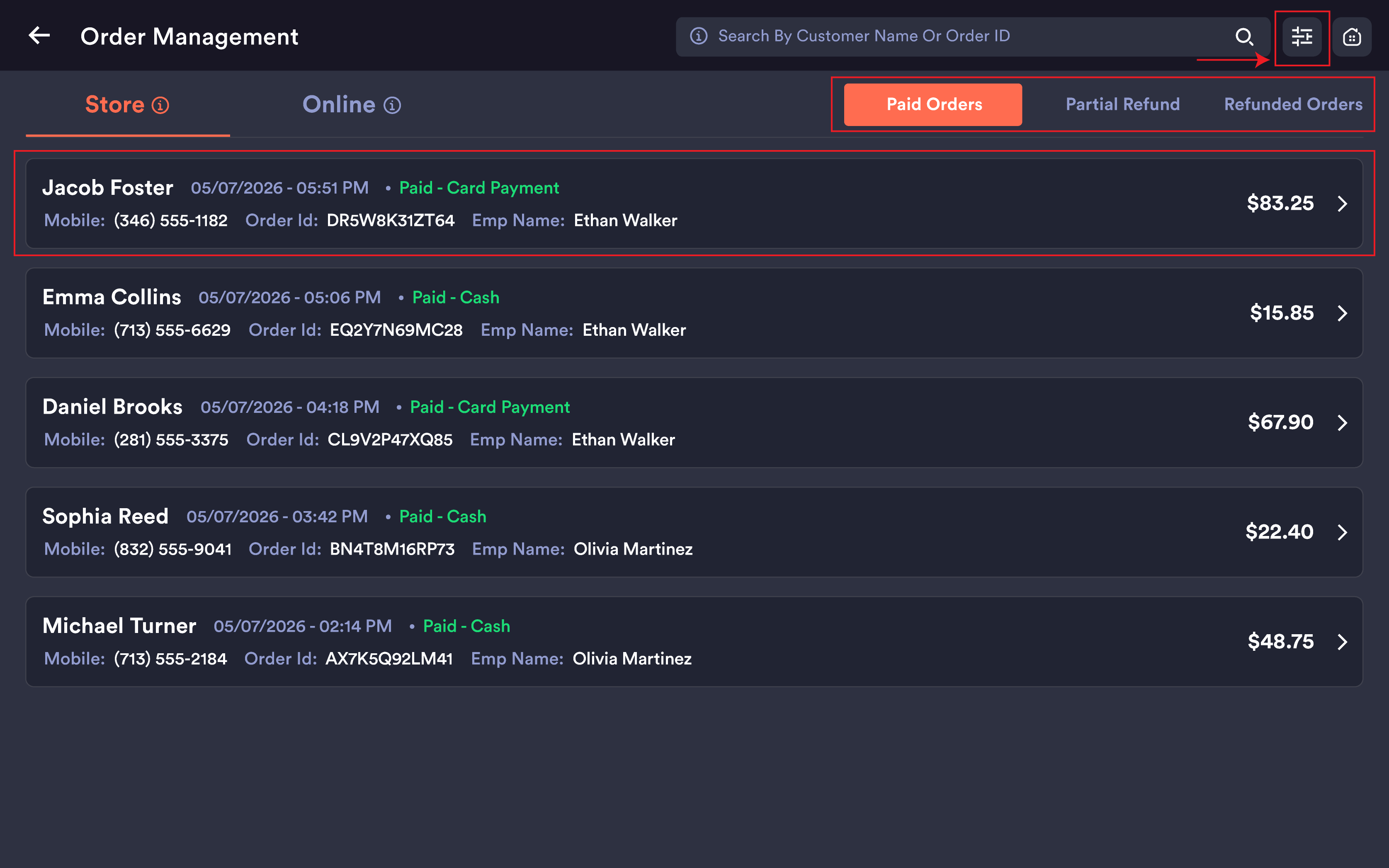
|
Filter |
What it shows |
|---|---|
|
Paid Orders |
Fully paid orders with no refund activity |
|
Partial Refunded |
Orders where a partial refund has been issued |
|
Refunded Orders |
Orders that have been fully refunded |
The active filter is highlighted in orange. Tap any filter to switch views instantly.
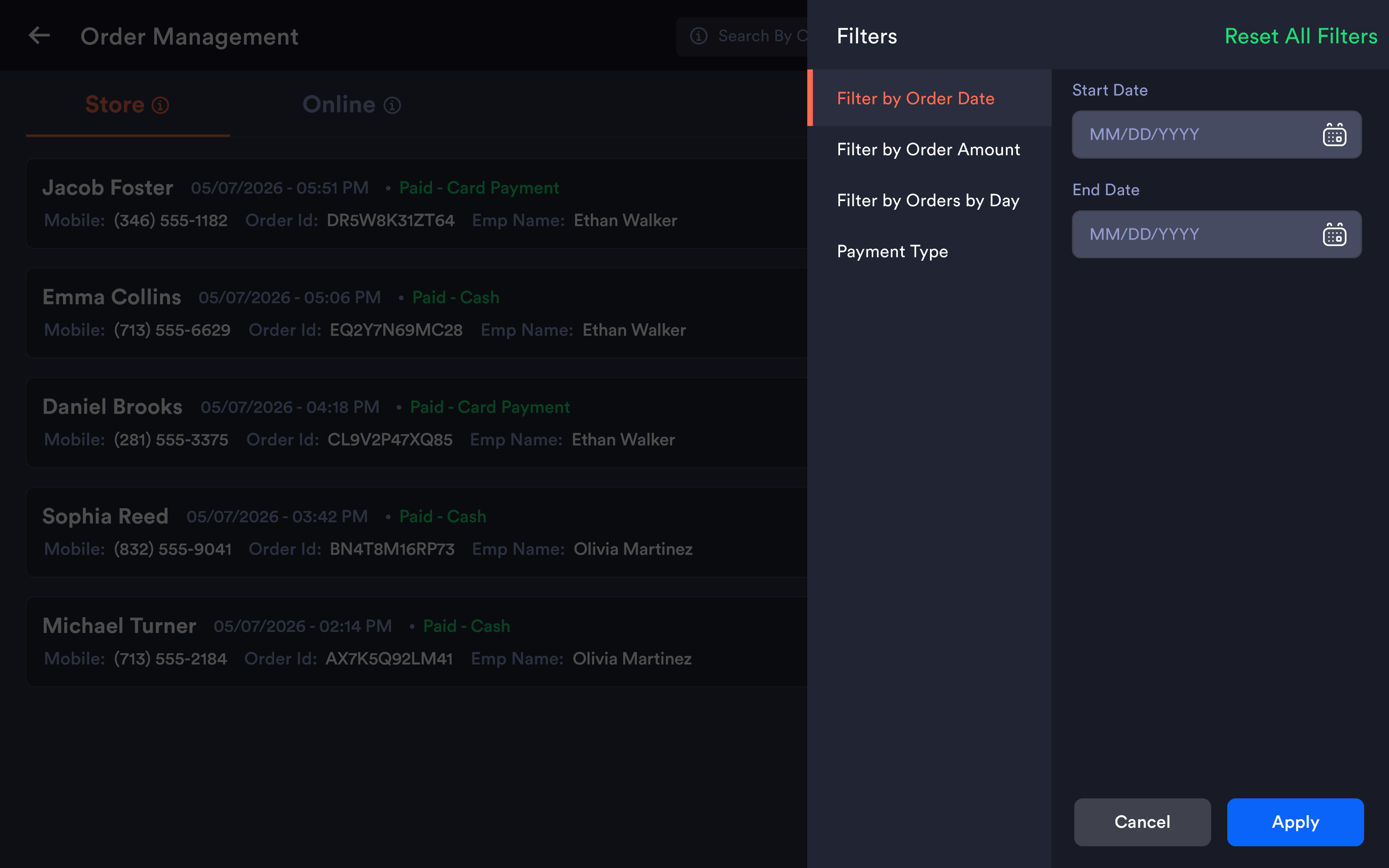
Order list — what each card shows
|
Field |
Description |
|---|---|
|
Customer Name |
Customer name or "Walk-In Customer" if no customer was attached |
|
Date & Time |
Date and time the order was placed |
|
Payment Status |
Green badge showing payment method (e.g. Paid - Cash, Paid - Card Payment, Paid - Split Payment) |
|
Refund Status |
Orange badge showing Partial Refunded or Refunded if applicable |
|
Mobile |
Customer phone number; masked format for walk-ins |
|
Order ID |
Unique order identifier |
|
Emp Name |
Employee who processed the order |
|
Total |
Order total amount |
Tap any order row to open the full Order Details screen.
Searching and filtering
Search bar
Search by customer name, order ID, or last 4 digits of credit card. Results filter instantly.
Order filters panel
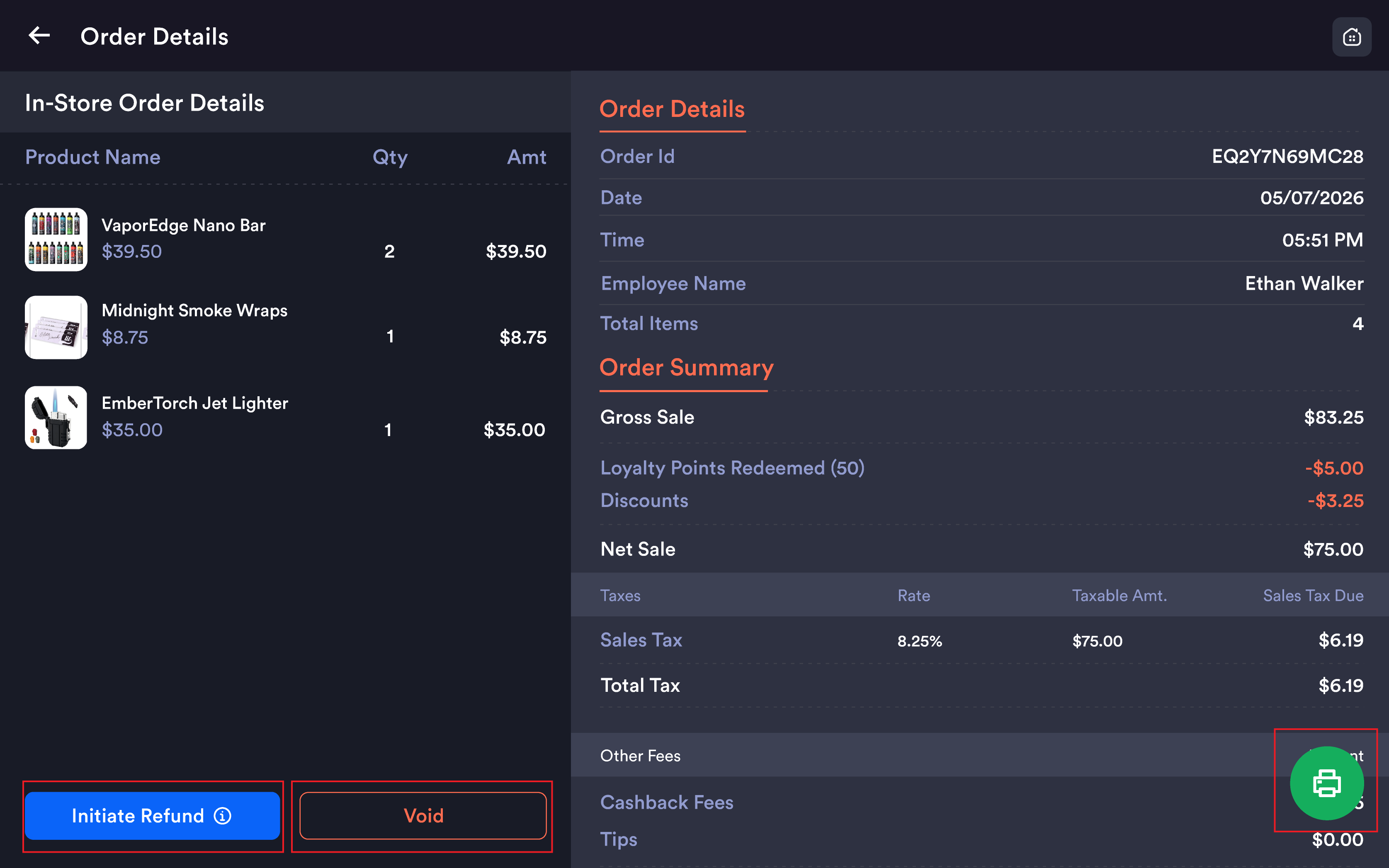
Tap the filter icon (top-right next to search):
|
Filter |
Description |
|---|---|
|
Filter by Order Date |
Start Date / End Date range |
|
Filter by Order Amount |
Filter orders by transaction value |
|
Filter by Orders by Day |
View orders grouped by specific day |
|
Payment type |
Filter by Cash, Card, Split, etc. |
Tap Apply Filter to apply, Cancel to close, or Reset All Filters to restore the full list.
Order Details screen
Tapping an order opens the Order Details screen, split into two panels.
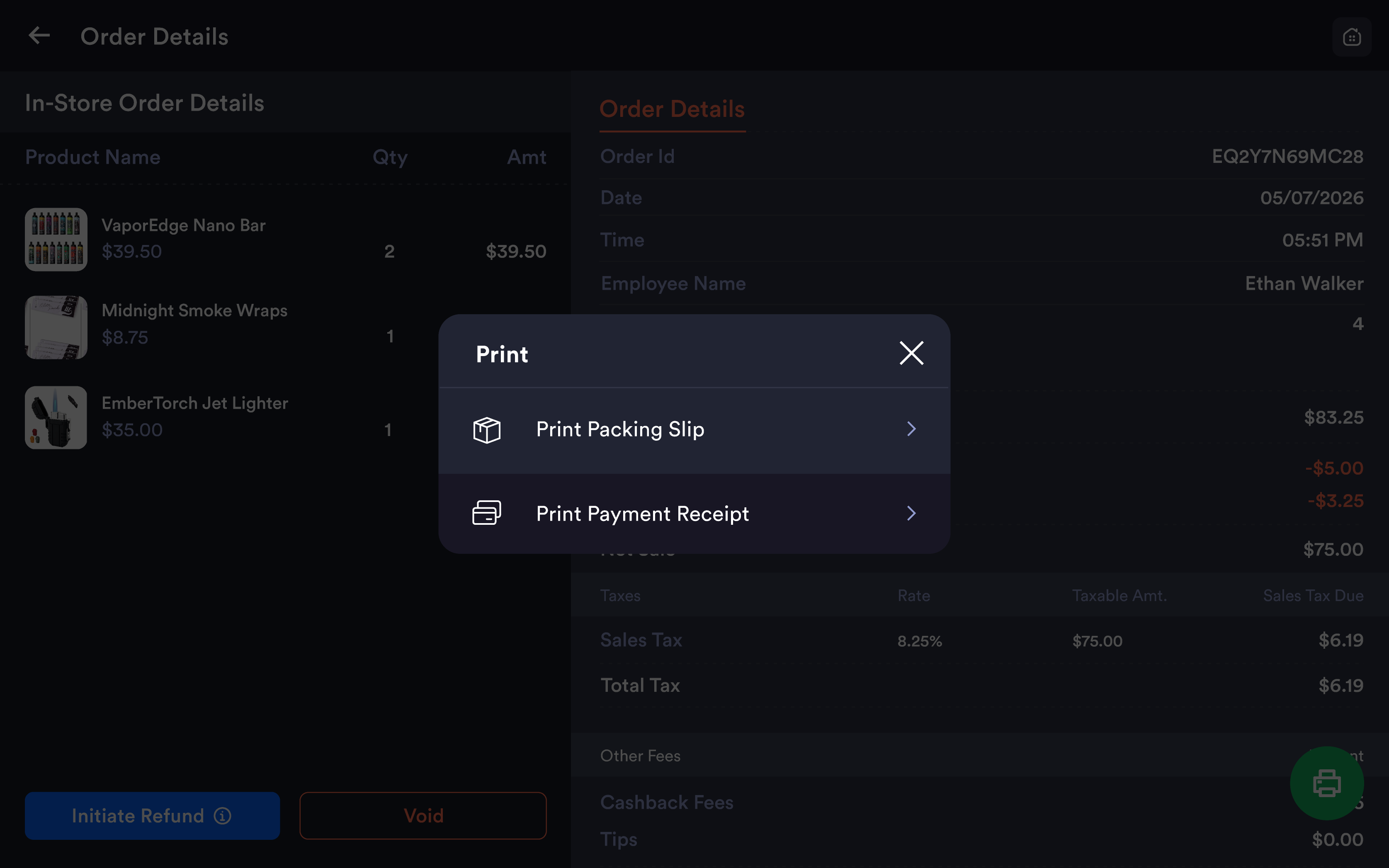
Left panel — In-Store Order Details
|
Column |
Description |
|---|---|
|
Product Name |
Product name with variant details (Flavor, Size, Style, Color) below |
|
Qty |
Quantity purchased (1x, 2x, etc.) |
|
Amt |
Line total for that product |
Product images are displayed alongside each item.
Right panel — Order Details and Order Summary
Order Details section shows Order Id, Date, Time, Employee Name, Total Items.
Order Summary section:
|
Field |
Description |
|---|---|
|
Gross Sale |
Total product value before deductions |
|
Loyalty Points Redeemed |
Points redeemed shown as a deduction |
|
Discounts |
Any discounts applied as a deduction |
|
Net Sales |
Gross Sale minus loyalty points and discounts |
|
Taxes |
Tax Name, Rate %, Taxable Amount, Sales Tax Due |
|
Total Tax |
Sum of all taxes applied |
|
Cash Back Fees |
Cash back fee if applicable |
|
Tips |
Tip amount if applicable |
|
Total |
Final amount paid by the customer |
Reprinting a receipt
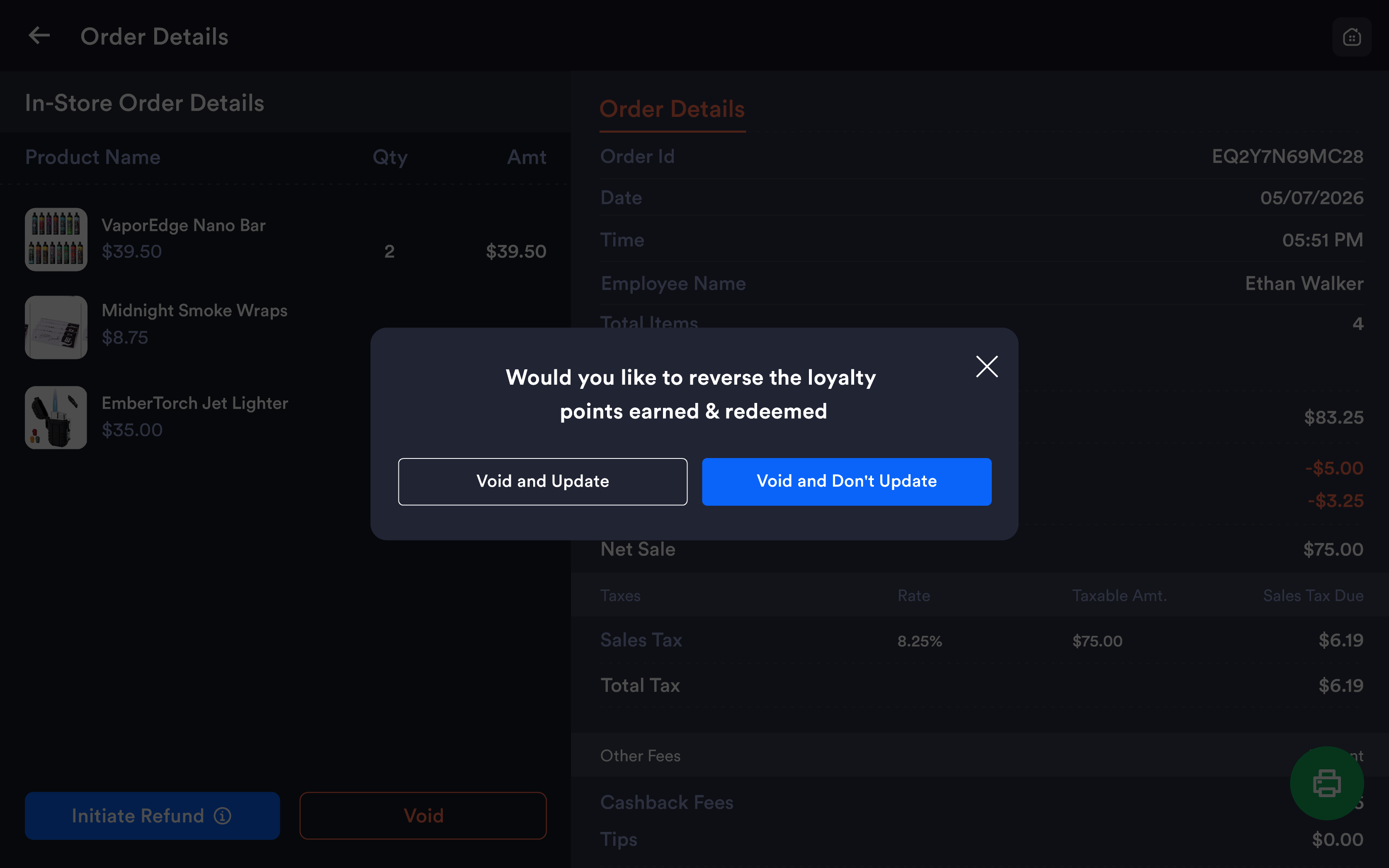
From the Order Details screen, tap the green print button (bottom-right). A Print modal appears:
|
Option |
Description |
|---|---|
|
Print Packing Slip |
Prints a packing slip for the order |
|
Print Payment Receipt |
Prints the full payment receipt |
Voiding an order
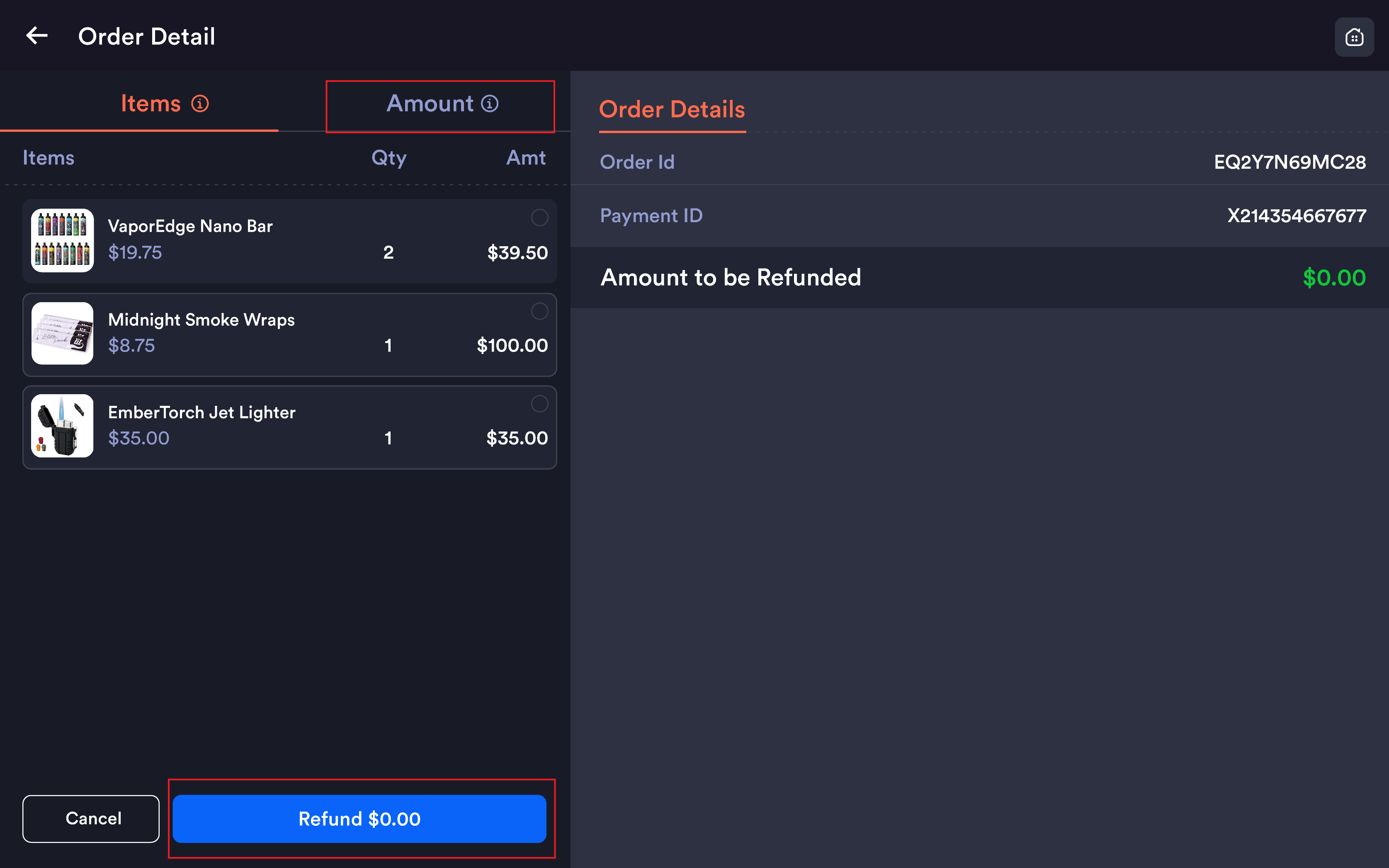
From the Order Details screen, tap the Void button. A confirmation modal appears:
"Would you like to reverse the loyalty points earned & redeemed?"
|
Option |
What it does |
|---|---|
|
Void and Update |
Voids the order and reverses all loyalty points earned and redeemed on that transaction |
|
Void and Don't Update |
Voids the order but keeps the loyalty points balance unchanged |
Voiding an order is permanent and cannot be undone. The order will no longer appear under Paid Orders.
Initiating a refund
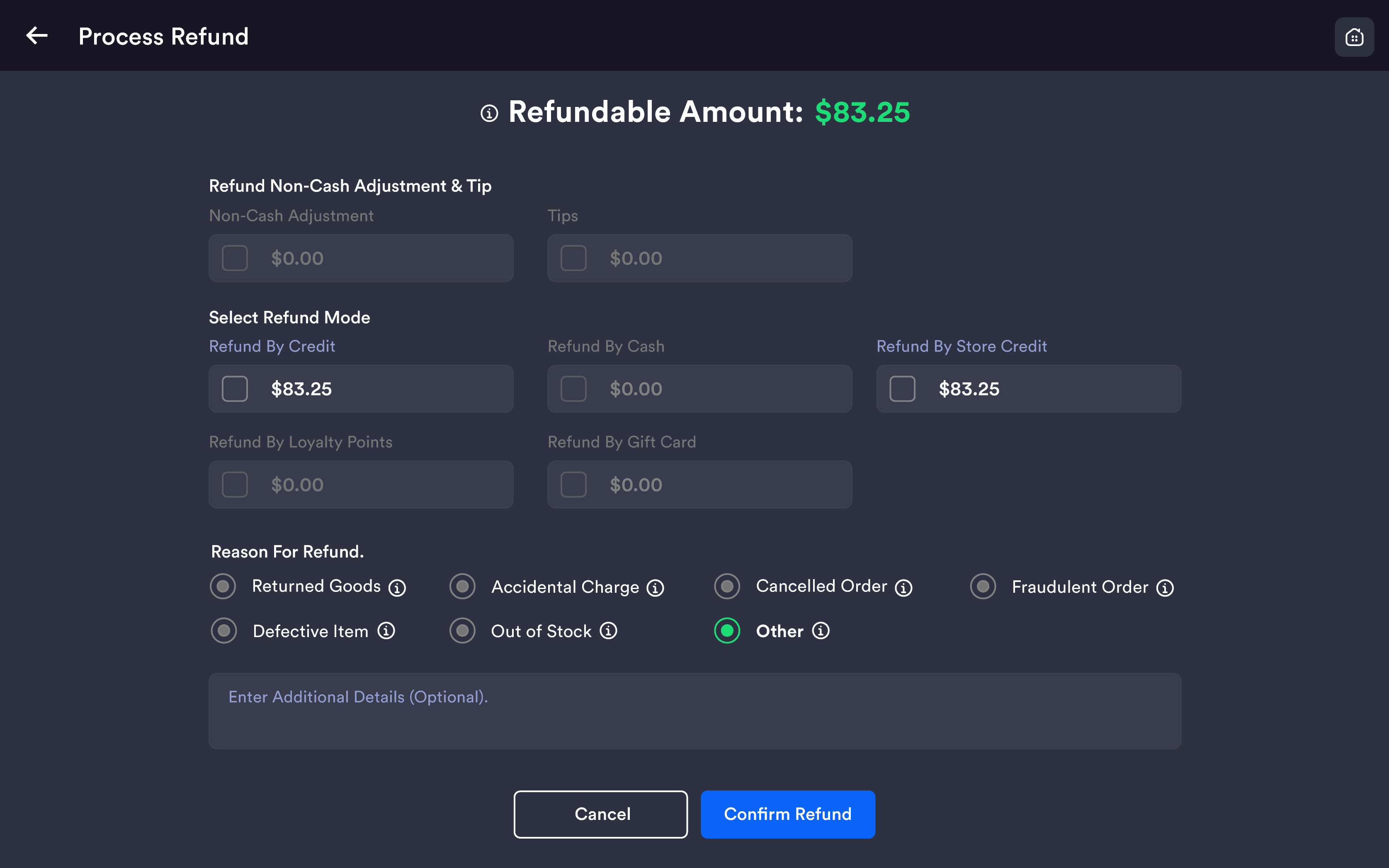
From the Order Details screen, tap the Initiate Refund button (blue, bottom-left). The Refund screen opens with two tabs.
Items tab
Allows selecting specific products to refund:
-
All items in the order are listed with image, name, variant, price, quantity, amount
-
Tap an item to select it — selected items show a green checkmark and green border
-
Unselected items remain grey
-
Refund Details panel on the right updates in real time: Order Id, Payment Mode, Amount to be Refunded
-
Tap Refund $XX.XX to proceed, or Cancel to go back
Amount tab
Allows entering a specific custom refund amount instead of selecting by item.
Refund processing screen
After selecting items or amount, the Refund processing screen appears with Refundable Amount displayed at the top in green.
Refund Non-Cash Adjustment and Tip?
|
Option |
Description |
|---|---|
|
Non Cash Adjustment |
Checkbox to include non-cash adjustment in the refund |
|
Tips |
Checkbox to include tip amount in the refund |
Select Refund Mode:
|
Mode |
Description |
|---|---|
|
Refund by Credit |
Refund back to the original card |
|
Refund by Cash |
Refund given as cash |
|
Refund by Store Credit |
Added as store credit to the customer's account |
|
Refund by Loyalty Point |
Converted back to loyalty points |
|
Refund by Gift Card |
Issued as a gift card value |
Reasons of Refund (required):
Returned Goods · Accidental Charge · Cancelled Order · Fraudulent Order · Defective Item · Out of Stock · Other
Tap Refund to complete, or Cancel to go back.
Important notes
Store and Online orders are completely separate. The Store tab only shows in-store register transactions. Online orders placed through the ordering portal appear under the Online tab.
Partial refunds remain visible under the Partial Refunded filter. The original order amount is shown — not the refunded amount.
Void vs Refund: Use Void to cancel an order entirely in the same session. Use Initiate Refund for post-transaction returns where payment has been fully processed and the customer is returning goods.
Loyalty points on void: Always choose Void and Update if the customer used or earned loyalty points on the order and those points should be reversed. Choose Void and Don't Update only when balances should remain unchanged.